> ## Documentation Index
> Fetch the complete documentation index at: https://notes.kodekloud.com/llms.txt
> Use this file to discover all available pages before exploring further.
# Introduction to Cargo
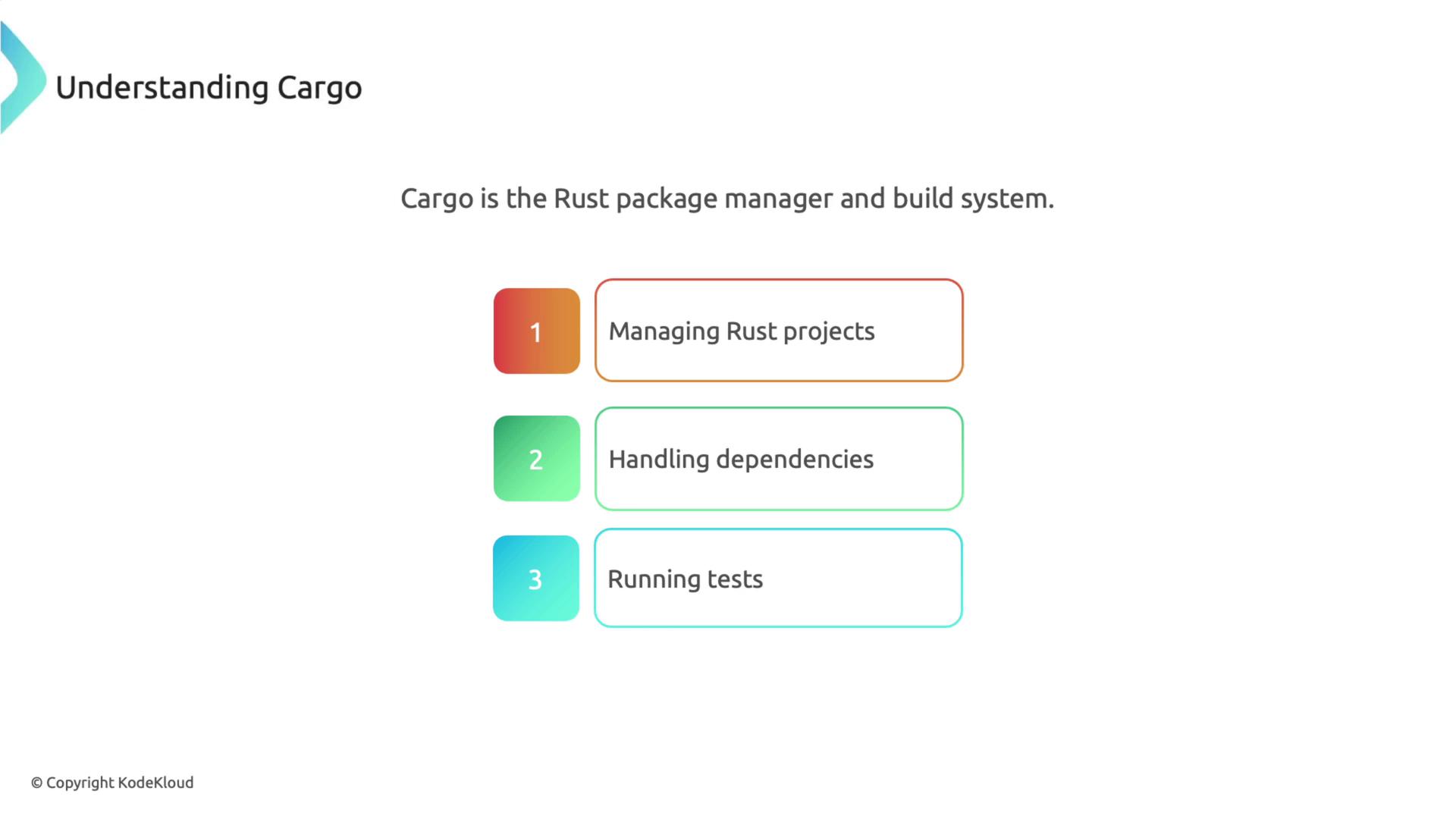
> Cargo is the essential tool for managing Rust projects, serving as both the package manager and build system.
Cargo is the essential tool for managing Rust projects, serving as both the package manager and build system. It streamlines many aspects of Rust development—including project management, dependency resolution, testing, and more—all in one handy command-line utility.
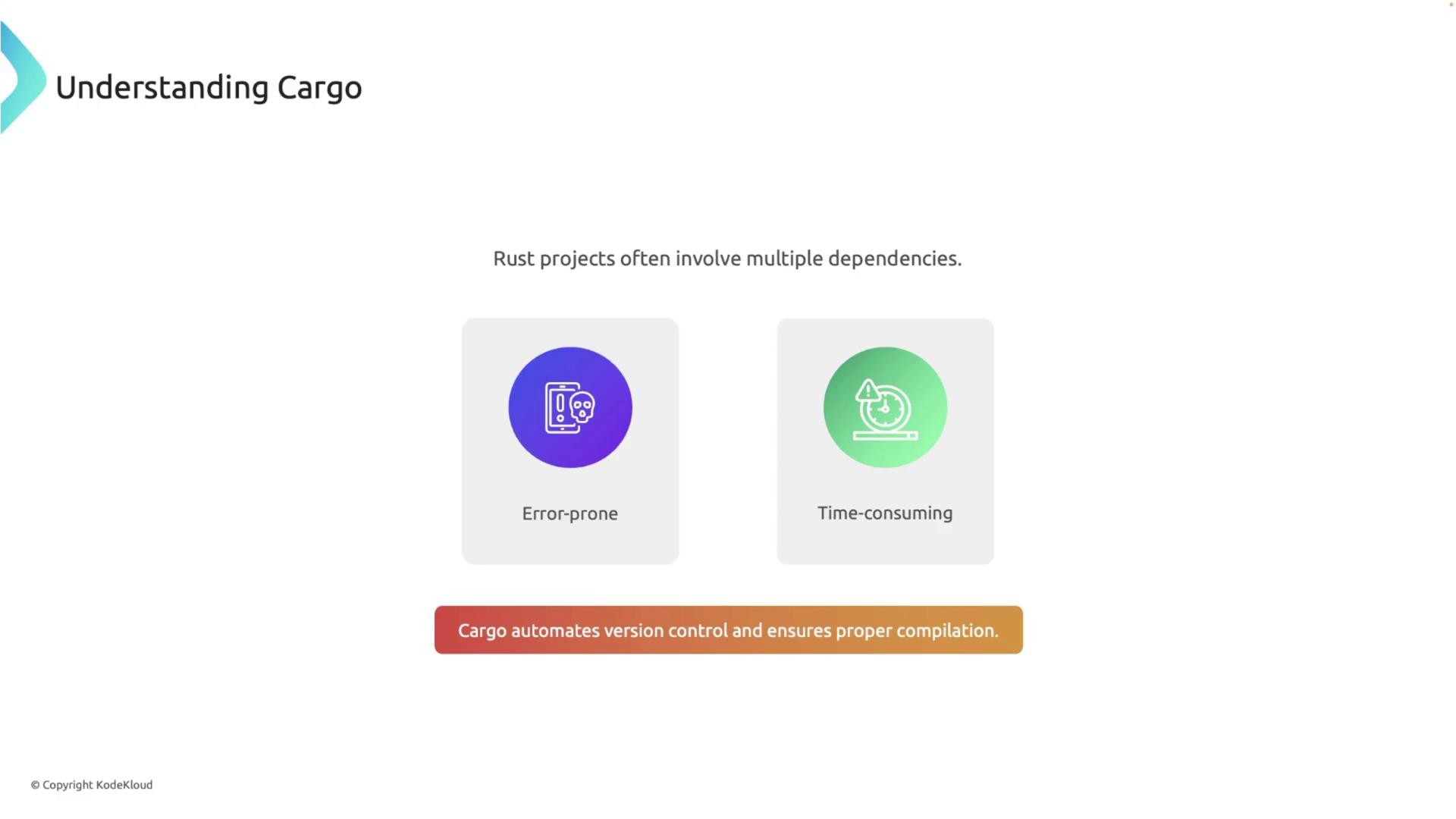
Rust applications can quickly become complex with numerous dependencies. Manually managing these can be error-prone and time-consuming. Cargo automates this process, ensuring all libraries are at the correct versions and that your project compiles successfully.
## Creating a New Rust Project
To begin leveraging Cargo, start by creating a new Rust project. Open your terminal, navigate to the directory of your choice, and execute the following commands:
```bash theme={null}
cd path/to/your/directory
cargo new hello_cargo
```
This creates a new `hello_cargo` directory with a minimal Rust project setup. Next, navigate into the project directory:
```bash theme={null}
cd hello_cargo
```
Inside, you'll find a `src` folder containing a `main.rs` file and a `Cargo.toml` file. The `Cargo.toml` file maintains your project's metadata and dependency list. Running a directory listing should display the following structure:
```bash theme={null}
ls
# Output:
ls src/
# Output:
# main.rs
```
## Examining the Cargo.toml File
Open the `Cargo.toml` file in your favorite text editor. This file, formatted in TOML, contains essential details about your project, including package metadata and dependency information. A typical configuration might look like this:
```toml theme={null}
[package]
name = "hello_cargo"
version = "0.1.0"
edition = "2021"
# See more keys and their definitions at:
[dependencies]
```
The `[package]` section specifies the project name, version, and Rust edition, while the `[dependencies]` section is reserved for external libraries required by your project.
## Reviewing the Generated "Hello, World!" Program
Upon project creation, Cargo generates a simple "Hello, world!" program. Open the `src/main.rs` file to see the generated code:
```rust theme={null}
fn main() {
println!("Hello, world!");
}
```
This minimal program serves as a starting point for further development.
## Building and Running the Project
Build your project by running the following command within the `hello_cargo` directory:
```bash theme={null}
cargo build
```
This command compiles your project, placing the executable in the `target/debug` folder. To run the executable directly, use:
```bash theme={null}
target/debug/hello_cargo
```
Alternatively, you can compile and execute in one step by running:
```bash theme={null}
cargo run
```
This approach makes development faster by automatically rebuilding your project when changes are detected.
## Checking Your Code for Errors
Cargo provides the `cargo check` command, which quickly verifies your code for errors without generating an executable. This is especially useful during development. For instance, if you accidentally omit a semicolon, running:
```bash theme={null}
cargo check
```
might produce an error message like:
```bash theme={null}
$ cargo check
Checking hello_cargo v0.1.0 (/Users/priyanka/Desktop/my_projects/hello_rust)
error: expected `;`, found `println`
--> src/main.rs:2:30
```
Using `cargo check` during development can significantly speed up debugging by catching issues without the overhead of a full build.
## Summary
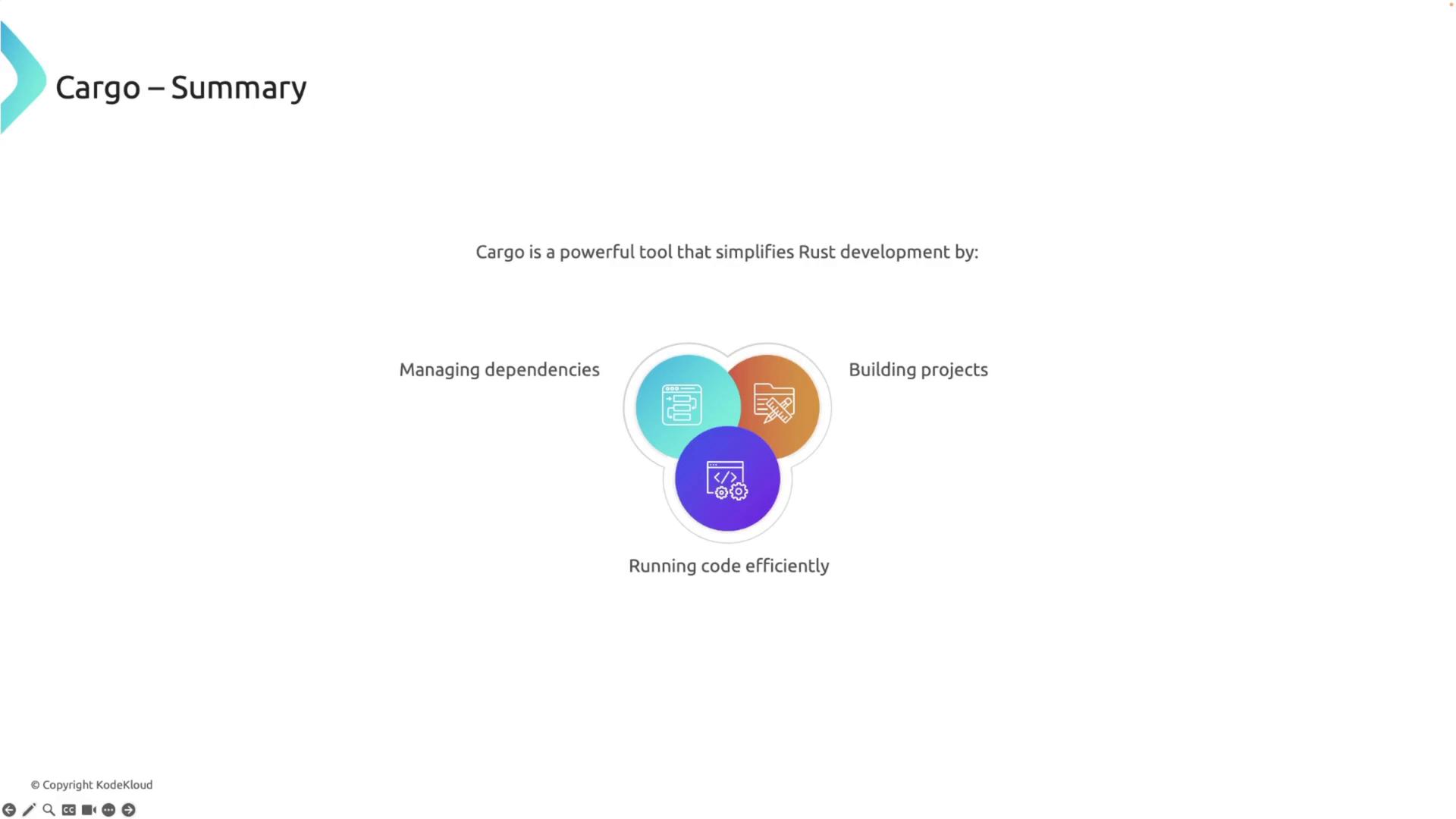
Cargo simplifies Rust development by managing dependencies, automating builds, and running code efficiently. While small projects might run fine using `rustc` directly, Cargo's advantages become more prominent as your codebase grows and becomes increasingly modular.
For larger projects with multiple files and external dependencies, Cargo helps streamline the build process and provides a clear framework for project management. Its comprehensive approach makes it an indispensable tool for every Rust developer.