> ## Documentation Index
> Fetch the complete documentation index at: https://notes.kodekloud.com/llms.txt
> Use this file to discover all available pages before exploring further.
# Separating Modules into Files
> Learn to organize your Rust project by moving modules into separate files for better maintainability, readability, and reduced naming conflicts.
In this lesson, you'll learn how to organize your Rust project by moving modules into separate files. As your project scales, consolidating all your code into a single file can become challenging. Splitting your code into logical modules increases maintainability, enhances code readability, and minimizes naming conflicts.
Modules in Rust encapsulate specific functionality, allowing you to manage and maintain your code efficiently.
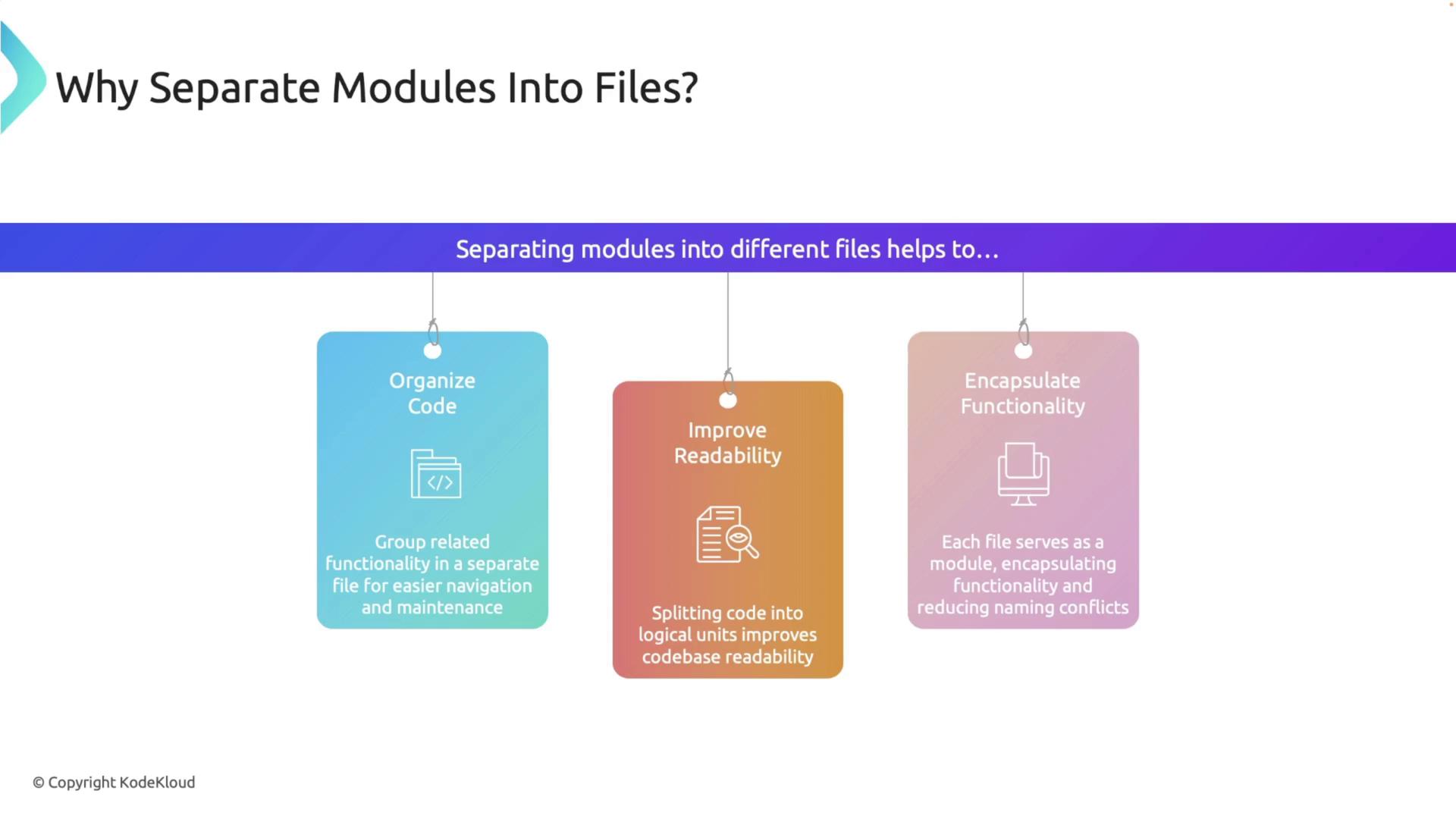
Below is an example that demonstrates how to refactor a module from a single file structure to a multi-file layout.
## Moving a Module into Its Own File
Assume you begin with a module defined in one file:
```rust theme={null}
mod math {
pub fn add(a: i32, b: i32) -> i32 {
a + b
}
pub fn subtract(a: i32, b: i32) -> i32 {
a - b
}
}
fn main() {
let sum = math::add(5, 3);
let difference = math::subtract(5, 3);
println!("Sum: {}, Difference: {}", sum, difference);
}
```
### Step 1: Create a New File
Create a new file named `math.rs` in the same source directory and move all the contents of the `math` module into this new file.
### Step 2: Declare the Module in Your Main File
Modify your main file (`main.rs`) to declare the module using the `mod` keyword:
```rust theme={null}
// src/main.rs
mod math;
fn main() {
let sum = math::add(5, 3);
let difference = math::subtract(5, 3);
println!("Sum: {}, Difference: {}", sum, difference);
}
```
This change instructs Rust to locate the `math.rs` file in the same directory as `main.rs`.
## Organizing Sub-Modules into Directories
For a cleaner organization, especially when working with multiple modules, you can create directories for each module.
### Step 1: Create a Module Directory
Within the source directory, create a folder named `math`. Then, move the `math.rs` file into this folder and rename it to `mod.rs`. Your project structure should now look like this:
```Rust theme={null}
src/
├── main.rs
└── math/
└── mod.rs
```
### Step 2: Adding a Sub-Module
Suppose you need to add functionality handled by a new sub-module called `operations`. Create a file named `operations.rs` inside the `math` directory with the following content:
```rust theme={null}
// src/math/operations.rs
pub fn multiply(a: i32, b: i32) -> i32 {
a * b
}
pub fn divide(a: i32, b: i32) -> Option {
if b != 0 {
Some(a / b)
} else {
None
}
}
```
Then, update the `mod.rs` file within the `math` directory to include the sub-module:
```rust theme={null}
// src/math/mod.rs
pub mod operations;
pub fn add(a: i32, b: i32) -> i32 {
a + b
}
pub fn subtract(a: i32, b: i32) -> i32 {
a - b
}
```
### Step 3: Utilizing the Sub-Module in Your Main File
Update your main file to access functions from both the main module and the sub-module:
```rust theme={null}
// src/main.rs
mod math;
fn main() {
let sum = math::add(5, 3);
let difference = math::subtract(5, 3);
let product = math::operations::multiply(4, 2);
let quotient = math::operations::divide(8, 2).unwrap();
println!("Sum: {}, Difference: {}, Product: {}, Quotient: {}",
sum, difference, product, quotient);
}
```
This setup neatly organizes the code by grouping related functionality.
## Handling Deeply Nested Modules
For projects that involve deeper module nesting, the same directory organization principles apply. Each module or sub-module should be represented either as a directory (with a `mod.rs` file) or as an individual `.rs` file.
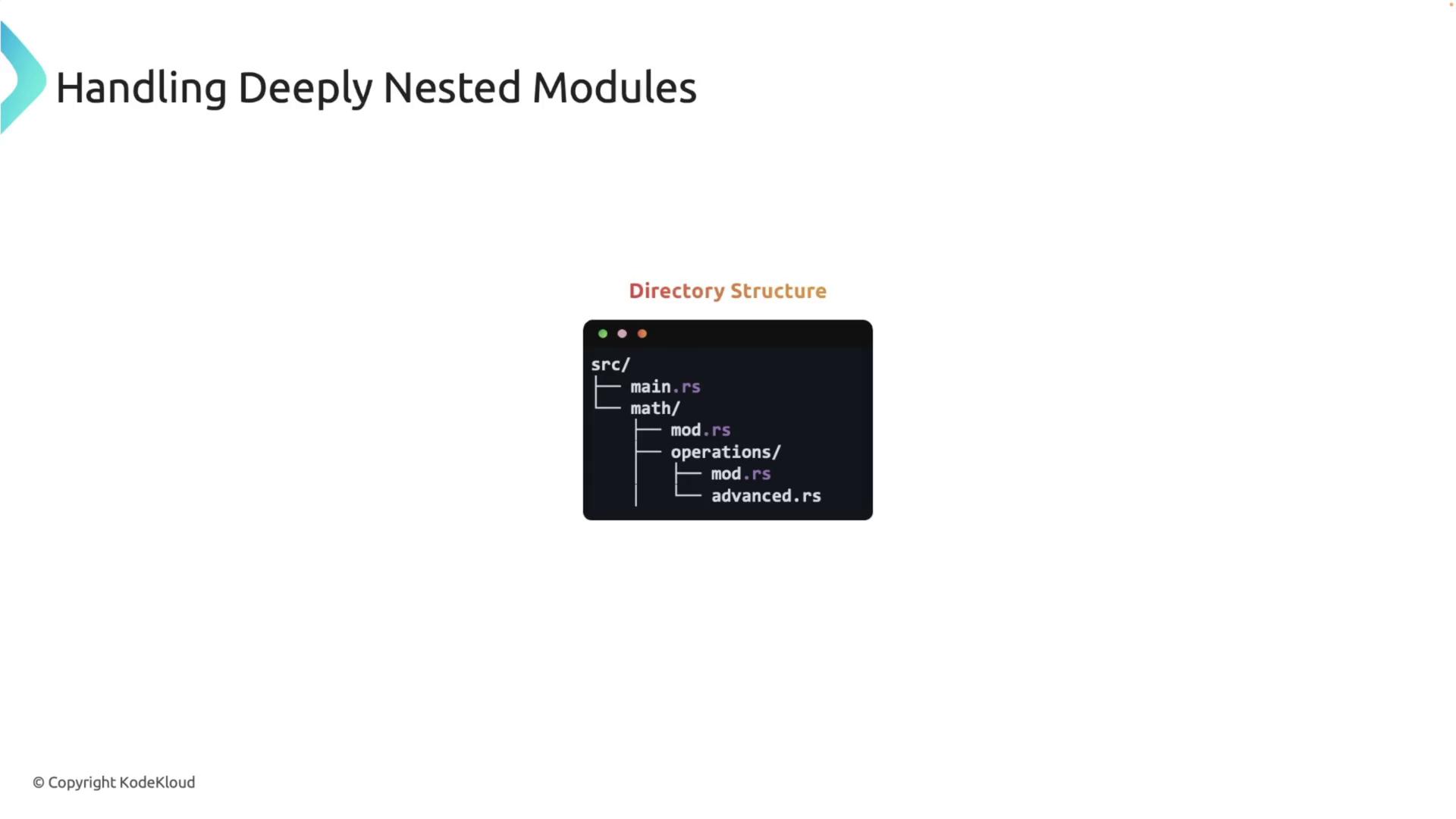
Consider a scenario where your `math` module with an `operations` sub-module needs an additional `advanced` sub-module.
### Advanced Operations Example
1. Create a file named `advanced.rs` inside the `math/operations` directory with the following code:
```rust theme={null}
// src/math/operations/advanced.rs
pub fn square(a: i32) -> i32 {
a * a
}
pub fn square_root(a: i32) -> f64 {
(a as f64).sqrt()
}
```
2. Update the `mod.rs` file in the `operations` directory to include the newly added `advanced` sub-module, while retaining the existing functions:
```rust theme={null}
// src/math/operations/mod.rs
pub mod advanced;
pub fn multiply(a: i32, b: i32) -> i32 {
a * b
}
pub fn divide(a: i32, b: i32) -> Option {
if b != 0 {
Some(a / b)
} else {
None
}
}
```
3. The `mod.rs` file in the `math` directory remains unchanged:
```rust theme={null}
// src/math/mod.rs
pub mod operations;
pub fn add(a: i32, b: i32) -> i32 {
a + b
}
pub fn subtract(a: i32, b: i32) -> i32 {
a - b
}
```
4. Finally, update your main file to access the functions from both direct and nested modules:
```rust theme={null}
// src/main.rs
mod math;
fn main() {
let sum = math::add(5, 3);
let difference = math::subtract(5, 3);
let product = math::operations::multiply(4, 2);
let square = math::operations::advanced::square(3);
println!("Sum: {}, Difference: {}, Product: {}, Square: {}",
sum, difference, product, square);
}
```
This structure allows for flexible management of deeply nested modules, ensuring your project remains organized and maintainable.
Remember to include descriptive titles and headings in your code documentation to make it more search engine friendly.
## Best Practices for Module Organization
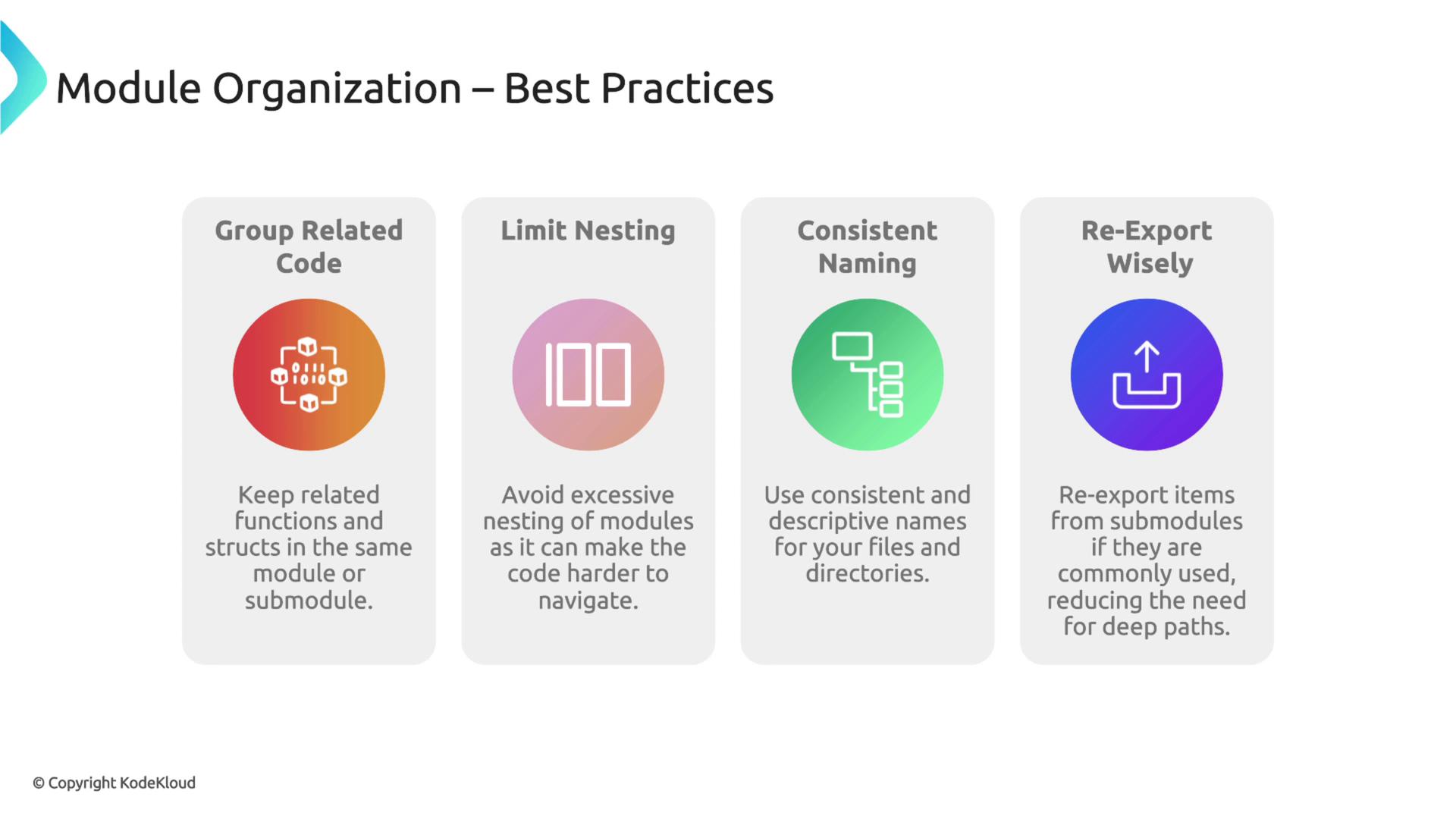
As your Rust project expands, consider these best practices for maintaining a clear module structure:
| Best Practice | Details |
| ----------------------- | ------------------------------------------------------------------------------------ |
| Group related code | Organize functions, structs, and items with similar purposes together in one module. |
| Limit nesting | Avoid overly deep module structures to maintain code clarity. |
| Consistent naming | Name files and directories clearly and descriptively. |
| Re-export strategically | Re-export frequently used items in higher-level modules for easier access. |
Following these guidelines will enhance your project's structure and make it easier to navigate and maintain.
By applying these techniques, you will improve your project's maintainability and scalability, making it easier to collaborate and expand over time.