> ## Documentation Index
> Fetch the complete documentation index at: https://notes.kodekloud.com/llms.txt
> Use this file to discover all available pages before exploring further.
# Conditional Logic
> Learn to implement conditional logic in shell scripts using practical examples to control script flow based on various conditions.
In this article, you'll learn how to implement conditional logic in shell scripts. Using a practical example, we simulate a scenario where a script checks a rocket’s status. The script handles three possible responses from a command:
* "launching" when the launch is in progress
* "success" when the launch completes successfully
* "failed" when the rocket crashes
If the rocket launch fails, the script automatically runs the debugging command. This tutorial will help you understand how to structure your conditional statements to control the script's flow based on various conditions.
## How Conditional Statements Work
Shell scripting utilizes the `if` statement similarly to natural language. The condition is placed inside square brackets, and if it evaluates to true, the subsequent commands are executed. The structure includes the `if` keyword, followed by a condition, the `then` statement, and finally the closing `fi` to mark the end of the conditional block.
Before entering the conditional block, the script captures the output of the rocket status command in the variable `rocket_status`. Based on its value, the script decides whether to trigger additional commands, such as running a debug command.
Ensure there is at least one space between the square brackets `[ ]` and the condition when using conditional statements.
## Example: Using if, elif, and else Blocks
Below is an example demonstrating how to implement conditional logic in a shell script:
```bash theme={null}
# Command examples
$ rocket-status lunar-mission
launching success failed
$ rocket-debug lunar-mission
overheating
# Script snippet
mission_name=$1
rocket_status=$(rocket-status $mission_name)
if [ "$rocket_status" = "failed" ]; then
rocket-debug $mission_name
elif [ "$rocket_status" = "success" ]; then
echo "This is successful"
else
echo "The state is not failed or success"
fi
```
In this snippet, the status is checked against predefined conditions. If `rocket_status` equals "failed," it triggers the debugging command. For a "success" status, it displays a confirmation message. Any other response results in a default message.
## String Comparisons and Conditional Operators
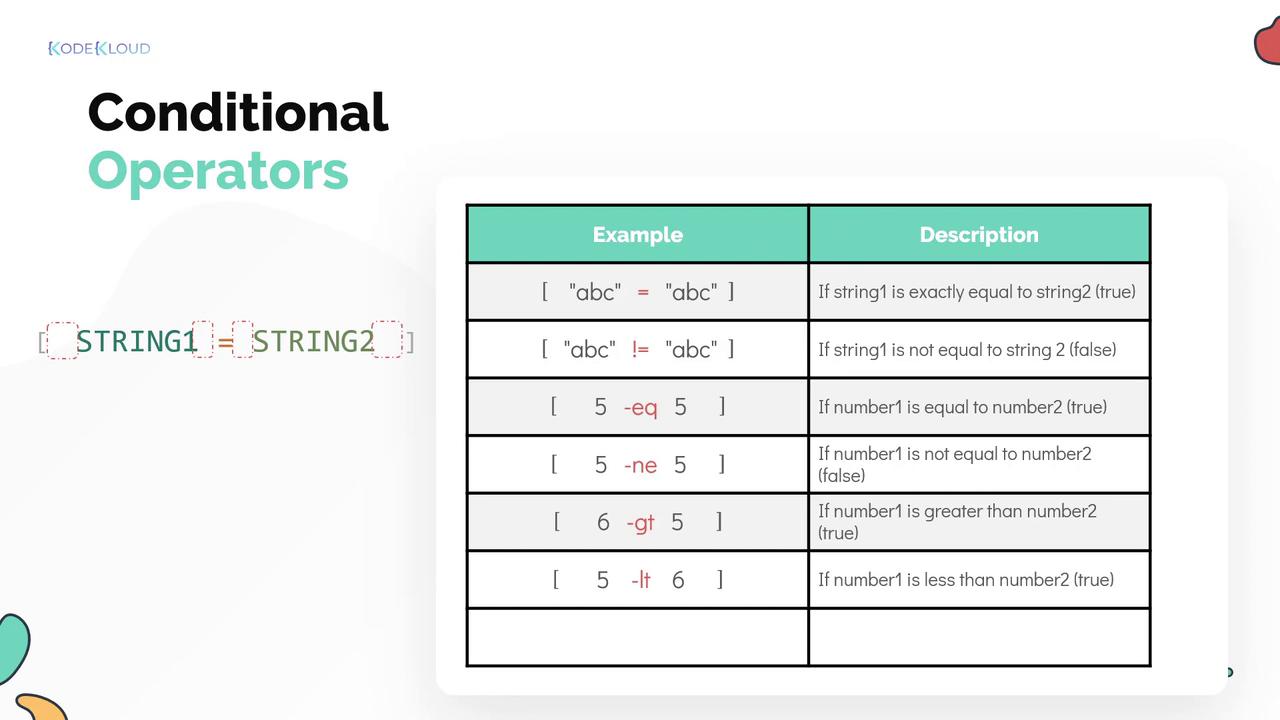
In shell scripts, string comparison uses the equals operator (`=`) for equality and the not-equals operator (`!=`) for inequality. Make sure the condition is placed inside square brackets with proper spacing.
## Numeric Comparisons
For numeric values, different operators are employed:
* Use `-eq` to check if two numbers are equal.
* Use `-ne` to verify that numbers are not equal.
* Use `-gt` for "greater than."
* Use `-lt` for "less than."
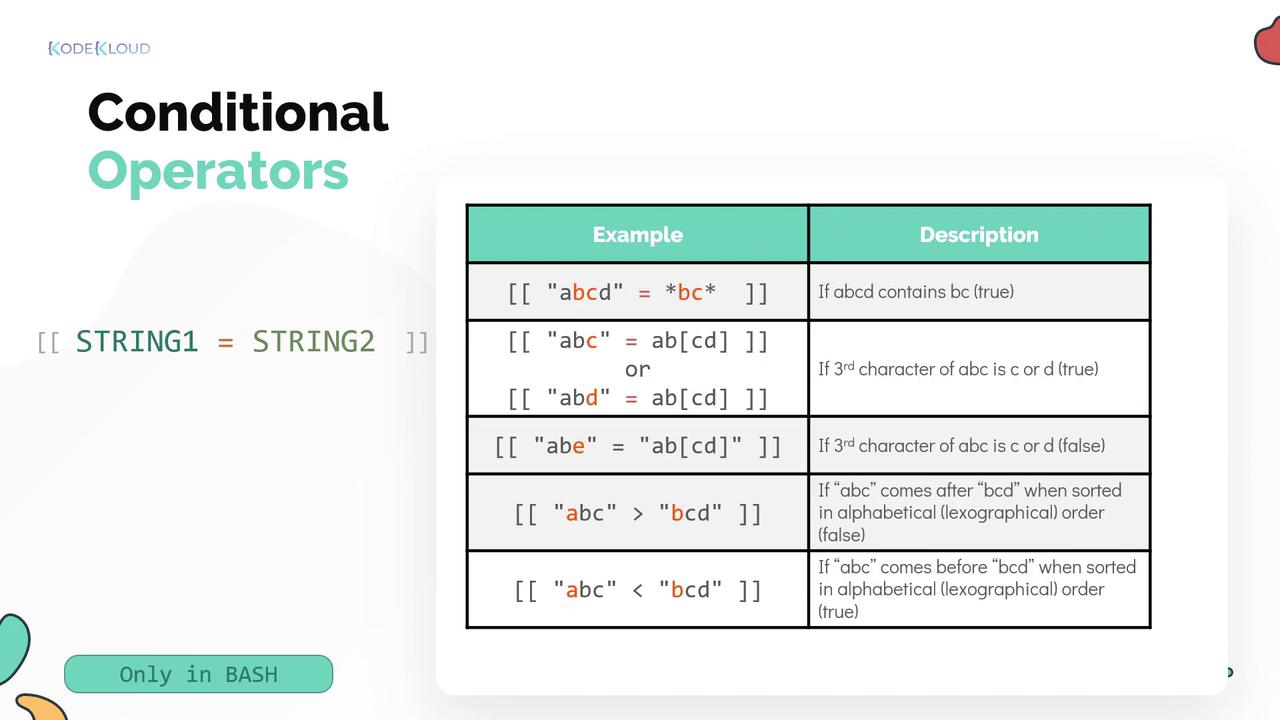
An extended version using double square brackets `[[ ]]` provides additional functionality such as pattern matching, which is a Bash extension and might not be available in all shells.
### Pattern Matching Example
To check if the string "ABC" contains the substring "BC", you can use pattern matching with asterisks (`*`) outside double quotes:
```bash theme={null}
[[ "ABC" == *BC* ]]
```
## Sorting and Logical Operators
Alphabetical comparisons use sort order operators. For example, "ABC" comes before "BCD" when sorted alphabetically, and operators reflect that order during comparisons.
You can combine multiple conditions using logical operators:
* The AND operator (`&&`) ensures both conditions are true.
```bash theme={null}
[ COND1 ] && [ COND2 ]
```
* The OR operator (`||`) checks if at least one condition is true.
```bash theme={null}
[ COND1 ] || [ COND2 ]
```
When using double square brackets, you can include the entire condition with logical operators in one pair:
```bash theme={null}
[[ A -gt 4 && A -lt 10 ]]
[[ A -gt 4 || A -lt 10 ]]
```
## File-Level Conditional Operators
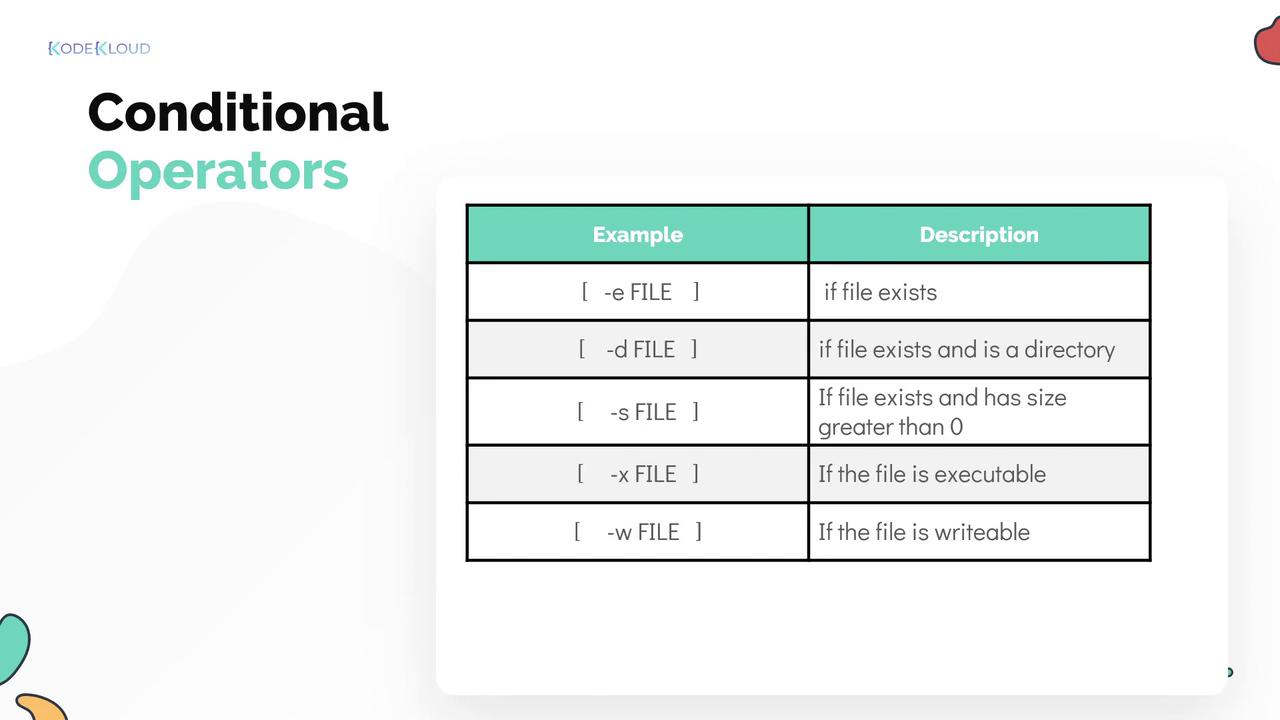
Shell scripts also allow file-level checks. Some common file operators are:
| Operator | Purpose | Example |
| -------- | ------------------------------ | --------------------------- |
| -e | Check if a file exists | `[ -e filename ]` |
| -d | Check if a path is a directory | `[ -d /path/to/directory ]` |
| -s | Check if a file is not empty | `[ -s filename ]` |
| -x | Check if a file is executable | `[ -x filename ]` |
| -w | Check if a file is writable | `[ -w filename ]` |
Be cautious with file operators and always verify that the file or directory you are checking has the correct permissions to avoid unexpected behavior.
## Conclusion
By mastering conditional logic in shell scripts, you can effectively control the execution flow of your scripts based on dynamic conditions. Practice using these statements to further deepen your understanding of shell scripting and improve automation in your projects.
For additional learning, consider exploring resources like [Shell Scripting Fundamentals](https://www.shellscript.sh) and [Advanced Bash-Scripting Guide](https://tldp.org/LDP/abs/html/).