> ## Documentation Index
> Fetch the complete documentation index at: https://notes.kodekloud.com/llms.txt
> Use this file to discover all available pages before exploring further.
# Shebang
> This guide explores the shebangs role in shell scripts and differences between various shells affecting script execution.
In this guide, we explore the critical role of the shebang in shell scripts. We’ll also review Linux shell basics and highlight the differences between various shells like the Bourne shell, the Bourne Again shell (bash), Debian Almquist shell (dash), Korn shell, Z shell, and C shell. Although these shells share similarities, there are key differences that can affect your script’s execution.
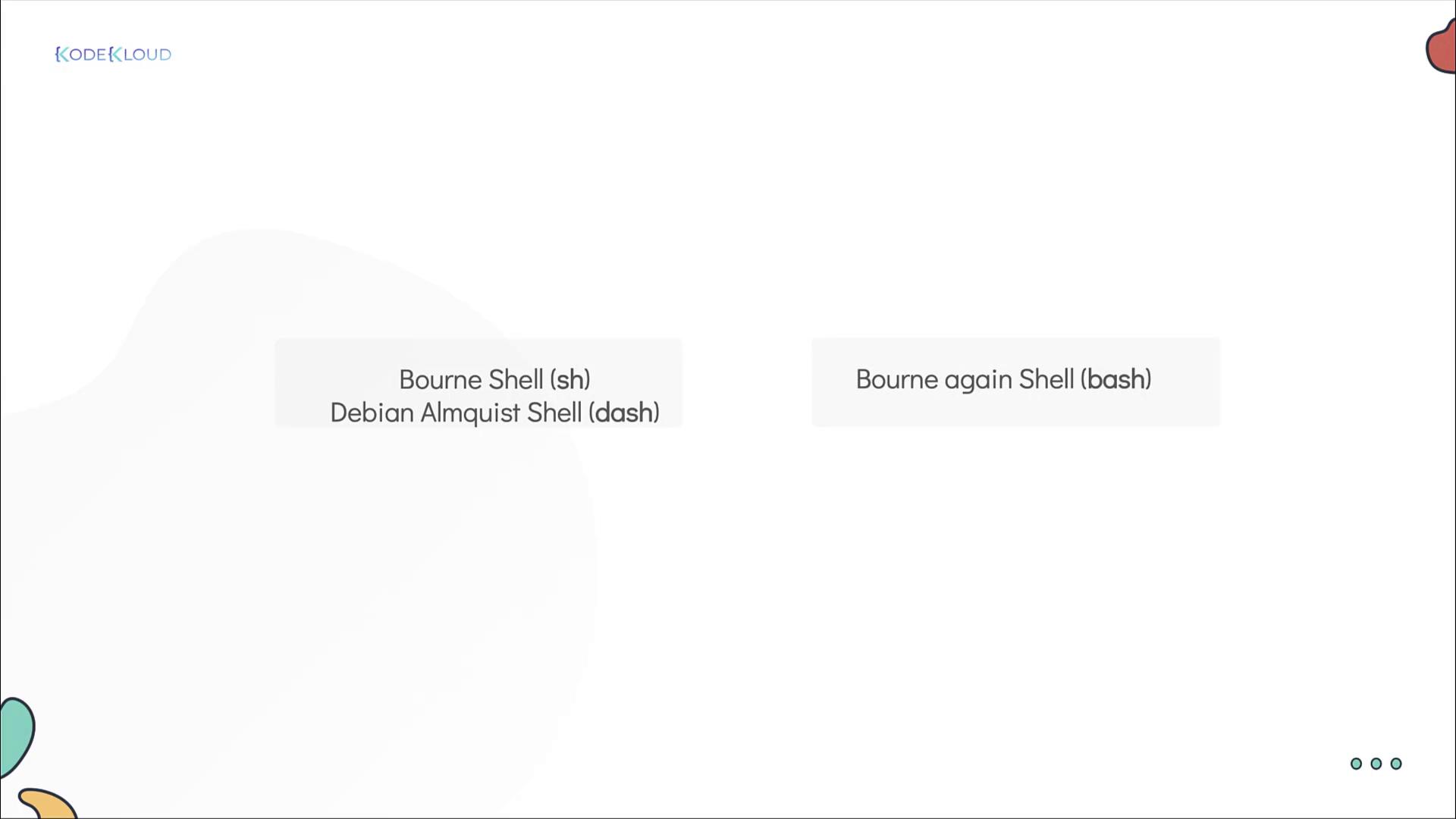
For instance, consider the difference between the Bourne shell (ash, dash, or the Debian shell) and the Bourne Again shell (bash). The image below outlines a few common shell types:
Previously, we discussed a for loop in a shell script that generates a sequence from 0 to 10 using a bash-specific expression. The following script works as expected in bash:
```bash theme={null}
for mission in {0..10}
do
create-and-launch-rocket $mission
done
```
When executed in bash, you will see the output:
```bash theme={null}
bash$ launch-rockets.sh
Launching mission 0
Launching mission 1
Launching mission 2
Launching mission 3
Launching mission 4
Launching mission 5
Launching mission 6
Launching mission 7
Launching mission 8
Launching mission 9
Launching mission 10
```
However, if you run this script using the Bourne shell (sh) or dash, the sequence expression `{0..10}` is not expanded, resulting in output like:
```bash theme={null}
sh$ launch-rockets.sh
Launching mission {0..10}
```
Even though many modern systems link the Bourne shell to bash, explicitly testing in shells like dash reveals these differences.
To ensure reliable behavior, always run scripts that depend on bash-specific features with the bash interpreter.
The solution is to include a shebang at the beginning of your script. The shebang is a special line that instructs the system which interpreter to use, as demonstrated here:
```bash theme={null}
#!/bin/bash
for mission in {0..10}
do
create-and-launch-rocket $mission
done
```
With the shebang (`#!/bin/bash`) at the top, executing the script directly guarantees that bash is used regardless of the default shell environment. Consider the following examples:
* **Running the script directly in a non-bash shell:**
```bash theme={null}
sh$ launch-rockets.sh
Launching mission {0..10}
```
* **Running the script explicitly with bash:**
```bash theme={null}
sh$ bash launch-rockets.sh
Launching mission 0
Launching mission 1
Launching mission 2
Launching mission 3
Launching mission 4
Launching mission 5
Launching mission 6
Launching mission 7
Launching mission 8
Launching mission 9
Launching mission 10
```
The shebang assures that your shell script always runs under the intended interpreter, preventing issues associated with incompatible shell syntax.
If your script relies on bash-specific features, **always** start with the appropriate shebang (`#!/bin/bash`) to avoid unexpected behavior when run in different shell environments.

That concludes our deep dive into the shebang in shell scripts. Happy scripting, and see you in the next article!