> ## Documentation Index
> Fetch the complete documentation index at: https://notes.kodekloud.com/llms.txt
> Use this file to discover all available pages before exploring further.
# Telepresence with Docker
> How to run the Telepresence daemon and intercepts inside Docker to avoid host admin privileges, enabling containerized local services and on-the-fly image builds.
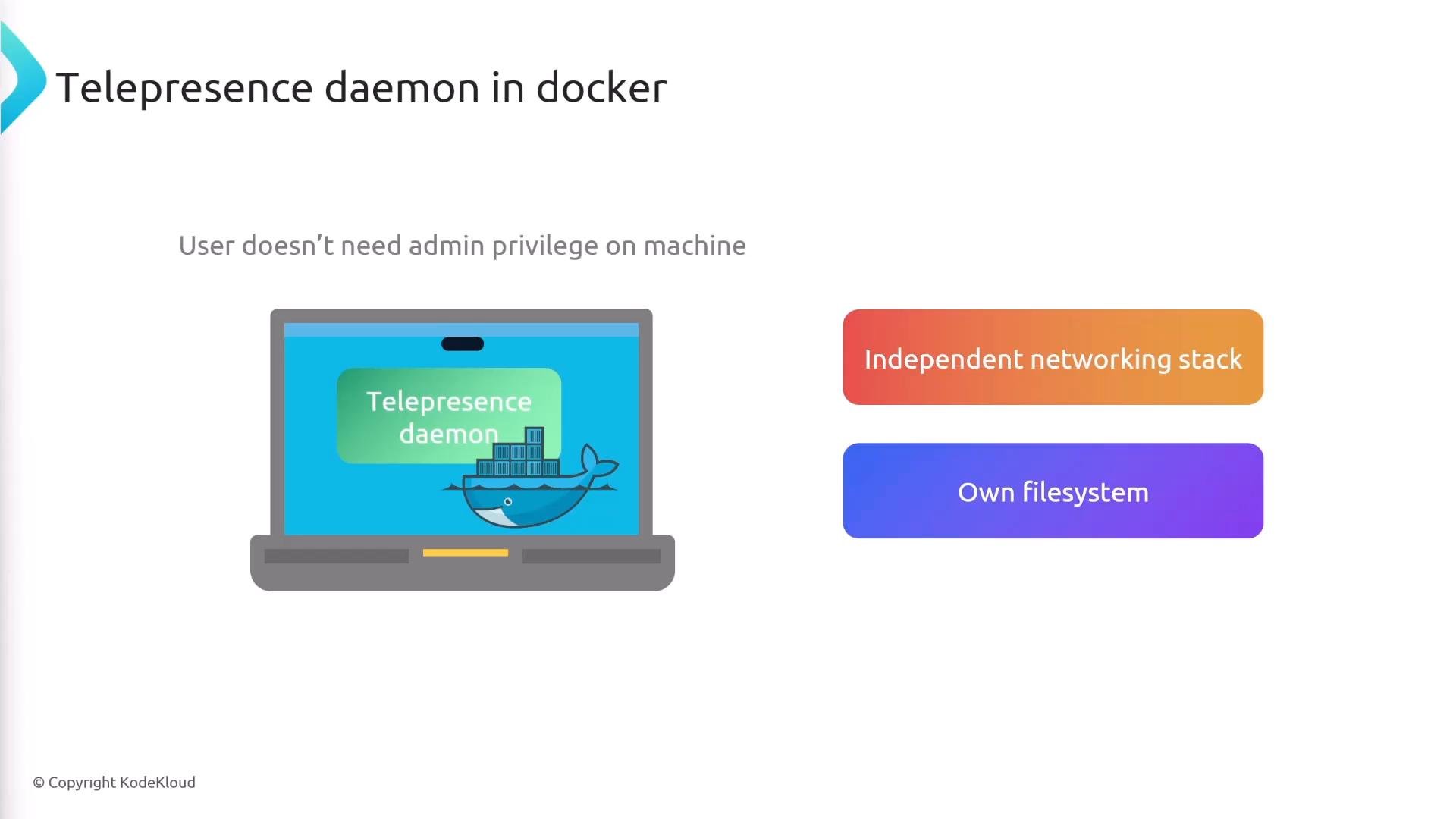
This guide shows how to run the Telepresence daemon inside a Docker container so you can use Telepresence without requiring host-level admin privileges. Running the daemon in Docker gives it an independent networking stack and filesystem, letting it avoid making privileged changes to the host. You still need Docker installed and permission to talk to the Docker daemon (for example, membership in the `docker` group or organization-provided access to the Docker socket).
Running the Telepresence daemon in a container allows you to avoid requiring admin privileges on your host, because the container provides an isolated network stack and filesystem.
 ## Why run the daemon in Docker?
* Avoids host networking and DNS modifications that normally require root.
* Uses an isolated filesystem inside the container instead of mounting host paths with elevated privileges.
* Enables development workflows on managed or corporate machines where you lack admin rights.
* Requires only Docker (and permission to use it) on your laptop.
You still need Docker installed and permission to access the Docker daemon. If you cannot run Docker locally, this approach will not work.
## Start the Telepresence daemon in Docker
To start Telepresence with the daemon running inside a Docker container, add the `--docker` flag to `telepresence connect`:
```bash theme={null}
telepresence connect --docker
```
This starts the Telepresence daemon in a Docker container so it does not make privileged changes to your host networking or filesystem.
## Intercepts with the local side running in Docker
When the daemon runs inside a container, Telepresence can also run the local side of an intercept inside a Docker container. This is useful when you want your replacement service to run in an isolated container (for parity with production, or to avoid requiring host mounts or special permissions).
To run the local service in a container for an intercept, use `--docker-run` and specify the image:
```bash theme={null}
telepresence intercept products-depl --port 8000 --docker-run my-image
```
This establishes an intercept for the `products-depl` deployment and runs the local side inside the `my-image` container.
## Build an image on-the-fly for the intercept
If you don't have a pre-built image, Telepresence can build one as part of the intercept. Use `--docker-build` to provide the build context and `--docker-build-opt` to pass build options (for example, to tag the image). Include the `--image` flag so the intercept uses the image Telepresence just built.
Example:
```bash theme={null}
telepresence intercept products-depl --port 8000 \
--docker-build products/src \
--docker-build-opt tag=new-image-name \
--image
```
Behavior summary:
* `--docker-build products/src` builds a Docker image from the `products/src` directory.
* `--docker-build-opt tag=new-image-name` passes build options so the built image is tagged as `new-image-name`.
* `--image` tells Telepresence to use the image it built for the local side of the intercept.
After this command Telepresence builds the image, tags it, and runs that image as the local process for the intercept—so you can debug or run your service in a container without host-level admin privileges.
## Quick reference: common flags
| Flag | Purpose | Example |
| - | - | - |
| `--docker` | Run the Telepresence daemon inside a Docker container | `telepresence connect --docker` |
| `--docker-run` | Run the local side of an intercept inside a container image | `telepresence intercept products-depl --port 8000 --docker-run my-image` |
| `--docker-build` | Build an image from a specified build context as part of an intercept | `--docker-build products/src` |
| `--docker-build-opt` | Pass options to the Docker build (e.g. tag) | `--docker-build-opt tag=new-image-name` |
| `--image` | Use the image Telepresence just built for the intercept | combine with `--docker-build` and `--docker-build-opt` |
## Tips and troubleshooting
* If builds fail, verify the Docker daemon is reachable and that your user has permissions to run Docker commands.
* For reproducible local environments, prefer building a local image (`--docker-build`) that mirrors your production image.
* If you need to forward multiple ports, specify multiple `--port` flags or a port range depending on your Telepresence version.
## Links and references
* Telepresence documentation: [https://www.telepresence.io/docs/](https://www.telepresence.io/docs/)
* Docker documentation: [https://docs.docker.com/](https://docs.docker.com/)
This documentation is built and hosted on [Mintlify](https://mintlify.com), a developer documentation platform.
## Why run the daemon in Docker?
* Avoids host networking and DNS modifications that normally require root.
* Uses an isolated filesystem inside the container instead of mounting host paths with elevated privileges.
* Enables development workflows on managed or corporate machines where you lack admin rights.
* Requires only Docker (and permission to use it) on your laptop.
You still need Docker installed and permission to access the Docker daemon. If you cannot run Docker locally, this approach will not work.
## Start the Telepresence daemon in Docker
To start Telepresence with the daemon running inside a Docker container, add the `--docker` flag to `telepresence connect`:
```bash theme={null}
telepresence connect --docker
```
This starts the Telepresence daemon in a Docker container so it does not make privileged changes to your host networking or filesystem.
## Intercepts with the local side running in Docker
When the daemon runs inside a container, Telepresence can also run the local side of an intercept inside a Docker container. This is useful when you want your replacement service to run in an isolated container (for parity with production, or to avoid requiring host mounts or special permissions).
To run the local service in a container for an intercept, use `--docker-run` and specify the image:
```bash theme={null}
telepresence intercept products-depl --port 8000 --docker-run my-image
```
This establishes an intercept for the `products-depl` deployment and runs the local side inside the `my-image` container.
## Build an image on-the-fly for the intercept
If you don't have a pre-built image, Telepresence can build one as part of the intercept. Use `--docker-build` to provide the build context and `--docker-build-opt` to pass build options (for example, to tag the image). Include the `--image` flag so the intercept uses the image Telepresence just built.
Example:
```bash theme={null}
telepresence intercept products-depl --port 8000 \
--docker-build products/src \
--docker-build-opt tag=new-image-name \
--image
```
Behavior summary:
* `--docker-build products/src` builds a Docker image from the `products/src` directory.
* `--docker-build-opt tag=new-image-name` passes build options so the built image is tagged as `new-image-name`.
* `--image` tells Telepresence to use the image it built for the local side of the intercept.
After this command Telepresence builds the image, tags it, and runs that image as the local process for the intercept—so you can debug or run your service in a container without host-level admin privileges.
## Quick reference: common flags
| Flag | Purpose | Example |
| - | - | - |
| `--docker` | Run the Telepresence daemon inside a Docker container | `telepresence connect --docker` |
| `--docker-run` | Run the local side of an intercept inside a container image | `telepresence intercept products-depl --port 8000 --docker-run my-image` |
| `--docker-build` | Build an image from a specified build context as part of an intercept | `--docker-build products/src` |
| `--docker-build-opt` | Pass options to the Docker build (e.g. tag) | `--docker-build-opt tag=new-image-name` |
| `--image` | Use the image Telepresence just built for the intercept | combine with `--docker-build` and `--docker-build-opt` |
## Tips and troubleshooting
* If builds fail, verify the Docker daemon is reachable and that your user has permissions to run Docker commands.
* For reproducible local environments, prefer building a local image (`--docker-build`) that mirrors your production image.
* If you need to forward multiple ports, specify multiple `--port` flags or a port range depending on your Telepresence version.
## Links and references
* Telepresence documentation: [https://www.telepresence.io/docs/](https://www.telepresence.io/docs/)
* Docker documentation: [https://docs.docker.com/](https://docs.docker.com/)
This documentation is built and hosted on [Mintlify](https://mintlify.com), a developer documentation platform.