> ## Documentation Index
> Fetch the complete documentation index at: https://notes.kodekloud.com/llms.txt
> Use this file to discover all available pages before exploring further.
# Purpose of State
> This article explores the role of the state file in Terraform and how it maps resource configurations to real-world infrastructure.
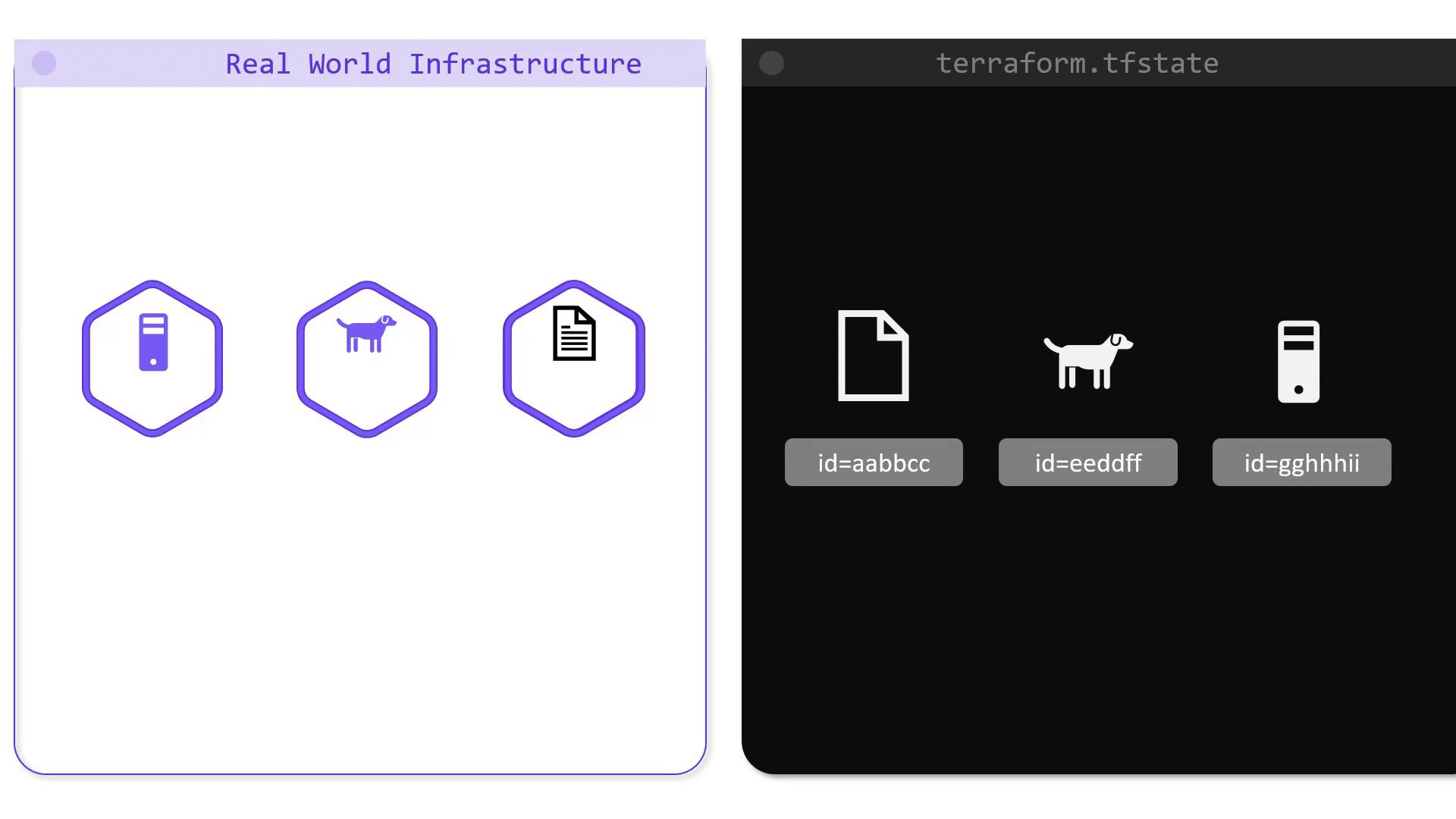
In this article, we explore the role of the state file in Terraform and understand how it maps your resource configuration to real-world infrastructure.
Terraform maintains this mapping in a state file, which serves as a blueprint for all the resources it manages. Whether it's a local file, a generated name from a random pet resource, or a cloud resource, every resource's unique identity and metadata (including dependencies) is recorded in this file. This record is crucial for generating accurate execution plans when any drift between your configuration and the actual state is detected.
## Managing Resource Dependencies
Terraform supports two types of dependencies: implicit and explicit. Consider the following example configuration that provisions three resources:
```hcl theme={null}
resource "local_file" "pet" {
filename = "/root/pet.txt"
content = "My favorite pet is ${random_pet.my-pet.id}!"
}
resource "random_pet" "my-pet" {
length = 1
}
resource "local_file" "cat" {
filename = "/root/cat.txt"
content = "I like cats too!"
}
```
In the configuration above, the `local_file.pet` resource depends on the `random_pet.my-pet` resource through its content definition, while the `local_file.cat` resource is independent. When applying this configuration, Terraform creates the resources in the following order:
1. `random_pet.my-pet` and `local_file.cat` are created in parallel.
2. Once the above resources are successfully provisioned, Terraform creates the dependent `local_file.pet` resource.
The provisioning flow is illustrated in the output below:
```bash theme={null}
$ terraform apply
...
Plan: 3 to add, 0 to change, 0 to destroy.
Do you want to perform these actions?
Terraform will perform the actions described above.
Only 'yes' will be accepted to approve.
Enter a value: yes
local_file.cat: Creating...
random_pet.my-pet: Creating...
local_file.cat: Creation complete after 0s [id=fe448888891fc40342313bc44a1fa18986520c89]
random_pet.my-pet: Creation complete after 0s [id=yak]
local_file.pet: Creating...
local_file.pet: Creation complete after 0s [id=28b373c6c1fa3fce132a518ead0175c98f37f20]
Apply complete! Resources: 3 added, 0 changed, 0 destroyed.
```
When resources are removed from a configuration, the state file plays a critical role by retaining dependency metadata. For example, even if the configuration no longer shows that `local_file.pet` depends on `random_pet.my-pet`, the state file ensures that Terraform deletes `local_file.pet` first, followed by `random_pet.my-pet`.
Below is an excerpt from a state file that shows the metadata for the `local_file.pet` resource:
```bash theme={null}
$ cat terraform.tfstate
{
"mode": "managed",
"type": "local_file",
"name": "pet",
"instances": [
{
"schema_version": 0,
"attributes": {
"content": "My favorite pet is yak!"
},
...
"private": "bnVsA==",
"dependencies": [
"random_pet.my-pet"
]
}
]
}
```
## Performance Gains with State Caching
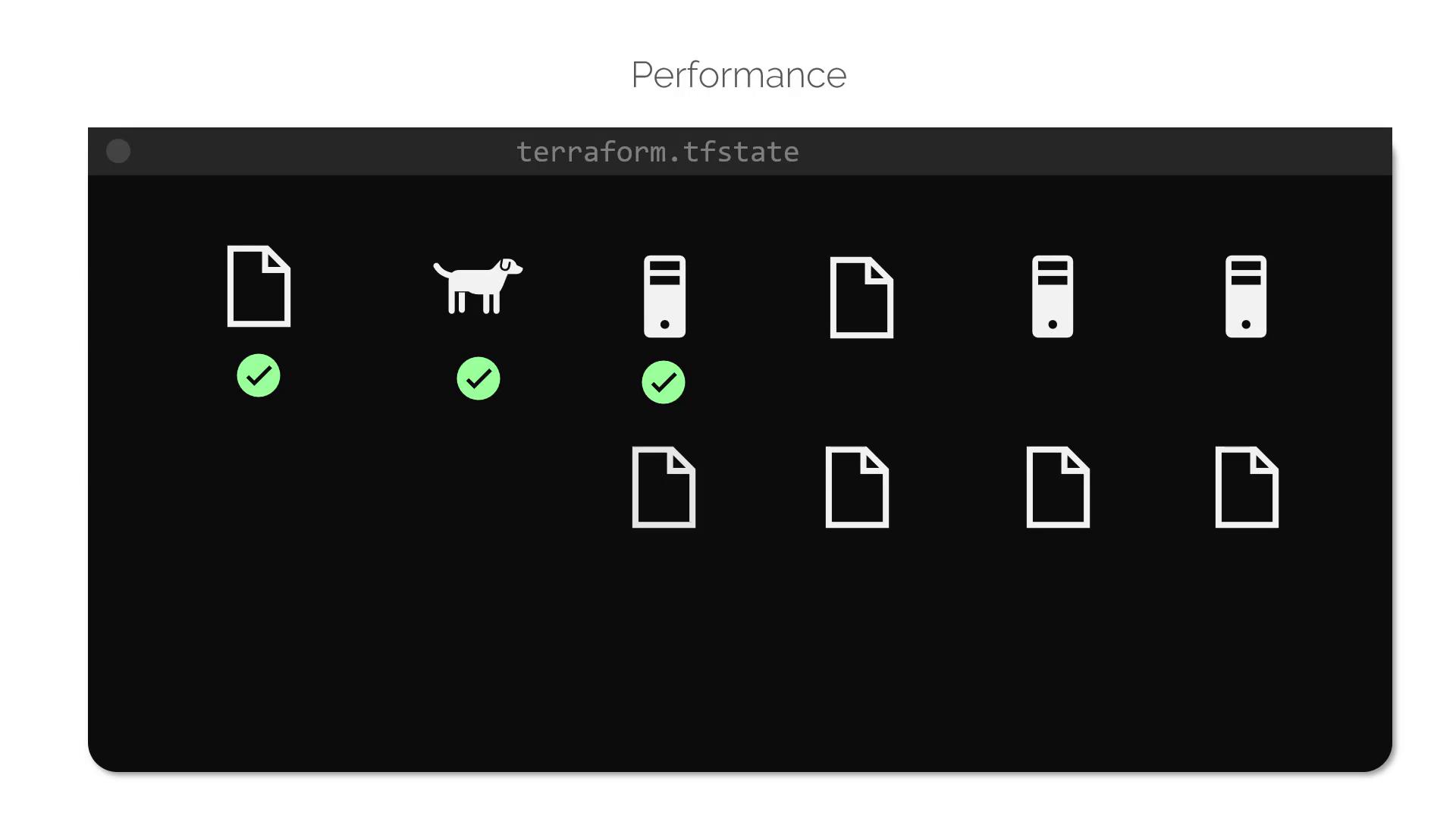
For small infrastructures, Terraform actively reconciles state with the real infrastructure on every command, such as `plan` or `apply`. However, in production environments where you might manage hundreds or thousands of resources, constantly fetching the state from providers would lead to delays.
Terraform overcomes this challenge by caching resource attribute values in the state file. By running Terraform with the `--refresh=false` flag, you instruct it to rely on the cached state, thereby speeding up operations.
Consider the following JSON snippet representing a sample state:
```json theme={null}
{
"version": 4,
"terraform_version": "0.13.0",
"serial": 4,
"lineage": "e35dde72-a943-de50-3c8b-1df8986e5a31",
"outputs": {},
"resources": [
{
"mode": "managed",
"type": "local_file",
"name": "pet",
"instances": [
{
"schema_version": 0,
"attributes": {
"content": "We love pets!",
"content_base64": null,
"directory_permission": "0777"
}
}
]
}
]
}
```
When running a plan with the cached state:
```bash theme={null}
$ terraform plan --refresh=false
An execution plan has been generated and is shown below.
Resource actions are indicated with the following symbols:
-/+ destroy and then create replacement
Terraform will perform the following actions:
# local_file.cat must be replaced
-/+ resource "local_file" "cat" {
~ content = "I like cats too!" -> "Dogs are awesome!" # forces replacement
directory_permission = "0777"
filename = "/root/pets.txt"
id = "cba595b7d9f94ba1107a46f3f731912d95fb3d2c" -> (known after apply)
}
Plan: 1 to add, 0 to change, 1 to destroy.
```
Using `--refresh=false` can accelerate Terraform operations by using cached state data, but ensure that the cached state is still valid and accurate.
## Enhancing Team Collaboration with Remote State Storage
For individual projects, storing the `terraform.tfstate` file locally works well. However, in team environments, having an up-to-date and consistent state file is critical to avoid unpredictable errors. A remote backend—such as AWS S3, Terraform Cloud, or HashiCorp’s Console—ensures that every team member accesses the latest state.
A typical project directory might resemble the following:
```bash theme={null}
$ ls
main.tf variables.tf terraform.tfstate
```
Storing the state remotely prevents discrepancies and significantly enhances team collaboration.
Below is an example snippet of a state file you may encounter:
```json theme={null}
{
"version": 4,
"terraform_version": "0.13.0",
"serial": 4,
"lineage": "e35dde72-a943-de50-3c8b-1df8986e5a31",
"outputs": {},
"resources": [
{
"mode": "managed",
"type": "local_file",
"name": "pet",
"instances": [
{
"schema_version": 0,
"attributes": {
"content": "We love pets!",
"content_base64": null,
"directory_permission": "0777"
}
}
]
}
]
}
```
In the upcoming exercises, you will have the opportunity to work directly with Terraform state and see these concepts in action.