> ## Documentation Index
> Fetch the complete documentation index at: https://notes.kodekloud.com/llms.txt
> Use this file to discover all available pages before exploring further.
# Demo Dynamodb
> This guide demonstrates creating and managing a DynamoDB table using the AWS Management Console, including adding items and filtering results.
This guide demonstrates how to create and manage a DynamoDB table using the AWS Management Console. We'll walk through accessing DynamoDB, creating a table to store employee data, adding items, and filtering results efficiently.
## Accessing DynamoDB
1. Click on the **Services** tab in the top left corner.
2. Under **Databases**, select **DynamoDB**.
3. Click the **Create Table** button.
## Creating a Table
To get started, provide a table name to store employee information. In this example, name the table **employee\_data**. Next, specify the primary key (hash key) by using **employee\_id** with the data type set to **Number**.
Leave the other settings at their default values and click the **Create** button.
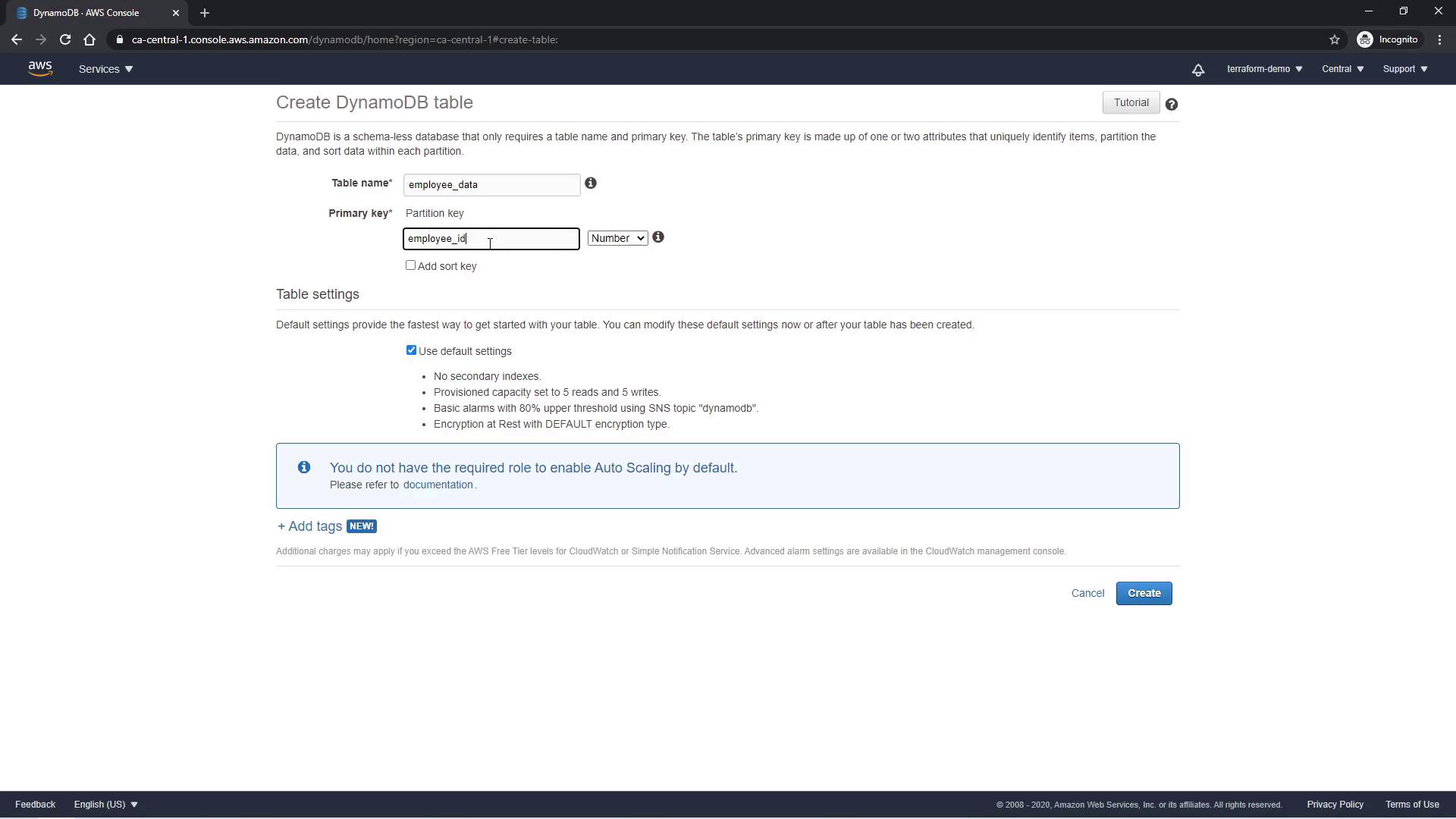
After a few seconds, the table is created and its name appears in the left sidebar. Click on the **Items** tab to view the table contents (initially, there are no items).
## Adding Items
Next, add items to the **employee\_data** table:
1. Click on the **Create Item** tab. The **employee\_id** field (the primary key) is already populated.
2. Modify the **employee\_id** to `1`.
3. Click the **Append** button to add additional attributes:
* **name** (String) for the employee's name.
* **age** (Number) for the employee's age.
* **role** (String) for the employee's role.
After adding the necessary details, click **Save**. The created item will include an employee\_id of `1` along with the corresponding attributes. Below is a sample JSON representation:
```json theme={null}
{
"employee_id": 1,
"name": "lucy",
"age": 42,
"role": "team lead"
}
```
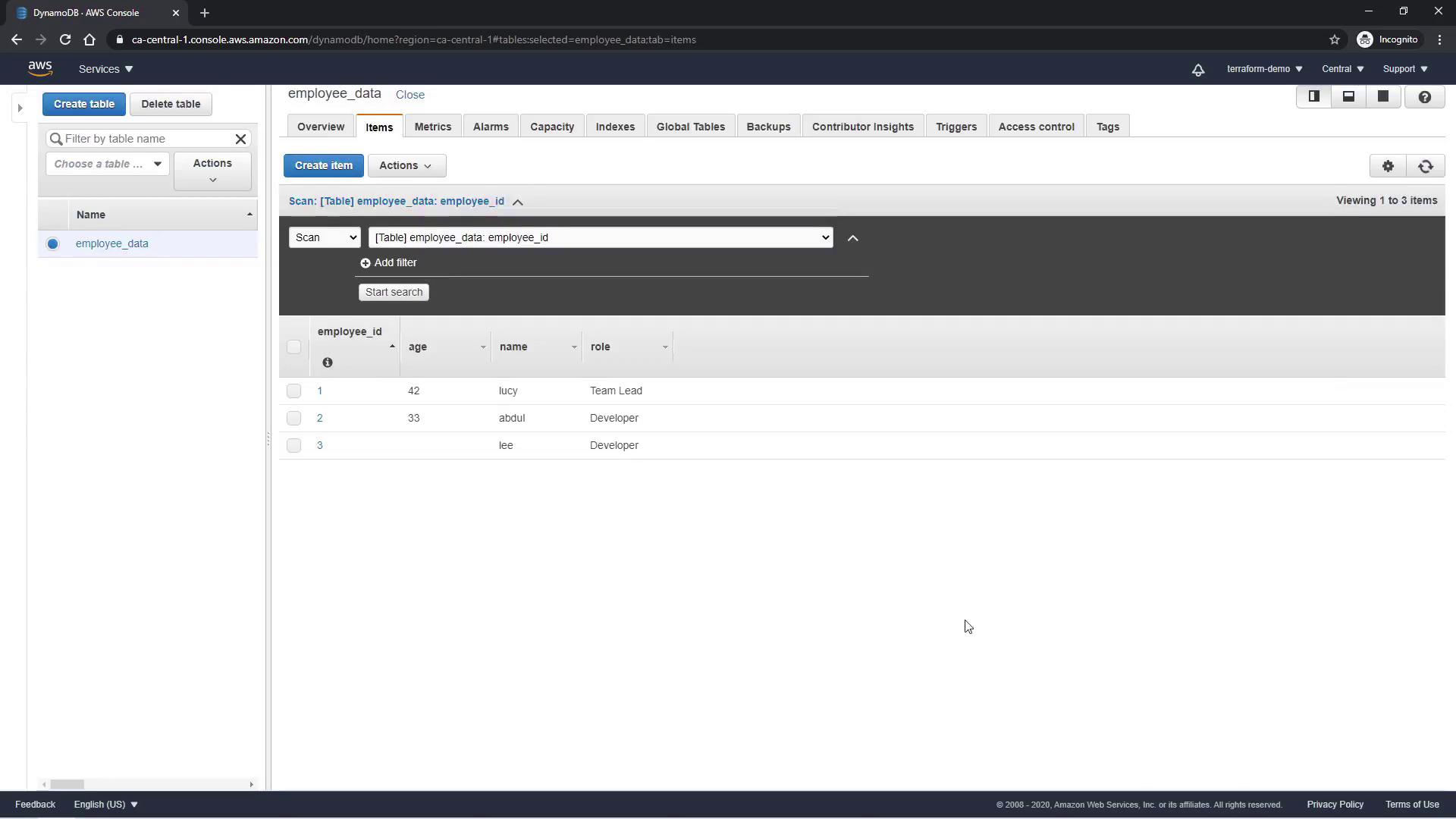
You can similarly insert more items. For instance, to add details for another user named Lee, use the following input:
```json theme={null}
{
"employee_id": 2,
"name": "abdul",
"age": 33
}
```
In DynamoDB, only the primary key is required when inserting items; all other attributes are optional. This allows flexibility when modeling your data.
## Filtering Items
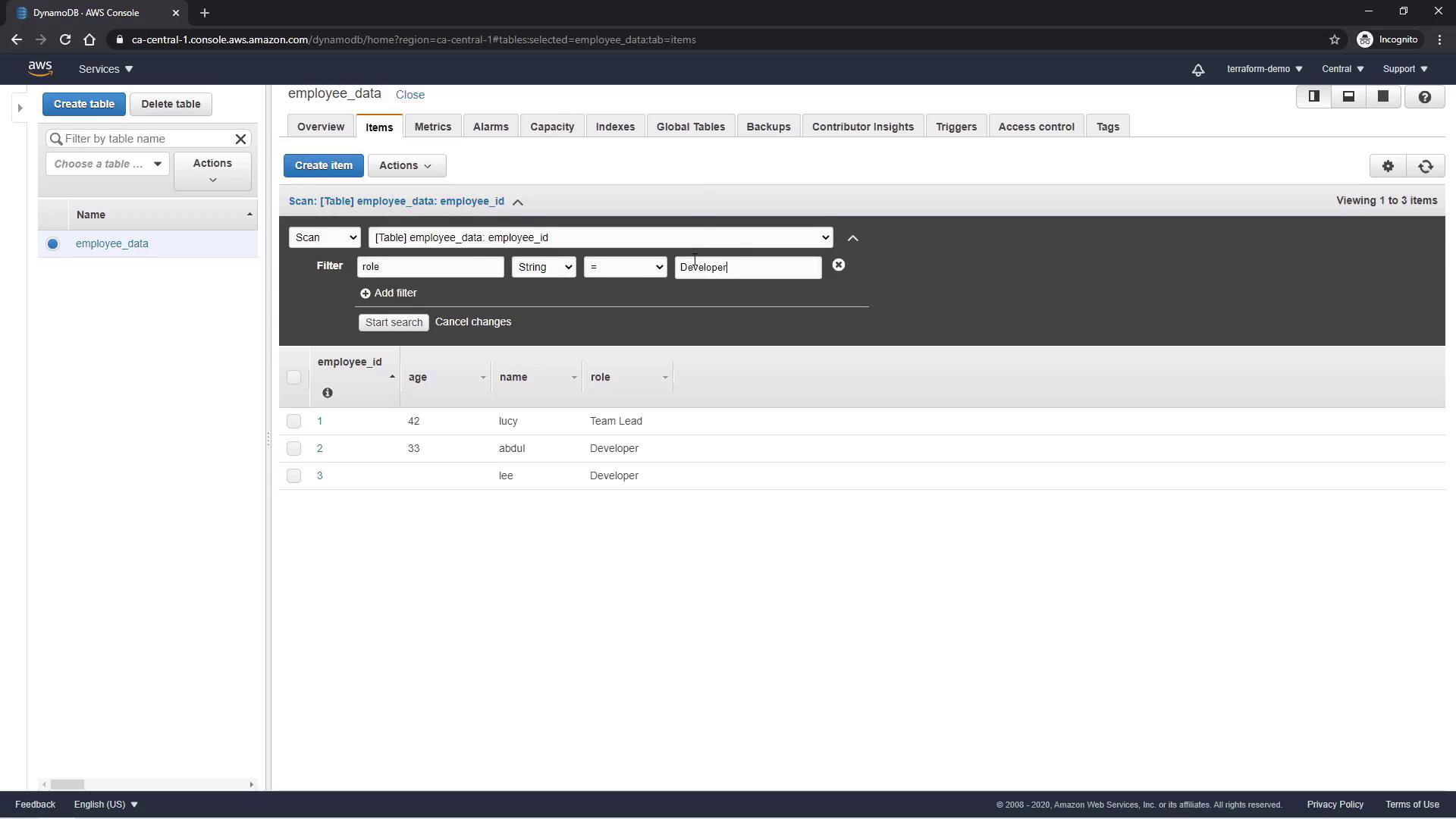
To easily locate specific items, you can apply filters to the table. For example, to list all employees with the role of "Developer", apply a filter using the **role** attribute.
## Next Steps
This concludes the demo on how to create and manage a DynamoDB table using the AWS Management Console. In forthcoming tutorials, we will explore how to create DynamoDB tables using Terraform for automated infrastructure management.
For additional information on AWS and DynamoDB, consider visiting:
* [AWS Documentation](https://docs.aws.amazon.com/)
* [DynamoDB Developer Guide](https://docs.aws.amazon.com/amazondynamodb/latest/developerguide/)
Enhance your cloud solutions by exploring these resources and leveraging AWS services in your infrastructure projects.