> ## Documentation Index
> Fetch the complete documentation index at: https://notes.kodekloud.com/llms.txt
> Use this file to discover all available pages before exploring further.
# Remote Provisioners
> Guide to using Terraform remote-exec provisioner to run commands on newly created VMs via SSH or WinRM, including an Azure Apache example, requirements, and troubleshooting.
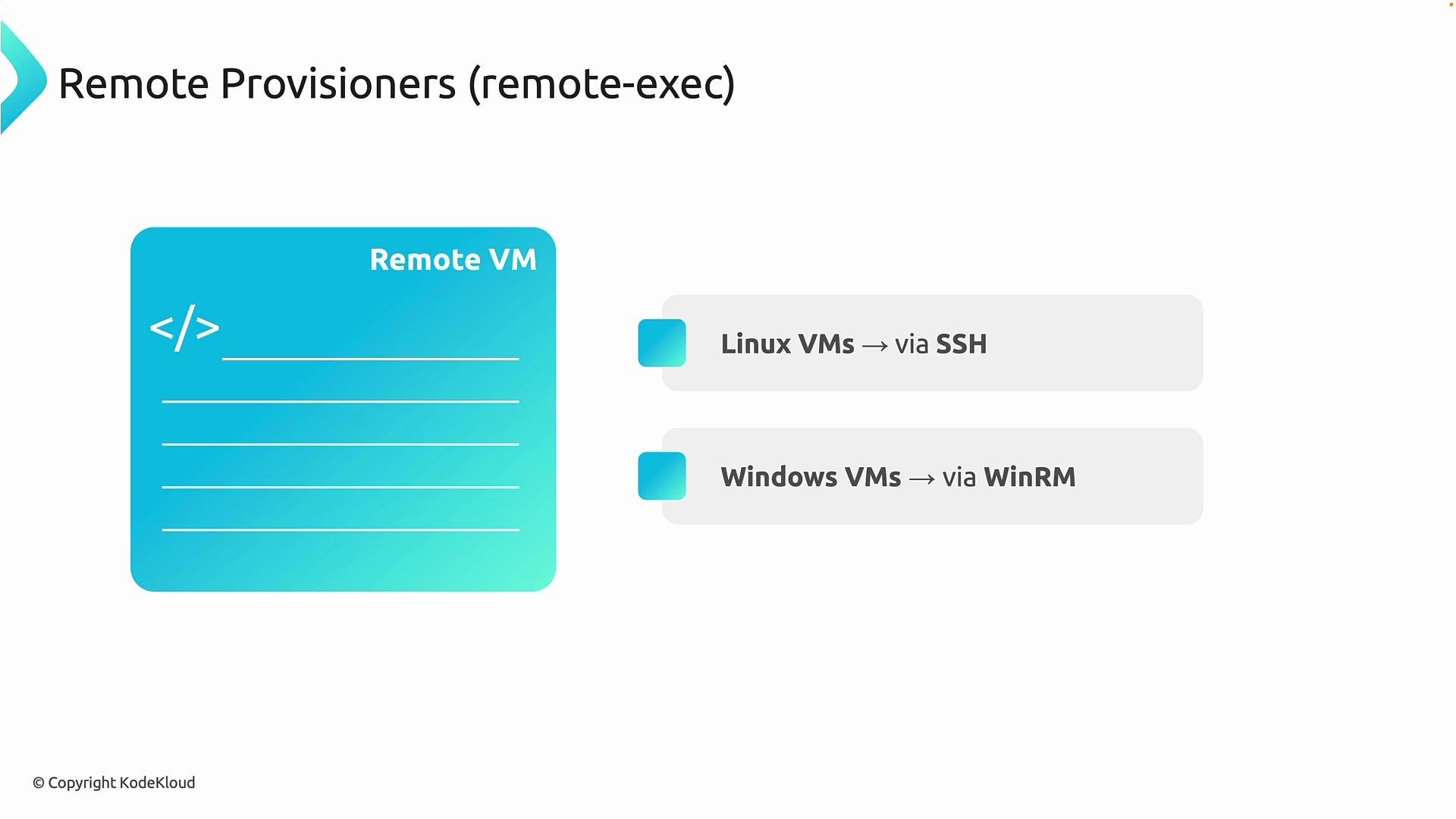
This lesson covers remote provisioners in Terraform and how to use the `remote-exec` provisioner to run commands inside newly created virtual machines. Remote provisioners let Terraform connect to a VM over the network and execute commands inside the guest operating system — for Linux VMs Terraform typically uses SSH, and for Windows VMs it uses WinRM. This is distinct from configuring a VM through cloud-provider APIs; remote provisioners log into the machine and run commands directly.
 ## Typical use cases
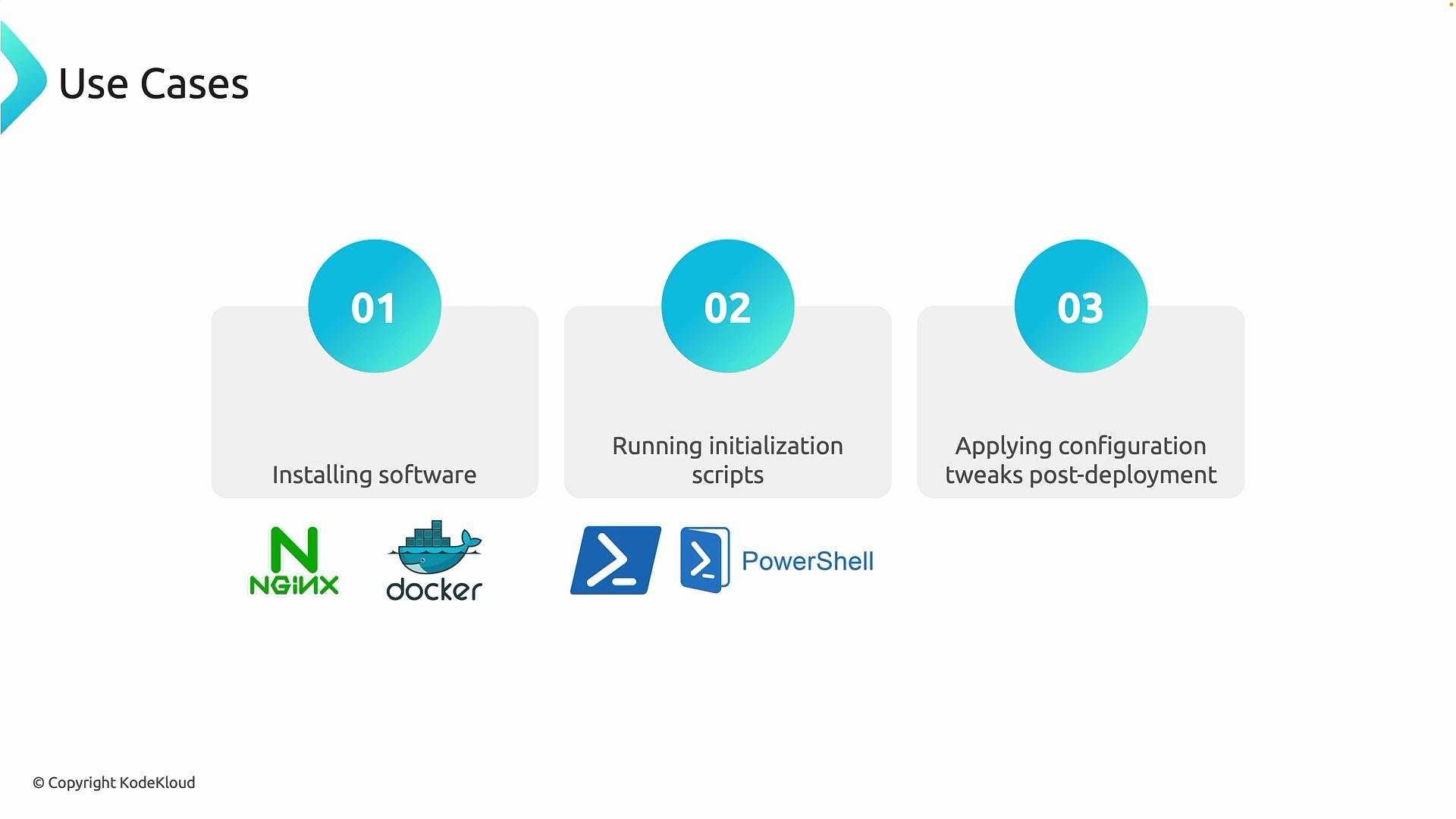
Remote provisioners are best for targeted, small-scale bootstrapping tasks that should run immediately after a VM is created:
* Install software right after deployment (e.g., Nginx, Docker, or other runtime dependencies).
* Run initialization or bootstrap scripts to prepare the system before apps are deployed.
* Apply small configuration tweaks after infrastructure creation (e.g., enable a service, update a config file, restart a daemon).
Remote provisioners are useful for quick post-deployment steps when you do not want to introduce a full configuration-management system (Ansible, Chef, Puppet) for minor tasks. They are not designed to replace configuration management for long-term, complex configuration.
## Typical use cases
Remote provisioners are best for targeted, small-scale bootstrapping tasks that should run immediately after a VM is created:
* Install software right after deployment (e.g., Nginx, Docker, or other runtime dependencies).
* Run initialization or bootstrap scripts to prepare the system before apps are deployed.
* Apply small configuration tweaks after infrastructure creation (e.g., enable a service, update a config file, restart a daemon).
Remote provisioners are useful for quick post-deployment steps when you do not want to introduce a full configuration-management system (Ansible, Chef, Puppet) for minor tasks. They are not designed to replace configuration management for long-term, complex configuration.
 ## Requirements and constraints
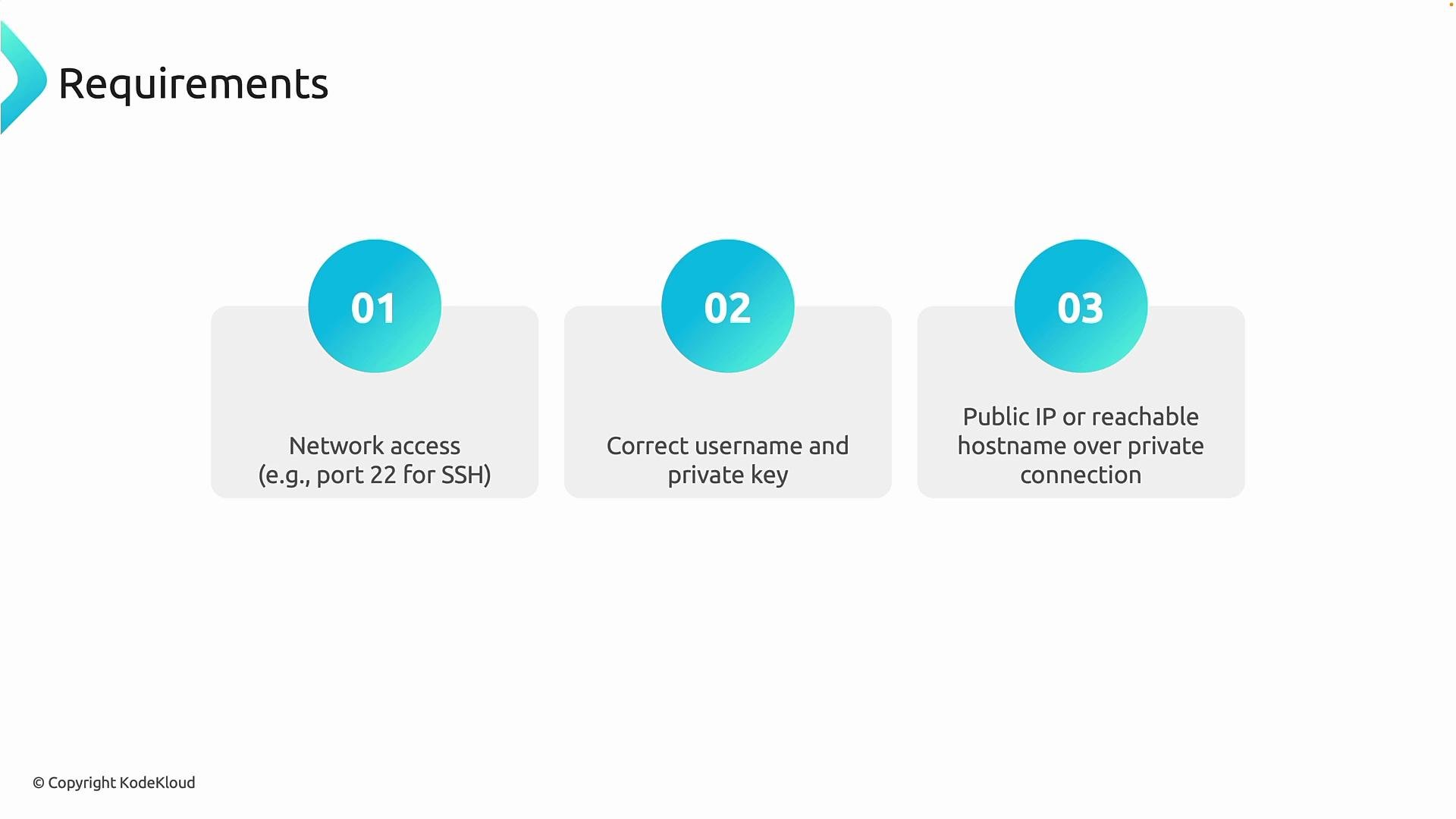
Before using remote provisioners ensure the following:
| Requirement | Details |
| ---------------------- | ------------------------------------------------------------------------------------------------------------------------------------------------------------------- |
| Network reachability | The machine running `terraform apply` must be able to reach the VM over the appropriate port (SSH: `22` for Linux; WinRM: `5985` HTTP or `5986` HTTPS for Windows). |
| Authentication | Valid credentials are required: SSH username + private key (preferred) or password, or WinRM credentials for Windows. |
| Reachable endpoint | The VM needs a reachable public IP or a hostname accessible via VPN/peering. |
| Security groups / NSGs | In cloud environments ensure security rules allow the required inbound traffic; otherwise the provisioner will fail. |
## Requirements and constraints
Before using remote provisioners ensure the following:
| Requirement | Details |
| ---------------------- | ------------------------------------------------------------------------------------------------------------------------------------------------------------------- |
| Network reachability | The machine running `terraform apply` must be able to reach the VM over the appropriate port (SSH: `22` for Linux; WinRM: `5985` HTTP or `5986` HTTPS for Windows). |
| Authentication | Valid credentials are required: SSH username + private key (preferred) or password, or WinRM credentials for Windows. |
| Reachable endpoint | The VM needs a reachable public IP or a hostname accessible via VPN/peering. |
| Security groups / NSGs | In cloud environments ensure security rules allow the required inbound traffic; otherwise the provisioner will fail. |
 Prefer SSH key-based authentication for Linux VMs and avoid embedding plaintext secrets in your Terraform files. Use an absolute path or pass keys via variables (Terraform does not expand `~` in `file()` calls).
## Example: remote-exec to install Apache (apache2)
This concise example shows a core Terraform configuration that creates a Linux VM on Azure and uses a `remote-exec` provisioner to update packages, install Apache, and write a simple index page.
Notes on the example:
* Add the `provisioner "remote-exec"` block inside the VM resource.
* Use the `connection` block to tell Terraform how to reach the VM (SSH for Linux).
* Prefer SSH key authentication. Never store production secrets inline.
main.tf (core resources and provisioner)
```hcl theme={null}
provider "azurerm" {
features {}
}
resource "azurerm_resource_group" "rg" {
name = var.rg
location = var.location
}
resource "azurerm_virtual_network" "vnet" {
name = var.vnet
address_space = ["10.0.0.0/16"]
location = azurerm_resource_group.rg.location
resource_group_name = azurerm_resource_group.rg.name
}
resource "azurerm_subnet" "subnet" {
name = var.subnet
resource_group_name = azurerm_resource_group.rg.name
virtual_network_name = azurerm_virtual_network.vnet.name
address_prefixes = ["10.0.1.0/24"]
}
resource "azurerm_network_security_group" "nsg" {
name = var.nsg
location = azurerm_resource_group.rg.location
resource_group_name = azurerm_resource_group.rg.name
security_rule {
name = "SSH"
priority = 1001
direction = "Inbound"
access = "Allow"
protocol = "Tcp"
source_port_range = "*"
destination_port_range = "22"
source_address_prefix = "*"
destination_address_prefix = "*"
}
security_rule {
name = "HTTP"
priority = 1002
direction = "Inbound"
access = "Allow"
protocol = "Tcp"
source_port_range = "*"
destination_port_range = "80"
source_address_prefix = "*"
destination_address_prefix = "*"
}
}
resource "azurerm_subnet_network_security_group_association" "nsg_snet" {
subnet_id = azurerm_subnet.subnet.id
network_security_group_id = azurerm_network_security_group.nsg.id
}
resource "azurerm_public_ip" "pip" {
name = var.pip
location = azurerm_resource_group.rg.location
resource_group_name = azurerm_resource_group.rg.name
allocation_method = "Static"
}
resource "azurerm_network_interface" "nic" {
name = var.nic
resource_group_name = azurerm_resource_group.rg.name
location = azurerm_resource_group.rg.location
ip_configuration {
name = "internal"
subnet_id = azurerm_subnet.subnet.id
private_ip_address_allocation = "Dynamic"
public_ip_address_id = azurerm_public_ip.pip.id
}
}
resource "azurerm_linux_virtual_machine" "vm" {
name = var.vm
resource_group_name = azurerm_resource_group.rg.name
location = azurerm_resource_group.rg.location
size = "Standard_B1s"
admin_username = "azureuser"
# Choose one of these authentication methods.
# Method A: SSH key (recommended)
admin_ssh_key {
username = "azureuser"
# Note: Terraform's file() does not expand '~'. Use an absolute path or a variable for portability.
public_key = file("~/.ssh/id_rsa.pub")
}
# Method B: Password (not recommended for production)
# admin_password = "YourStrongPasswordHere"
source_image_reference {
publisher = "Canonical"
offer = "ubuntu-25_04"
sku = "server"
version = "latest"
}
network_interface_ids = [azurerm_network_interface.nic.id]
# Remote provisioner that runs after the VM is created
provisioner "remote-exec" {
inline = [
"sudo apt update -y",
"sudo apt install apache2 -y",
"echo '
Prefer SSH key-based authentication for Linux VMs and avoid embedding plaintext secrets in your Terraform files. Use an absolute path or pass keys via variables (Terraform does not expand `~` in `file()` calls).
## Example: remote-exec to install Apache (apache2)
This concise example shows a core Terraform configuration that creates a Linux VM on Azure and uses a `remote-exec` provisioner to update packages, install Apache, and write a simple index page.
Notes on the example:
* Add the `provisioner "remote-exec"` block inside the VM resource.
* Use the `connection` block to tell Terraform how to reach the VM (SSH for Linux).
* Prefer SSH key authentication. Never store production secrets inline.
main.tf (core resources and provisioner)
```hcl theme={null}
provider "azurerm" {
features {}
}
resource "azurerm_resource_group" "rg" {
name = var.rg
location = var.location
}
resource "azurerm_virtual_network" "vnet" {
name = var.vnet
address_space = ["10.0.0.0/16"]
location = azurerm_resource_group.rg.location
resource_group_name = azurerm_resource_group.rg.name
}
resource "azurerm_subnet" "subnet" {
name = var.subnet
resource_group_name = azurerm_resource_group.rg.name
virtual_network_name = azurerm_virtual_network.vnet.name
address_prefixes = ["10.0.1.0/24"]
}
resource "azurerm_network_security_group" "nsg" {
name = var.nsg
location = azurerm_resource_group.rg.location
resource_group_name = azurerm_resource_group.rg.name
security_rule {
name = "SSH"
priority = 1001
direction = "Inbound"
access = "Allow"
protocol = "Tcp"
source_port_range = "*"
destination_port_range = "22"
source_address_prefix = "*"
destination_address_prefix = "*"
}
security_rule {
name = "HTTP"
priority = 1002
direction = "Inbound"
access = "Allow"
protocol = "Tcp"
source_port_range = "*"
destination_port_range = "80"
source_address_prefix = "*"
destination_address_prefix = "*"
}
}
resource "azurerm_subnet_network_security_group_association" "nsg_snet" {
subnet_id = azurerm_subnet.subnet.id
network_security_group_id = azurerm_network_security_group.nsg.id
}
resource "azurerm_public_ip" "pip" {
name = var.pip
location = azurerm_resource_group.rg.location
resource_group_name = azurerm_resource_group.rg.name
allocation_method = "Static"
}
resource "azurerm_network_interface" "nic" {
name = var.nic
resource_group_name = azurerm_resource_group.rg.name
location = azurerm_resource_group.rg.location
ip_configuration {
name = "internal"
subnet_id = azurerm_subnet.subnet.id
private_ip_address_allocation = "Dynamic"
public_ip_address_id = azurerm_public_ip.pip.id
}
}
resource "azurerm_linux_virtual_machine" "vm" {
name = var.vm
resource_group_name = azurerm_resource_group.rg.name
location = azurerm_resource_group.rg.location
size = "Standard_B1s"
admin_username = "azureuser"
# Choose one of these authentication methods.
# Method A: SSH key (recommended)
admin_ssh_key {
username = "azureuser"
# Note: Terraform's file() does not expand '~'. Use an absolute path or a variable for portability.
public_key = file("~/.ssh/id_rsa.pub")
}
# Method B: Password (not recommended for production)
# admin_password = "YourStrongPasswordHere"
source_image_reference {
publisher = "Canonical"
offer = "ubuntu-25_04"
sku = "server"
version = "latest"
}
network_interface_ids = [azurerm_network_interface.nic.id]
# Remote provisioner that runs after the VM is created
provisioner "remote-exec" {
inline = [
"sudo apt update -y",
"sudo apt install apache2 -y",
"echo 'Welcome to Azure VM
' | sudo tee /var/www/html/index.html"
]
connection {
type = "ssh"
host = azurerm_public_ip.pip.ip_address
user = "azureuser"
# Note: Terraform's file() does not expand '~'. Use an absolute path or a variable for the private key.
private_key = file("~/.ssh/id_rsa")
# Alternatively, if using password authentication:
# password = var.vm_password
}
}
}
output "vm_public_ip" {
value = azurerm_public_ip.pip.ip_address
}
```
variables.tf
```hcl theme={null}
variable "rg" {}
variable "location" {}
variable "vnet" {}
variable "subnet" {}
variable "nsg" {}
variable "pip" {}
variable "nic" {}
variable "vm" {}
# If you use password auth (not recommended), declare:
# variable "vm_password" {}
```
terraform.tfvars (example values)
```hcl theme={null}
rg = "rg-remote-exec-01"
location = "canadacentral"
vnet = "vnet-remote-exec-01"
subnet = "subnet-remote-exec-01"
nsg = "nsg-remote-exec-01"
pip = "pip-remote-exec-01"
nic = "nic-remote-exec-01"
vm = "vm-remote-exec-01"
# vm_password = "XyZaBc@1234" # only if you used password auth
```
## Run and validate
Typical workflow commands:
| Step | Command |
| ---------------------- | ------------------------------- |
| Initialize providers | `terraform init` |
| Validate configuration | `terraform validate` |
| See plan | `terraform plan` |
| Apply changes | `terraform apply -auto-approve` |
Example terminal sequence:
```bash theme={null}
terraform init
terraform validate
terraform plan
terraform apply -auto-approve
```
## Troubleshooting: platform image errors
If you see an error such as:
```plaintext theme={null}
Error: PlatformImageNotFound: The platform image 'Canonical:ubuntu-20.04:server:24.10.20240100' is not available.
```
This indicates the chosen publisher/offer/sku/version is not available in the selected region. Use the Azure CLI to list offers, SKUs, and images available in your target region and then update `source_image_reference`.
Helpful Azure CLI commands (example using Canada Central and publisher Canonical):
```bash theme={null}
# List offers for Canonical in canadacentral
az vm image list-offers -l canadacentral --publisher Canonical -o table
# List SKUs for a given offer (example: ubuntu-25_04)
az vm image list-skus -l canadacentral --publisher Canonical --offer ubuntu-25_04 -o table
# List all images for a publisher/offer/sku
az vm image list -l canadacentral --publisher Canonical --offer ubuntu-25_04 --sku server --all -o table
```
You can filter JSON output with `--query` to find a non-deprecated version.
## Example apply output (successful)
```plaintext theme={null}
Plan: 1 to add, 0 to change, 0 to destroy.
Do you want to perform these actions?
Terraform will perform the actions described above.
Only 'yes' will be accepted to approve.
Enter a value: yes
Apply complete! Resources: 1 added, 0 changed, 0 destroyed.
Outputs:
vm_public_ip = "52.138.2.248"
```
When the apply completes and the provisioner runs successfully, the Apache index page will be available at the VM public IP in a browser.
Avoid embedding plaintext passwords or secrets in your Terraform code. Prefer SSH keys or use a secrets manager. Also be cautious when exposing SSH or HTTP ports on public IP addresses.
## Summary
Remote provisioners (especially `remote-exec`) let Terraform execute commands inside VMs after provisioning and are ideal for quick bootstrapping and minor post-deploy adjustments. Use them sparingly — they are not a substitute for full configuration-management tooling. Ensure proper network reachability, authentication, and secure handling of credentials so your provisioners can run reliably.
## Links and references
* Terraform: remote-exec provisioner — [https://developer.hashicorp.com/terraform/language/resources/provisioners/remote-exec](https://developer.hashicorp.com/terraform/language/resources/provisioners/remote-exec)
* Azure CLI — [https://learn.microsoft.com/cli/azure/](https://learn.microsoft.com/cli/azure/)
* Azure VM images documentation — [https://learn.microsoft.com/azure/virtual-machines/linux/cli-ps-findimage](https://learn.microsoft.com/azure/virtual-machines/linux/cli-ps-findimage)