> ## Documentation Index
> Fetch the complete documentation index at: https://notes.kodekloud.com/llms.txt
> Use this file to discover all available pages before exploring further.
# Azure Storage Backend
> Guide to configuring Azure Storage as a Terraform remote backend, covering setup, authentication, state initialization and migration, blob lease locking, security, and troubleshooting.
In this guide you will configure Azure Storage as a remote Terraform backend and deploy infrastructure using that backend. It explains required backend settings, authentication options, initializing and migrating state, how state locking works (blob leases), and security best practices.
## Overview
* The `backend` block (inside the `terraform` block) tells Terraform where to store the state file. It must reference an existing Azure Storage account, container, and blob (key). Terraform will not create these backend resources during `terraform init`.
* You can still manage a storage account as a Terraform resource in your configuration (so it appears in state), but that resource cannot serve as the backend for the same run that creates it — the backend must exist before `terraform init`.
* Authentication to the Azure `azurerm` backend can use an account key (`ARM_ACCESS_KEY`) or Azure AD credentials (service principal or managed identity). Azure AD-based authentication is recommended for CI/CD.
The backend storage account and container must already exist before running `terraform init`. Terraform cannot use a resource that it will create during the same run as its backend.
Do not attempt to create the storage account/container/blob in the same Terraform run that you declare as your backend. Terraform needs the backend to exist before it can initialize remote state.
## Backend configuration example
A minimal `azurerm` backend block:
```hcl theme={null}
terraform {
backend "azurerm" {
resource_group_name = "rg-remote-state-demo"
storage_account_name = "stateremotestorage"
container_name = "statecontainer"
key = "remotestate.tfstate"
}
}
```
* `resource_group_name`: Resource group containing the storage account.
* `storage_account_name`: Name of the storage account where state will be stored.
* `container_name`: Blob container within the storage account.
* `key`: Blob name (file) used for the state, e.g. `remotestate.tfstate`. Note: this is not an access key.
### Backend parameters at a glance
| Parameter | Purpose | Example |
| ---------------------- | --------------------------------------------- | ---------------------- |
| `resource_group_name` | Resource group that holds the storage account | `rg-remote-state-demo` |
| `storage_account_name` | Storage account to hold state | `stateremotestorage` |
| `container_name` | Blob container for state blobs | `statecontainer` |
| `key` | Blob filename used to store state | `remotestate.tfstate` |
## Example Terraform storage account resource (not usable as backend in same run)
You can create the storage account via Terraform, but remember: if you plan to use it as the backend, it must already exist before `terraform init`.
```hcl theme={null}
resource "azurerm_storage_account" "example" {
name = var.storage_account_name
location = "West Europe"
resource_group_name = "rg-remote-state-demo"
account_tier = "Standard"
account_replication_type = "LRS"
public_network_access_enabled = false
}
```
## Authenticate Terraform to the Azure backend
Authentication options:
| Method | Description | Notes |
| -------------------------- | -------------------------------------------------------------------------------- | ------------------------------------------ |
| Storage account key | Set `ARM_ACCESS_KEY` environment variable with the storage account key | Quick, but less secure for CI/CD |
| Azure AD Service Principal | Use `ARM_CLIENT_ID`, `ARM_CLIENT_SECRET`, `ARM_TENANT_ID`, `ARM_SUBSCRIPTION_ID` | Recommended for CI/CD with least privilege |
| Managed Identity | Use a managed identity for a VM or CI runner | Best practice for Azure-hosted agents |
If using the storage account key, fetch and export it with the Azure CLI:
```bash theme={null}
RESOURCE_GROUP_NAME="rg-remote-state-demo"
STORAGE_ACCOUNT_NAME="stateremotestorage"
CONTAINER_NAME="statecontainer"
ACCOUNT_KEY=$(az storage account keys list \
--resource-group "$RESOURCE_GROUP_NAME" \
--account-name "$STORAGE_ACCOUNT_NAME" \
--query '[0].value' -o tsv)
export ARM_ACCESS_KEY="$ACCOUNT_KEY"
echo "$ARM_ACCESS_KEY"
```
For CI/CD pipelines, prefer Azure AD service principals or managed identities and avoid embedding account keys.
## Initialize, plan, and apply
After adding the backend block to your configuration and exporting any required credentials:
1. Initialize Terraform to configure the backend and providers:
```bash theme={null}
terraform init
```
Sample sanitized init output:
```text theme={null}
Initializing the backend...
Successfully configured the backend "azurerm"! Terraform will automatically use this backend unless the backend configuration changes.
Initializing provider plugins...
- Reusing previous version of hashicorp/azurerm from the dependency lock file
Terraform has been successfully initialized!
```
2. Inspect changes and apply:
```bash theme={null}
terraform plan
terraform apply -var "storage_account_name=stremotestatedemo11" -auto-approve
```
Sample sanitized apply output:
```text theme={null}
Acquiring state lock. This may take a few moments...
azurerm_resource_group.rg: Creation complete after 32s [id=/subscriptions/.../resourceGroups/rg-remote-state-demo]
azurerm_virtual_network.vnet: Creation complete after 12s [id=/subscriptions/.../providers/Microsoft.Network/virtualNetworks/vnet-demo]
azurerm_storage_account.example: Creation complete after 1m23s [id=/subscriptions/.../providers/Microsoft.Storage/storageAccounts/stremotestatedemo11]
Releasing state lock. This may take a few moments...
Apply complete! Resources: 3 added, 0 changed, 0 destroyed.
```
When Terraform runs, it acquires a lock on the state blob. In Azure Storage this is implemented as a blob lease. If the run is interrupted, the lease may remain active and block subsequent Terraform operations until released or broken.
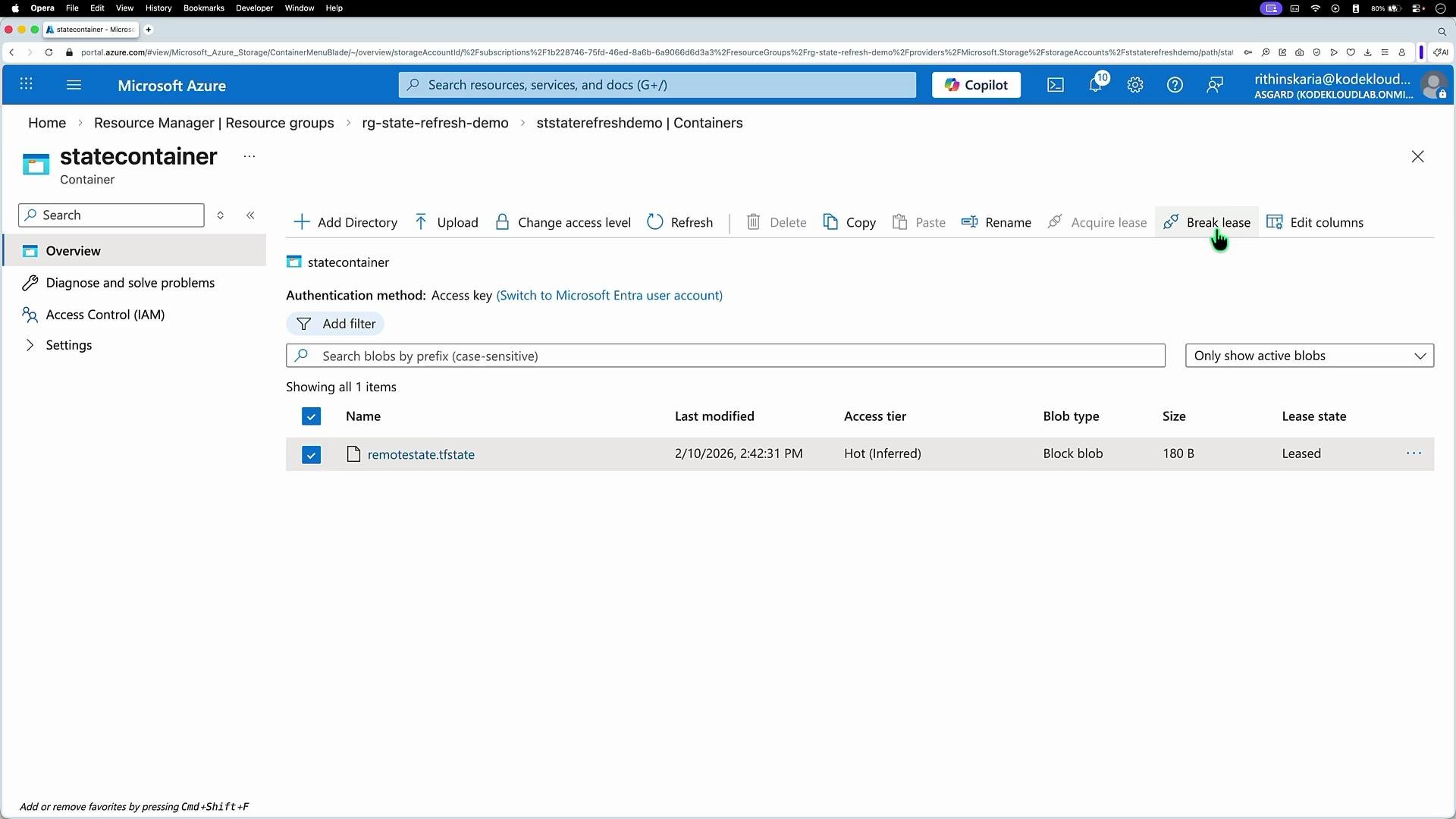 If a lease persists after an interrupted run, you can manually break the lease in the Azure portal for that blob to resume operations.
## Migrating local state to a remote backend
If your configuration currently uses local state and you add a backend block, `terraform init` will detect the existing local state and prompt to migrate it to the new backend:
```text theme={null}
$ terraform init
Initializing the backend...
Acquiring state lock. This may take a few moments...
Do you want to copy existing state to the new backend?
Pre-existing state was found while migrating the previous "local" backend to the newly configured "azurerm" backend. No existing state was found in the newly configured "azurerm" backend. Do you want to copy this state to the new "azurerm" backend? Enter "yes" to copy and "no" to start with an empty state.
Enter a value: yes
Releasing state lock. This may take a few moments...
Successfully configured the backend "azurerm"! Terraform will automatically use this backend unless the backend configuration changes.
```
If you confirm, Terraform uploads your local state to the remote backend and removes the local state file.
## Full provider and resources example (VS Code walkthrough)
A simple configuration that includes provider, resource group, storage account, and virtual network. Create the storage account/container in the portal or otherwise before using it as a backend.
```hcl theme={null}
provider "azurerm" {
features {}
# Optionally specify subscription_id if needed
# subscription_id = "00000000-0000-0000-0000-000000000000"
}
resource "azurerm_resource_group" "rg" {
name = "rg-remote-state-demo"
location = "West Europe"
}
resource "azurerm_storage_account" "sa" {
name = "stremotestatedemo11"
resource_group_name = azurerm_resource_group.rg.name
location = azurerm_resource_group.rg.location
account_tier = "Standard"
account_replication_type = "LRS"
public_network_access_enabled = false
}
resource "azurerm_virtual_network" "vnet" {
name = "vnet-demo"
location = azurerm_resource_group.rg.location
resource_group_name = azurerm_resource_group.rg.name
address_space = ["192.168.0.0/16"]
}
```
After creating the storage account and a container (manually or ahead of time), add the `backend` block and run:
```bash theme={null}
terraform init
terraform plan
terraform apply -auto-approve
```
During operations Terraform will:
* Acquire a blob lease (state lock) on the remote blob.
* Refresh resource state from Azure.
* Release the lease when finished (or leave it if the run is interrupted).
## How the lease looks in the portal
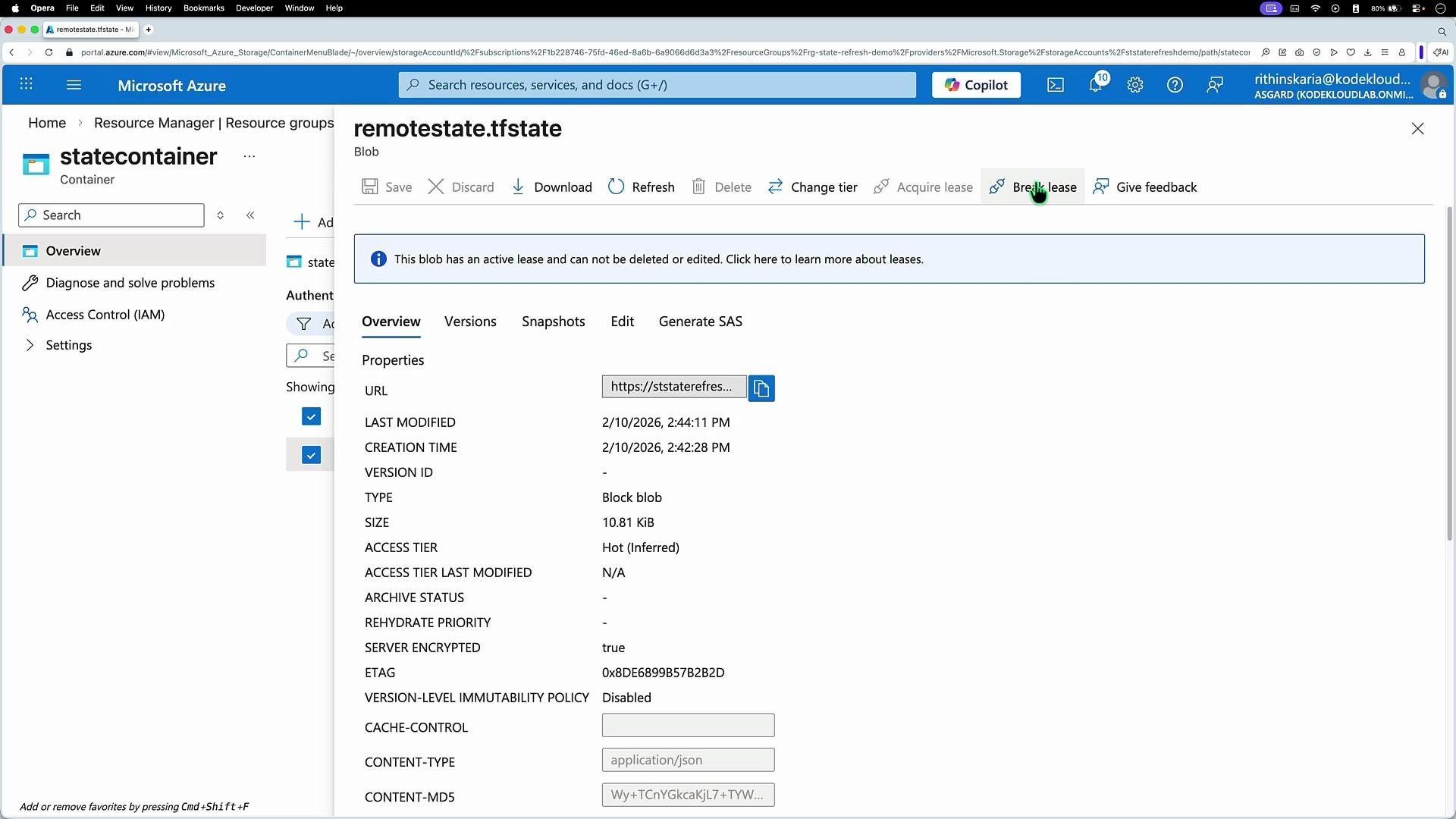
When Terraform holds the blob lease, the Azure portal will show the blob with properties including the URL, creation time, size, encryption status, and an active lease. If the lease remains after an interrupted run, break the lease in the portal.
If a lease persists after an interrupted run, you can manually break the lease in the Azure portal for that blob to resume operations.
## Migrating local state to a remote backend
If your configuration currently uses local state and you add a backend block, `terraform init` will detect the existing local state and prompt to migrate it to the new backend:
```text theme={null}
$ terraform init
Initializing the backend...
Acquiring state lock. This may take a few moments...
Do you want to copy existing state to the new backend?
Pre-existing state was found while migrating the previous "local" backend to the newly configured "azurerm" backend. No existing state was found in the newly configured "azurerm" backend. Do you want to copy this state to the new "azurerm" backend? Enter "yes" to copy and "no" to start with an empty state.
Enter a value: yes
Releasing state lock. This may take a few moments...
Successfully configured the backend "azurerm"! Terraform will automatically use this backend unless the backend configuration changes.
```
If you confirm, Terraform uploads your local state to the remote backend and removes the local state file.
## Full provider and resources example (VS Code walkthrough)
A simple configuration that includes provider, resource group, storage account, and virtual network. Create the storage account/container in the portal or otherwise before using it as a backend.
```hcl theme={null}
provider "azurerm" {
features {}
# Optionally specify subscription_id if needed
# subscription_id = "00000000-0000-0000-0000-000000000000"
}
resource "azurerm_resource_group" "rg" {
name = "rg-remote-state-demo"
location = "West Europe"
}
resource "azurerm_storage_account" "sa" {
name = "stremotestatedemo11"
resource_group_name = azurerm_resource_group.rg.name
location = azurerm_resource_group.rg.location
account_tier = "Standard"
account_replication_type = "LRS"
public_network_access_enabled = false
}
resource "azurerm_virtual_network" "vnet" {
name = "vnet-demo"
location = azurerm_resource_group.rg.location
resource_group_name = azurerm_resource_group.rg.name
address_space = ["192.168.0.0/16"]
}
```
After creating the storage account and a container (manually or ahead of time), add the `backend` block and run:
```bash theme={null}
terraform init
terraform plan
terraform apply -auto-approve
```
During operations Terraform will:
* Acquire a blob lease (state lock) on the remote blob.
* Refresh resource state from Azure.
* Release the lease when finished (or leave it if the run is interrupted).
## How the lease looks in the portal
When Terraform holds the blob lease, the Azure portal will show the blob with properties including the URL, creation time, size, encryption status, and an active lease. If the lease remains after an interrupted run, break the lease in the portal.
 ## Security recommendations
* Restrict storage account and container access to only necessary identities and roles (least privilege).
* Prefer Azure AD-based authentication (service principal or managed identity) over storage account keys in automation and CI/CD.
* Keep storage accounts private: disable public network access and use service endpoints or private endpoints where applicable.
* Enable encryption at rest (enabled by default) and consider customer-managed keys for additional control.
* Monitor access and audit logs for unexpected actions against the state container.
## Troubleshooting tips
* If `terraform init` fails to configure the backend, verify the storage account, container, and `key` exist and that the credentials used have appropriate permissions.
* If Terraform operations are blocked due to a blob lease, check the Azure Storage container and break the lease from the portal if appropriate.
* Use `az storage blob lease break` (Azure CLI) if you prefer CLI-based lease management (ensure you have adequate permissions).
## Summary
* Use the `azurerm` backend in Terraform to store state in Azure Storage and enable collaboration and locking.
* Ensure the backend storage account, container, and blob key are present before `terraform init`.
* Authenticate using `ARM_ACCESS_KEY` (account key) or, preferably, Azure AD credentials (service principal or managed identity).
* `terraform init` can migrate local state to the remote backend.
* Terraform uses blob leases for state locking; if a lease persists after an interrupted run, you can break it in the portal.
## Links and References
* [Terraform Backend Configuration - azurerm](https://registry.terraform.io/providers/hashicorp/azurerm/latest/docs/guides/state)
* [Azure Storage documentation](https://docs.microsoft.com/azure/storage/)
* [Azure CLI: az storage account keys](https://learn.microsoft.com/cli/azure/storage/account/keys)
## Security recommendations
* Restrict storage account and container access to only necessary identities and roles (least privilege).
* Prefer Azure AD-based authentication (service principal or managed identity) over storage account keys in automation and CI/CD.
* Keep storage accounts private: disable public network access and use service endpoints or private endpoints where applicable.
* Enable encryption at rest (enabled by default) and consider customer-managed keys for additional control.
* Monitor access and audit logs for unexpected actions against the state container.
## Troubleshooting tips
* If `terraform init` fails to configure the backend, verify the storage account, container, and `key` exist and that the credentials used have appropriate permissions.
* If Terraform operations are blocked due to a blob lease, check the Azure Storage container and break the lease from the portal if appropriate.
* Use `az storage blob lease break` (Azure CLI) if you prefer CLI-based lease management (ensure you have adequate permissions).
## Summary
* Use the `azurerm` backend in Terraform to store state in Azure Storage and enable collaboration and locking.
* Ensure the backend storage account, container, and blob key are present before `terraform init`.
* Authenticate using `ARM_ACCESS_KEY` (account key) or, preferably, Azure AD credentials (service principal or managed identity).
* `terraform init` can migrate local state to the remote backend.
* Terraform uses blob leases for state locking; if a lease persists after an interrupted run, you can break it in the portal.
## Links and References
* [Terraform Backend Configuration - azurerm](https://registry.terraform.io/providers/hashicorp/azurerm/latest/docs/guides/state)
* [Azure Storage documentation](https://docs.microsoft.com/azure/storage/)
* [Azure CLI: az storage account keys](https://learn.microsoft.com/cli/azure/storage/account/keys)