> ## Documentation Index
> Fetch the complete documentation index at: https://notes.kodekloud.com/llms.txt
> Use this file to discover all available pages before exploring further.
# Installing Dependencies
> Guide to installing Azure CLI and Git, verifying Azure authentication and subscription context, and preparing to install Terraform for managing Azure infrastructure.
Before you start using Terraform with Azure, install a few foundational tools on your workstation. These utilities enable authentication, source control, and smooth interaction with Azure resources. This guide covers the minimum dependencies required to work with Terraform on Azure: Azure CLI, Git, and how to verify your Azure authentication context.
## What you need
| Tool | Purpose | Quick install example |
| --------- | ------------------------------------------------------------------- | ------------------------------------------------------------------------------- |
| Azure CLI | Authenticate Terraform to Azure, manage subscriptions and resources | Windows (PowerShell MSI): see code block below; macOS: `brew install azure-cli` |
| Git | Source control for Terraform configurations and collaboration | `winget install --id Git.Git -e --source winget` |
| Terraform | Infrastructure-as-code tool (install after verifying CLI & Git) | See Terraform docs: [https://www.terraform.io/](https://www.terraform.io/) |
## Install the Azure CLI
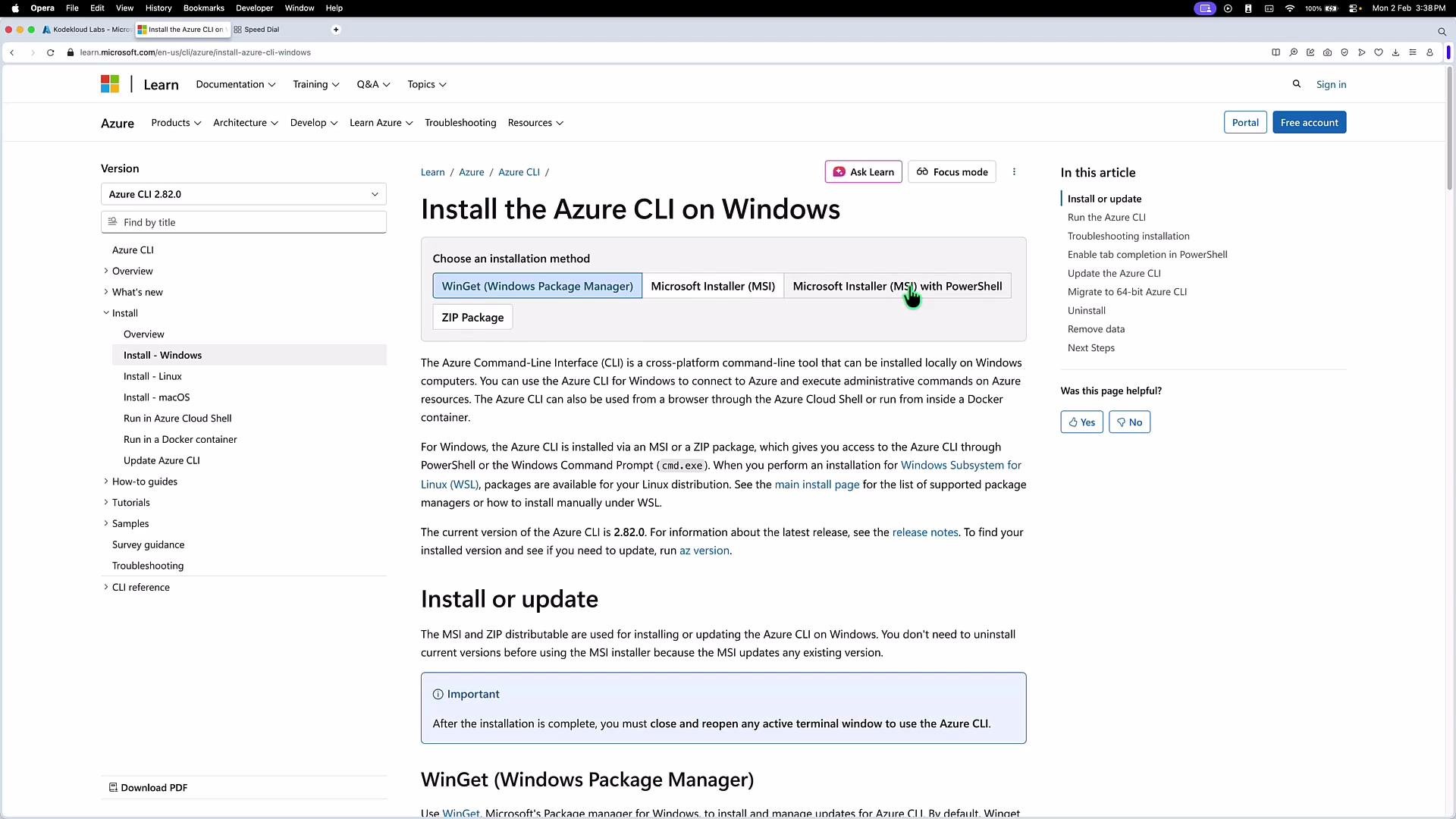
Azure CLI is commonly used for Terraform authentication and to manage Azure resources from the command line. Choose the installation method for your OS.
Windows — download and silently install the MSI (PowerShell example):
```powershell theme={null}
$ProgressPreference = 'SilentlyContinue'
Invoke-WebRequest `
-Uri https://azcliprod.blob.core.windows.net/msi/azure-cli-2.51.0.msi `
-OutFile AzureCLI.msi
Start-Process msiexec.exe `
-Wait `
-ArgumentList '/I', 'AzureCLI.msi', '/quiet'
Remove-Item AzureCLI.msi
```
macOS — install via Homebrew:
```bash theme={null}
brew update && brew install azure-cli
```
Linux — follow the distribution-specific instructions on Microsoft’s docs:
* [https://learn.microsoft.com/cli/azure/install-azure-cli](https://learn.microsoft.com/cli/azure/install-azure-cli)
 ## Install Git (if needed)
Git manages Terraform configuration files as source-controlled code, enabling version tracking, collaboration, and rollbacks. Install Git and verify the installation:
Windows (winget):
```powershell theme={null}
winget install --id Git.Git -e --source winget
```
Verify Git:
```bash theme={null}
git --version
```
Git integrates with platforms like Azure Repos, GitHub, and others—use it to push Terraform code from editors like Visual Studio Code.
## Verify Azure CLI and sign in
After installing the Azure CLI, check the version and authenticate so Terraform can use your credentials. Confirm the installation:
```bash theme={null}
az --version
```
Authenticate interactively using the device code flow (useful for machines without a browser):
```bash theme={null}
az login --use-device-code
```
This prints a short URL ([https://microsoft.com/devicelogin](https://microsoft.com/devicelogin)) and a numeric code to enter in a browser. After completing the browser flow, the CLI retrieves the subscriptions available to your account.
Example (truncated) device code output:
```bash theme={null}
To sign in, use a web browser to open the page https://microsoft.com/devicelogin and enter the code GT9Z8DS59 to authenticate.
Retrieving tenants and subscriptions for the selected account...
[Tenant and subscription selection]
No Subscription name Subscription ID
--- ------------------------------ ------------------------------
[1] * PenTest Lab 2 1b228746-75fd-46ed-8a6b-6a9066d6d3a3
The default is marked with an *.
Select a subscription and tenant (Type a number or Enter for no changes):
```
Inspect the active account context:
```bash theme={null}
az account show
```
Example JSON output (truncated):
```json theme={null}
{
"environmentName": "AzureCloud",
"homeTenantId": "1e0fa212-37c5-45f5-bb0f-b60687cac64b",
"id": "1b228746-75fd-46ed-8a6b-6a9066d6d3a3",
"isDefault": true,
"name": "PenTest Lab 2",
"state": "Enabled",
"tenantDefaultDomain": "kodekloudlab.onmicrosoft.com",
"tenantDisplayName": "ASGARD",
"tenantId": "1e0fa212-37c5-45f5-bb0f-b60687cac64b",
"user": {
"name": "rithinskaria@kodekloudlab.onmicrosoft.com",
"type": "user"
}
}
```
Azure CLI and Azure PowerShell operate with a context that targets one subscription at a time. If you have multiple subscriptions, switch the active context:
```bash theme={null}
az account set -s 1b228746-75fd-46ed-8a6b-6a9066d6d3a3
```
List all subscriptions visible to your account:
```bash theme={null}
az account list
```
Example array output (truncated):
```json theme={null}
[
{
"name": "PEGASUS HUB",
"state": "Enabled",
"tenantDefaultDomain": "MngEnvMCAP394981.onmicrosoft.com",
"tenantDisplayName": "PEGASUS",
"tenantId": "a8dab4a7-9027-461c-97ab-b022f15917a4",
"user": {
"name": "admin@MngEnvMCAP394981.onmicrosoft.com",
"type": "user"
}
},
{
"name": "PenTest Lab 2",
"state": "Enabled",
"tenantDefaultDomain": "kodekloudlab.onmicrosoft.com",
"tenantDisplayName": "ASGARD",
"tenantId": "1e0fa212-37c5-45f5-bb0f-b60687cac64b",
"user": {
"name": "rithinskaria@kodekloudlab.onmicrosoft.com",
"type": "user"
}
}
]
```
Azure CLI commands run in the context of a single subscription. Confirm `az account show` reports the subscription you intend to use before running Terraform commands that create or modify resources.
## Next steps
Once Azure CLI and Git are installed and you've confirmed your Azure account context, proceed to install Terraform and configure your workspace. For Terraform installation and platform-specific packages, see:
* Terraform downloads: [https://www.terraform.io/downloads](https://www.terraform.io/downloads)
* Azure CLI install docs: [https://learn.microsoft.com/cli/azure/install-azure-cli](https://learn.microsoft.com/cli/azure/install-azure-cli)
* Git downloads: [https://git-scm.com/downloads](https://git-scm.com/downloads)
Now you’re ready to configure Terraform’s Azure provider and begin defining infrastructure as code.
## Install Git (if needed)
Git manages Terraform configuration files as source-controlled code, enabling version tracking, collaboration, and rollbacks. Install Git and verify the installation:
Windows (winget):
```powershell theme={null}
winget install --id Git.Git -e --source winget
```
Verify Git:
```bash theme={null}
git --version
```
Git integrates with platforms like Azure Repos, GitHub, and others—use it to push Terraform code from editors like Visual Studio Code.
## Verify Azure CLI and sign in
After installing the Azure CLI, check the version and authenticate so Terraform can use your credentials. Confirm the installation:
```bash theme={null}
az --version
```
Authenticate interactively using the device code flow (useful for machines without a browser):
```bash theme={null}
az login --use-device-code
```
This prints a short URL ([https://microsoft.com/devicelogin](https://microsoft.com/devicelogin)) and a numeric code to enter in a browser. After completing the browser flow, the CLI retrieves the subscriptions available to your account.
Example (truncated) device code output:
```bash theme={null}
To sign in, use a web browser to open the page https://microsoft.com/devicelogin and enter the code GT9Z8DS59 to authenticate.
Retrieving tenants and subscriptions for the selected account...
[Tenant and subscription selection]
No Subscription name Subscription ID
--- ------------------------------ ------------------------------
[1] * PenTest Lab 2 1b228746-75fd-46ed-8a6b-6a9066d6d3a3
The default is marked with an *.
Select a subscription and tenant (Type a number or Enter for no changes):
```
Inspect the active account context:
```bash theme={null}
az account show
```
Example JSON output (truncated):
```json theme={null}
{
"environmentName": "AzureCloud",
"homeTenantId": "1e0fa212-37c5-45f5-bb0f-b60687cac64b",
"id": "1b228746-75fd-46ed-8a6b-6a9066d6d3a3",
"isDefault": true,
"name": "PenTest Lab 2",
"state": "Enabled",
"tenantDefaultDomain": "kodekloudlab.onmicrosoft.com",
"tenantDisplayName": "ASGARD",
"tenantId": "1e0fa212-37c5-45f5-bb0f-b60687cac64b",
"user": {
"name": "rithinskaria@kodekloudlab.onmicrosoft.com",
"type": "user"
}
}
```
Azure CLI and Azure PowerShell operate with a context that targets one subscription at a time. If you have multiple subscriptions, switch the active context:
```bash theme={null}
az account set -s 1b228746-75fd-46ed-8a6b-6a9066d6d3a3
```
List all subscriptions visible to your account:
```bash theme={null}
az account list
```
Example array output (truncated):
```json theme={null}
[
{
"name": "PEGASUS HUB",
"state": "Enabled",
"tenantDefaultDomain": "MngEnvMCAP394981.onmicrosoft.com",
"tenantDisplayName": "PEGASUS",
"tenantId": "a8dab4a7-9027-461c-97ab-b022f15917a4",
"user": {
"name": "admin@MngEnvMCAP394981.onmicrosoft.com",
"type": "user"
}
},
{
"name": "PenTest Lab 2",
"state": "Enabled",
"tenantDefaultDomain": "kodekloudlab.onmicrosoft.com",
"tenantDisplayName": "ASGARD",
"tenantId": "1e0fa212-37c5-45f5-bb0f-b60687cac64b",
"user": {
"name": "rithinskaria@kodekloudlab.onmicrosoft.com",
"type": "user"
}
}
]
```
Azure CLI commands run in the context of a single subscription. Confirm `az account show` reports the subscription you intend to use before running Terraform commands that create or modify resources.
## Next steps
Once Azure CLI and Git are installed and you've confirmed your Azure account context, proceed to install Terraform and configure your workspace. For Terraform installation and platform-specific packages, see:
* Terraform downloads: [https://www.terraform.io/downloads](https://www.terraform.io/downloads)
* Azure CLI install docs: [https://learn.microsoft.com/cli/azure/install-azure-cli](https://learn.microsoft.com/cli/azure/install-azure-cli)
* Git downloads: [https://git-scm.com/downloads](https://git-scm.com/downloads)
Now you’re ready to configure Terraform’s Azure provider and begin defining infrastructure as code.