> ## Documentation Index
> Fetch the complete documentation index at: https://notes.kodekloud.com/llms.txt
> Use this file to discover all available pages before exploring further.
# Installing Terraform
> Guide for installing and verifying Terraform locally and via Azure Cloud Shell across Windows macOS and Linux
This guide shows multiple ways to install Terraform so you can run infrastructure-as-code across different platforms. It covers local installations for Windows, macOS, and Linux, plus an option to use Terraform from Azure Cloud Shell. Follow the steps that best match your workflow and operating system.
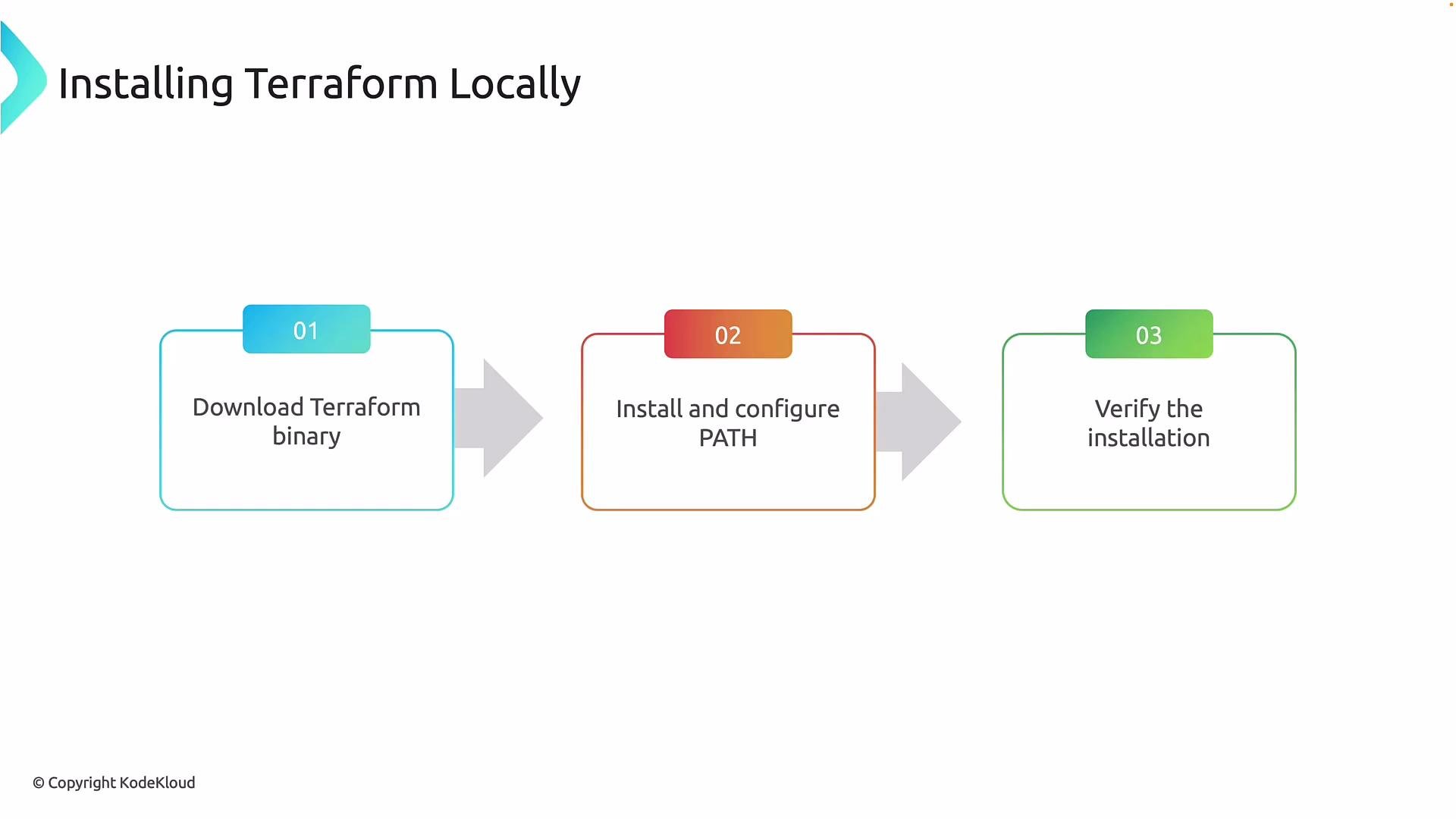
Installing Terraform locally is a straightforward three-step process:
1. Download the Terraform binary (or install via a package manager) for your operating system.
2. Ensure Terraform is available on your system `PATH`.
3. Verify the installation.
 Installation quick reference
| Platform | Recommended method | Example / Notes |
| --------------- | -------------------------: | --------------------------------------------------------------------------------- |
| Windows | Official MSI or Chocolatey | `choco install terraform -y` (places `terraform.exe` on `PATH`) |
| macOS | Homebrew (HashiCorp tap) | `brew tap hashicorp/tap` then `brew install hashicorp/tap/terraform` |
| Debian / Ubuntu | HashiCorp APT repository | Add GPG key & repo, then `sudo apt-get install -y terraform` (see commands below) |
| Any OS | Zip binary | Download ZIP, extract `terraform`/`terraform.exe` and place it on `PATH` |
Windows
* Easiest approaches:
* Download and run the official MSI from HashiCorp: [https://developer.hashicorp.com/terraform/downloads](https://developer.hashicorp.com/terraform/downloads) (this places `terraform.exe` on the system `PATH`).
* Use Chocolatey for automated installs and updates.
Example (Chocolatey):
```bash theme={null}
choco install terraform -y
```
If you downloaded the portable ZIP, extract `terraform.exe` and move it into a directory on the system `PATH` (for example `C:\Program Files\Terraform`), or add the directory to the system `PATH`.
macOS
* Recommended: Homebrew with the HashiCorp tap. This handles installation and updates for you.
```bash theme={null}
brew tap hashicorp/tap
brew install hashicorp/tap/terraform
```
Alternatively, download the correct binary for Intel or Apple Silicon from the official Terraform releases page and place the `terraform` binary in a directory on your `PATH` (for example `/usr/local/bin`).
Linux (Debian / Ubuntu example)
* Use the official HashiCorp APT repository to get signed packages and automatic updates. Run these commands:
```bash theme={null}
# Install GPG key for the HashiCorp repository
curl -fsSL https://apt.releases.hashicorp.com/gpg | sudo gpg --dearmor -o /usr/share/keyrings/hashicorp-archive-keyring.gpg
# Add the HashiCorp repo for your distribution
echo "deb [signed-by=/usr/share/keyrings/hashicorp-archive-keyring.gpg] https://apt.releases.hashicorp.com $(lsb_release -cs) main" | sudo tee /etc/apt/sources.list.d/hashicorp.list
# Update package lists and install Terraform
sudo apt-get update
sudo apt-get install -y terraform
```
For RHEL/CentOS, Fedora, SUSE, or other distributions, follow the corresponding steps in the official Terraform installation docs or use the generic ZIP binary to place `terraform` on your `PATH`.
Verify installation (common to all platforms)
```bash theme={null}
terraform version
```
You can also run:
```bash theme={null}
terraform --help
```
This displays common commands such as `init`, `validate`, `plan`, `apply`, and `destroy`.
Using Terraform from Azure Cloud Shell
If you need a quick environment without local installation, use Terraform from Azure Cloud Shell. Cloud Shell is a browser-based shell with Terraform pre-installed—ideal for demos, learning, and quick experiments.
Installation quick reference
| Platform | Recommended method | Example / Notes |
| --------------- | -------------------------: | --------------------------------------------------------------------------------- |
| Windows | Official MSI or Chocolatey | `choco install terraform -y` (places `terraform.exe` on `PATH`) |
| macOS | Homebrew (HashiCorp tap) | `brew tap hashicorp/tap` then `brew install hashicorp/tap/terraform` |
| Debian / Ubuntu | HashiCorp APT repository | Add GPG key & repo, then `sudo apt-get install -y terraform` (see commands below) |
| Any OS | Zip binary | Download ZIP, extract `terraform`/`terraform.exe` and place it on `PATH` |
Windows
* Easiest approaches:
* Download and run the official MSI from HashiCorp: [https://developer.hashicorp.com/terraform/downloads](https://developer.hashicorp.com/terraform/downloads) (this places `terraform.exe` on the system `PATH`).
* Use Chocolatey for automated installs and updates.
Example (Chocolatey):
```bash theme={null}
choco install terraform -y
```
If you downloaded the portable ZIP, extract `terraform.exe` and move it into a directory on the system `PATH` (for example `C:\Program Files\Terraform`), or add the directory to the system `PATH`.
macOS
* Recommended: Homebrew with the HashiCorp tap. This handles installation and updates for you.
```bash theme={null}
brew tap hashicorp/tap
brew install hashicorp/tap/terraform
```
Alternatively, download the correct binary for Intel or Apple Silicon from the official Terraform releases page and place the `terraform` binary in a directory on your `PATH` (for example `/usr/local/bin`).
Linux (Debian / Ubuntu example)
* Use the official HashiCorp APT repository to get signed packages and automatic updates. Run these commands:
```bash theme={null}
# Install GPG key for the HashiCorp repository
curl -fsSL https://apt.releases.hashicorp.com/gpg | sudo gpg --dearmor -o /usr/share/keyrings/hashicorp-archive-keyring.gpg
# Add the HashiCorp repo for your distribution
echo "deb [signed-by=/usr/share/keyrings/hashicorp-archive-keyring.gpg] https://apt.releases.hashicorp.com $(lsb_release -cs) main" | sudo tee /etc/apt/sources.list.d/hashicorp.list
# Update package lists and install Terraform
sudo apt-get update
sudo apt-get install -y terraform
```
For RHEL/CentOS, Fedora, SUSE, or other distributions, follow the corresponding steps in the official Terraform installation docs or use the generic ZIP binary to place `terraform` on your `PATH`.
Verify installation (common to all platforms)
```bash theme={null}
terraform version
```
You can also run:
```bash theme={null}
terraform --help
```
This displays common commands such as `init`, `validate`, `plan`, `apply`, and `destroy`.
Using Terraform from Azure Cloud Shell
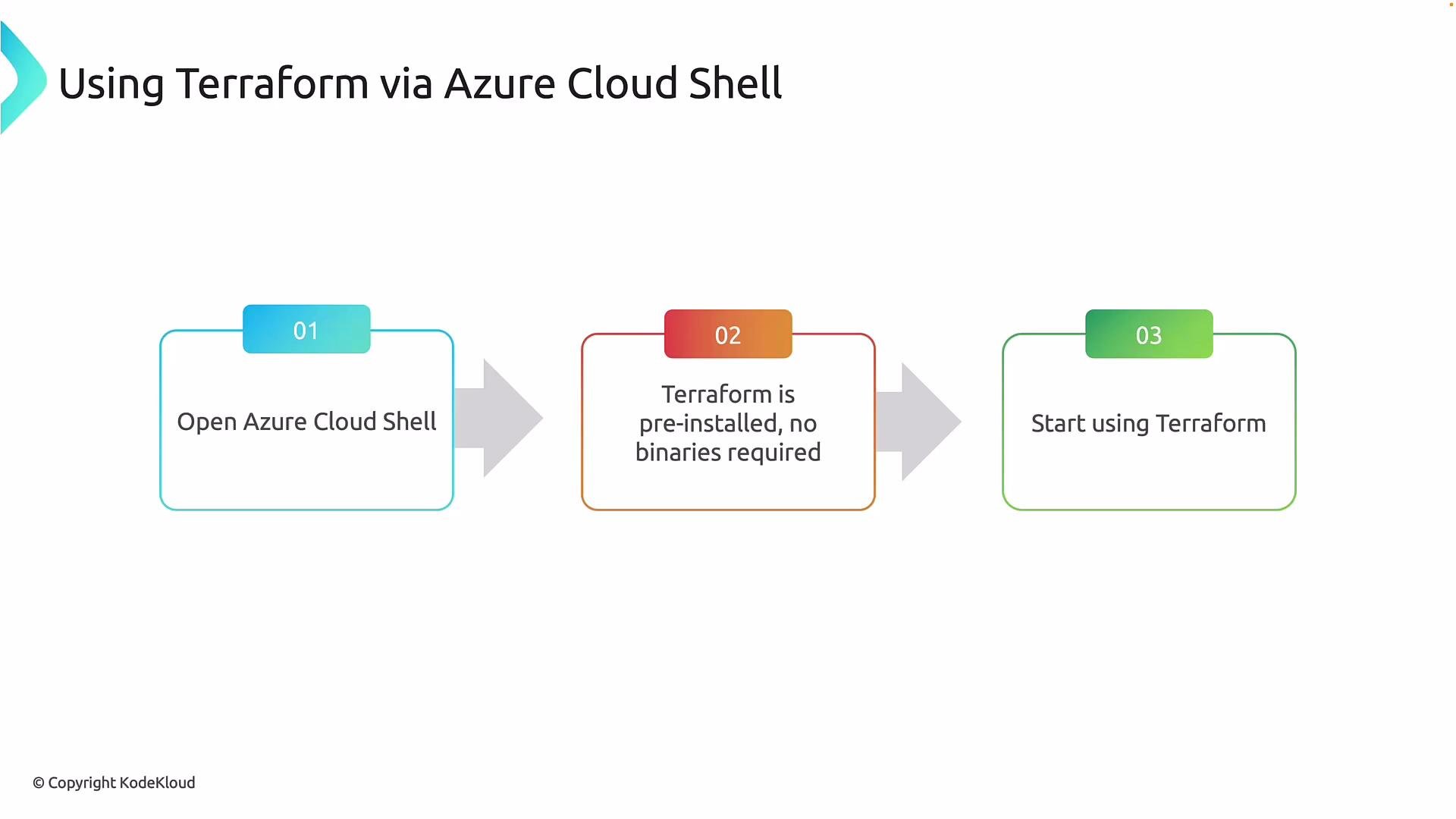
If you need a quick environment without local installation, use Terraform from Azure Cloud Shell. Cloud Shell is a browser-based shell with Terraform pre-installed—ideal for demos, learning, and quick experiments.
 To use Cloud Shell:
* Open the Azure portal and click the Cloud Shell icon in the top bar.
* If this is your first time, Cloud Shell prompts you to create or select a storage account (the portal can create one).
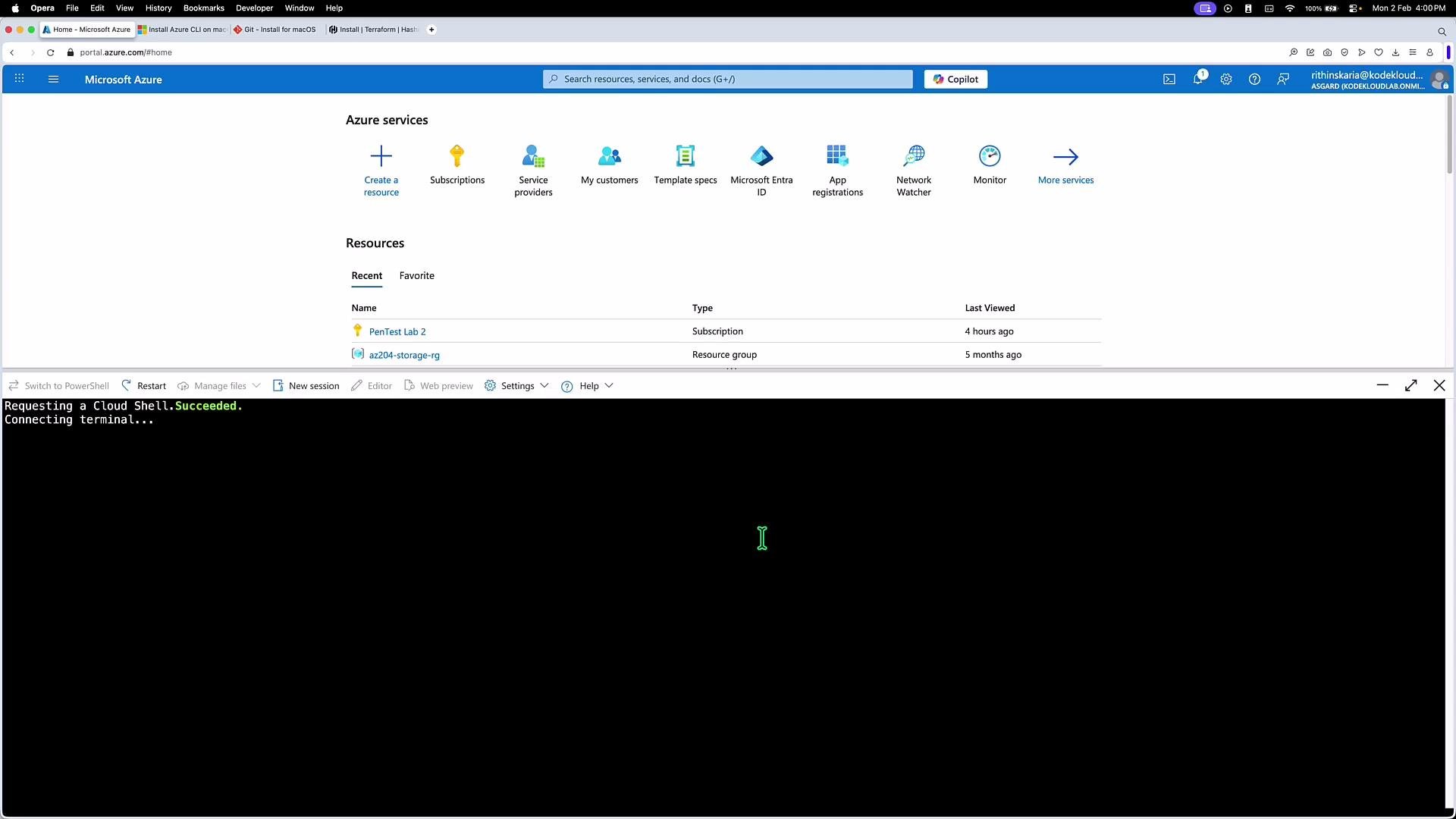
* When provisioned, a terminal session appears and Terraform is available immediately—no local install required.
To use Cloud Shell:
* Open the Azure portal and click the Cloud Shell icon in the top bar.
* If this is your first time, Cloud Shell prompts you to create or select a storage account (the portal can create one).
* When provisioned, a terminal session appears and Terraform is available immediately—no local install required.
 Azure Cloud Shell is great for quick tests, demos, or when you're away from your usual workstation. It is not recommended as the primary environment for production Terraform workflows—use CI/CD pipelines or local development environments for reproducible, auditable runs.
Common Terraform commands (summary)
| Command | Purpose | Example |
| ----------- | -----------------------------------------------------------------: | -------------------------- |
| `init` | Prepare working directory (download providers, initialize backend) | `terraform init` |
| `validate` | Validate configuration syntax and structure | `terraform validate` |
| `plan` | Show the proposed changes Terraform will make | `terraform plan` |
| `apply` | Apply changes to create/update infrastructure | `terraform apply` |
| `destroy` | Remove previously created infrastructure | `terraform destroy` |
| `fmt` | Format configuration files | `terraform fmt` |
| `output` | Read outputs from state | `terraform output` |
| `state` | Advanced state management commands | `terraform state list` |
| `workspace` | Manage workspaces | `terraform workspace list` |
| `version` | Show Terraform version | `terraform version` |
Where to find the official instructions
* Terraform installation guide (HashiCorp): [https://developer.hashicorp.com/terraform/install](https://developer.hashicorp.com/terraform/install)
* Azure-specific Terraform docs: [https://learn.microsoft.com/azure/developer/terraform](https://learn.microsoft.com/azure/developer/terraform)
Next steps
* After installing Terraform, authenticate Terraform to Azure so you can manage Azure resources. Common authentication methods include:
* Azure CLI (`az login`) for interactive sessions
* Service principals for automation
* Managed identities for Azure-hosted agents
Recommended workflows for Terraform in production (CI/CD, state backends, workspaces, and governance) are covered in separate guidance and best-practice documents.
Links and References
* [Terraform documentation — Install Terraform](https://developer.hashicorp.com/terraform/install)
* [Azure Cloud Shell documentation](https://learn.microsoft.com/azure/cloud-shell/overview)
* [Azure Terraform Provider docs](https://registry.terraform.io/providers/hashicorp/azurerm/latest/docs)
Azure Cloud Shell is great for quick tests, demos, or when you're away from your usual workstation. It is not recommended as the primary environment for production Terraform workflows—use CI/CD pipelines or local development environments for reproducible, auditable runs.
Common Terraform commands (summary)
| Command | Purpose | Example |
| ----------- | -----------------------------------------------------------------: | -------------------------- |
| `init` | Prepare working directory (download providers, initialize backend) | `terraform init` |
| `validate` | Validate configuration syntax and structure | `terraform validate` |
| `plan` | Show the proposed changes Terraform will make | `terraform plan` |
| `apply` | Apply changes to create/update infrastructure | `terraform apply` |
| `destroy` | Remove previously created infrastructure | `terraform destroy` |
| `fmt` | Format configuration files | `terraform fmt` |
| `output` | Read outputs from state | `terraform output` |
| `state` | Advanced state management commands | `terraform state list` |
| `workspace` | Manage workspaces | `terraform workspace list` |
| `version` | Show Terraform version | `terraform version` |
Where to find the official instructions
* Terraform installation guide (HashiCorp): [https://developer.hashicorp.com/terraform/install](https://developer.hashicorp.com/terraform/install)
* Azure-specific Terraform docs: [https://learn.microsoft.com/azure/developer/terraform](https://learn.microsoft.com/azure/developer/terraform)
Next steps
* After installing Terraform, authenticate Terraform to Azure so you can manage Azure resources. Common authentication methods include:
* Azure CLI (`az login`) for interactive sessions
* Service principals for automation
* Managed identities for Azure-hosted agents
Recommended workflows for Terraform in production (CI/CD, state backends, workspaces, and governance) are covered in separate guidance and best-practice documents.
Links and References
* [Terraform documentation — Install Terraform](https://developer.hashicorp.com/terraform/install)
* [Azure Cloud Shell documentation](https://learn.microsoft.com/azure/cloud-shell/overview)
* [Azure Terraform Provider docs](https://registry.terraform.io/providers/hashicorp/azurerm/latest/docs)