> ## Documentation Index
> Fetch the complete documentation index at: https://notes.kodekloud.com/llms.txt
> Use this file to discover all available pages before exploring further.
# Refreshing Infrastructure
> Explains Terraform's state refresh with Azure, how it detects drift, example storage account change, skipping refresh risks, and secure state handling.
Terraform detects drift between the configuration in your code, the saved state, and the real-world resources in Azure by performing a state refresh. Understanding this refresh process explains why `terraform plan` or `terraform apply` can change even when you didn't edit any files.
Terraform performs a state refresh automatically during `plan` and `apply`. The provider queries Azure for current resource attributes, compares those live values with your configuration and the saved state, and produces a plan that reconciles any differences. This is how Terraform detects drift and keeps your infrastructure consistent.
What happens during a refresh
* Terraform calls the provider (here: AzureRM) to fetch the current resource attributes.
* It compares those live attributes against:
* the values in your Terraform configuration, and
* the values stored in `terraform.tfstate`.
* Any mismatches produce a plan to reconcile differences (for example, an in-place update).
Example scenario
* You create an Azure Storage Account. By default the storage account setting `public_network_access_enabled` is `true`.
* Later you change your Terraform configuration to set `public_network_access_enabled = false`.
Desired configuration (HCL):
```hcl theme={null}
resource "azurerm_storage_account" "example" {
name = var.storage_account_name
location = "East US"
resource_group_name = "my-workshop-eus-rg"
account_tier = "Standard"
account_replication_type = "LRS"
public_network_access_enabled = false
}
```
What Terraform does when you run `terraform plan`
* Terraform refreshes the resource state from Azure.
* It discovers the actual value (for example, `true`) and compares it to the configured value (`false`).
* Terraform generates a plan showing an in-place update from `true` → `false`.
Example plan output (trimmed):
```bash theme={null}
$ terraform plan -var "storage_account_name=sadx98rgffe"
azurerm_storage_account.example: Refreshing state...
[id=/subscriptions/548f7d26-b5b1-468e-ad45-6ee12accf7e7/resourceGroups/my-workshop-eus-rg/providers/Microsoft.Storage/storageAccounts/sadx98rgffe]
Terraform used the selected providers to generate the following execution plan.
Resource actions are indicated with the following symbols:
~ update in-place
Terraform will perform the following actions:
# azurerm_storage_account.example will be updated in-place
~ resource "azurerm_storage_account" "example" {
id = "/subscriptions/548f7d26-b5b1-468e-ad45-6ee12accf7e7/resourceGroups/my-workshop-eus-rg/providers/Microsoft.Storage/storageAccounts/sadx98rgffe"
name = "sadx98rgffe"
~ public_network_access_enabled = true -> false
}
Plan: 0 to add, 1 to change, 0 to destroy.
```
This demonstrates how Terraform detects and corrects drift: the state refresh ensures plans reflect live infrastructure and catch external changes.
Skipping refresh with `-refresh=false`
You can skip the state refresh by passing `-refresh=false` to `terraform plan` or `terraform apply`. When you do, Terraform trusts the state file and will not query Azure for current resource attributes.
Use cases:
* Speeding up operations in isolated test environments where you control all changes.
* CI pipelines where you have confidence no out-of-band changes occur.
Risks and important behaviors:
* If the state file is outdated, skipping refresh can cause Terraform to apply unnecessary changes or to miss real drift.
* If the state and your configuration already match, skipping refresh produces a no-op even if Azure has diverged.
Table: useful commands and their effects
| Command | Effect |
| -------------------------------- | ----------------------------------------------------------------------------------- |
| `terraform plan` | Default: refreshes state, queries Azure, shows plan consistent with live resources. |
| `terraform apply` | Default: refreshes state then applies changes needed to reach configuration. |
| `terraform plan -refresh=false` | Skips querying Azure; relies on state file only to create plan. |
| `terraform apply -refresh=false` | Applies changes without refreshing state; updates state to reflect applied changes. |
Skipping refresh with `-refresh=false` can be dangerous in production: it hides drift and can cause configuration and real infrastructure to silently diverge. Prefer the default refresh behavior for safety and predictable outcomes.
Concrete demo (reproducible in Visual Studio Code)
Below is a concise demo you can reproduce to observe state refresh behavior.
1. Minimal Terraform configuration: provider, resource group, and storage account.
```hcl theme={null}
provider "azurerm" {
features {}
subscription_id = "1b228746-75fd-46ed-8a6b-6a9066d6d3a"
}
resource "azurerm_resource_group" "rg" {
name = "rg-state-refresh-demo"
location = "West Europe"
}
resource "azurerm_storage_account" "sa" {
name = "ststaterefreshdemo"
resource_group_name = azurerm_resource_group.rg.name
location = azurerm_resource_group.rg.location
account_tier = "Standard"
account_replication_type = "LRS"
}
```
2. Initialize, plan and apply:
```bash theme={null}
terraform init
terraform plan
terraform apply -auto-approve
```
Terraform will create the resource group and the storage account.
Protecting the state file
After applying, `terraform.tfstate` contains resource attributes (including sensitive values like storage account keys). Example snippet:
```bash theme={null}
cat terraform.tfstate | grep access
"access_tier": "Hot",
"last_access_time_enabled": false,
"primary_access_key": "PRIMARY_ACCESS_KEY_SAMPLE==",
"public_network_access_enabled": true,
"secondary_access_key": "SECONDARY_ACCESS_KEY_SAMPLE==",
"shared_access_key_enabled": true,
```
Because the state can contain secrets and sensitive attributes, ensure:
* State is stored securely (use remote state backends like Azure Storage with proper access controls).
* Do not commit `terraform.tfstate` to public repositories.
3. Change the storage account config to disable public network access:
```hcl theme={null}
resource "azurerm_storage_account" "sa" {
name = "ststaterefreshdemo"
resource_group_name = azurerm_resource_group.rg.name
location = azurerm_resource_group.rg.location
account_tier = "Standard"
account_replication_type = "LRS"
public_network_access_enabled = false
}
```
4. Run `terraform plan` (default behavior). Terraform will refresh state, query Azure, detect that the existing setting is `true`, and plan an in-place update to set it to `false`:
```bash theme={null}
terraform plan
# (Terraform will show "Refreshing state..." and then a plan indicating ~ public_network_access_enabled = true -> false)
```
5. Example: apply while skipping refresh
```bash theme={null}
terraform apply --refresh=false
```
Outcomes to expect:
* If your state still showed `true` (and Azure is `true`), skipping refresh will still apply the change and update state.
* If your state already showed `false`, but someone manually changed Azure back to `true`, then `--refresh=false` will skip detection and do nothing—leaving Azure and state/config out of sync. This is the risky scenario.
Observe the Azure portal
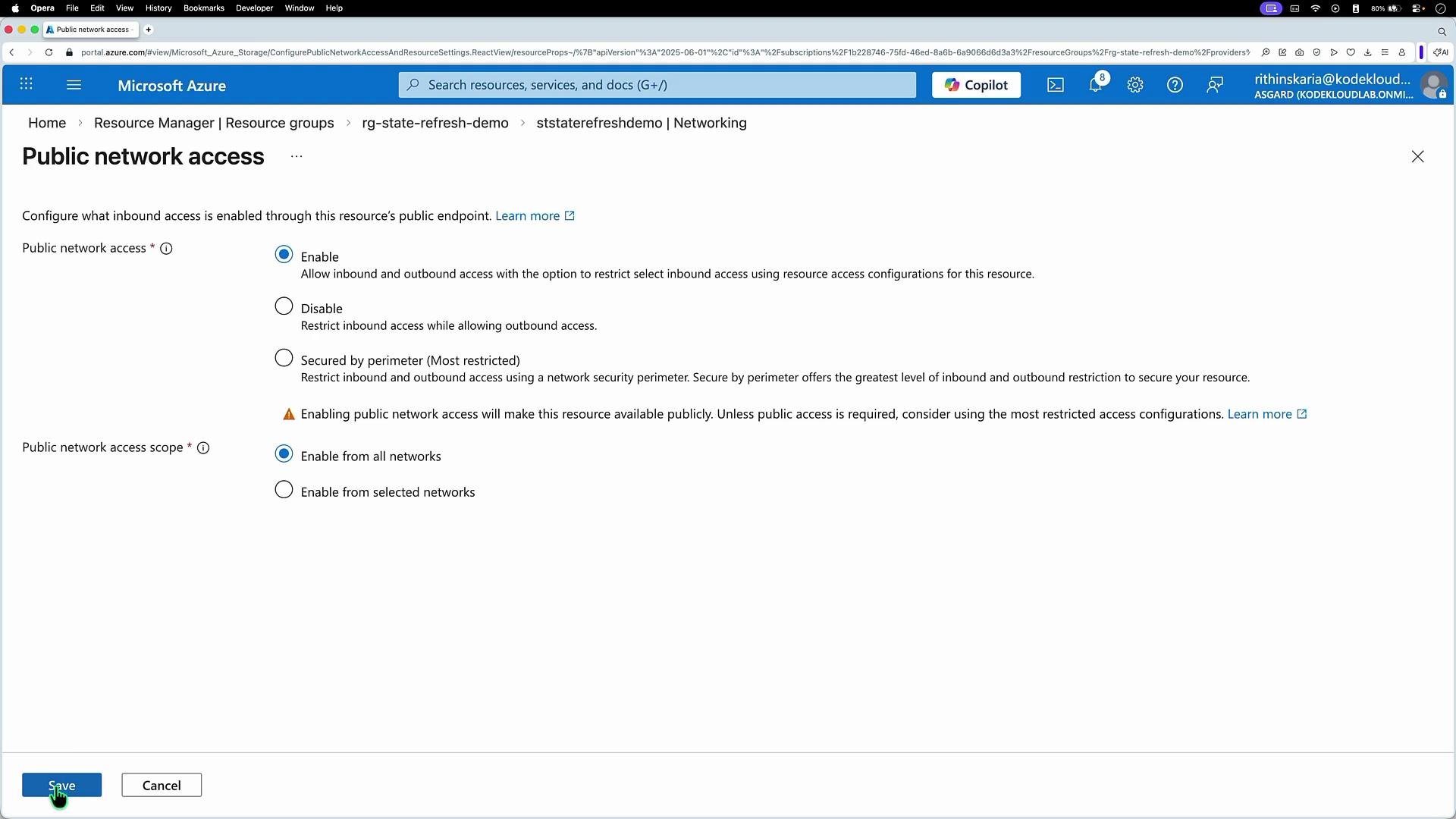
After applying a change, confirm it in the portal. For example, open the storage account in the Azure portal, go to Security and Networking → Networking, and verify the public network access setting reflects Terraform's change.
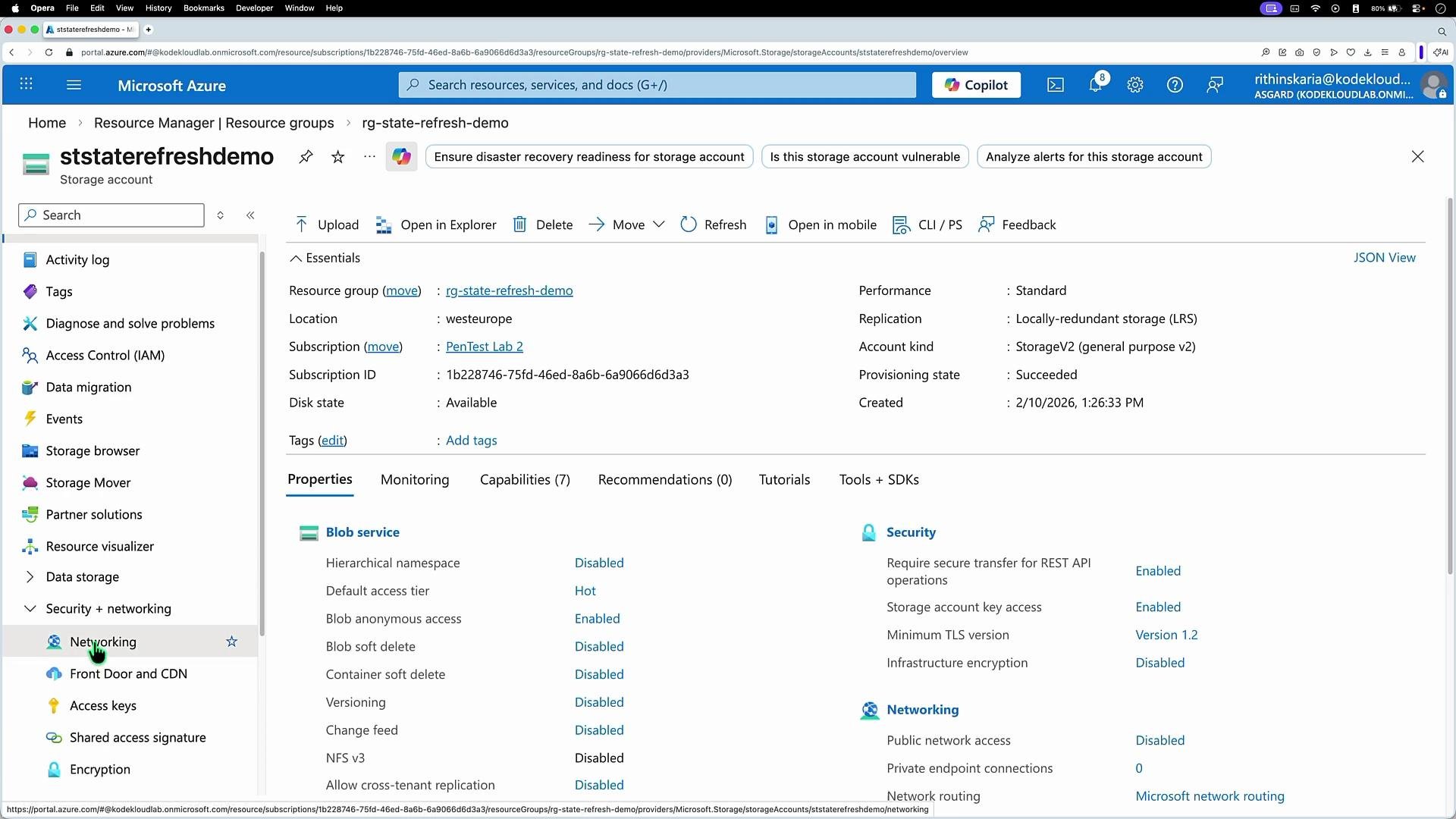 If you manually toggle that setting back to Enabled in the portal and save it, Terraform will detect that drift the next time it refreshes the state and will plan to reconcile it (unless you use `-refresh=false`).
 Summary — Key takeaways
* Default Terraform behavior is to refresh state before planning or applying; this ensures plans reflect live infrastructure and detect out-of-band changes.
* `-refresh=false` can speed up execution but is risky: it relies solely on the state file and can hide drift.
* In production, prefer the default refresh behavior for safety, accuracy, and predictable outcomes.
Further reading and references
* Terraform state and remote backends: [https://www.terraform.io/docs/language/state/index.html](https://www.terraform.io/docs/language/state/index.html)
* AzureRM provider documentation: [https://registry.terraform.io/providers/hashicorp/azurerm/latest/docs](https://registry.terraform.io/providers/hashicorp/azurerm/latest/docs)
* Azure Storage Account networking docs: [https://learn.microsoft.com/azure/storage/common/storage-network-security-overview](https://learn.microsoft.com/azure/storage/common/storage-network-security-overview)
Summary — Key takeaways
* Default Terraform behavior is to refresh state before planning or applying; this ensures plans reflect live infrastructure and detect out-of-band changes.
* `-refresh=false` can speed up execution but is risky: it relies solely on the state file and can hide drift.
* In production, prefer the default refresh behavior for safety, accuracy, and predictable outcomes.
Further reading and references
* Terraform state and remote backends: [https://www.terraform.io/docs/language/state/index.html](https://www.terraform.io/docs/language/state/index.html)
* AzureRM provider documentation: [https://registry.terraform.io/providers/hashicorp/azurerm/latest/docs](https://registry.terraform.io/providers/hashicorp/azurerm/latest/docs)
* Azure Storage Account networking docs: [https://learn.microsoft.com/azure/storage/common/storage-network-security-overview](https://learn.microsoft.com/azure/storage/common/storage-network-security-overview)