> ## Documentation Index
> Fetch the complete documentation index at: https://notes.kodekloud.com/llms.txt
> Use this file to discover all available pages before exploring further.
# Workspace Commands
> Explains Terraform workspaces, their commands and AzureRM backend behavior, how workspaces isolate state, manage multiple environments, and best practices for creating, switching, and deleting workspaces
This section explains Terraform workspaces — the built-in mechanism for managing multiple independent state instances from a single configuration. Workspaces let you isolate state (for example: `dev`, `prod`) while keeping the same Terraform code.
Below is the high-level `terraform workspace` usage and available subcommands:
```bash theme={null}
$ terraform workspace
Usage: terraform [global options] workspace
new, list, show, select and delete Terraform workspaces.
Subcommands:
delete Delete a workspace
list List Workspaces
new Create a new workspace
select Select a workspace
show Show the name of the current workspace
```
## Workspace subcommands (quick reference)
| Command | Purpose | Example |
| -------: | ---------------------------------------------------------------- | --------------------------------- |
| `list` | Show all workspaces for the current configuration/backend | `terraform workspace list` |
| `show` | Print the currently-active workspace name | `terraform workspace show` |
| `new` | Create a new workspace and switch to it (creates an empty state) | `terraform workspace new dev` |
| `select` | Switch the active workspace | `terraform workspace select prod` |
| `delete` | Remove a workspace (only if empty, or use `-force`) | `terraform workspace delete dev` |
## How workspaces affect state and configuration
* Workspaces isolate state files but reuse the same configuration files.
* The active workspace determines which state Terraform reads from and writes to during `plan` and `apply`.
* Use the built-in expression `terraform.workspace` inside your configuration to adapt resource names or logic by workspace.
Do not expect Terraform to substitute variables into a backend block during `terraform init`. Backend configuration is evaluated before variable values are applied. If you need workspace-specific backends you must configure them explicitly or use automation outside of Terraform init.
***
## Example: AzureRM provider and single-file demo
Below is a compact example used for the demo. In production you should split provider, variables, resources, and backend into separate files.
```hcl theme={null}
provider "azurerm" {
features {}
subscription_id = "1b228746-75fd-46ed-8a6b-6a906d6d3a3"
}
variable "environment" {
type = string
default = "dev"
}
resource "azurerm_resource_group" "rg" {
name = "rg-${var.environment}-01"
location = "West US"
}
terraform {
backend "azurerm" {
resource_group_name = "rg-state-refresh-demo"
storage_account_name = "ststatereshdemo"
container_name = "statecontainer"
key = "workspace.tfstate"
}
}
```
 Notes about the example:
* The `environment` variable is used to name the resource group.
* The backend block shown above is static — variables are not expanded at `terraform init` time.
* The `key` value determines the root state object name in the remote backend; Terraform will append workspace identifiers to that key when using workspaces (see below).
## Initialize the backend
After creating your configuration, run:
```bash theme={null}
terraform init
```
Typical simplified output:
```bash theme={null}
Acquiring state lock. This may take a few moments...
Successfully configured the backend "azurerm"! Terraform will automatically
use this backend unless the backend configuration changes.
Initializing provider plugins...
- Finding latest version of hashicorp/azurerm...
- Installing hashicorp/azurerm v4.59.0...
```
## Working with workspaces (common workflow)
1. List existing workspaces:
```bash theme={null}
terraform workspace list
```
Output example:
```bash theme={null}
* default
```
2. Create and switch to a new workspace:
```bash theme={null}
terraform workspace new dev
```
Output:
```bash theme={null}
Created and switched to workspace "dev"!
```
You're now on a new, empty workspace. Workspaces isolate their state, so if you run "terraform plan" Terraform will not see any existing state for this configuration.
3. Plan and apply for the workspace (supply variable values as needed):
```bash theme={null}
terraform plan -var="environment=dev"
terraform apply -var="environment=dev"
```
Repeat for a production workspace:
```bash theme={null}
terraform workspace new prod
terraform workspace list
# shows: default, dev, * prod
terraform apply -var="environment=prod"
```
Each workspace maintains an isolated state. The configuration and resources may have the same names, but the state is tracked separately.
## How workspace state is stored in Azure Storage
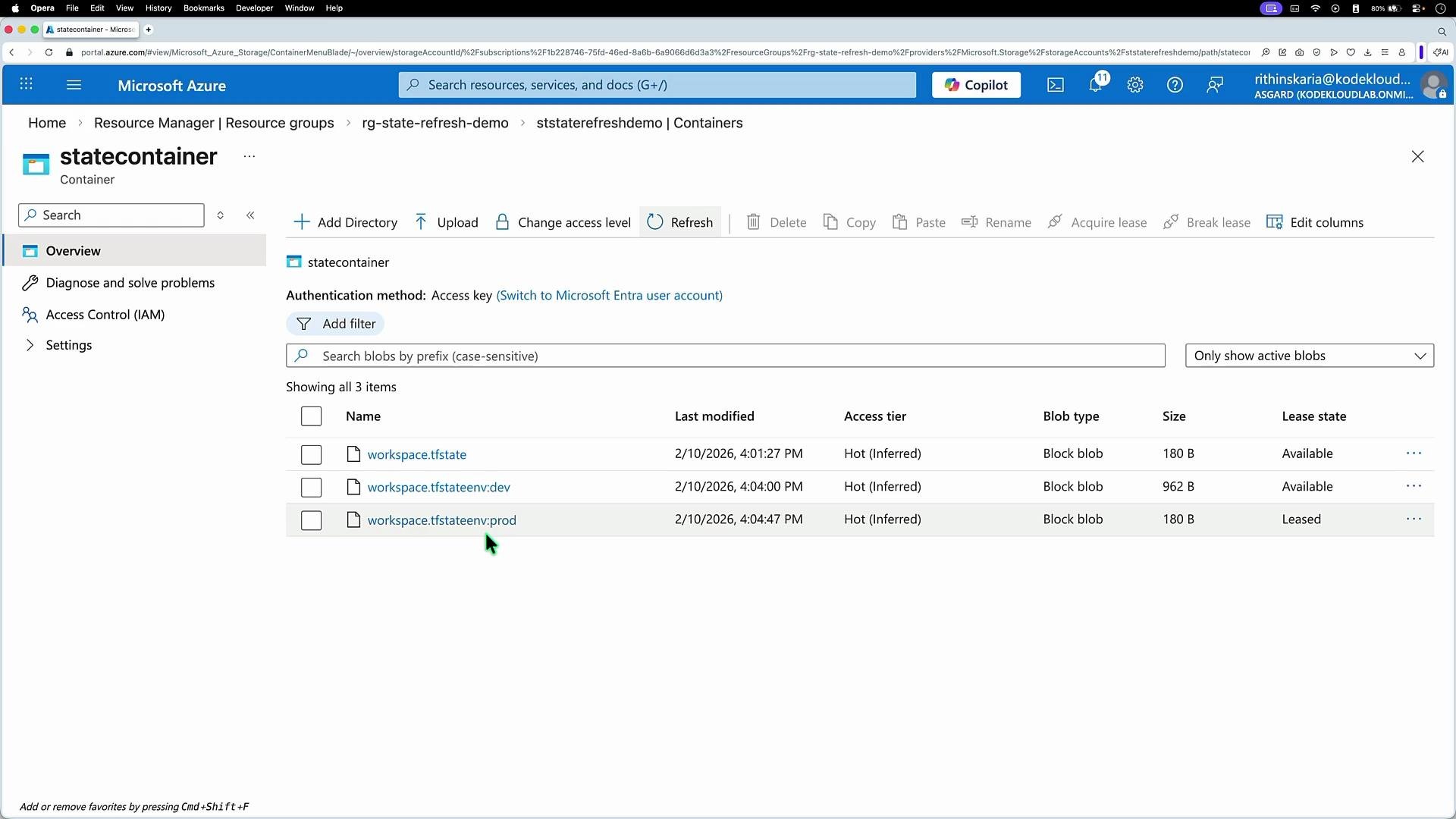
When using the AzureRM backend, Terraform stores separate state blobs per workspace. For example, if your configured key is `workspace.tfstate`, the backend will typically create blobs such as:
* `workspace.tfstate`
* `workspace.tfstate?env=dev` (backend implementation may vary; common naming patterns include workspace suffixes)
* `workspace.tfstate?env=prod`
Open your storage container to verify the actual blob names. Example screenshot:
Notes about the example:
* The `environment` variable is used to name the resource group.
* The backend block shown above is static — variables are not expanded at `terraform init` time.
* The `key` value determines the root state object name in the remote backend; Terraform will append workspace identifiers to that key when using workspaces (see below).
## Initialize the backend
After creating your configuration, run:
```bash theme={null}
terraform init
```
Typical simplified output:
```bash theme={null}
Acquiring state lock. This may take a few moments...
Successfully configured the backend "azurerm"! Terraform will automatically
use this backend unless the backend configuration changes.
Initializing provider plugins...
- Finding latest version of hashicorp/azurerm...
- Installing hashicorp/azurerm v4.59.0...
```
## Working with workspaces (common workflow)
1. List existing workspaces:
```bash theme={null}
terraform workspace list
```
Output example:
```bash theme={null}
* default
```
2. Create and switch to a new workspace:
```bash theme={null}
terraform workspace new dev
```
Output:
```bash theme={null}
Created and switched to workspace "dev"!
```
You're now on a new, empty workspace. Workspaces isolate their state, so if you run "terraform plan" Terraform will not see any existing state for this configuration.
3. Plan and apply for the workspace (supply variable values as needed):
```bash theme={null}
terraform plan -var="environment=dev"
terraform apply -var="environment=dev"
```
Repeat for a production workspace:
```bash theme={null}
terraform workspace new prod
terraform workspace list
# shows: default, dev, * prod
terraform apply -var="environment=prod"
```
Each workspace maintains an isolated state. The configuration and resources may have the same names, but the state is tracked separately.
## How workspace state is stored in Azure Storage
When using the AzureRM backend, Terraform stores separate state blobs per workspace. For example, if your configured key is `workspace.tfstate`, the backend will typically create blobs such as:
* `workspace.tfstate`
* `workspace.tfstate?env=dev` (backend implementation may vary; common naming patterns include workspace suffixes)
* `workspace.tfstate?env=prod`
Open your storage container to verify the actual blob names. Example screenshot:
 Workspaces behavior is similar for other backends (S3, local files, etc.) — each workspace gets its own state file object.
## Deleting a workspace — safety checks
Terraform prevents accidental loss of tracked remote objects. You cannot delete a workspace that contains tracked resources unless you first remove those resources from Terraform (destroy them) or you force Terraform to forget them.
Example error when attempting to delete a non-empty workspace:
```bash theme={null}
terraform workspace delete dev
Error: Workspace is not empty
Workspace "dev" is currently tracking the following resource instances:
- azurerm_resource_group.rg
Deleting this workspace would cause Terraform to lose track of any associated remote objects, which would then require you to delete them manually outside of Terraform. You should destroy these objects with Terraform before deleting the workspace.
```
If you want to permanently delete the workspace and make Terraform forget about its resources (use with extreme caution), use the `-force` flag:
```bash theme={null}
terraform workspace delete -force dev
```
Deleting a workspace that contains resources can leave real infrastructure orphaned and unmanaged. Always run `terraform destroy` in the workspace first if you intend to remove the actual cloud resources. Use `-force` only when you understand the consequences.
## Summary & best practices
* Use workspaces to isolate state (e.g., dev/prod) while reusing the same Terraform code.
* Do not attempt to reference variables inside the backend block for `terraform init`.
* Name resources or use `terraform.workspace` to generate workspace-specific names.
* Verify remote state objects (storage container, S3 bucket) to understand how workspaces map to backend state files.
* Always destroy resources before deleting a workspace to avoid orphaned infrastructure.
References:
* [Terraform Workspaces](https://www.terraform.io/docs/cli/concepts/workspaces.html)
* [AzureRM Backend](https://registry.terraform.io/providers/hashicorp/azurerm/latest/docs/guides/state)
Workspaces behavior is similar for other backends (S3, local files, etc.) — each workspace gets its own state file object.
## Deleting a workspace — safety checks
Terraform prevents accidental loss of tracked remote objects. You cannot delete a workspace that contains tracked resources unless you first remove those resources from Terraform (destroy them) or you force Terraform to forget them.
Example error when attempting to delete a non-empty workspace:
```bash theme={null}
terraform workspace delete dev
Error: Workspace is not empty
Workspace "dev" is currently tracking the following resource instances:
- azurerm_resource_group.rg
Deleting this workspace would cause Terraform to lose track of any associated remote objects, which would then require you to delete them manually outside of Terraform. You should destroy these objects with Terraform before deleting the workspace.
```
If you want to permanently delete the workspace and make Terraform forget about its resources (use with extreme caution), use the `-force` flag:
```bash theme={null}
terraform workspace delete -force dev
```
Deleting a workspace that contains resources can leave real infrastructure orphaned and unmanaged. Always run `terraform destroy` in the workspace first if you intend to remove the actual cloud resources. Use `-force` only when you understand the consequences.
## Summary & best practices
* Use workspaces to isolate state (e.g., dev/prod) while reusing the same Terraform code.
* Do not attempt to reference variables inside the backend block for `terraform init`.
* Name resources or use `terraform.workspace` to generate workspace-specific names.
* Verify remote state objects (storage container, S3 bucket) to understand how workspaces map to backend state files.
* Always destroy resources before deleting a workspace to avoid orphaned infrastructure.
References:
* [Terraform Workspaces](https://www.terraform.io/docs/cli/concepts/workspaces.html)
* [AzureRM Backend](https://registry.terraform.io/providers/hashicorp/azurerm/latest/docs/guides/state)