> ## Documentation Index
> Fetch the complete documentation index at: https://notes.kodekloud.com/llms.txt
> Use this file to discover all available pages before exploring further.
# Installing Terragrunt
> Learn how to install Terragrunt on Windows, macOS, and Linux to streamline your Terraform workflows.
Learn how to install Terragrunt on Windows, macOS, and Linux to streamline your Terraform workflows. Follow the steps below to get up and running in minutes.
* Ensure you have Terraform installed and configured: [Terraform Documentation](https://www.terraform.io/docs).
* Verify you have permissions to modify your `PATH` environment variable.
* For macOS users, Homebrew must be installed: `brew --version`.
## Installation Summary
| Operating System | Method | Quick Command or Action |
| ---------------- | --------------- | ------------------------------------------------------------------------ |
| Windows | Download Binary | Download from GitHub, place `terragrunt.exe` in a directory under `PATH` |
| macOS | Homebrew | `brew install terragrunt` |
| Linux | Download Binary | Download from GitHub, move to `/usr/local/bin`, then `chmod +x` |
***
## Windows
1. Download the latest `terragrunt.exe` from the [official GitHub releases page][gh-releases].
2. Move the executable into a folder included in your `PATH` (for example, `C:\Windows\System32` or a custom tools directory).
3. Open a new Command Prompt or PowerShell window and verify:
```shell theme={null}
terragrunt --version
```
You should see output similar to:
```text theme={null}
terragrunt version v0.x.x
```
Be careful when editing system environment variables. Incorrect changes to `PATH` can prevent other applications from running.
***
## macOS
On macOS, use Homebrew to install Terragrunt:
```bash theme={null}
brew install terragrunt
```
Once the installation completes, confirm it’s successful:
```shell theme={null}
terragrunt --version
```
If you see the version printed, Terragrunt is ready to use.
***
## Linux
First, download the appropriate binary for your CPU architecture from the [official GitHub releases page][gh-releases].
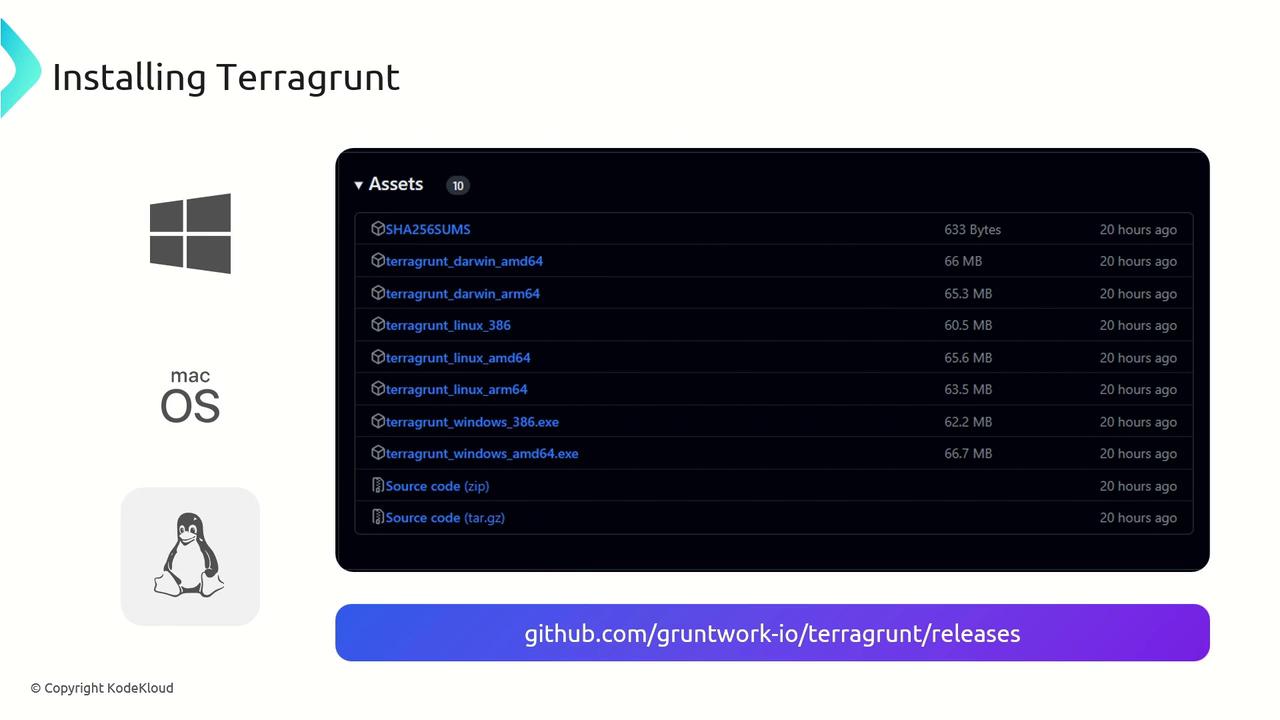
Then move the binary into a directory on your `PATH` (e.g., `/usr/local/bin`) and make it executable:
```bash theme={null}
sudo mv terragrunt /usr/local/bin/
sudo chmod +x /usr/local/bin/terragrunt
```
Finally, verify the installation:
```shell theme={null}
terragrunt --version
```
***
With Terragrunt installed on your platform of choice, you can now leverage its features—such as DRY configurations, remote state management, and automated locking—to enhance your Terraform projects.
## Links and References
* [Terragrunt GitHub Releases][gh-releases]
* [Terraform Documentation](https://www.terraform.io/docs)
* [Homebrew](https://brew.sh/)
[gh-releases]: https://github.com/gruntwork-io/terragrunt/releases