> ## Documentation Index
> Fetch the complete documentation index at: https://notes.kodekloud.com/llms.txt
> Use this file to discover all available pages before exploring further.
# Demo of Lab 3
> Learn to structure Terragrunt configurations for multi-module AWS deployment, provisioning VPC, EC2 instances, and managing remote state with Terraform and Terragrunt.
Welcome to Lab Three! In this session, you'll learn how to structure Terragrunt configurations for a multi-module AWS deployment. Follow these steps to provision a VPC, EC2 instances, and manage remote state with Terraform and Terragrunt.
If you ever need to retrieve your AWS credentials during the lesson, run:
```bash theme={null}
show creds
```
You can also open the VS Code IDE in a new browser tab to copy and paste commands.
***
## Terraform Modules Overview
| Module | Source | Purpose |
| ------------ | -------------------------------------------------------- | --------------------------------------------------- |
| VPC | `terraform-aws-modules/vpc/aws//?version=5.8.1` | Create a scalable VPC with public & private subnets |
| EC2 Web | `terraform-aws-modules/ec2-instance/aws//?version=2.0.0` | Launch a web server in the public subnet |
| EC2 Database | (Your custom module) | Deploy a database instance in a private subnet |
***
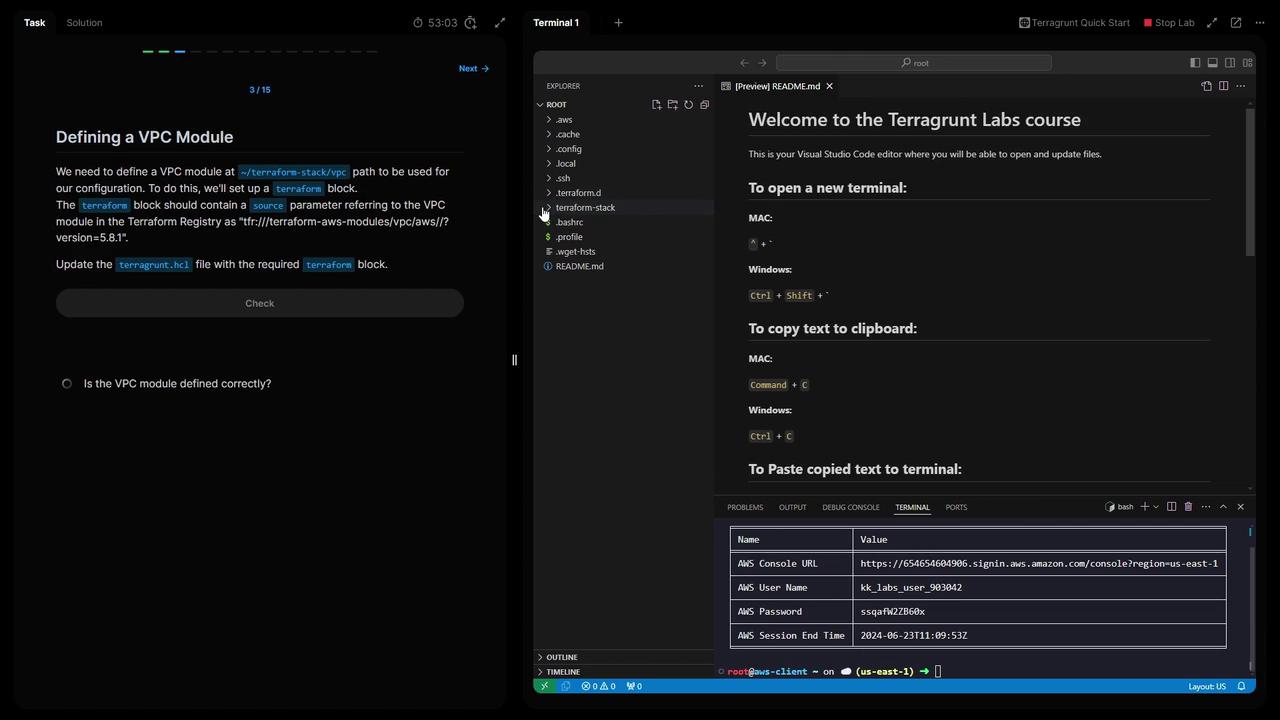
## 1. Define the VPC Module
Create a Terragrunt configuration under `Terraform stack/vpc/terragrunt.hcl`:
```hcl theme={null}
terraform {
source = "terraform-aws-modules/vpc/aws//?version=5.8.1"
}
inputs = {
name = "vpc"
cidr = "10.0.0.0/16"
azs = ["us-east-1a", "us-east-1b", "us-east-1c"]
public_subnets = ["10.0.101.0/24", "10.0.102.0/24", "10.0.103.0/24"]
private_subnets = ["10.0.201.0/24", "10.0.202.0/24"]
enable_nat_gateway = true
single_nat_gateway = true
}
```
Save the file and validate the configuration:
```bash theme={null}
terragrunt validate
```
***
## 2. Configure Remote State in the Root
### What is `path_relative_to_include()`?
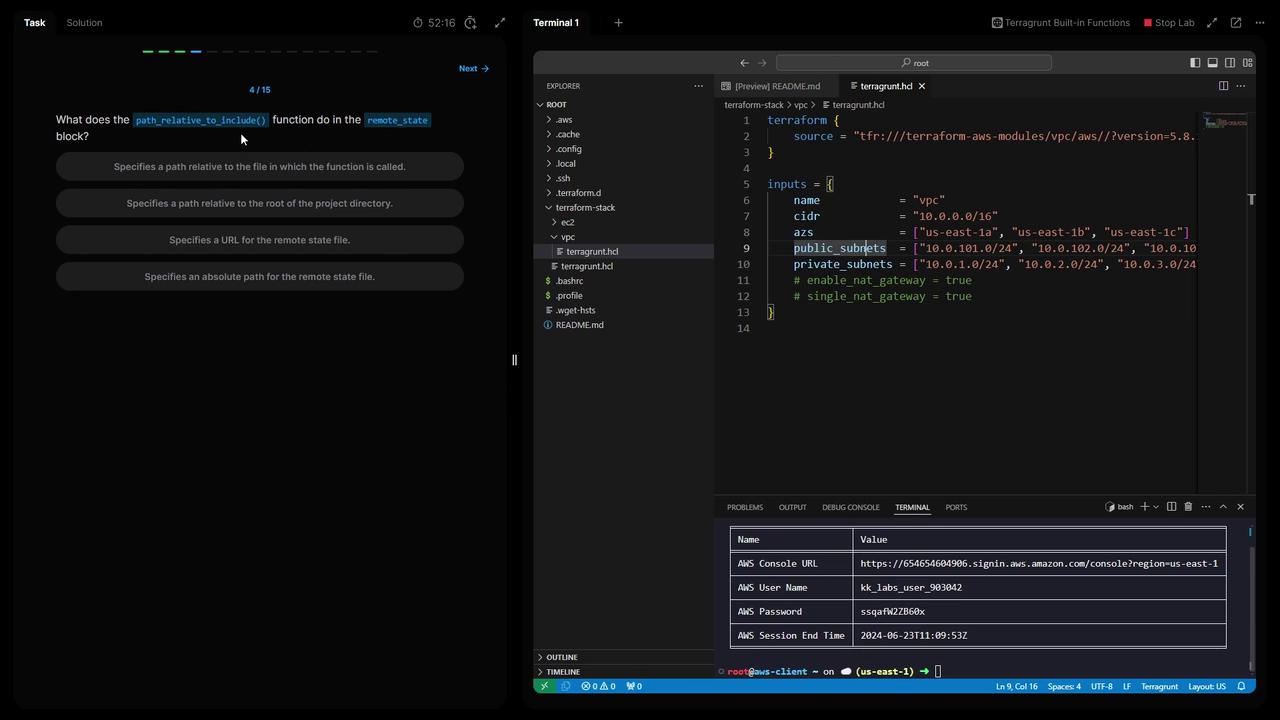
The `path_relative_to_include()` function computes the relative path from the current `terragrunt.hcl` to the included parent. This ensures each module’s state key is unique in S3.
In your root `Terraform stack/terragrunt.hcl`, add:
```hcl theme={null}
remote_state {
backend = "s3"
config = {
encrypt = true
bucket = "kk-tf-state-314"
key = "${path_relative_to_include()}/terraform.tfstate"
region = "us-east-1"
}
generate = {
path = "backend.tf"
if_exists = "overwrite_terragrunt"
}
}
```
1. List your S3 buckets to find the Terraform state bucket:
```bash theme={null}
aws s3 ls | grep "kk-tf-state-"
```
2. Reinitialize Terragrunt and confirm updating the backend:
```bash theme={null}
terragrunt init
# Type "yes" when prompted
```
***
## 3. Define Common Locals
To DRY out your configuration, define shared values at the root:
```hcl theme={null}
locals {
project = "kodeloud-labs"
ami = "ami-0f2a1bb3c24f7285"
instance_type = "t2.micro"
}
```
Validate once more:
```bash theme={null}
terragrunt validate
```
***
## 4. Generate Provider and Terraform Version Files
Leverage Terragrunt’s `generate` blocks to auto-create `providers.tf` and a Terraform version override:
```hcl theme={null}
generate "provider" {
path = "providers.tf"
if_exists = "overwrite_terragrunt"
contents = <
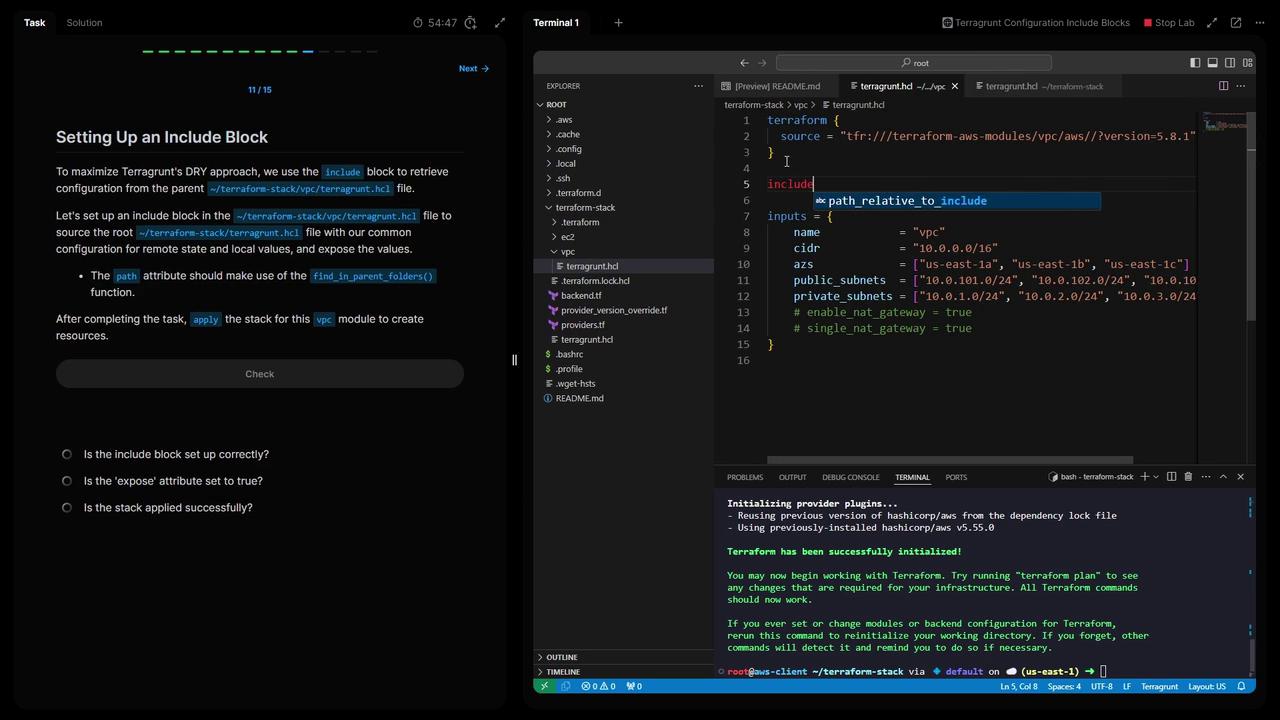
```hcl theme={null}
terraform {
source = "terraform-aws-modules/vpc/aws//?version=5.8.1"
}
include "root" {
path = find_in_parent_folders()
expose = true
}
inputs = {
name = "vpc"
cidr = "10.0.0.0/16"
azs = ["us-east-1a", "us-east-1b", "us-east-1c"]
public_subnets = ["10.0.101.0/24", "10.0.102.0/24", "10.0.103.0/24"]
private_subnets = ["10.0.201.0/24", "10.0.202.0/24"]
enable_nat_gateway = true
single_nat_gateway = true
}
```
Apply the VPC module:
```bash theme={null}
cd "Terraform stack/vpc"
terragrunt init
terragrunt apply
# Type "yes" to confirm
```
Verify the new VPC in the AWS Console.
***
## 6. Deploy EC2 Web Module with VPC Dependency
Create `Terraform stack/ec2-web/terragrunt.hcl` and reference the VPC outputs:
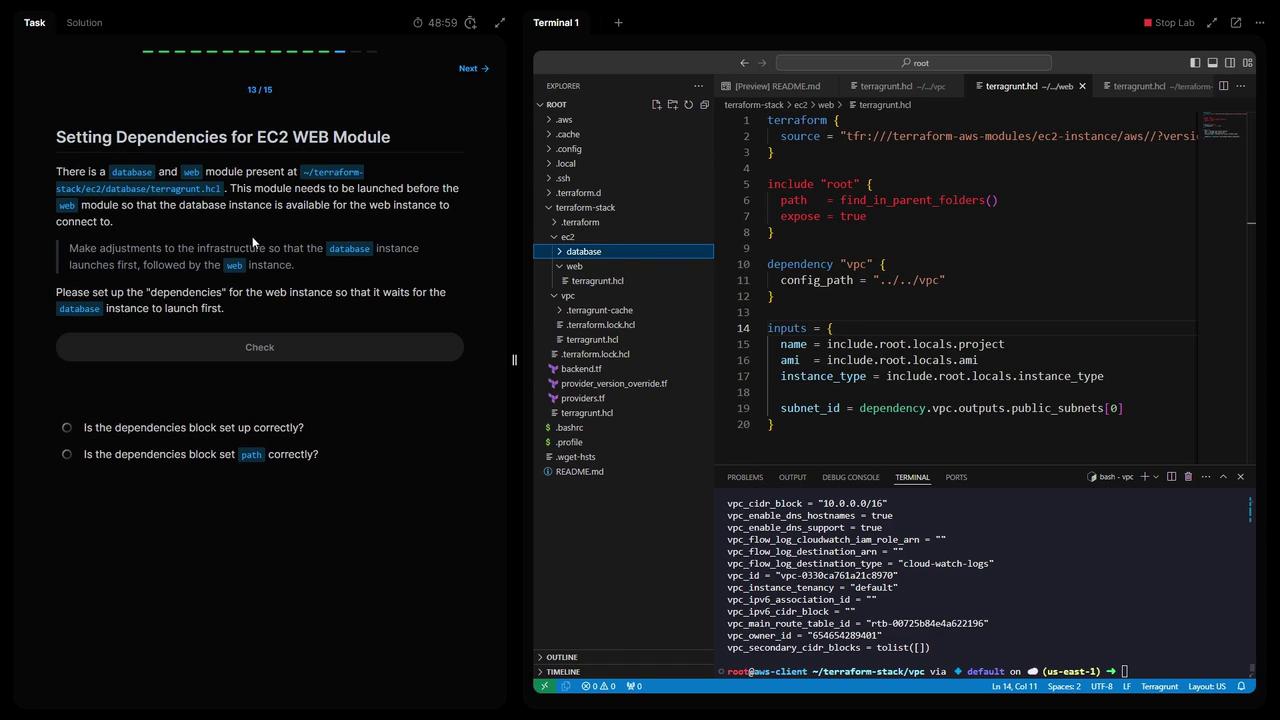
```hcl theme={null}
terraform {
source = "terraform-aws-modules/ec2-instance/aws//?version=2.0.0"
}
include "root" {
path = find_in_parent_folders()
expose = true
}
dependency "vpc" {
config_path = "../../vpc"
}
inputs = {
name = include.root.locals.project
ami = include.root.locals.ami
instance_type = include.root.locals.instance_type
subnet_id = dependency.vpc.outputs.public_subnets[0]
}
```
Initialize and apply:
```bash theme={null}
cd "Terraform stack/ec2-web"
terragrunt init
terragrunt apply
# Type "yes" to confirm
```
***
## 7. Add Database Dependency to the Web Module
If you have a database module under `Terraform stack/ec2-database`, ensure it deploys before the web server:
```hcl theme={null}
dependencies {
paths = ["../ec2-database"]
}
```
Re-run in `ec2-web`:
```bash theme={null}
terragrunt init
terragrunt apply
```
Terragrunt will sequence: VPC → Database → Web.
***
## 8. Deploy All Modules Simultaneously
From the root of `Terraform stack`, run:
```bash theme={null}
terragrunt run-all apply
```
This command orchestrates every module in dependency order.
***
## 9. Verify Remote State Files in S3
Check that each module has its own state file:
```bash theme={null}
BUCKET=$(aws s3 ls | grep kk-tf-state | awk '{print $3}' | head -n1)
aws s3 ls "s3://$BUCKET" --recursive
```
Expected output:
```bash theme={null}
2024-06-23 09:14:06 180 0/terraform.tfstate
2024-06-23 09:14:06 9575 0/database/terraform.tfstate
2024-06-23 09:14:09 39803 0/web/terraform.tfstate
```
***
## 10. Why Generate at the Root
By generating the backend, provider, and Terraform-version files at the project root, you:
* Centralize configuration for consistency
* Avoid duplication in child modules
* Simplify maintenance as your infrastructure grows
***
Thank you for completing Lab Three! You now have a reusable Terragrunt setup for AWS VPC, EC2, and remote state management. See you in the next lab!