> ## Documentation Index
> Fetch the complete documentation index at: https://notes.kodekloud.com/llms.txt
> Use this file to discover all available pages before exploring further.
# include Block
> The Include Block in Terragrunt allows integration of external HCL files, enhancing reusability and consistency in infrastructure configurations.
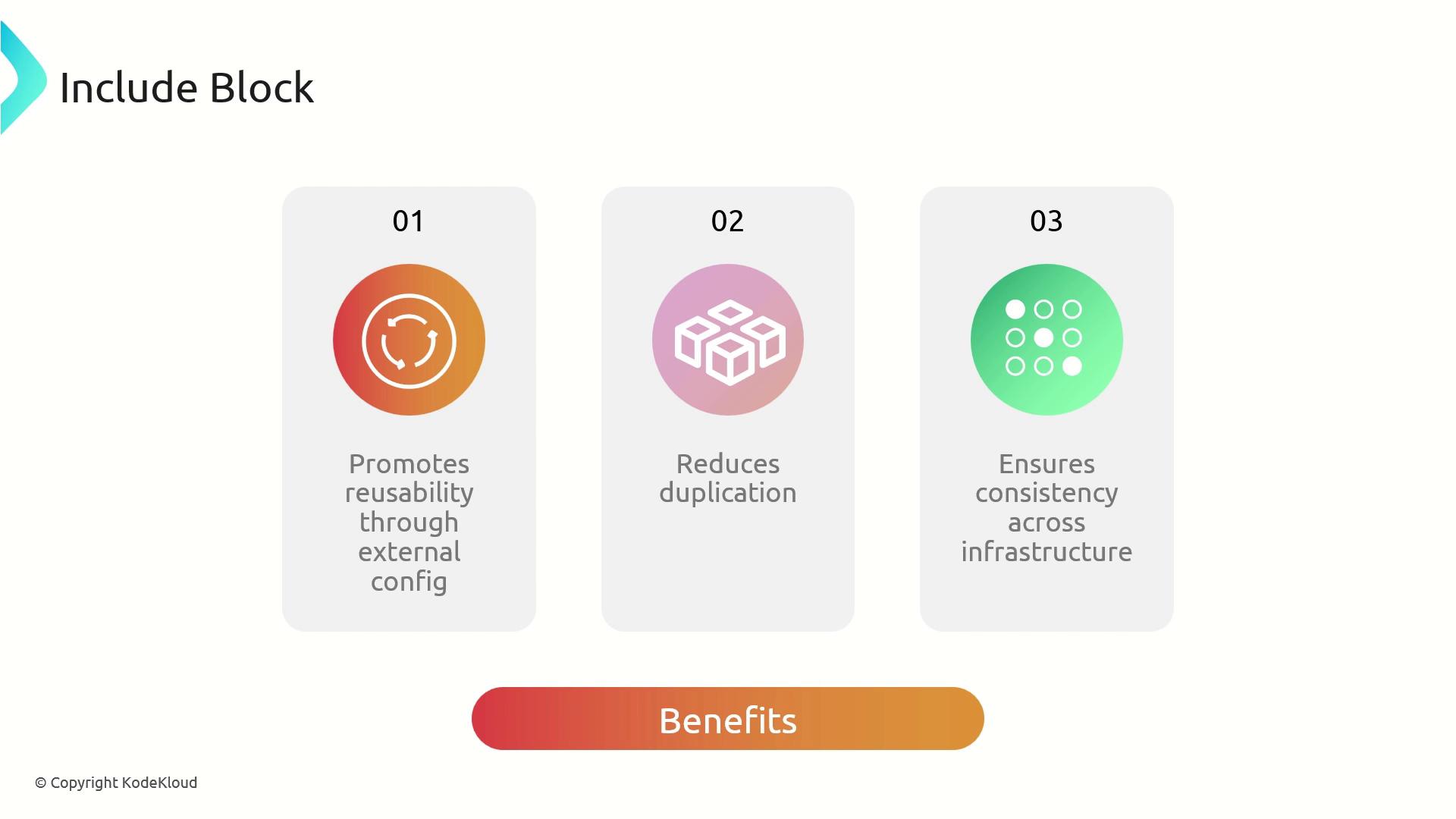
The **Include Block** in Terragrunt enables you to integrate external HCL files or entire directories into your configuration, promoting reusability, reducing duplication, and ensuring consistency across your infrastructure.
## Include Block Attributes
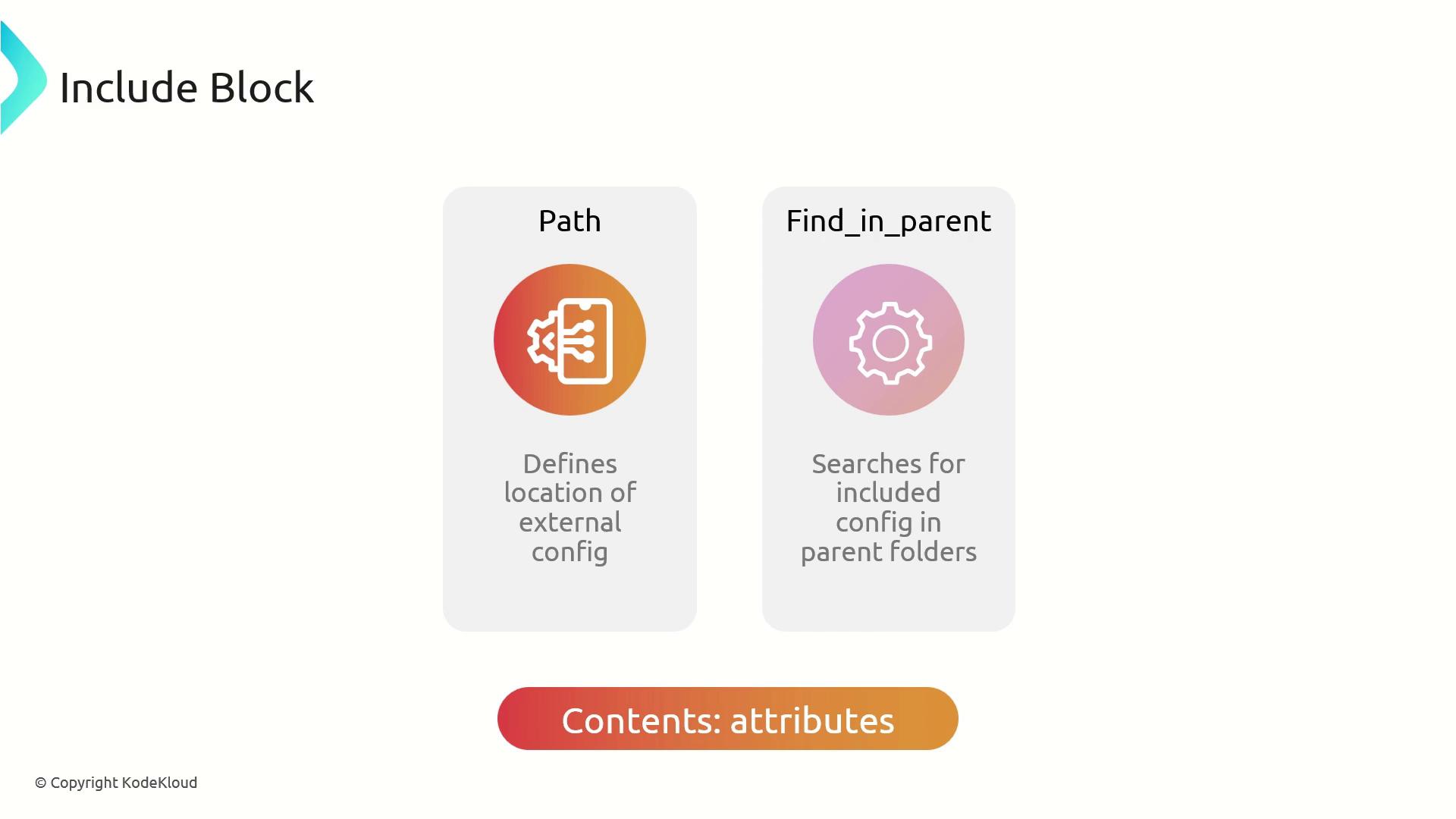
| Attribute | Description |
| -------------------------- | -------------------------------------------------------------------------------------------------- |
| `path` | Relative or absolute filesystem path to the Terragrunt configuration file or directory. |
| `find_in_parent_folders()` | Searches parent directories for a matching configuration when set to `true` or used as a function. |
## Key Benefits
1. Reusability\
Integrate shared HCL files to avoid rewriting the same remote-state or provider settings.
2. Consistency\
Enforce uniform patterns (naming conventions, tags, backends) across modules.
3. Efficiency\
Follow the DRY principle by centralizing common logic in one place.
## Considerations
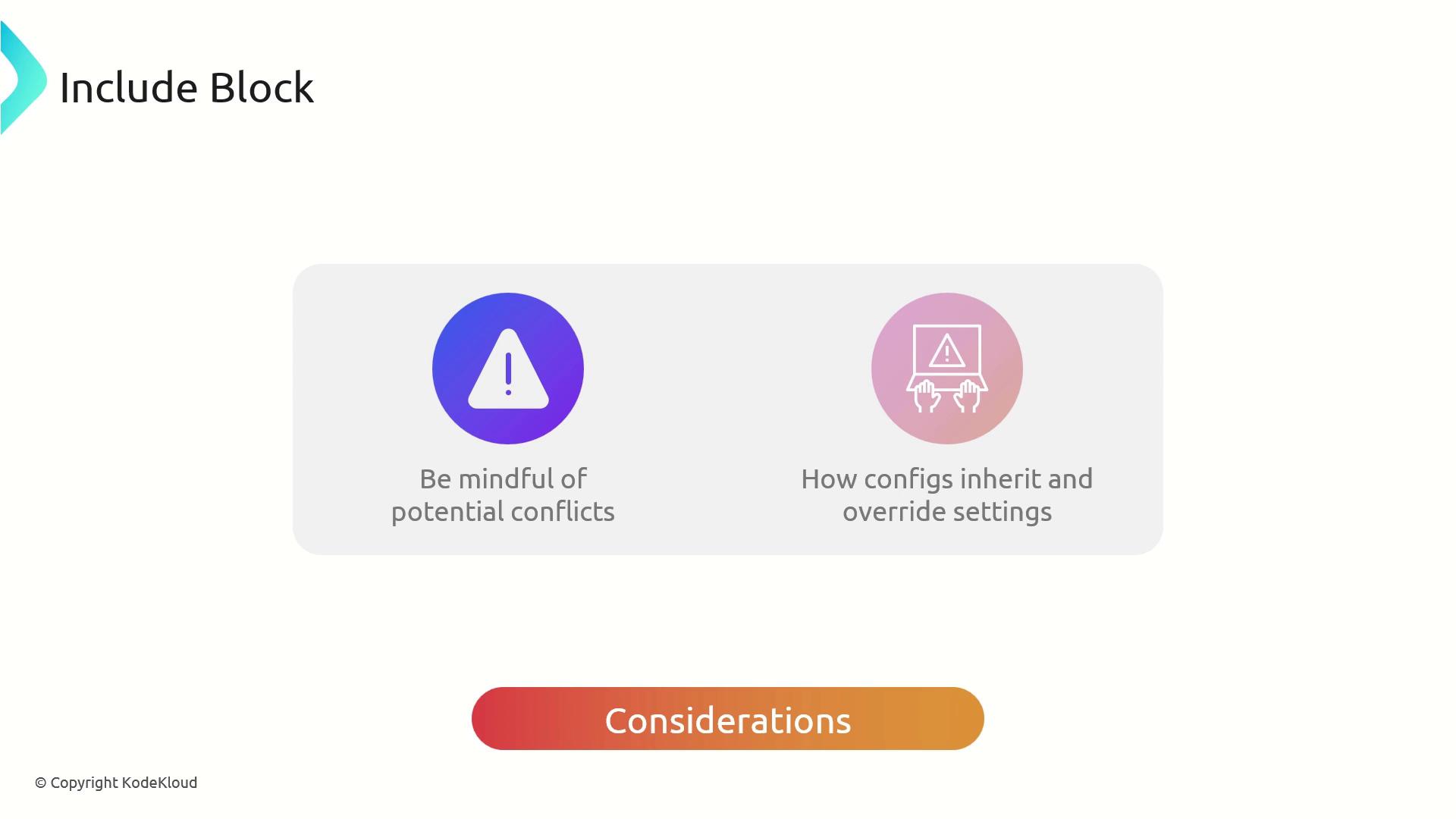
* **Override Conflicts**\
Understand how included blocks inherit or override values in child configurations.
* **Directory Hierarchy**\
Deep folder structures with multiple includes may become hard to trace without clear naming.
Avoid overly complex include hierarchies. Always document your folder layout and include points to prevent configuration drift.
## Best Practices
* Extract shared logic (remote-state, provider blocks, common locals) into dedicated HCL files.
* Use `expose = true` to make outputs or locals from an included file available to child modules.
* Leverage `find_in_parent_folders()` to avoid hard-coding relative paths.
Place a `common.hcl` at your repo root for project-wide settings (e.g., tags, metadata) so that every module can `include` it.
***
## Example: Centralizing Remote State
In your root `terragrunt.hcl`, define the S3 backend:
```hcl theme={null}
# root terragrunt.hcl
remote_state {
backend = "s3"
config = {
encrypt = true
bucket = "kodekloud-terragrunt-remote-state"
key = "${path_relative_to_include()}/terraform.tfstate"
region = "eu-west-1"
dynamodb_table = "terraform-locks"
}
generate = {
path = "backend.tf"
if_exists = "overwrite_terragrunt"
}
}
```
In `vpc/terragrunt.hcl`, include the root remote state:
```hcl theme={null}
# vpc/terragrunt.hcl
terraform {
source = "tfr://terraform-aws-modules/vpc/aws//?version=5.8.1"
}
include "root" {
path = find_in_parent_folders()
expose = true
}
```
When running `terragrunt apply` in `vpc/`, Terragrunt will:
1. Locate and include the root `remote_state` block.
2. Generate `backend.tf` with the S3 backend settings.
3. Deploy the VPC module using the shared backend configuration.
## Example: Sharing Common Configuration
Create a `common.hcl` at the repository root:
```hcl theme={null}
# common.hcl
locals {
project = "KodeKloud"
owner = "DevOps Team"
}
```
Then in each module (e.g., `vpc2/terragrunt.hcl`):
```hcl theme={null}
# vpc2/terragrunt.hcl
terraform {
source = "tfr://terraform-aws-modules/vpc/aws//?version=5.8.1"
}
include "root" {
path = find_in_parent_folders()
expose = true
}
include "common" {
path = find_in_parent_folders()
expose = true
}
inputs = {
project = local.project
owner = local.owner
}
```
This approach ensures both remote-state settings and shared locals (like `project` and `owner`) are available across modules without repetition.
***
## Links and References
* [Terragrunt Include Block Documentation](https://terragrunt.gruntwork.io/docs/features/include-block/)
* [Terragrunt Remote State](https://terragrunt.gruntwork.io/docs/features/remote-state/)
* [Terraform AWS VPC Module](https://registry.terraform.io/modules/terraform-aws-modules/vpc/aws/latest)