> ## Documentation Index
> Fetch the complete documentation index at: https://notes.kodekloud.com/llms.txt
> Use this file to discover all available pages before exploring further.
# terragrunt apply
> This article explains the `terragrunt apply` command for automating infrastructure changes with Terragrunt and Terraform, detailing its execution and best practices.
In this lesson, we’ll dive into the `terragrunt apply` command—your gateway to automating infrastructure changes with Terragrunt and Terraform. After reviewing changes with `terragrunt plan`, `terragrunt apply` executes the approved plan, provisioning or updating resources across one or multiple modules.
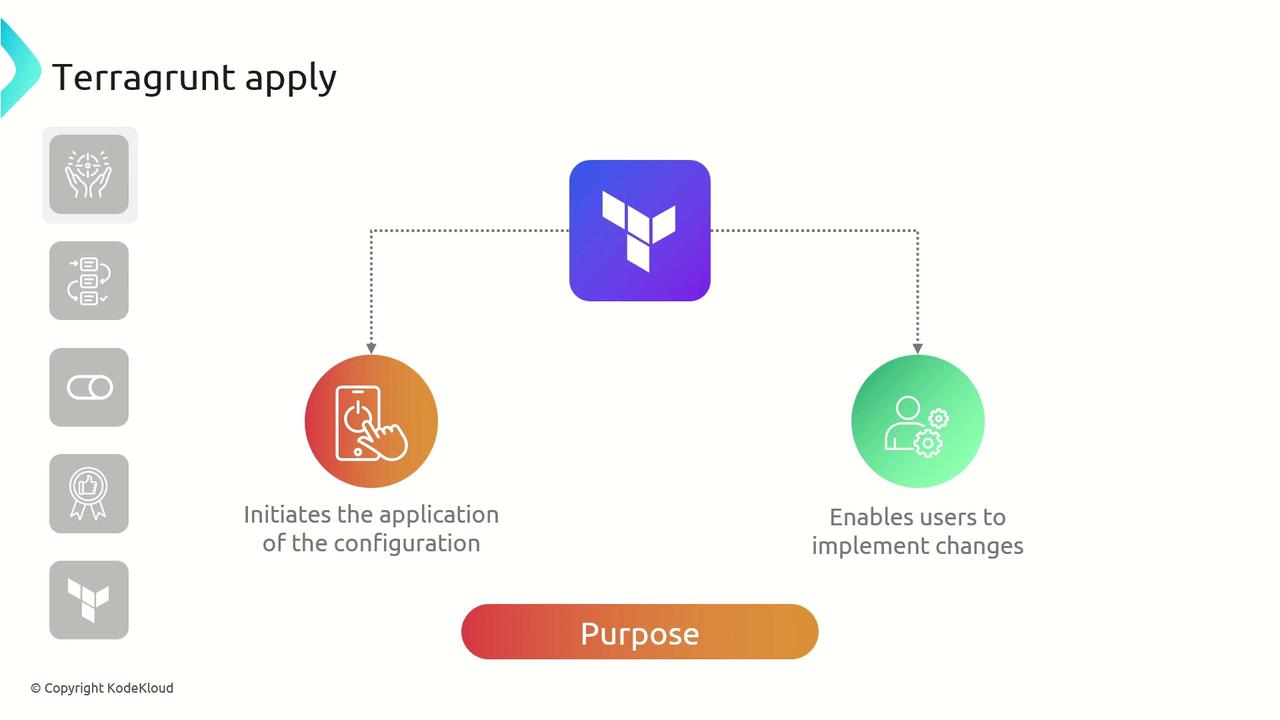
## Why Run terragrunt apply?
Always execute `terragrunt apply` after confirming the plan from `terragrunt plan`. This two-step approach ensures you understand potential changes before they impact your infrastructure.
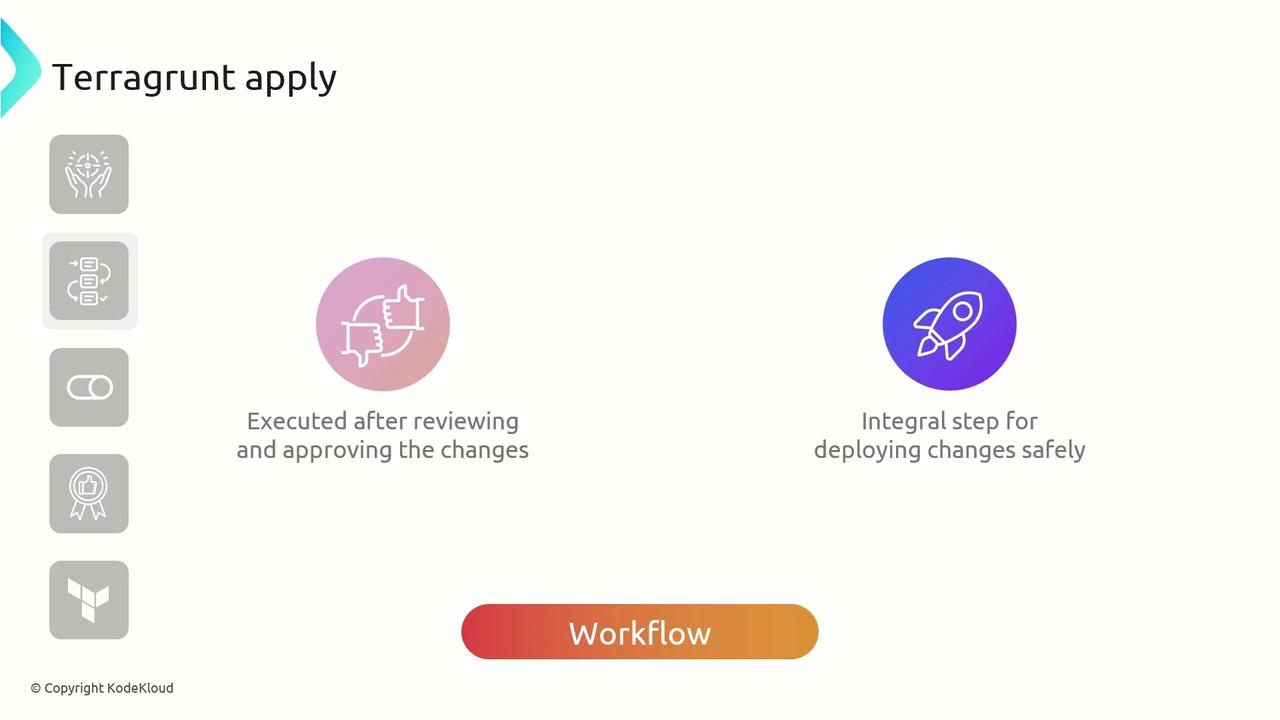
Under the hood, Terragrunt invokes Terraform’s [terraform apply](https://developer.hashicorp.com/terraform/cli/commands/apply) command and manages shared configuration across modules for you.
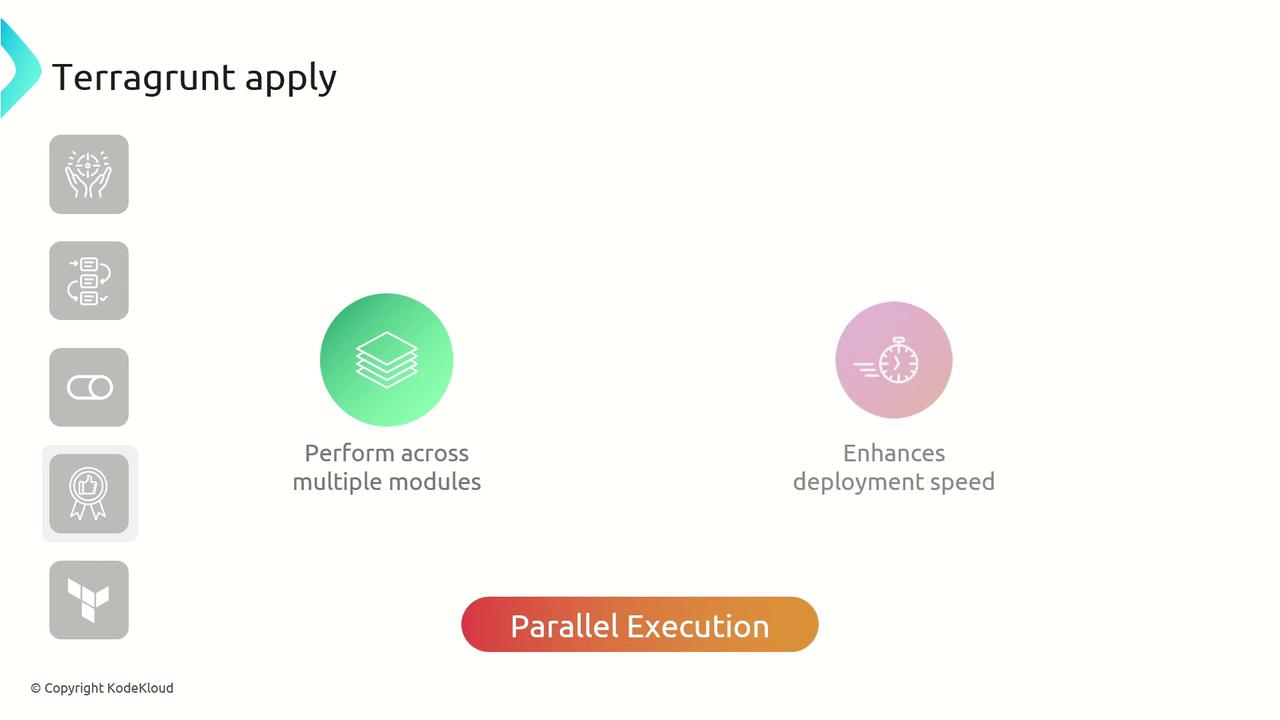
By default, Terragrunt will execute modules in parallel, vastly reducing deployment time in large, modular repositories.
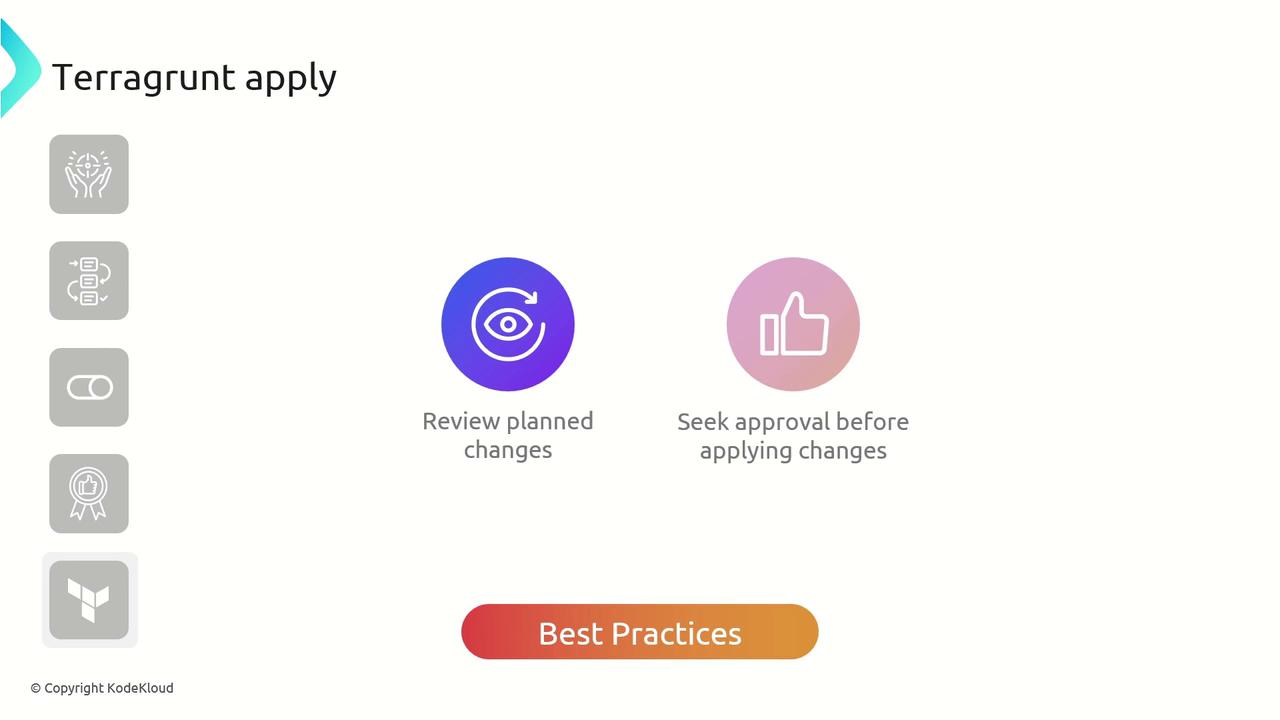
## Best Practices
* **Review the Plan**: Always inspect the execution plan to catch unintended changes.
* **Get Stakeholder Approval**: Ensure team members sign off on modifications.
* **Use Version Constraints**: Pin module and provider versions for reproducibility.
## Quick Reference: Common terragrunt apply Flags
| Flag | Description | Example |
| ------------------------------------------ | ----------------------------------------------- | ------------------------------------------------------------- |
| --auto-approve | Skip interactive confirmation | `terragrunt apply --auto-approve` |
| --target | Restrict apply to a specific module or resource | `terragrunt apply --target=module.vpc` |
| --terragrunt-include-external-dependencies | Include external dependencies in apply run | `terragrunt apply --terragrunt-include-external-dependencies` |
## Applying Your VPC Module
We’ve already approved the execution plan for our VPC module. Below is the Terragrunt configuration and the commands to apply it:
```hcl theme={null}
terraform {
source = "tfr://terraform-aws-modules/vpc/aws//?version=5.8.1"
}
inputs = {
name = "KodeKloud-VPC"
}
```
Run:
```bash theme={null}
$ terragrunt apply
```
Terragrunt will re-display the plan. After confirming the details, type `yes`:
```plaintext theme={null}
Do you want to perform these actions?
Terraform will perform the actions described above.
Only 'yes' will be accepted to approve.
Enter a value: yes
```
Upon completion, you’ll see:
```plaintext theme={null}
Apply complete! Resources: 1 added, 0 changed, 0 destroyed.
```
Terragrunt then prints the resulting outputs:
```hcl theme={null}
private_nat_gateway_route_ids = []
private_route_table_association_ids = []
private_route_table_ids = []
private_subnet_arns = []
private_subnets = []
public_route_table_ids = []
public_subnets = []
vpc_arn = "arn:aws:ec2:us-east-1:654654587809:vpc/vpc-03218326bbd74f4c"
vpc_cidr_block = "10.0.0.0/16"
vpc_enable_dns_hostnames = true
vpc_id = "vpc-03218326bbd74f4c"
vpc_owner_id = "654654587809"
```
## Links and References
* [Terragrunt GitHub Repository](https://github.com/gruntwork-io/terragrunt)
* [Terraform apply Command](https://developer.hashicorp.com/terraform/cli/commands/apply)
* [Terraform AWS VPC Module](https://registry.terraform.io/modules/terraform-aws-modules/vpc/aws/latest)