> ## Documentation Index
> Fetch the complete documentation index at: https://notes.kodekloud.com/llms.txt
> Use this file to discover all available pages before exploring further.
# Azure Bicep
> Azure Bicep simplifies Azure resource deployment and management with a cleaner syntax, modular files, and enhanced capabilities compared to traditional ARM JSON templates.
Azure Bicep is a domain-specific language designed to simplify the deployment and management of Azure resources. This guide explains how Azure Bicep streamlines your Azure deployments compared to traditional ARM JSON templates, offering a cleaner syntax and enhanced capabilities.
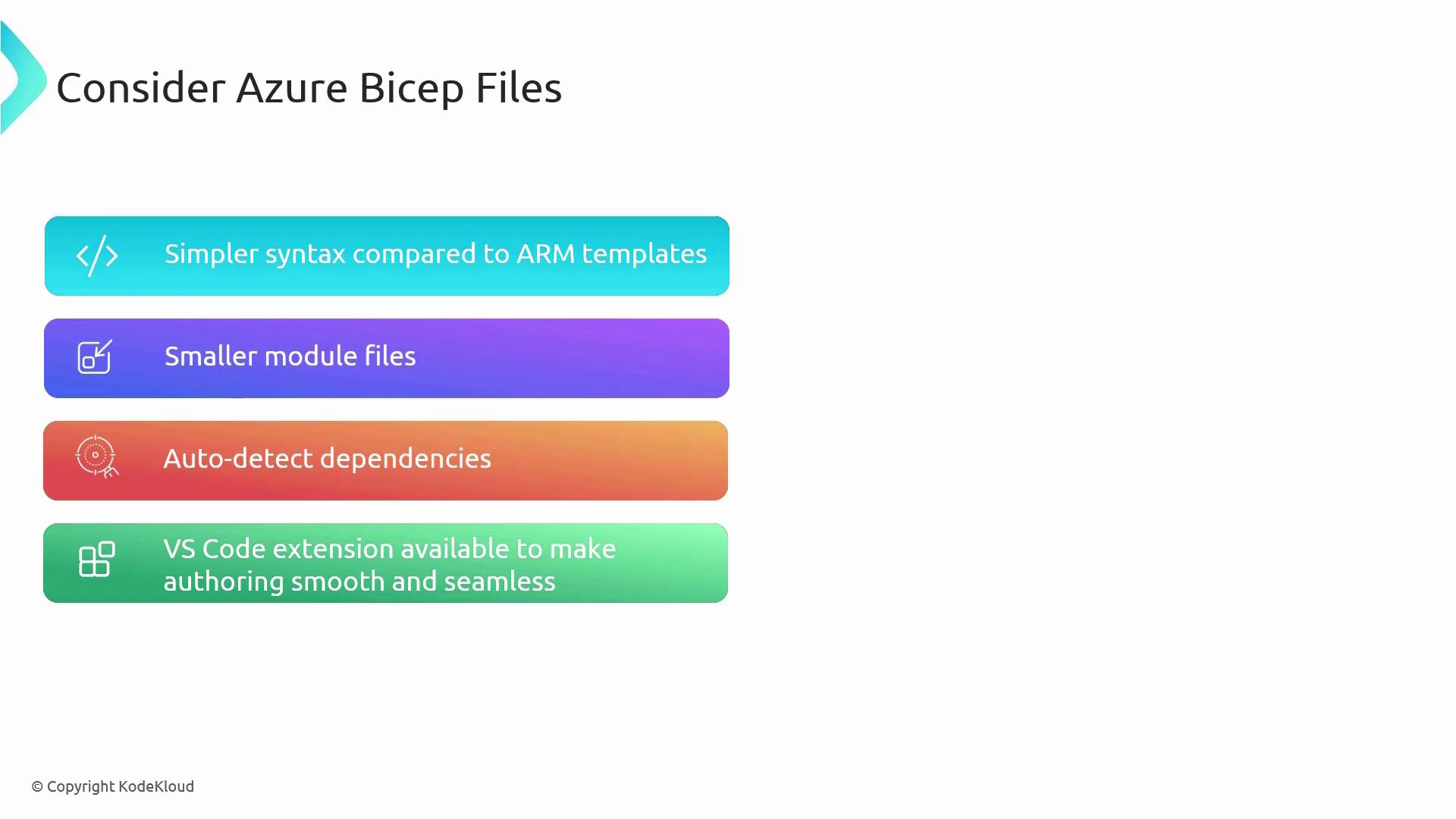
Azure Bicep files reduce the complexity and clutter inherent in ARM templates by providing a simpler, more intuitive syntax. This allows you to spend less time deciphering code and more time creating and managing robust Azure resources.
## Benefits of Azure Bicep
Azure Bicep enables you to build smaller, modular files while automatically detecting dependencies between resources—minimizing deployment errors that arise when resource relationships are not clearly defined. Additionally, the Visual Studio Code extension offers auto-completion and code snippets, ensuring a smoother authoring experience.
Whether you are new to Azure or an experienced cloud professional, leveraging Azure Bicep can transform the way you manage and deploy your cloud infrastructure.
## Example: Storage Account Deployment
### ARM Template Example
Before using Bicep, you might have deployed a storage account using an ARM template. Below is an example JSON snippet that creates a storage account:
```json theme={null}
{
"name": "[concat('st889', variables('name'))]",
"type": "Microsoft.Storage/storageAccounts",
"apiVersion": "2023-01-01",
"tags": {
"displayName": "storageaccount1"
},
"location": "[parameters('location')]",
"kind": "StorageV2",
"sku": {
"name": "Standard_LRS",
"tier": "Standard"
},
"outputs": {}
}
```
You might deploy this ARM template using PowerShell as shown below:
```powershell theme={null}
PS C:\Users\RithinSkaria\Downloads\arm> New-AzResourceGroupDeployment -Name 'demo-deployment' -ResourceGroupName arm-demo -TemplateFile .\template.json
cmdlet New-AzResourceGroupDeployment at command pipeline position 1
Supply values for the following parameters:
(Type !? for Help.)
New-AzResourceGroupDeployment: Cannot validate argument on parameter 'part'. The character length (2) of the argument is too short. Specify an argument with a length that is greater than or equal to 3 and then try the command again.
PS C:\Users\RithinSkaria\Downloads\arm> New-AzResourceGroupDeployment -Name 'demo-deployment' -ResourceGroupName arm-demo -TemplateFile .\template.json
cmdlet New-AzResourceGroupDeployment at command pipeline position 1
Supply values for the following parameters:
(Type !? for Help.)
part: w45
```
### Converting to Bicep
Converting the above ARM template to Bicep results in a much easier-to-read and maintain code. Compare the following Bicep snippet:
```bicep theme={null}
resource storageAccount 'Microsoft.Storage/storageAccounts@2021-01-01' = {
name: storageAccountName
location: location
tags: {
displayName: storageAccountName
}
kind: 'StorageV2'
sku: {
name: 'Standard_LRS'
}
}
```
Use Visual Studio Code with the Bicep extension to create and edit these files. Simply install the extension from the Visual Studio Code marketplace, open a new file, select "Bicep" as the language, and begin authoring your template.
## Defining Parameters, Variables, and Resources
When deploying resources, defining parameters with allowed values and constraints is crucial—in addition to using variables to dynamically build resource names. Consider the following ARM template JSON example:
```json theme={null}
{
"parameters": {
"location": {
"type": "string",
"allowedValues": [
"eastus",
"westus"
],
"defaultValue": "eastus",
"metadata": {
"description": "description"
}
},
"part": {
"type": "string",
"minLength": 4,
"maxLength": 7,
"metadata": {
"description": "description"
}
}
},
"variables": {
"name": "[concat(parameters('part'), 'res')]"
},
"resources": [
{
"name": "[concat('st889', variables('name'))]",
"type": "Microsoft.Storage/storageAccounts",
"apiVersion": "2023-01-01",
"tags": {
"displayName": "storageaccount1"
},
"location": "[parameters('location')]"
}
]
}
```
Below is the equivalent, more concise Bicep version of the same configuration:
```bicep theme={null}
@allowed([
'eastus'
'westus'
])
param location string = 'eastus'
@minLength(4)
@maxLength(7)
param part string
var name = '${part}res'
resource storageaccount 'Microsoft.Storage/storageAccounts@2021-02-01' = {
name: 'st889${name}'
location: location
kind: 'StorageV2'
sku: {
name: 'Standard_LRS'
}
}
```
In this Bicep snippet, parameters enforce allowed values and string length constraints, while the variable "name" concatenates the `part` parameter with a suffix. The resource declaration then uses these values to create a storage account with a dynamic name.
## Deploying Your Bicep Template
After saving your Bicep file (for example, as storage.bicep), you can deploy it using your preferred method. Remember to install the Bicep CLI manually if you are deploying through PowerShell.
To deploy using PowerShell, even though ARM deployments require a template file, the process is similar:
```powershell theme={null}
PS C:\Users\RithinSkaria\Downloads\arm> New-AzResourceGroupDeployment -Name 'demo-deployment' -ResourceGroupName arm-demo -TemplateFile .\template.json
```
For Azure CLI, deploying a Bicep template is even more straightforward as Azure CLI natively supports the Bicep language. Begin by verifying your active account and subscription:
```plaintext theme={null}
PS C:\Users\RithinSkaria\Downloads\arm> az account list -o table
A few accounts are skipped as they don't have 'Enabled' state. Use '--all' to display them.
Name CloudName SubscriptionId TenantId
----------------------- ------------ -------------------------------------- ------------------------------------
MSDN Firbirh RTN AzureCloud 548f726b-b5b1-468e-ad45-6e21c4ecf7e7 1e0fa212-37dc-45f5-bb0f-b60687cac64b
Kodekuld Azure Admin - PoC 1 AzureCloud 2cd2d881-8c1e-4c25-be23-a00a708afa7f 1e0fa212-37dc-45f5-bb0f-b60687cac64b
```
Set the appropriate subscription context, then deploy your Bicep template by passing parameters as needed:
```bash theme={null}
az deployment group create --name BYSEP-demo --resource-group arm-demo --template-file storage.bicep --parameters part=BYSEP
```
Upon successful deployment, refresh the storage accounts list in the Azure portal to verify that your storage account has been created.
## Conclusion
This lesson demonstrates how Azure Bicep simplifies resource deployment with its concise syntax, modular design, and integrated tooling in Visual Studio Code. By converting complex ARM JSON templates into more manageable Bicep code, you can streamline and enhance your cloud resource management. Happy deploying!