> ## Documentation Index
> Fetch the complete documentation index at: https://notes.kodekloud.com/llms.txt
> Use this file to discover all available pages before exploring further.
# Demo Accessing the S3 Vector Buckets
> Guide to accessing and managing AWS S3 Vector Buckets with Python Boto3, including creating clients, listing vector buckets and indexes and common s3vectors operations
Welcome back. In this lesson you'll learn how to programmatically access S3 Vector Buckets from a Jupyter notebook using Python and Boto3. This builds on prior work creating an IAM policy and attaching it to a user — those permissions are required to query vector buckets and indexes.
What you'll accomplish
* Create a Boto3 session / client for the `s3vectors` service.
* List available vector buckets.
* List indexes inside a specific vector bucket.
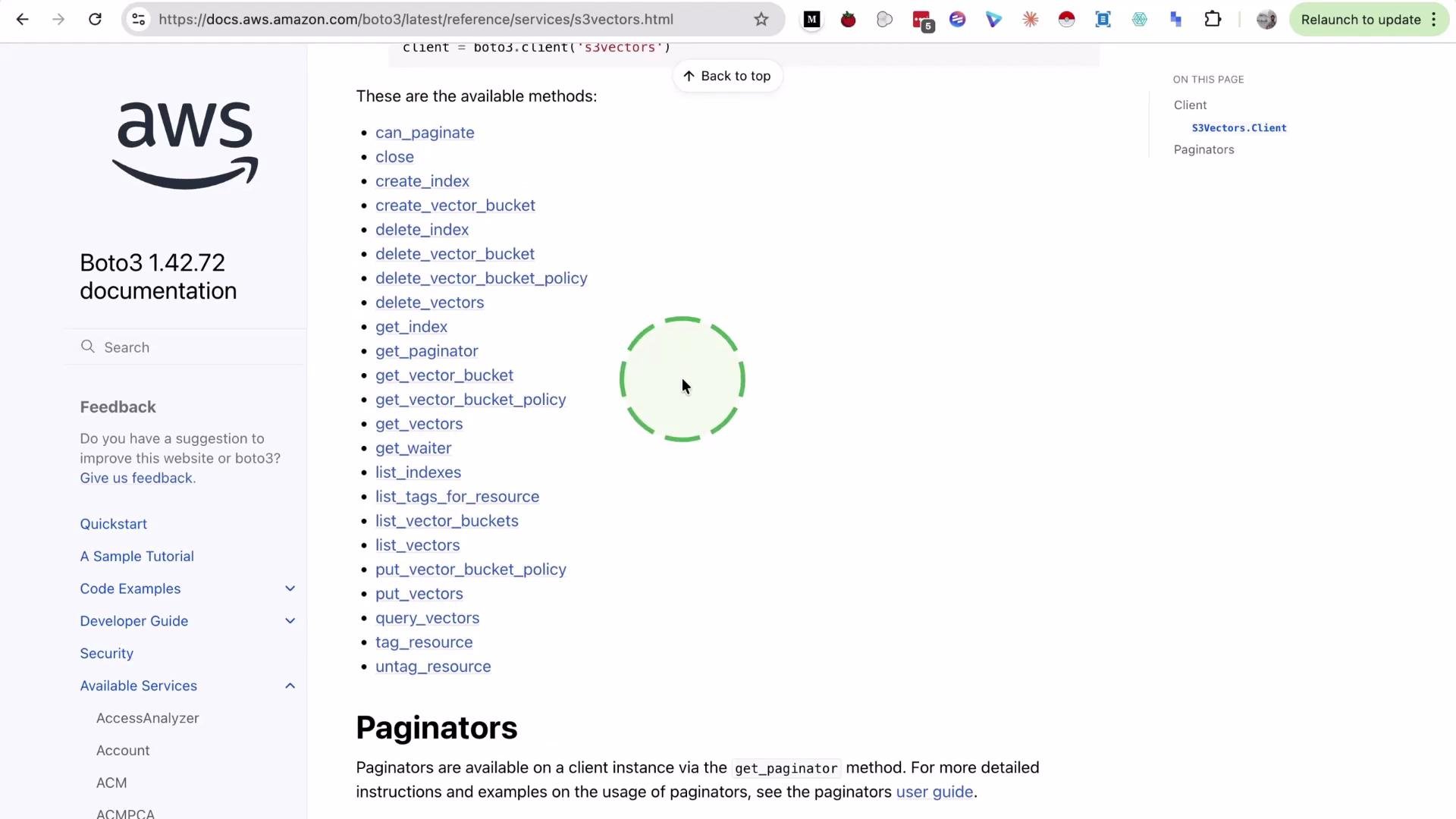
S3 Vector Buckets use a dedicated Boto3 client, typically exposed as `s3vectors`. This client provides methods such as `list_vector_buckets`, `list_indexes`, `get_vectors`, `create_index`, and `create_vector_bucket` (among others).
Do not hardcode production credentials in notebooks. Prefer environment variables, an AWS credentials file, or an IAM role (if running on AWS compute). Never commit secrets to source control.
## Prerequisites
* Python 3.8+ installed
* Boto3 installed in your environment: `pip install boto3`
* A user or role with permissions to call S3 Vector Bucket APIs
* Target vector bucket and index names you want to inspect
Helpful references:
* Boto3 s3vectors API: [https://boto3.amazonaws.com/v1/documentation/api/latest/reference/services/s3vectors.html](https://boto3.amazonaws.com/v1/documentation/api/latest/reference/services/s3vectors.html)
* AWS credentials and configuration: [https://docs.aws.amazon.com/cli/latest/userguide/cli-configure-files.html](https://docs.aws.amazon.com/cli/latest/userguide/cli-configure-files.html)
## Step 1 — Import and configure
Import the required libraries and set your credentials and target names. Replace placeholders with your own values or, better, load them from environment variables or a credentials file.
```python theme={null}
import boto3
import json
import os
# Example: prefer environment variables or ~/.aws/credentials
AWS_ACCESS_KEY_ID = os.getenv("AWS_ACCESS_KEY_ID", "REPLACE_ME")
AWS_SECRET_ACCESS_KEY = os.getenv("AWS_SECRET_ACCESS_KEY", "REPLACE_ME")
AWS_REGION = os.getenv("AWS_REGION", "us-east-1")
BUCKET_NAME = "airline-policy-vectors-YOURNAME"
VECTOR_INDEX_NAME = "airline-policy-index"
```
## Step 2 — Create a Boto3 session and s3vectors client
Create a Boto3 session and then instantiate an `s3vectors` client. You can also call `boto3.client("s3vectors", ...)` directly if you prefer not to use a session.
```python theme={null}
session = boto3.Session(
aws_access_key_id=AWS_ACCESS_KEY_ID,
aws_secret_access_key=AWS_SECRET_ACCESS_KEY,
region_name=AWS_REGION,
)
client = session.client("s3vectors")
print("Connected to s3vectors in", AWS_REGION)
```
If you receive `AccessDenied` or `Unauthorized` errors, verify the IAM policy attached to your user/role includes the required s3vectors actions and the resource ARNs are in scope for your region and account.
## Step 3 — List vector buckets
Use `list_vector_buckets()` to retrieve the vector buckets accessible to the credentials in use. The API response keys may vary in capitalization across SDK versions, so handle common variants.
```python theme={null}
bucket_response = client.list_vector_buckets()
# Handle variations in response key capitalization
entries = (
bucket_response.get("VectorBuckets")
or bucket_response.get("vectorBuckets")
or []
)
# Derive a list of bucket identifiers (try common fields)
bucket_names = [
b.get("vectorBucketName") or b.get("name") or b.get("bucketName")
for b in entries
if isinstance(b, dict)
]
bucket_visible = BUCKET_NAME in bucket_names
print("Configured bucket visible:", bucket_visible)
if not bucket_visible:
print("Double-check bucket name, region, and IAM scope.")
```
Common troubleshooting tips
* Ensure the region in your session matches where the vector bucket is located.
* Confirm the IAM policy permits `s3vectors:ListVectorBuckets` (and other needed actions).
* Verify the vector bucket name you configured is exact.
## Step 4 — List indexes within a vector bucket
A single S3 Vector Bucket may contain multiple indexes. Call `list_indexes()` with the target vector bucket name to get its indexes.
```python theme={null}
index_response = client.list_indexes(vectorBucketName=BUCKET_NAME)
index_entries = index_response.get("indexes") or []
# Extract index names (if present)
index_names = [x.get("indexName") for x in index_entries if x.get("indexName")]
print("Indexes found:", len(index_names))
print("Expected index visible:", VECTOR_INDEX_NAME in index_names)
# Show a small preview of the structured responses
preview = {
"vectorBuckets": entries[:3],
"indexes": index_entries[:3],
}
print(json.dumps(preview, indent=2, default=str))
```
This prints the number of indexes found for the specified vector bucket and a short preview of the returned objects. Use `get_vectors` and index-level calls once you confirm the index names.
## Common s3vectors operations
| Operation | Use case |
| --------------------------------------- | -------------------------------------------------------------- |
| `list_vector_buckets` | Enumerate S3 Vector Buckets visible to the current credentials |
| `list_indexes` | List all indexes inside a specific vector bucket |
| `get_vectors` | Retrieve vectors (embedding results) from an index |
| `create_vector_bucket` | Create a new S3 Vector Bucket for storing vectorized objects |
| `create_index` | Build an index from content stored in a vector bucket |
| `delete_vector_bucket` / `delete_index` | Remove resources when no longer needed |
For the full list of methods, parameter shapes, and response structures see the Boto3 s3vectors documentation:
[https://boto3.amazonaws.com/v1/documentation/api/latest/reference/services/s3vectors.html](https://boto3.amazonaws.com/v1/documentation/api/latest/reference/services/s3vectors.html)
 You can also embed text or documents into a vector bucket and create an index from that content — that workflow will be covered in a follow-up tutorial.