> ## Documentation Index
> Fetch the complete documentation index at: https://notes.kodekloud.com/llms.txt
> Use this file to discover all available pages before exploring further.
# Demo Creating an S3 Vector Bucket
> Guide to creating and configuring AWS S3 vector buckets and vector indexes through the console, covering naming, dimensions, similarity metrics, encryption, and programmatic ingestion.
Welcome — in this lesson you'll learn how to create an AWS S3 vector bucket via the AWS Management Console and how to create a vector index inside that bucket. The steps below follow the console flow and include best practices for naming, dimensions, and similarity metrics.
## Overview
Steps covered:
1. Create an S3 vector bucket.
2. Create a vector index inside the bucket.
3. Review encryption and access settings.
4. Notes on vector dimensions and programmatic ingestion.
## 1) Create the S3 vector bucket
1. Sign in to the AWS Management Console.
2. From the console home, search for "S3" and open the Amazon S3 service.
3. In the S3 left-hand menu, select "Vector buckets".
4. Click **Create vector bucket**, provide a globally unique name, and configure encryption, tags, or access controls as needed.
Bucket naming rules to remember:
* Lowercase letters, numbers, and hyphens only
* Length between 3 and 63 characters
* Must be globally unique
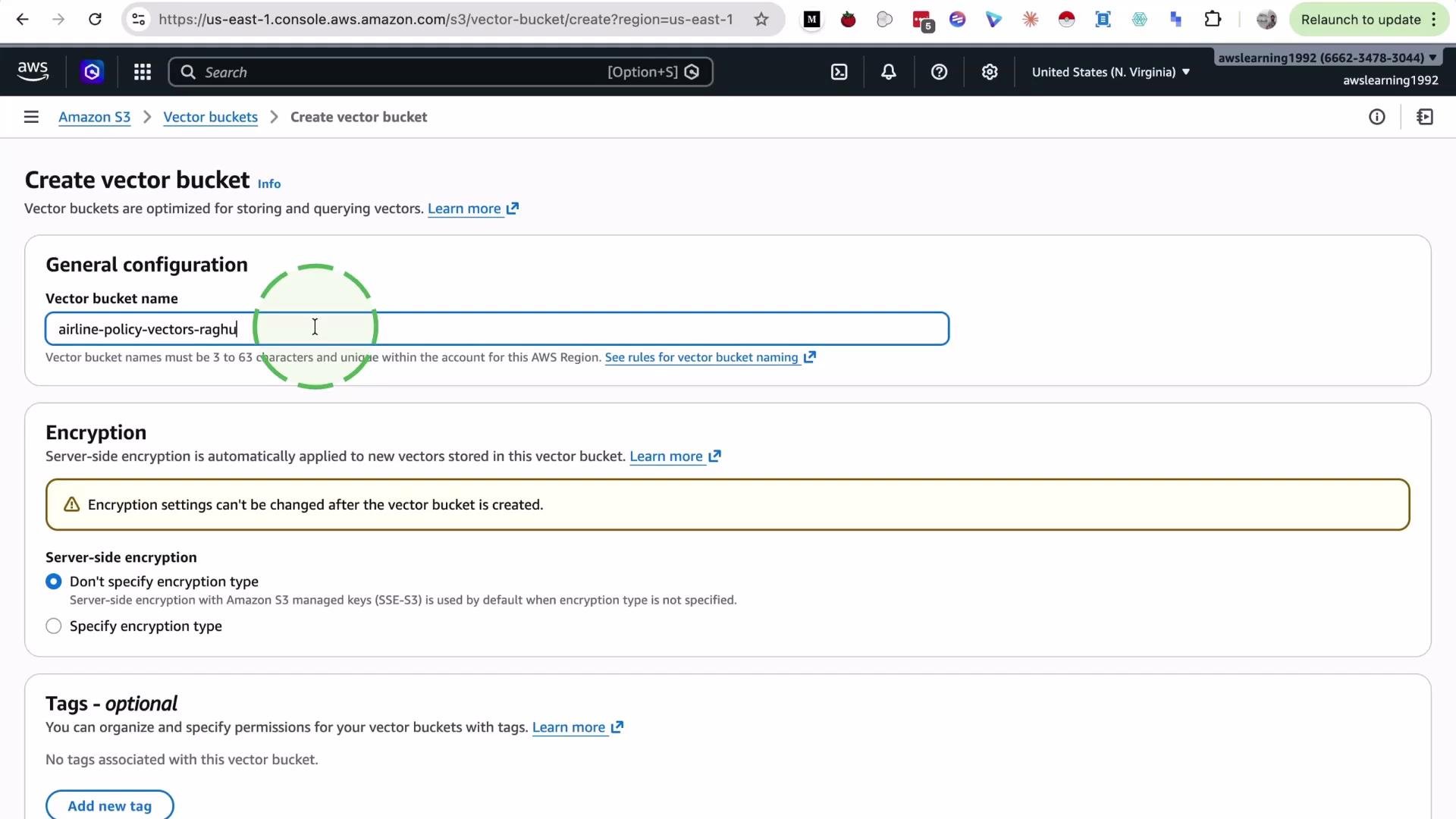 Scroll down, accept defaults (or set required encryption/tags/access controls for your environment), then click **Create bucket**. The bucket will be created and listed in your S3 console.
## 2) Create a vector index inside the bucket
1. Open the vector bucket you just created.
2. Click **Create vector index**.
3. Provide a name for the index (e.g., `airline-policy-index`).
4. Specify the vector dimension — the length of the embedding vectors you will store (for example, `3`, `768`, or `1536` depending on your embedding model).
5. Select a distance metric for similarity search (e.g., cosine similarity or Euclidean distance). For this demo we use cosine similarity.
Scroll down, accept defaults (or set required encryption/tags/access controls for your environment), then click **Create bucket**. The bucket will be created and listed in your S3 console.
## 2) Create a vector index inside the bucket
1. Open the vector bucket you just created.
2. Click **Create vector index**.
3. Provide a name for the index (e.g., `airline-policy-index`).
4. Specify the vector dimension — the length of the embedding vectors you will store (for example, `3`, `768`, or `1536` depending on your embedding model).
5. Select a distance metric for similarity search (e.g., cosine similarity or Euclidean distance). For this demo we use cosine similarity.
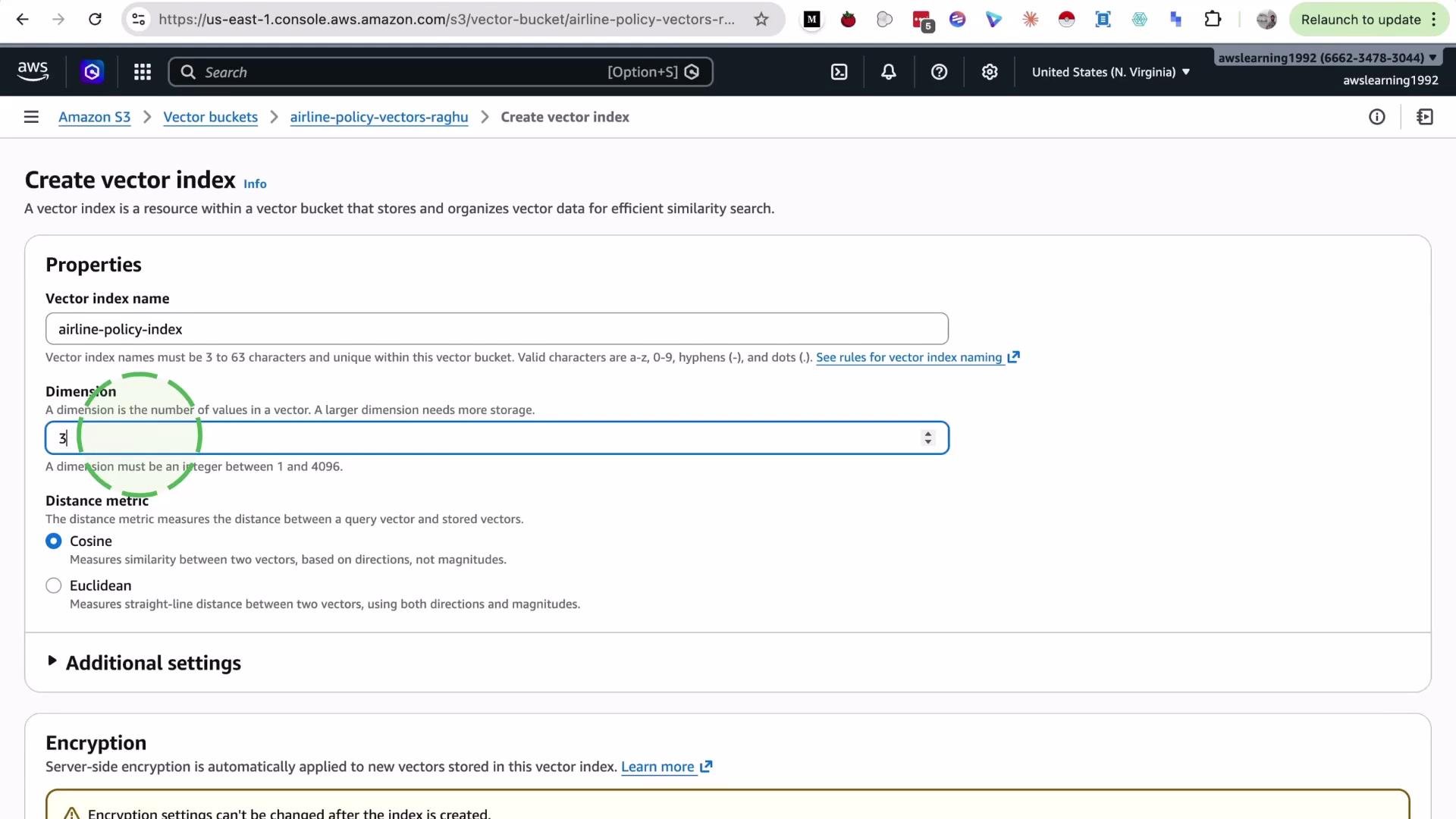 Set the vector dimension to match the output dimension of the embedding model you plan to use (for example, `1536`, `768`, etc.). If the dimensions don't match, embeddings cannot be indexed or queried correctly.
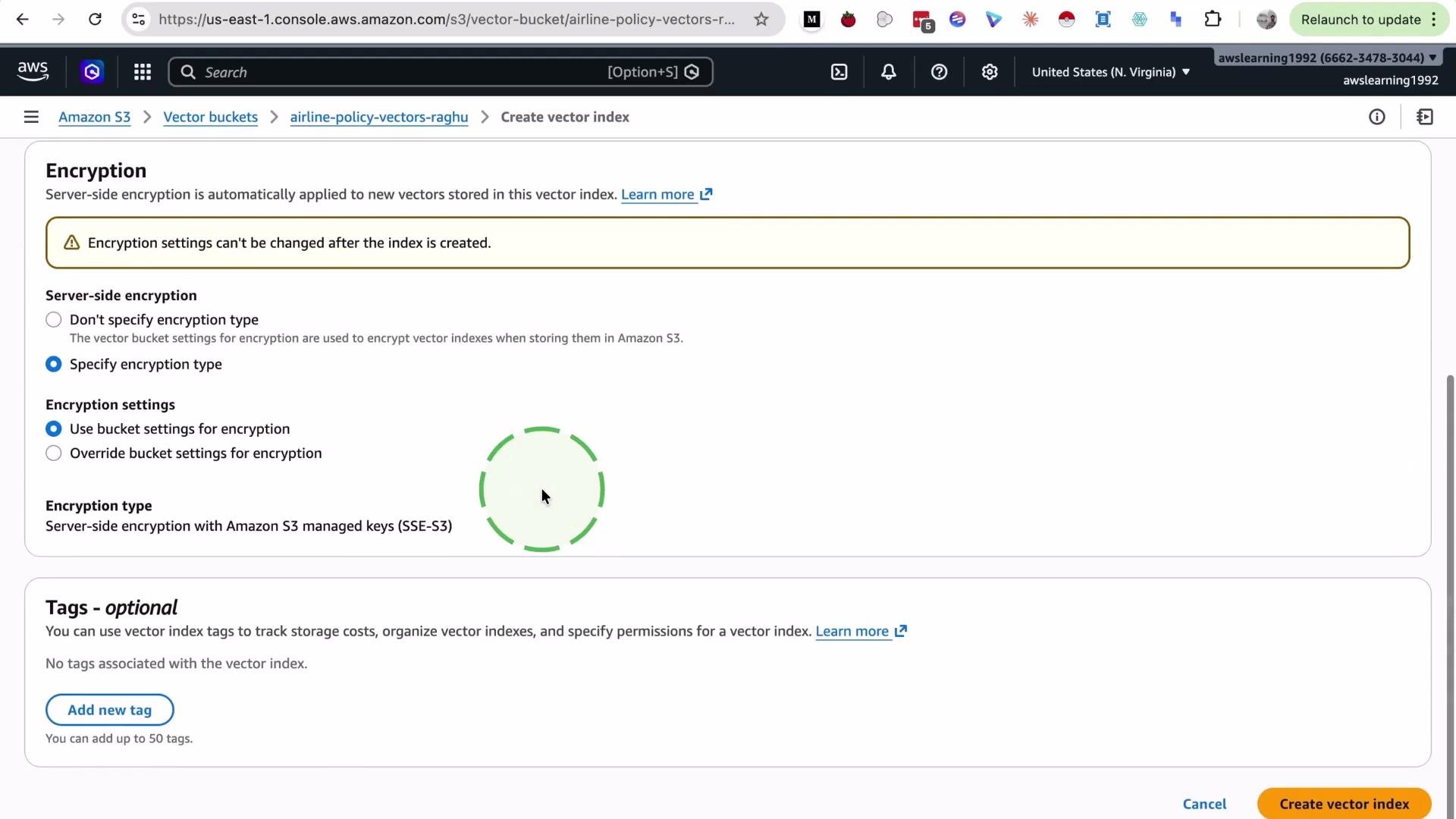
Leave the remaining settings at their defaults unless you require custom encryption keys, special access policies, or specific performance/partitioning behavior. Review encryption and permissions before creating the index.
Set the vector dimension to match the output dimension of the embedding model you plan to use (for example, `1536`, `768`, etc.). If the dimensions don't match, embeddings cannot be indexed or queried correctly.
Leave the remaining settings at their defaults unless you require custom encryption keys, special access policies, or specific performance/partitioning behavior. Review encryption and permissions before creating the index.
 ## 3) Verify the index
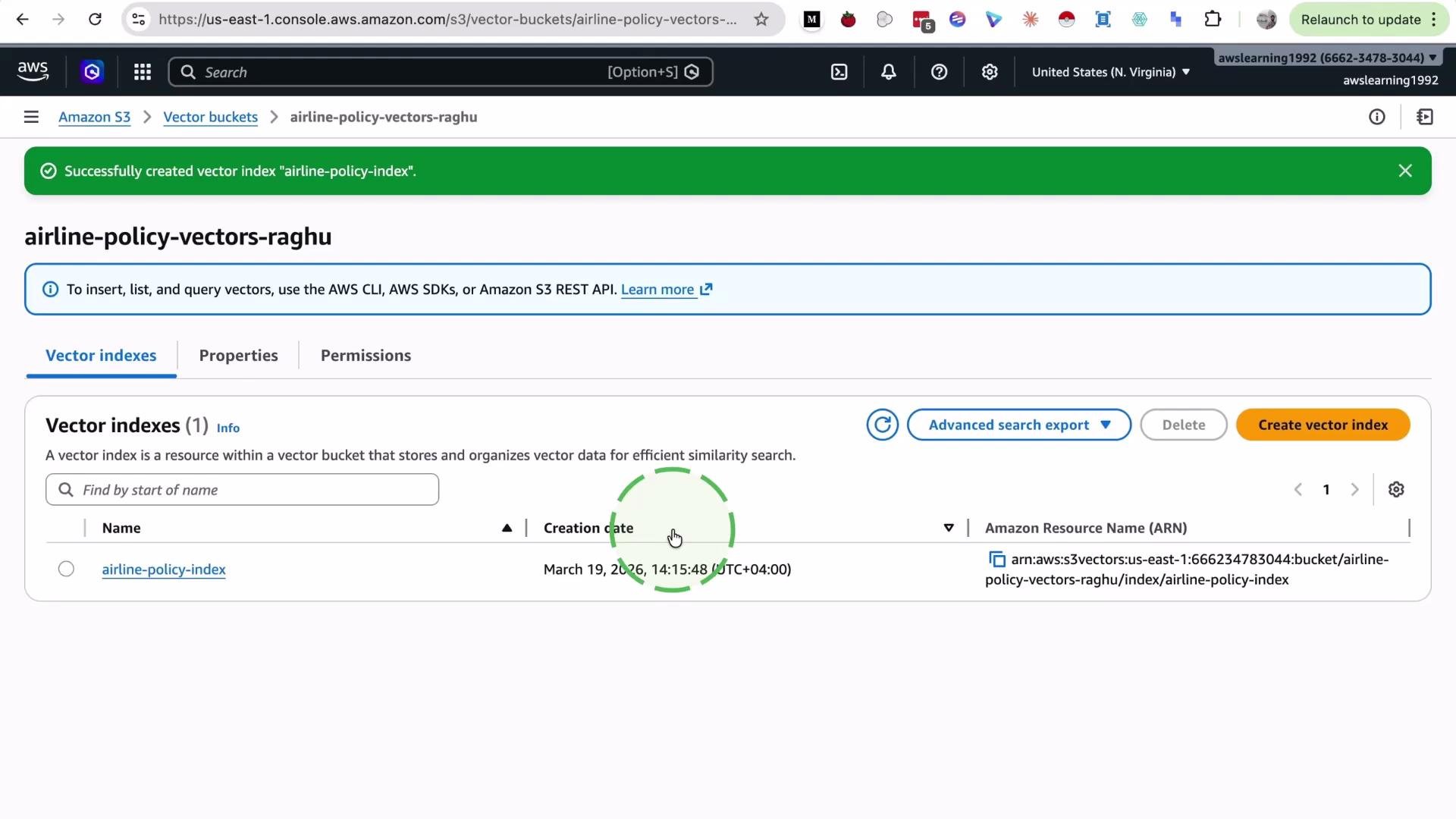
After creation, the vector index is listed inside the bucket. The index uses the selected similarity metric and the dimension you provided.
## 3) Verify the index
After creation, the vector index is listed inside the bucket. The index uses the selected similarity metric and the dimension you provided.
 ## Quick reference table
| Setting | What it controls | Recommendation / Example |
| ----------------- | --------------------------------------------------- | --------------------------------------------------------------------- |
| Bucket name | Global identifier for the vector bucket | Use lowercase, numbers, hyphens; e.g., `airline-policy-vectors-raghu` |
| Vector index name | Logical name for the index inside the bucket | `airline-policy-index` |
| Vector dimension | Length of embedding vectors | Match your model output (e.g., `1536`, `768`) |
| Distance metric | Similarity measure used for nearest-neighbor search | `cosine` or Euclidean; use `cosine` for directional similarity |
## 4) Next steps — programmatic ingestion
You can connect to the S3 vector bucket programmatically to ingest embeddings into the index and perform similarity searches. Typical workflow:
* Generate embeddings using your chosen model.
* Ensure embeddings have the same dimension as the index.
* Use the AWS SDK or supported APIs to upload vectors and metadata to the index.
* Run similarity queries (e.g., k-NN using the chosen metric) to retrieve nearest neighbors.
## Links and references
* [Amazon S3 Documentation](https://docs.aws.amazon.com/s3/index.html)
* [Amazon S3 Vector Indexes (console)](https://console.aws.amazon.com/s3) (search for "Vector buckets" in S3 console)
* Embedding model references: check your model provider for output dimensions (e.g., OpenAI, Hugging Face)
If you want, I can provide sample code snippets for embedding generation and programmatic ingestion using a specific SDK (Python boto3, JavaScript AWS SDK v3, etc.).
## Quick reference table
| Setting | What it controls | Recommendation / Example |
| ----------------- | --------------------------------------------------- | --------------------------------------------------------------------- |
| Bucket name | Global identifier for the vector bucket | Use lowercase, numbers, hyphens; e.g., `airline-policy-vectors-raghu` |
| Vector index name | Logical name for the index inside the bucket | `airline-policy-index` |
| Vector dimension | Length of embedding vectors | Match your model output (e.g., `1536`, `768`) |
| Distance metric | Similarity measure used for nearest-neighbor search | `cosine` or Euclidean; use `cosine` for directional similarity |
## 4) Next steps — programmatic ingestion
You can connect to the S3 vector bucket programmatically to ingest embeddings into the index and perform similarity searches. Typical workflow:
* Generate embeddings using your chosen model.
* Ensure embeddings have the same dimension as the index.
* Use the AWS SDK or supported APIs to upload vectors and metadata to the index.
* Run similarity queries (e.g., k-NN using the chosen metric) to retrieve nearest neighbors.
## Links and references
* [Amazon S3 Documentation](https://docs.aws.amazon.com/s3/index.html)
* [Amazon S3 Vector Indexes (console)](https://console.aws.amazon.com/s3) (search for "Vector buckets" in S3 console)
* Embedding model references: check your model provider for output dimensions (e.g., OpenAI, Hugging Face)
If you want, I can provide sample code snippets for embedding generation and programmatic ingestion using a specific SDK (Python boto3, JavaScript AWS SDK v3, etc.).