> ## Documentation Index
> Fetch the complete documentation index at: https://notes.kodekloud.com/llms.txt
> Use this file to discover all available pages before exploring further.
# Demo Embedding and Accessing Vectors from S3 Vector Buckets
> Demonstrates storing sentence embeddings in an S3 vector bucket, uploading vectors with metadata, validating dimensions, and performing similarity search using SentenceTransformer and AWS S3 Vectors API
Hello and welcome back.
This guide demonstrates how to store sentence embeddings (vectors) in an S3 vector bucket and retrieve them using similarity search. The example uses a Jupyter notebook workflow to:
* Configure the AWS client and import required packages.
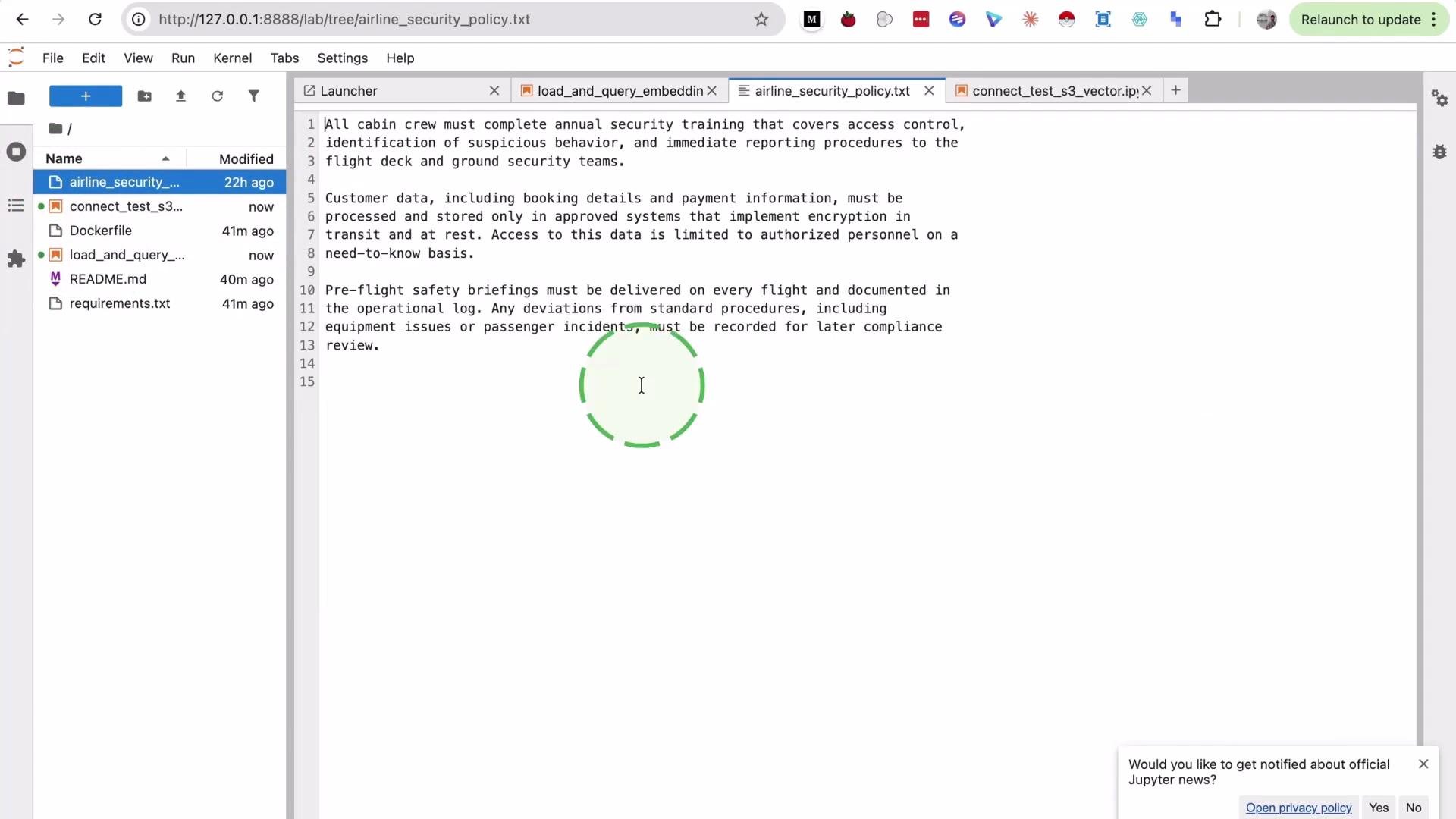
* Load a policy document and chunk it into paragraphs.
* Convert chunks into embeddings with SentenceTransformer.
* Validate the vector index dimension in the S3 vector bucket.
* Upload vectors to the S3 vector index.
* Query the index using a text query to retrieve nearest neighbors.
Prerequisites:
* Python 3.8+
* A working AWS account and credentials with access to the S3 Vectors API
* The `boto3` and `sentence-transformers` packages
Install dependencies (if needed):
```bash theme={null}
pip install boto3 sentence-transformers
```
Resources:
* [Boto3 documentation](https://boto3.amazonaws.com/v1/documentation/api/latest/index.html)
* [SentenceTransformers](https://www.sbert.net/)
Quick overview of the notebook sections:
| Step | Purpose | Key artifact |
| --------- | -------------------------------------------- | --------------------------------- |
| Configure | Initialize AWS S3 Vectors client and model | `client`, `model` |
| Chunk | Read and split the document into paragraphs | `paragraphs` list |
| Embed | Convert paragraphs to vectors | `embeddings`, `embedding_vectors` |
| Validate | Ensure index dimension matches embedding dim | `index_dim` check |
| Upload | Put vectors (with metadata) to the index | `put_vectors` |
| Query | Search the index with a query vector | `query_vectors` results |
Setup — imports and AWS configuration
```python theme={null}
from pathlib import Path
import boto3
from sentence_transformers import SentenceTransformer
AWS_ACCESS_KEY_ID = "REPLACE_ME"
AWS_SECRET_ACCESS_KEY = "REPLACE_ME"
AWS_REGION = "us-east-1"
BUCKET_NAME = "airline-policy-vectors-YOURNAME"
VECTOR_INDEX_NAME = "airline-policy-index"
MODEL_NAME = "sentence-transformers/all-MiniLM-L6-v2"
TOP_K = 3
session = boto3.Session(
aws_access_key_id=AWS_ACCESS_KEY_ID,
aws_secret_access_key=AWS_SECRET_ACCESS_KEY,
region_name=AWS_REGION,
)
client = session.client("s3vectors")
model = SentenceTransformer(MODEL_NAME)
print("Client and model are ready")
```
Load and chunk the document
* For this demo we perform a simple paragraph split (split on double newlines). Depending on your data, you might prefer sentence splitting or a sliding window approach.
```python theme={null}
policy_path = Path("airline_security_policy.txt")
policy_text = policy_path.read_text(encoding="utf-8")
paragraphs = [p.strip() for p in policy_text.split("\n\n") if p.strip()]
print("Paragraphs loaded:", len(paragraphs))
print("First two paragraphs preview:", paragraphs[:2])
```
Convert paragraphs to embeddings
* Use the same SentenceTransformer model that you will use for queries to ensure dimensional consistency.
```python theme={null}
embeddings = model.encode(paragraphs)
embedding_vectors = embeddings.tolist()
embedding_dim = len(embedding_vectors[0])
print("Embedding dimension:", embedding_dim)
print("Vectors prepared:", len(embedding_vectors))
```
Validate the S3 vector index dimension
* The vector index must be created with the same vector dimension as the embeddings produced by your model. Query the index metadata and read the dimension field robustly to handle variations in the API response structure.
```python theme={null}
index_info = client.get_index(
vectorBucketName=BUCKET_NAME,
indexName=VECTOR_INDEX_NAME,
)
index_cfg = index_info.get("index") or {}
index_dim = (
index_info.get("dimension")
or index_cfg.get("dimension")
or index_info.get("vectorDimension")
or index_cfg.get("vectorDimension")
)
if not index_dim:
raise KeyError(f"Missing dimension in get_index response: {list(index_info.keys())}")
index_dim = int(index_dim)
if index_dim != embedding_dim:
raise ValueError(
f"Index dimension {index_dim} != embedding dimension {embedding_dim}. "
f"Delete index '{VECTOR_INDEX_NAME}' and recreate it with dimension {embedding_dim}."
)
print("Dimension check passed:", index_dim)
```
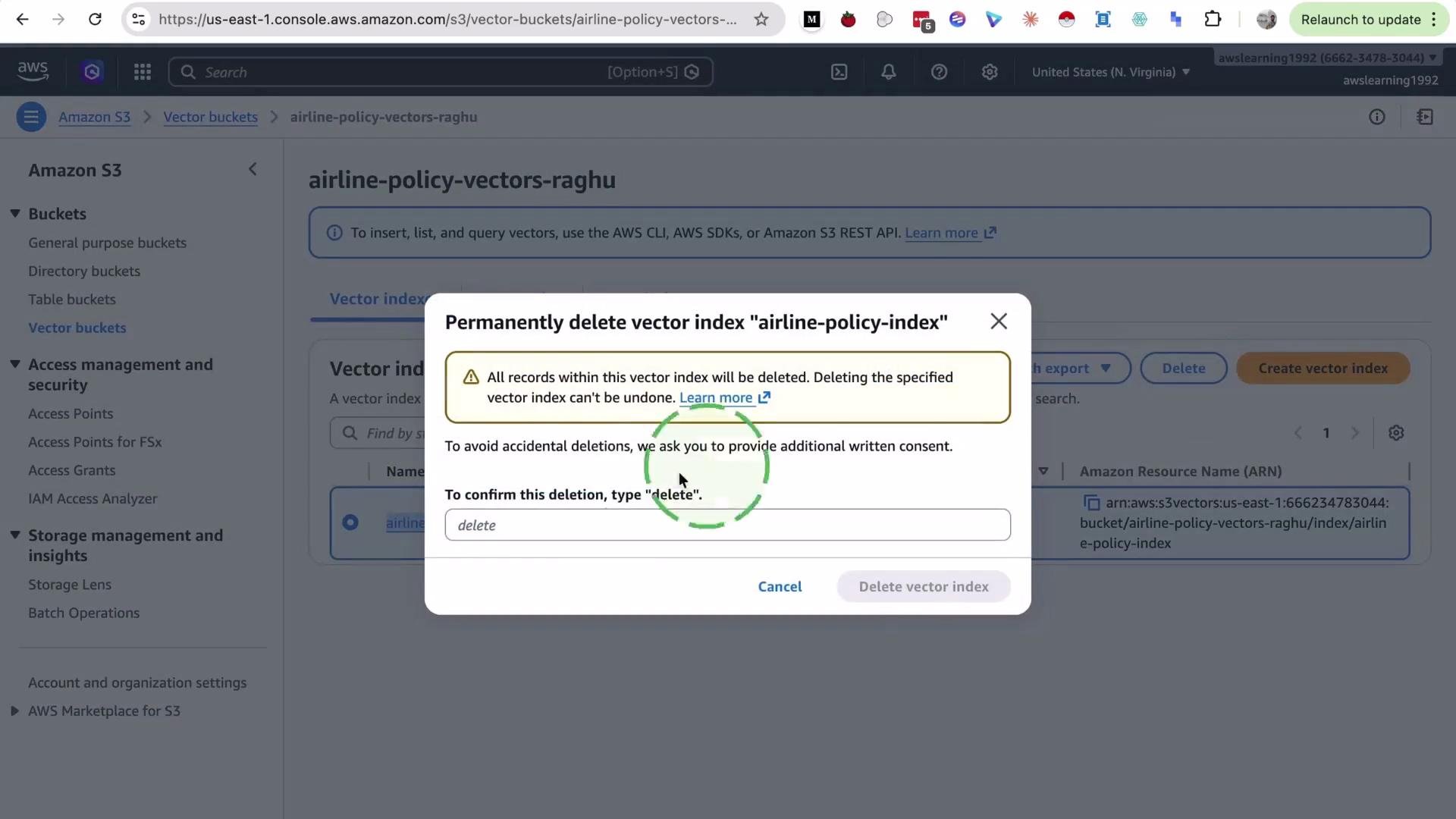
Always ensure the vector index dimension matches the embedding dimension produced by your model. A mismatch will cause `put_vectors` or `query_vectors` operations to fail.
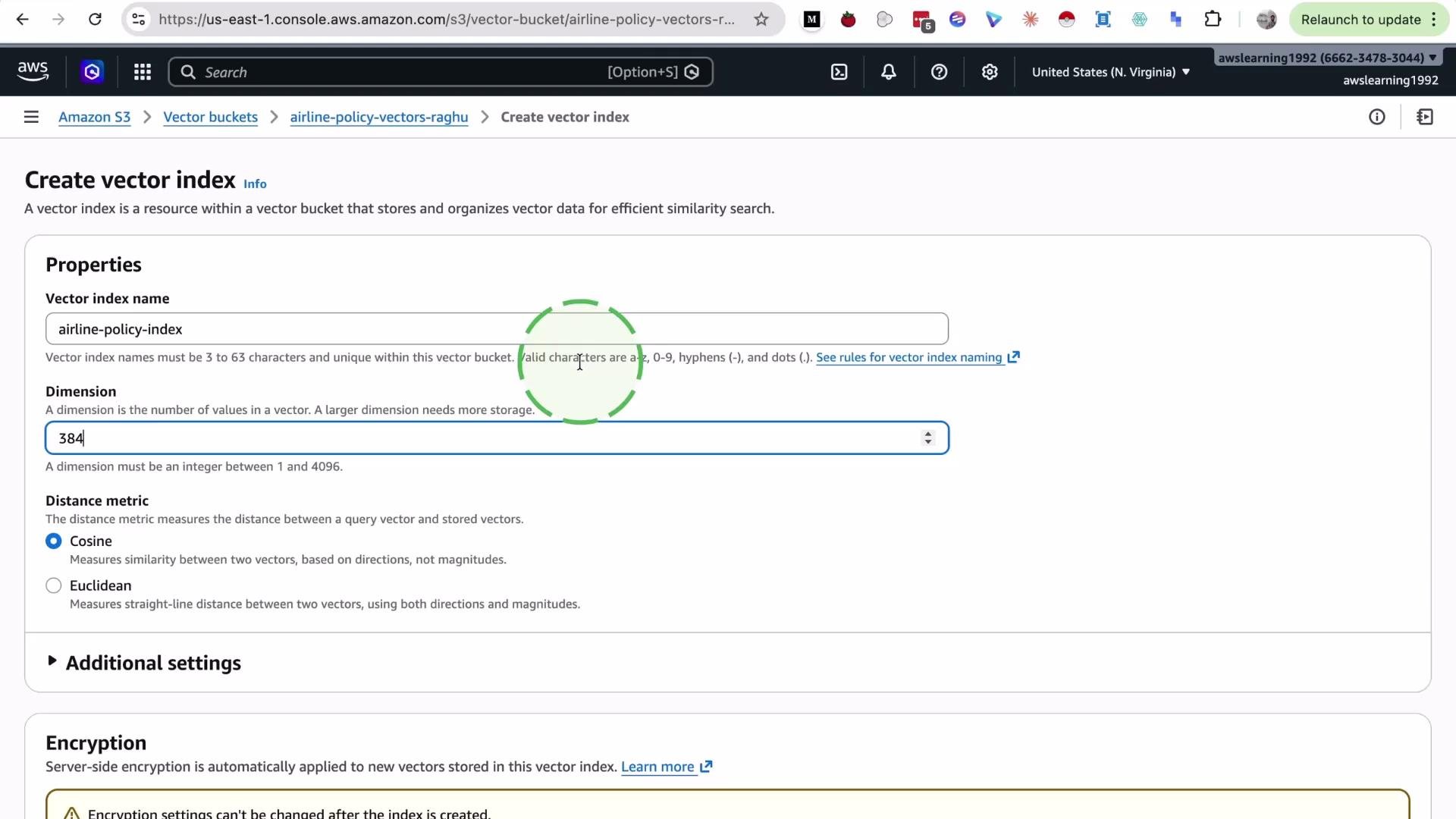
If the index was created with an incorrect dimension (for example, 3 instead of 384), you must delete and recreate the index with the correct `dimension` value before uploading vectors.
Why is this check important?
* Embedding vectors are fixed-length numeric arrays. If the index expects a different length, the underlying vector store cannot store or compare vectors correctly, and operations will error out.
Here is an example screenshot of deleting an index in the S3 console before recreating it with the correct dimension.
 When creating the index in the S3 console, ensure you enter the dimension that matches your model (for example 384).
 Upload: build the vector payload
* Each entry needs a unique `key`, the vector under the supported numeric format (here `float32`), and optional `metadata` (we store the original paragraph text).
```python theme={null}
vector_payload = []
for i, vec in enumerate(embedding_vectors, start=1):
vector_payload.append({
"key": f"section-{i}",
"vector": {"float32": vec},
"metadata": {"text": paragraphs[i - 1]},
})
print("Prepared payload with", len(vector_payload), "vectors")
```
Put vectors into the S3 vector index
```python theme={null}
put_response = client.put_vectors(
vectorBucketName=BUCKET_NAME,
indexName=VECTOR_INDEX_NAME,
vectors=vector_payload,
)
print("put_vectors completed")
print(put_response)
```
Query the index
* Use the same model to encode the query text. Provide the query vector as `float32` and request metadata and distance if you want to inspect results.
```python theme={null}
query_text = "What security checks happen before boarding?"
query_vector = model.encode([query_text])[0].tolist()
query_response = client.query_vectors(
vectorBucketName=BUCKET_NAME,
indexName=VECTOR_INDEX_NAME,
topK=TOP_K,
queryVector=[{"float32": query_vector}],
returnMetadata=True,
returnDistance=True,
)
hits = query_response.get("vectors") or []
for rank, row in enumerate(hits, start=1):
text = (row.get("metadata") or {}).get("text", "")
preview = text[:140].replace("\n", " ")
print(f"#{rank} key={row.get('key')} distance={row.get('distance')}")
print(preview)
print()
```
Notes about querying:
* `topK` controls how many nearest neighbors are returned.
* The `queryVector` must match the index dimension.
* The response typically includes an array of `vectors` (hits); each hit contains `key`, `distance`, and whatever `metadata` you stored.
Example output (illustrative):
```text theme={null}
#1 key=section-1 distance=0.4439745
All cabin crew must complete annual security training that covers access control, identification of suspicious behavior, and immediate report
#2 key=section-3 distance=0.49711066
Pre-flight safety briefings must be delivered on every flight and documented in the operational log. Any deviations from standard procedures
#3 key=section-2 distance=0.64928225
Customer data, including booking details and payment information, must be processed and stored only in approved systems that implement encry...
```
Summary and best practices
* Convert text to embeddings using a single consistent model (e.g. `sentence-transformers/all-MiniLM-L6-v2`).
* Always verify that the S3 vector index `dimension` matches the embedding vector length.
* Upload vectors with `put_vectors`, including a stable `key`, the `vector` values (e.g. `float32`), and helpful `metadata`.
* Query with `query_vectors` using the same model, correct `topK`, and request `returnMetadata` / `returnDistance` as needed.
* If you encounter dimension mismatches, delete and recreate the index with the correct dimension.
Upload: build the vector payload
* Each entry needs a unique `key`, the vector under the supported numeric format (here `float32`), and optional `metadata` (we store the original paragraph text).
```python theme={null}
vector_payload = []
for i, vec in enumerate(embedding_vectors, start=1):
vector_payload.append({
"key": f"section-{i}",
"vector": {"float32": vec},
"metadata": {"text": paragraphs[i - 1]},
})
print("Prepared payload with", len(vector_payload), "vectors")
```
Put vectors into the S3 vector index
```python theme={null}
put_response = client.put_vectors(
vectorBucketName=BUCKET_NAME,
indexName=VECTOR_INDEX_NAME,
vectors=vector_payload,
)
print("put_vectors completed")
print(put_response)
```
Query the index
* Use the same model to encode the query text. Provide the query vector as `float32` and request metadata and distance if you want to inspect results.
```python theme={null}
query_text = "What security checks happen before boarding?"
query_vector = model.encode([query_text])[0].tolist()
query_response = client.query_vectors(
vectorBucketName=BUCKET_NAME,
indexName=VECTOR_INDEX_NAME,
topK=TOP_K,
queryVector=[{"float32": query_vector}],
returnMetadata=True,
returnDistance=True,
)
hits = query_response.get("vectors") or []
for rank, row in enumerate(hits, start=1):
text = (row.get("metadata") or {}).get("text", "")
preview = text[:140].replace("\n", " ")
print(f"#{rank} key={row.get('key')} distance={row.get('distance')}")
print(preview)
print()
```
Notes about querying:
* `topK` controls how many nearest neighbors are returned.
* The `queryVector` must match the index dimension.
* The response typically includes an array of `vectors` (hits); each hit contains `key`, `distance`, and whatever `metadata` you stored.
Example output (illustrative):
```text theme={null}
#1 key=section-1 distance=0.4439745
All cabin crew must complete annual security training that covers access control, identification of suspicious behavior, and immediate report
#2 key=section-3 distance=0.49711066
Pre-flight safety briefings must be delivered on every flight and documented in the operational log. Any deviations from standard procedures
#3 key=section-2 distance=0.64928225
Customer data, including booking details and payment information, must be processed and stored only in approved systems that implement encry...
```
Summary and best practices
* Convert text to embeddings using a single consistent model (e.g. `sentence-transformers/all-MiniLM-L6-v2`).
* Always verify that the S3 vector index `dimension` matches the embedding vector length.
* Upload vectors with `put_vectors`, including a stable `key`, the `vector` values (e.g. `float32`), and helpful `metadata`.
* Query with `query_vectors` using the same model, correct `topK`, and request `returnMetadata` / `returnDistance` as needed.
* If you encounter dimension mismatches, delete and recreate the index with the correct dimension.
 That is it for this demo.