> ## Documentation Index
> Fetch the complete documentation index at: https://notes.kodekloud.com/llms.txt
> Use this file to discover all available pages before exploring further.
# Demo Image Embedding
> Tutorial demonstrating embedding images with CLIP, storing vectors in LanceDB, and performing text-to-image searches in a Jupyter Notebook
In this lesson you'll embed real images into a vector database, then perform text-based searches that retrieve matching images. We'll use a CLIP image+text model (via sentence-transformers) to generate embeddings and LanceDB to store and search vectors. All work is done inside a Jupyter Notebook.
What you'll learn:
* How to compute image embeddings with CLIP (sentence-transformers).
* How to store image vectors and metadata in LanceDB.
* How to run text-to-image searches and visualize results.
Prerequisites
* Python 3.8+
* Jupyter Notebook or JupyterLab
* Packages: `lancedb`, `sentence-transformers`, `Pillow`, `matplotlib`, `numpy`, `pandas`
Tools and libraries used
| Tool / Library | Purpose | Link |
| ---------------------------- | -----------------------------------------------: | -------------------------------------------------------- |
| LanceDB | Vector database for storing/searching embeddings | [https://www.lancedb.ai/](https://www.lancedb.ai/) |
| sentence-transformers (CLIP) | Image + text embeddings | [https://www.sbert.net/](https://www.sbert.net/) |
| Pillow (PIL) | Image loading and preprocessing | [https://python-pillow.org/](https://python-pillow.org/) |
| matplotlib | Visualizing image preview and results | [https://matplotlib.org/](https://matplotlib.org/) |
| Jupyter Notebook | Interactive environment | [https://jupyter.org/](https://jupyter.org/) |
Getting started — setup and preview images
1. Set up paths and preview the images you'll embed (a cat, a dog, and a fox).
2. Run this code cell in a notebook to locate images and display them.
```python theme={null}
# setup_and_preview.py
from pathlib import Path
import os
from PIL import Image
import matplotlib.pyplot as plt
# 1. Setup paths
BASE_DIR = Path.cwd()
IMAGE_DIR = BASE_DIR / "images"
DB_PATH = str(BASE_DIR / "lancedb_images")
# 2. Find and preview images
image_paths = list(IMAGE_DIR.glob("*.png")) + list(IMAGE_DIR.glob("*.jpg"))
print(f"Found {len(image_paths)} images at: {IMAGE_DIR}")
fig, axes = plt.subplots(1, len(image_paths), figsize=(15, 5))
for i, p in enumerate(image_paths):
axes[i].imshow(Image.open(p))
axes[i].axis("off")
plt.show()
```
How this works
* `image_paths` gathers all PNG and JPG files in the `images` folder.
* We preview each image with `matplotlib` to confirm the dataset before embedding.
Embedding images and storing vectors in LanceDB
* Load a CLIP-based model (`clip-ViT-B-32`) via `sentence-transformers`.
* Convert each image to an embedding vector.
* Store the vector along with the image path in LanceDB for future retrieval.
Loading the CLIP model may take some time the first time because the pretrained weights are downloaded. Expect a minute or two depending on your connection and environment.
Before running the code below, note that it removes an existing database at `DB_PATH` (if present) and creates a fresh LanceDB instance.
The script below deletes any existing LanceDB at the configured `DB_PATH`. Back up data if you need to preserve a previous index.
```python theme={null}
# embed_and_store.py
import shutil
import lancedb
from sentence_transformers import SentenceTransformer
import numpy as np
from pathlib import Path
from PIL import Image
# Load the CLIP ViT-B-32 model (image+text)
model = SentenceTransformer("clip-ViT-B-32")
print("Model loaded successfully!")
# Load images and generate embeddings
print("Generating embeddings...")
images = [Image.open(p).convert("RGB") for p in image_paths] # ensure consistent mode
vectors = model.encode(images) # returns a numpy array with shape (n_images, dim)
print(f"Generated {len(vectors)} vectors with {vectors.shape[1]} dimensions each.")
# Prepare data for LanceDB
data = [
{"path": str(p), "vector": v.tolist()}
for p, v in zip(image_paths, vectors)
]
# Remove existing DB (if any) and create a fresh LanceDB
if os.path.exists(DB_PATH):
shutil.rmtree(DB_PATH)
db = lancedb.connect(DB_PATH)
table = db.create_table("images", data=data)
print("Knowledge base ready for search!")
```
Notes on the code
* We call `model.encode(images)` with PIL images—sentence-transformers handles conversion for CLIP models.
* Each record stored in LanceDB contains the `path` (for later loading/display) and the `vector`.
Text-to-image search function
* Encode a text query using the same CLIP model so text and images live in the same embedding space.
* Query the LanceDB table for nearest neighbors and visualize the result(s).
```python theme={null}
# search_by_text.py
from pathlib import Path
import matplotlib.pyplot as plt
from PIL import Image
def search_by_text(query, limit=1):
# Embed the text query
query_vector = model.encode([query])[0]
# Search the database for the closest match(es)
results = table.search(query_vector).limit(limit).to_pandas()
# Display each match
for _, row in results.iterrows():
img = Image.open(row["path"])
plt.imshow(img)
plt.title(
f"Query: '{query}'\nMatch: {Path(row['path']).name} (Distance: {row['_distance']:.4f})"
)
plt.axis("off")
plt.show()
```
Example queries
* Run these sample searches in the notebook to see text-to-image retrieval:
```python theme={null}
# Example queries
search_by_text("a photo of a cat")
search_by_text("a photo of a dog running")
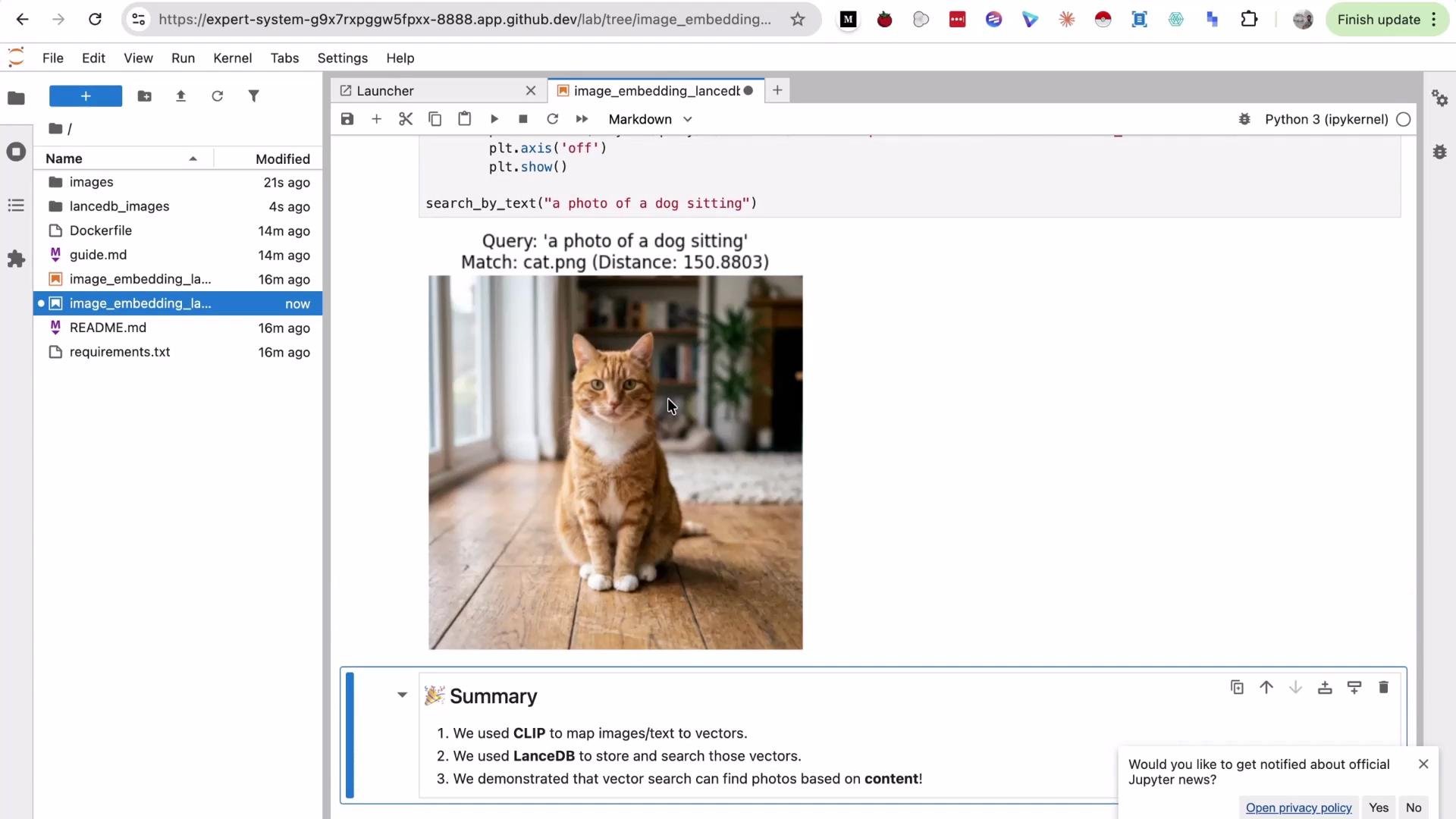
search_by_text("a photo of a dog sitting")
```
Behavior and tips
* Query phrasing affects retrieval quality. Adding descriptive context (e.g., "running", "sitting") can help find the correct image when the attribute is present.
* Very short or ambiguous queries (e.g., "dog") may return a different image if its embedding is closer in vector space.
Visual example
 Summary
* We used a CLIP-based model (via `sentence-transformers`) to compute embeddings for images and text so they share a joint embedding space.
* Image vectors and metadata (image paths) were stored in LanceDB and searched via nearest-neighbor queries.
* Query phrasing and level of descriptive detail influence retrieval results; refine queries to improve accuracy.
Further reading and references
* LanceDB: [https://www.lancedb.ai/](https://www.lancedb.ai/)
* sentence-transformers (CLIP models): [https://www.sbert.net/](https://www.sbert.net/)
* CLIP (OpenAI): [https://github.com/openai/CLIP](https://github.com/openai/CLIP)
* Jupyter: [https://jupyter.org/](https://jupyter.org/)
Troubleshooting
* If embeddings take a long time to generate, ensure GPU support is enabled and that the `sentence-transformers` model can access the internet to download weights.
* If the search returns unexpected images, try more descriptive queries or inspect pairwise distances in the returned DataFrame to understand which images are nearest in embedding space.
Summary
* We used a CLIP-based model (via `sentence-transformers`) to compute embeddings for images and text so they share a joint embedding space.
* Image vectors and metadata (image paths) were stored in LanceDB and searched via nearest-neighbor queries.
* Query phrasing and level of descriptive detail influence retrieval results; refine queries to improve accuracy.
Further reading and references
* LanceDB: [https://www.lancedb.ai/](https://www.lancedb.ai/)
* sentence-transformers (CLIP models): [https://www.sbert.net/](https://www.sbert.net/)
* CLIP (OpenAI): [https://github.com/openai/CLIP](https://github.com/openai/CLIP)
* Jupyter: [https://jupyter.org/](https://jupyter.org/)
Troubleshooting
* If embeddings take a long time to generate, ensure GPU support is enabled and that the `sentence-transformers` model can access the internet to download weights.
* If the search returns unexpected images, try more descriptive queries or inspect pairwise distances in the returned DataFrame to understand which images are nearest in embedding space.