> ## Documentation Index
> Fetch the complete documentation index at: https://notes.kodekloud.com/llms.txt
> Use this file to discover all available pages before exploring further.
# Google Vertex AI Explainer Optional
> Explains how to generate videos with Google Vertex AI Veo3 using HTTP and n8n workflows, including OAuth2 authentication, polling long operations, and saving outputs to GCS
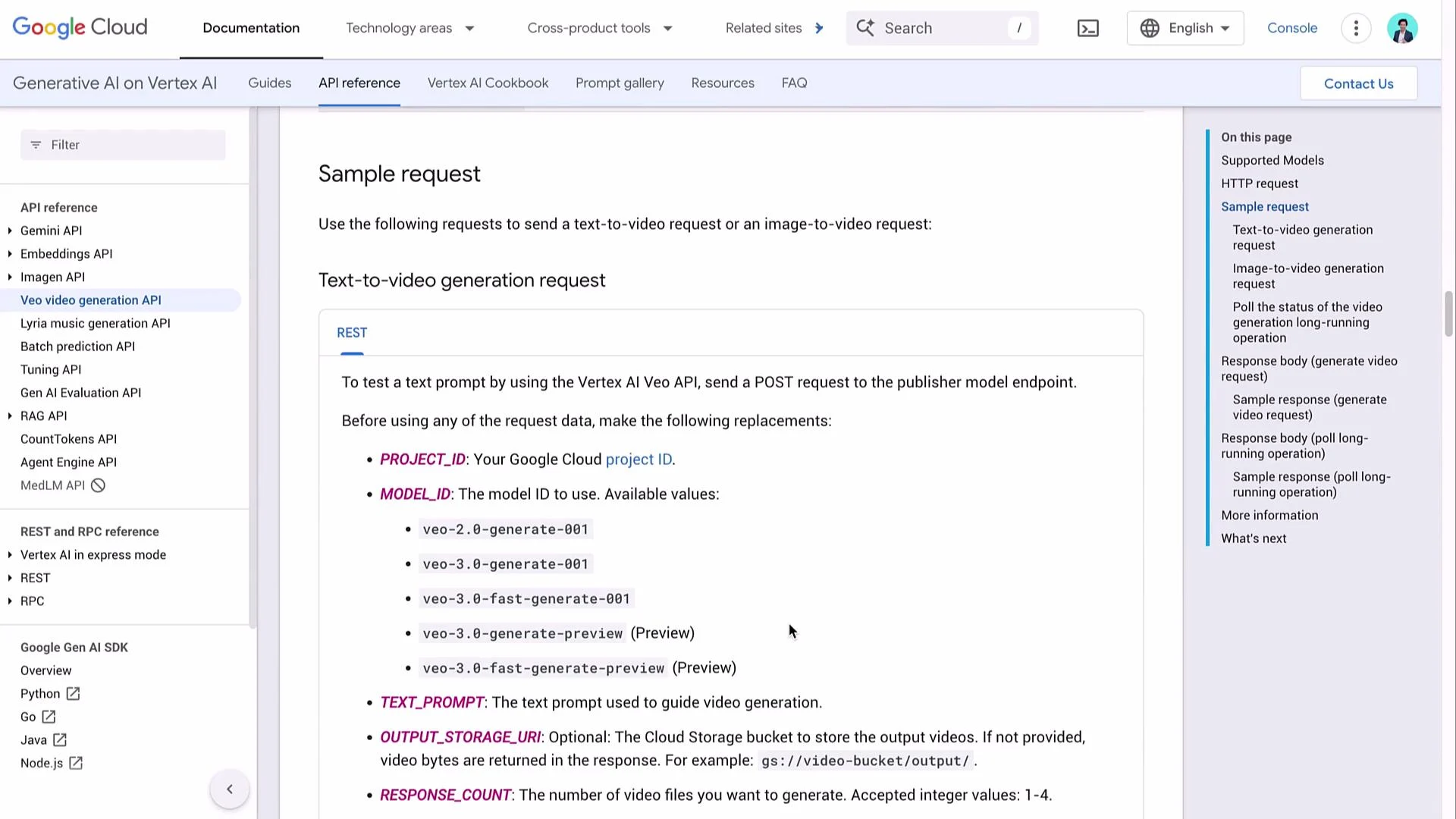
In the previous lesson we covered WaveSpeed API access for text-to-image and text-to-video models such as Veo3. This article shows an alternative: calling Veo3 directly via Google Cloud’s Vertex AI. The Vertex AI REST endpoints let you submit text-to-video generation requests, receive a long-running operation, poll until completion, and retrieve the resulting video (inline as Base64 or written to a GCS bucket).
The examples below show the HTTP pattern (curl) and a streamlined n8n automation workflow that: POSTs the generation request, polls the returned operation, and converts the output to a usable file.
## Vertex AI HTTP request (curl example)
Vertex AI uses Google OAuth2 for authentication and accepts a JSON request body that contains `instances` and `parameters`. Replace `LOCATION`, `PROJECT_ID`, and `MODEL_ID` with your values.
```bash theme={null}
curl -X POST \
-H "Authorization: Bearer $(gcloud auth print-access-token)" \
-H "Content-Type: application/json" \
"https://LOCATION-aiplatform.googleapis.com/v1/projects/PROJECT_ID/locations/LOCATION/publishers/google/models/MODEL_ID:generateText" \
-d '{
"instances": [
{
"prompt": "YOUR_TEXT_PROMPT"
}
],
"parameters": {
"aspectRatio": "16:9",
"durationSeconds": 8,
"resolution": "720p",
"sampleCount": 1,
"storageUri": "gs://OUTPUT_BUCKET/optional/path/"
}
}'
```
Key points:
* URL: this is the publisher model endpoint for Google-hosted models. For Veo3 you might use a model ID like `veo-3.0-fast-generate-001` (verify the latest ID in Vertex docs).
* `storageUri` (optional): if provided, Vertex AI writes the generated video file(s) to the specified Google Cloud Storage bucket. If omitted, the API may return the generated video(s) inline as Base64.
* Authentication: use OAuth2; the curl example uses `gcloud auth print-access-token` to get a short-lived access token.
## Simplified JSON request body
A compact JSON body for a text-to-video request (8-second duration used below as many endpoints enforce minimum durations):
```json theme={null}
{
"instances": [
{
"prompt": "A walk down the beach"
}
],
"parameters": {
"aspectRatio": "16:9",
"durationSeconds": 8,
"resolution": "720p",
"sampleCount": 1
}
}
```
Add `"storageUri": "gs://OUTPUT_BUCKET/..."` inside `parameters` to write results to GCS instead of returning Base64 inline.
 ## Build the n8n workflow (overview)
This pattern works well in automation tools like n8n:
1. Manual Trigger — start/testing.
2. HTTP Request node — POST the Vertex AI generation request.
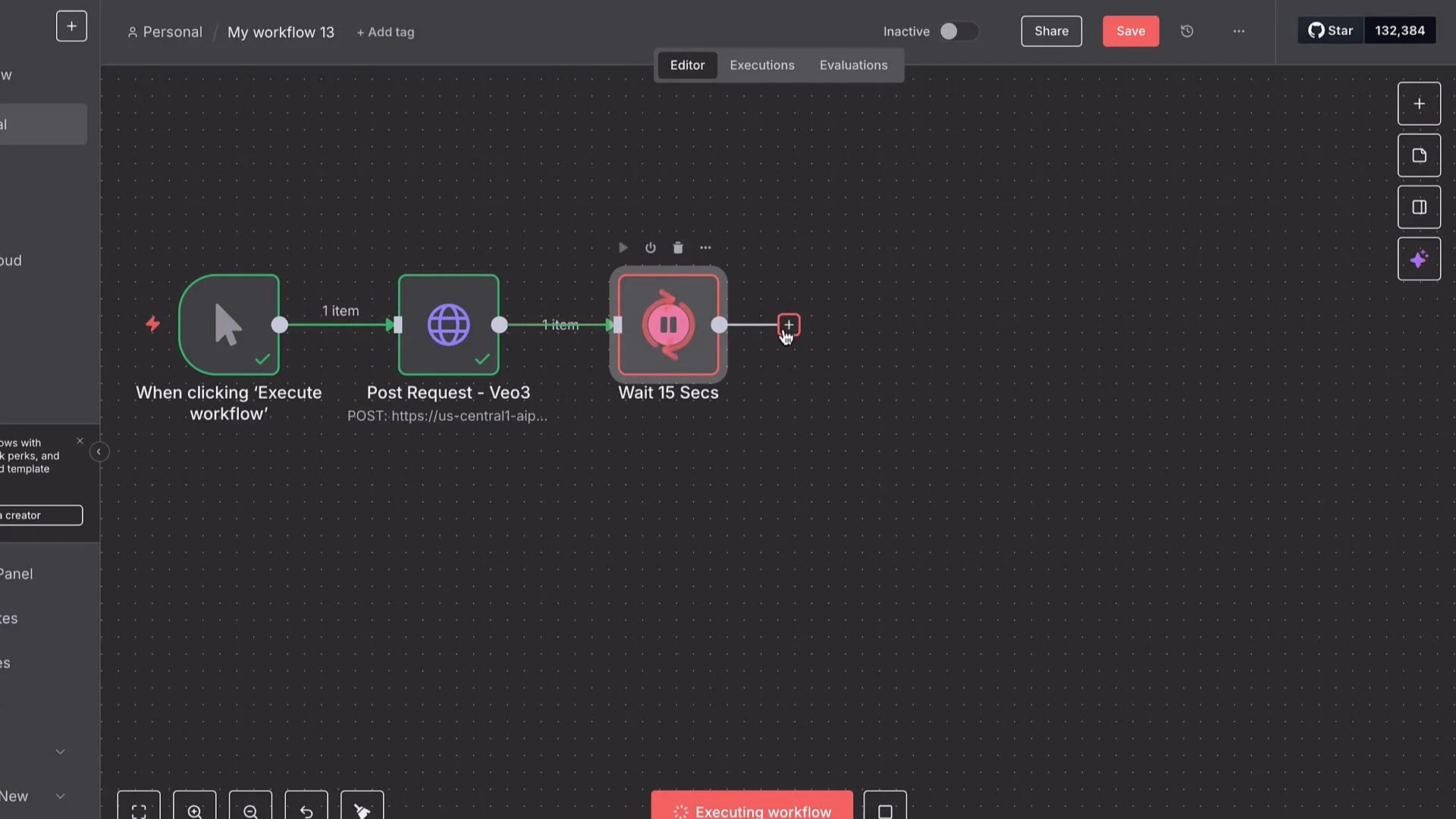
3. Wait (e.g., 15s) and poll the long-running operation with a second HTTP Request node.
4. When operation is `done`, retrieve output (Base64 or fetch from GCS).
5. Convert Base64 to a binary file and save/forward it (upload to Drive, S3/GCS, send via email, etc.).
Two required configuration values for the HTTP node:
* `PROJECT_ID` — your Google Cloud project ID (string).
* `MODEL_ID` — publisher model ID (e.g., `veo-3.0-fast-generate-001`).
Paste the JSON request body (shown above) into the HTTP Request node using “Use JSON Body.”
## Authentication: Google OAuth2 in n8n
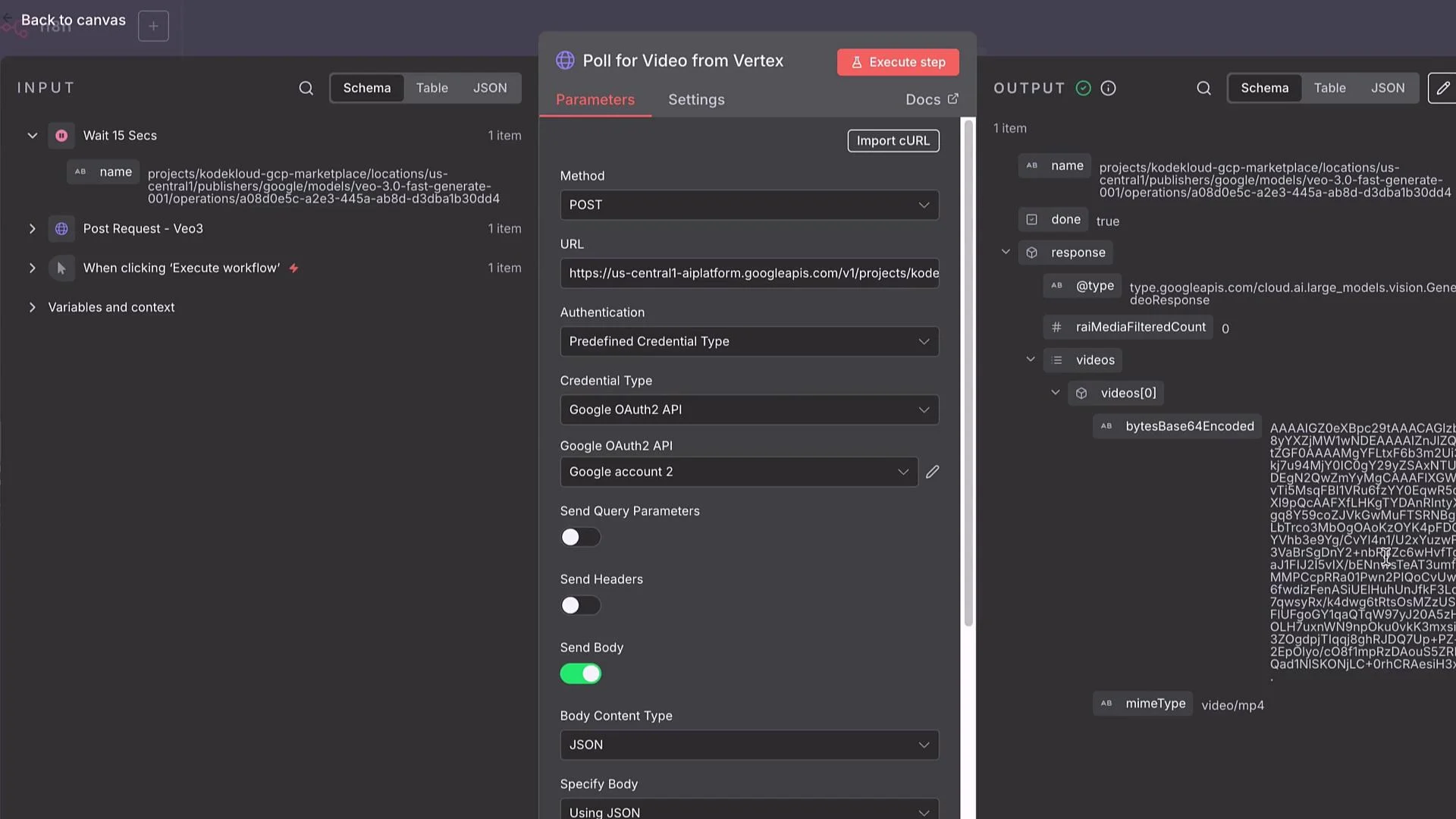
When using n8n, select a Predefined Credential Type and choose Google OAuth (OAuth2). Typical steps:
* Create an OAuth client in Google Cloud Console → APIs & Services → Credentials.
* Copy the Client ID and Client Secret into n8n’s Google OAuth credential.
* Ensure authorized redirect URI in Cloud Console matches n8n’s OAuth redirect URL.
* Add scopes such as `https://www.googleapis.com/auth/cloud-platform` so the token can access Vertex AI and GCS.
* Enable the Vertex AI API in your Google Cloud project before authorizing.
Use `cloud-platform` scope for broad access. If you only need Vertex and GCS access, ensure your OAuth client includes those scopes and that the service account or user has the required IAM roles (Vertex AI User, Storage Object Admin/Viewer as needed).
## Build the n8n workflow (overview)
This pattern works well in automation tools like n8n:
1. Manual Trigger — start/testing.
2. HTTP Request node — POST the Vertex AI generation request.
3. Wait (e.g., 15s) and poll the long-running operation with a second HTTP Request node.
4. When operation is `done`, retrieve output (Base64 or fetch from GCS).
5. Convert Base64 to a binary file and save/forward it (upload to Drive, S3/GCS, send via email, etc.).
Two required configuration values for the HTTP node:
* `PROJECT_ID` — your Google Cloud project ID (string).
* `MODEL_ID` — publisher model ID (e.g., `veo-3.0-fast-generate-001`).
Paste the JSON request body (shown above) into the HTTP Request node using “Use JSON Body.”
## Authentication: Google OAuth2 in n8n
When using n8n, select a Predefined Credential Type and choose Google OAuth (OAuth2). Typical steps:
* Create an OAuth client in Google Cloud Console → APIs & Services → Credentials.
* Copy the Client ID and Client Secret into n8n’s Google OAuth credential.
* Ensure authorized redirect URI in Cloud Console matches n8n’s OAuth redirect URL.
* Add scopes such as `https://www.googleapis.com/auth/cloud-platform` so the token can access Vertex AI and GCS.
* Enable the Vertex AI API in your Google Cloud project before authorizing.
Use `cloud-platform` scope for broad access. If you only need Vertex and GCS access, ensure your OAuth client includes those scopes and that the service account or user has the required IAM roles (Vertex AI User, Storage Object Admin/Viewer as needed).
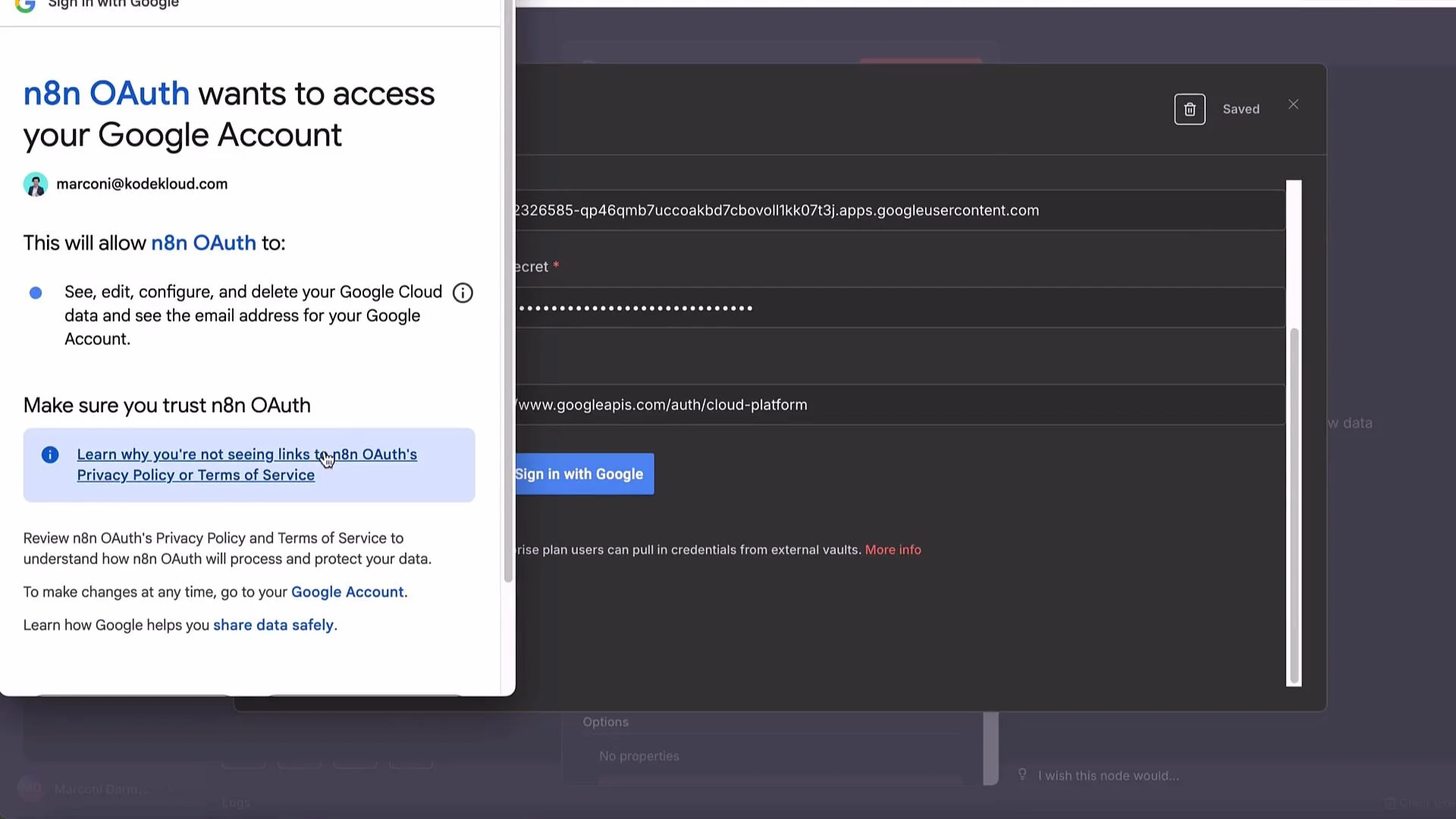
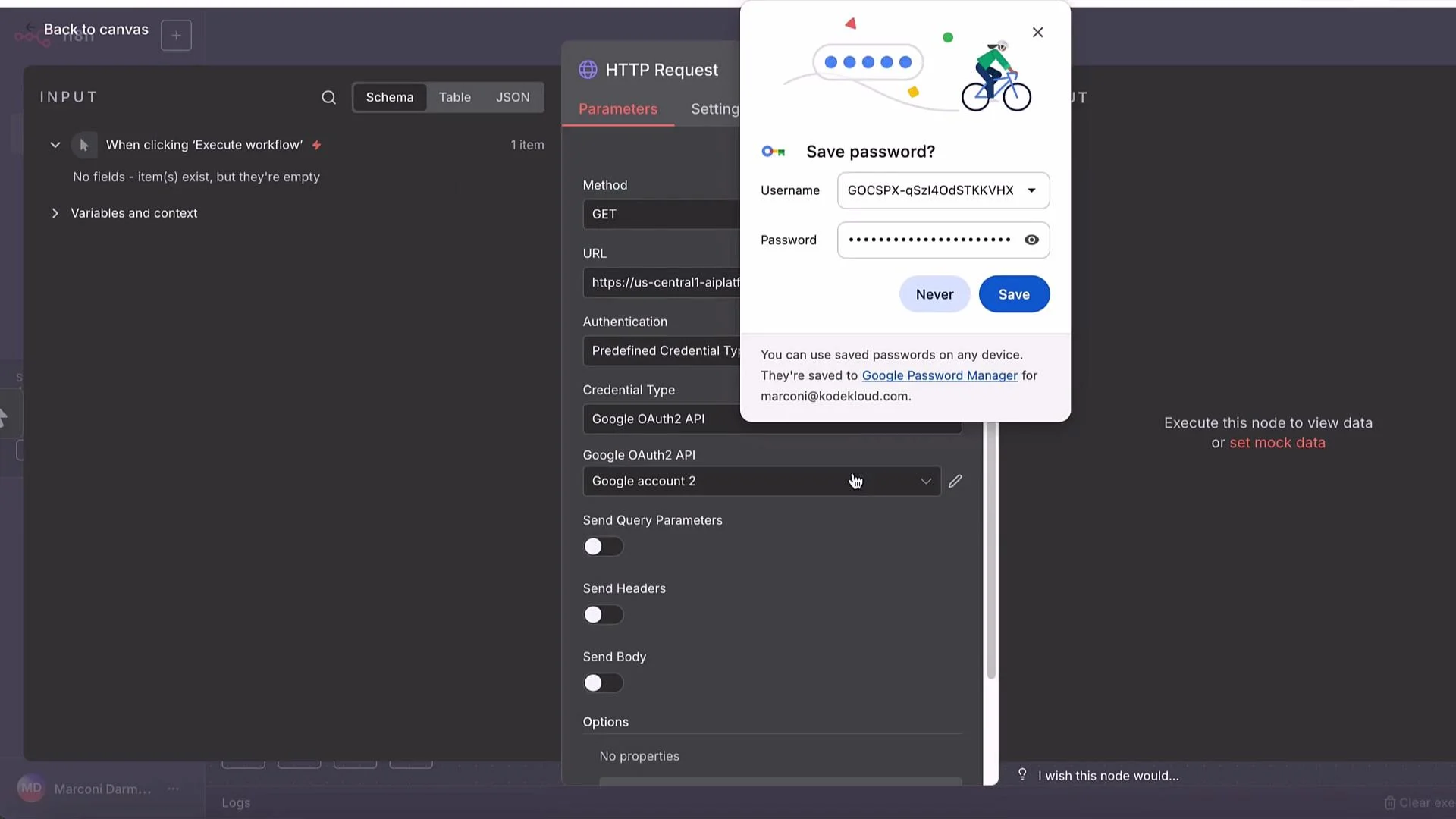
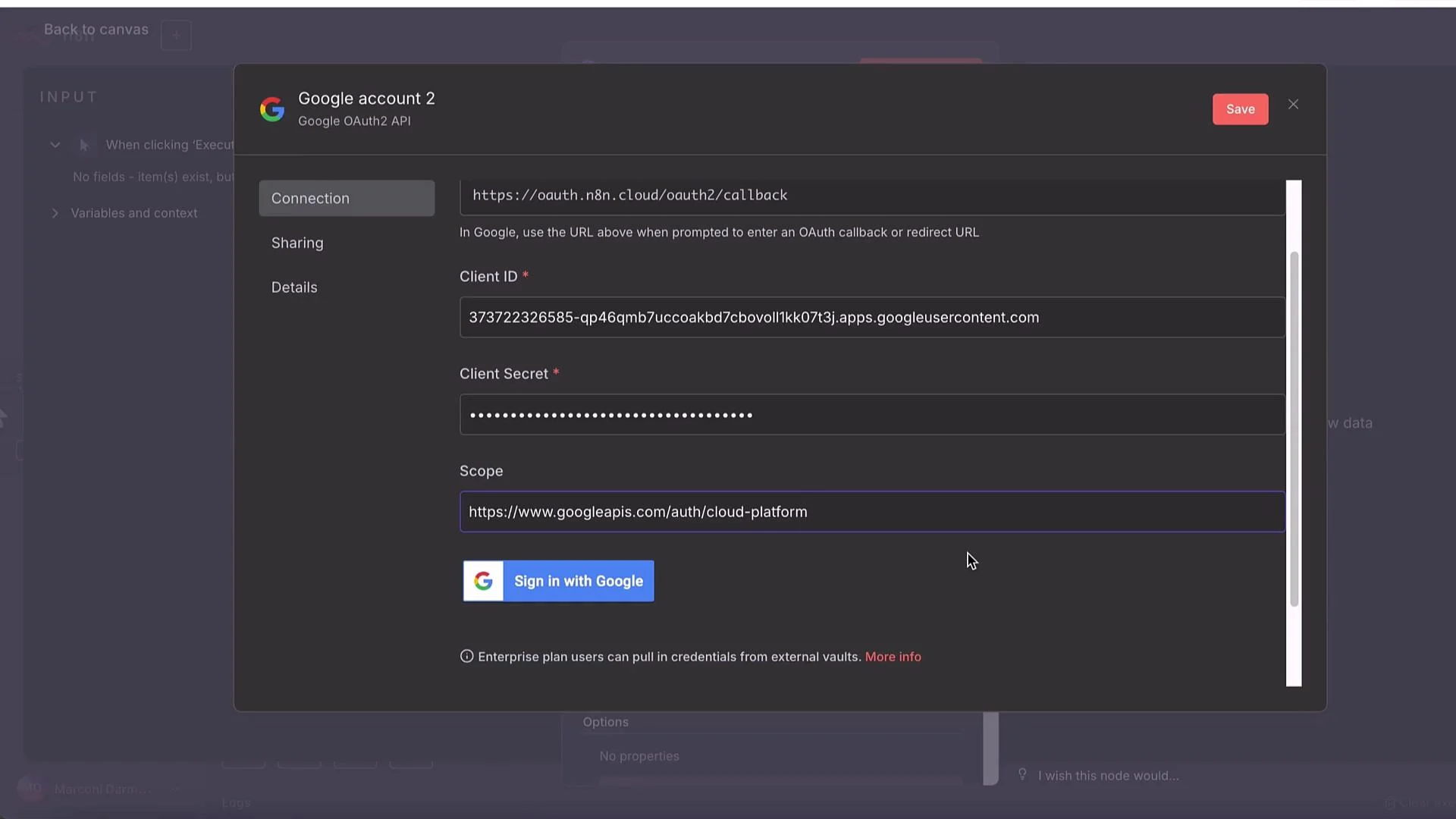 After you authorize, n8n will show the connected account. Toggle the credential into use for your HTTP Request node.
 ## n8n HTTP node configuration
Minimum settings for the POST node:
* Method: POST
* URL: `https://LOCATION-aiplatform.googleapis.com/v1/projects/PROJECT_ID/locations/LOCATION/publishers/google/models/MODEL_ID:generateText`
* Authentication: Predefined Credential Type → Google OAuth
* Send Body: Use JSON Body
* Body: paste the JSON request shown earlier
## n8n HTTP node configuration
Minimum settings for the POST node:
* Method: POST
* URL: `https://LOCATION-aiplatform.googleapis.com/v1/projects/PROJECT_ID/locations/LOCATION/publishers/google/models/MODEL_ID:generateText`
* Authentication: Predefined Credential Type → Google OAuth
* Send Body: Use JSON Body
* Body: paste the JSON request shown earlier
 ## Handling long-running operations and polling
Vertex AI often returns a long-running operation resource instead of the final file. Typical flow:
1. POST generation request.
2. API returns an operation resource name, e.g.:
`projects/PROJECT_ID/locations/LOCATION/operations/OPERATION_ID`
3. Poll the operations endpoint until `"done": true`.
* GET URL: `https://LOCATION-aiplatform.googleapis.com/v1/projects/PROJECT_ID/locations/LOCATION/operations/OPERATION_ID`
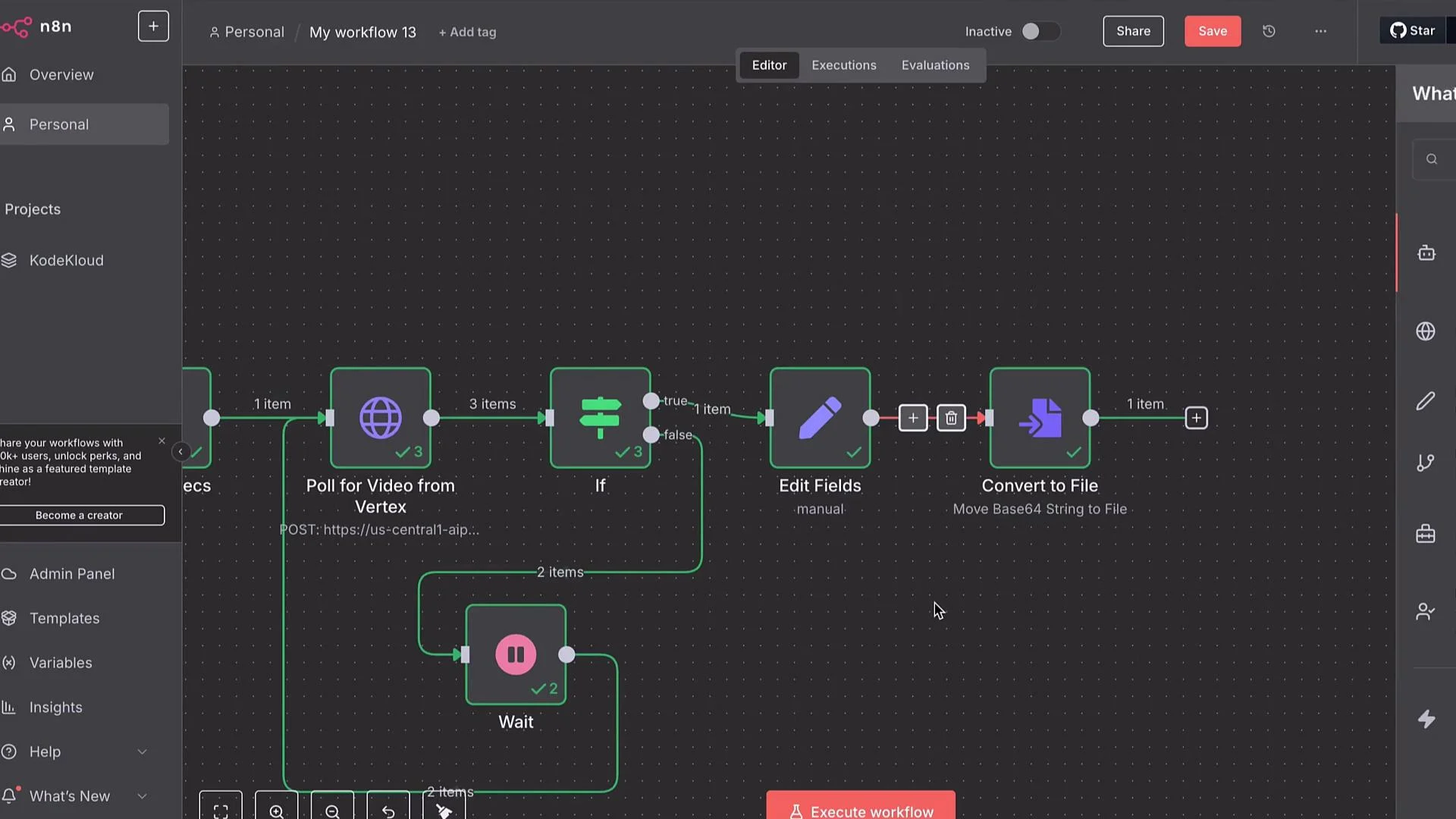
In n8n, use a second HTTP Request node to GET the operations resource. Add a conditional (If) node to check the JSON response for `"done": true`. If not done, route to a Wait node (e.g., 15s) and loop back to poll again.
If you supply `storageUri`, the operation result will typically include references to the generated file(s) in that bucket. If not, the response may contain Base64-encoded file contents.
If you request an unsupported `durationSeconds`, you might get errors such as “unsupported output video duration.” Adjust `durationSeconds` accordingly (8s in the examples above is commonly acceptable but verify limits for your model).
## Handling long-running operations and polling
Vertex AI often returns a long-running operation resource instead of the final file. Typical flow:
1. POST generation request.
2. API returns an operation resource name, e.g.:
`projects/PROJECT_ID/locations/LOCATION/operations/OPERATION_ID`
3. Poll the operations endpoint until `"done": true`.
* GET URL: `https://LOCATION-aiplatform.googleapis.com/v1/projects/PROJECT_ID/locations/LOCATION/operations/OPERATION_ID`
In n8n, use a second HTTP Request node to GET the operations resource. Add a conditional (If) node to check the JSON response for `"done": true`. If not done, route to a Wait node (e.g., 15s) and loop back to poll again.
If you supply `storageUri`, the operation result will typically include references to the generated file(s) in that bucket. If not, the response may contain Base64-encoded file contents.
If you request an unsupported `durationSeconds`, you might get errors such as “unsupported output video duration.” Adjust `durationSeconds` accordingly (8s in the examples above is commonly acceptable but verify limits for your model).
 ## Receiving the video and converting Base64 to a file
If the operation returns Base64:
1. Use a Set (Edit Fields) node to extract the Base64 payload into a field (e.g., `base64`).
2. Use a “Move Binary Data / Convert to File” node to convert the Base64 string into binary.
3. Save or forward the file (upload to Drive, GCS, S3, or send via email).
If you configured `storageUri` the workflow can skip Base64 conversion and simply fetch the file from the specified GCS path.
## Receiving the video and converting Base64 to a file
If the operation returns Base64:
1. Use a Set (Edit Fields) node to extract the Base64 payload into a field (e.g., `base64`).
2. Use a “Move Binary Data / Convert to File” node to convert the Base64 string into binary.
3. Save or forward the file (upload to Drive, GCS, S3, or send via email).
If you configured `storageUri` the workflow can skip Base64 conversion and simply fetch the file from the specified GCS path.
 Use an If node to branch on operation status: not done → Wait (15s) → poll again; done → convert Base64 or fetch from GCS and continue downstream.
 ## Parameter reference (common fields)
| Field | Purpose | Example / Notes |
| ---------------------------- | --------------------------------------- | ----------------------------------------- |
| `instances[].prompt` | The text prompt for generation | `"A walk down the beach"` |
| `parameters.aspectRatio` | Output aspect ratio | `"16:9"` |
| `parameters.durationSeconds` | Length of the generated video (seconds) | `8` (model may have min/max constraints) |
| `parameters.resolution` | Output resolution | `"720p"` |
| `parameters.sampleCount` | Number of samples to generate | `1` |
| `parameters.storageUri` | Optional GCS path to write outputs | `` `gs://OUTPUT_BUCKET/optional/path/` `` |
Note: wrap GCS URIs and any angle-bracket placeholders in backticks when embedding in templates.
## Final notes, tradeoffs and cost considerations
* For larger assets, writing output to a GCS bucket via `storageUri` is more reliable than returning Base64 inline.
* Vertex AI Veo3 models produce high-fidelity results but can be more expensive than smaller models. If you generate many short videos, evaluate lower-cost models or multi-model aggregators.
* Using Vertex directly requires managing OAuth credentials and IAM roles. Aggregator platforms (WaveSpeed, etc.) can simplify credential management and provide unified access to many models.
Be mindful of quotas and costs. Long-running or high-resolution video generation can incur significant charges. Ensure billing, IAM, and API enablement are configured correctly before automating large-scale generation workflows.
This guide presented a practical Vertex AI pattern: POST a generation request, poll the returned operation, and retrieve the result either inline (Base64 → file) or from GCS. The same pattern works in automation platforms like n8n to integrate Vertex AI Veo3 into production workflows.
## Links and References
* Vertex AI documentation: [https://cloud.google.com/vertex-ai/docs](https://cloud.google.com/vertex-ai/docs)
* n8n: Zero to Hero course: [https://learn.kodekloud.com/user/courses/n8n-zero-to-hero-2](https://learn.kodekloud.com/user/courses/n8n-zero-to-hero-2)
* Google Cloud Storage docs: [https://cloud.google.com/storage/docs](https://cloud.google.com/storage/docs)
## Parameter reference (common fields)
| Field | Purpose | Example / Notes |
| ---------------------------- | --------------------------------------- | ----------------------------------------- |
| `instances[].prompt` | The text prompt for generation | `"A walk down the beach"` |
| `parameters.aspectRatio` | Output aspect ratio | `"16:9"` |
| `parameters.durationSeconds` | Length of the generated video (seconds) | `8` (model may have min/max constraints) |
| `parameters.resolution` | Output resolution | `"720p"` |
| `parameters.sampleCount` | Number of samples to generate | `1` |
| `parameters.storageUri` | Optional GCS path to write outputs | `` `gs://OUTPUT_BUCKET/optional/path/` `` |
Note: wrap GCS URIs and any angle-bracket placeholders in backticks when embedding in templates.
## Final notes, tradeoffs and cost considerations
* For larger assets, writing output to a GCS bucket via `storageUri` is more reliable than returning Base64 inline.
* Vertex AI Veo3 models produce high-fidelity results but can be more expensive than smaller models. If you generate many short videos, evaluate lower-cost models or multi-model aggregators.
* Using Vertex directly requires managing OAuth credentials and IAM roles. Aggregator platforms (WaveSpeed, etc.) can simplify credential management and provide unified access to many models.
Be mindful of quotas and costs. Long-running or high-resolution video generation can incur significant charges. Ensure billing, IAM, and API enablement are configured correctly before automating large-scale generation workflows.
This guide presented a practical Vertex AI pattern: POST a generation request, poll the returned operation, and retrieve the result either inline (Base64 → file) or from GCS. The same pattern works in automation platforms like n8n to integrate Vertex AI Veo3 into production workflows.
## Links and References
* Vertex AI documentation: [https://cloud.google.com/vertex-ai/docs](https://cloud.google.com/vertex-ai/docs)
* n8n: Zero to Hero course: [https://learn.kodekloud.com/user/courses/n8n-zero-to-hero-2](https://learn.kodekloud.com/user/courses/n8n-zero-to-hero-2)
* Google Cloud Storage docs: [https://cloud.google.com/storage/docs](https://cloud.google.com/storage/docs)