> ## Documentation Index
> Fetch the complete documentation index at: https://notes.kodekloud.com/llms.txt
> Use this file to discover all available pages before exploring further.
# Workflow 2 Multi Agent Research Workflow with Perplexity OpenAI
> Guide to building a scheduled n8n multi agent workflow that fetches AI news via Perplexity, deduplicates with Google Sheets using an LLM, emails digests, and logs headlines.
This lesson walks through building a scheduled multi-agent research workflow in n8n that:
* Searches the web for the latest AI news (via Perplexity),
* Cross-checks results against a Google Sheets log to avoid duplicates,
* Sends a daily summary email (via Gmail),
* Appends new headlines to the log for future deduplication.
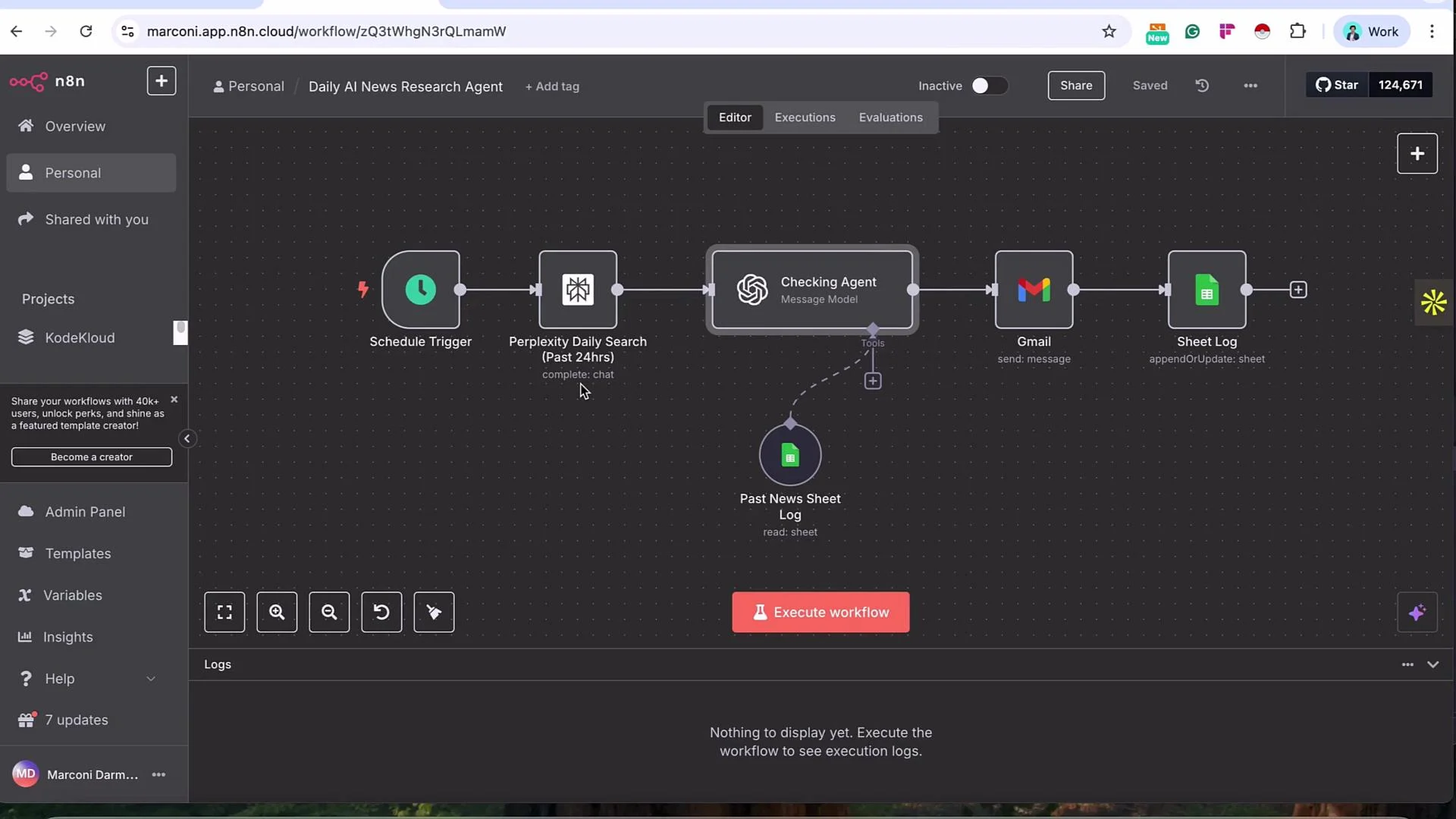
The workflow runs on a schedule (for example, every day at 9:00 AM) and forms a loop so every run compares new results against previously recorded headlines.
 Overview
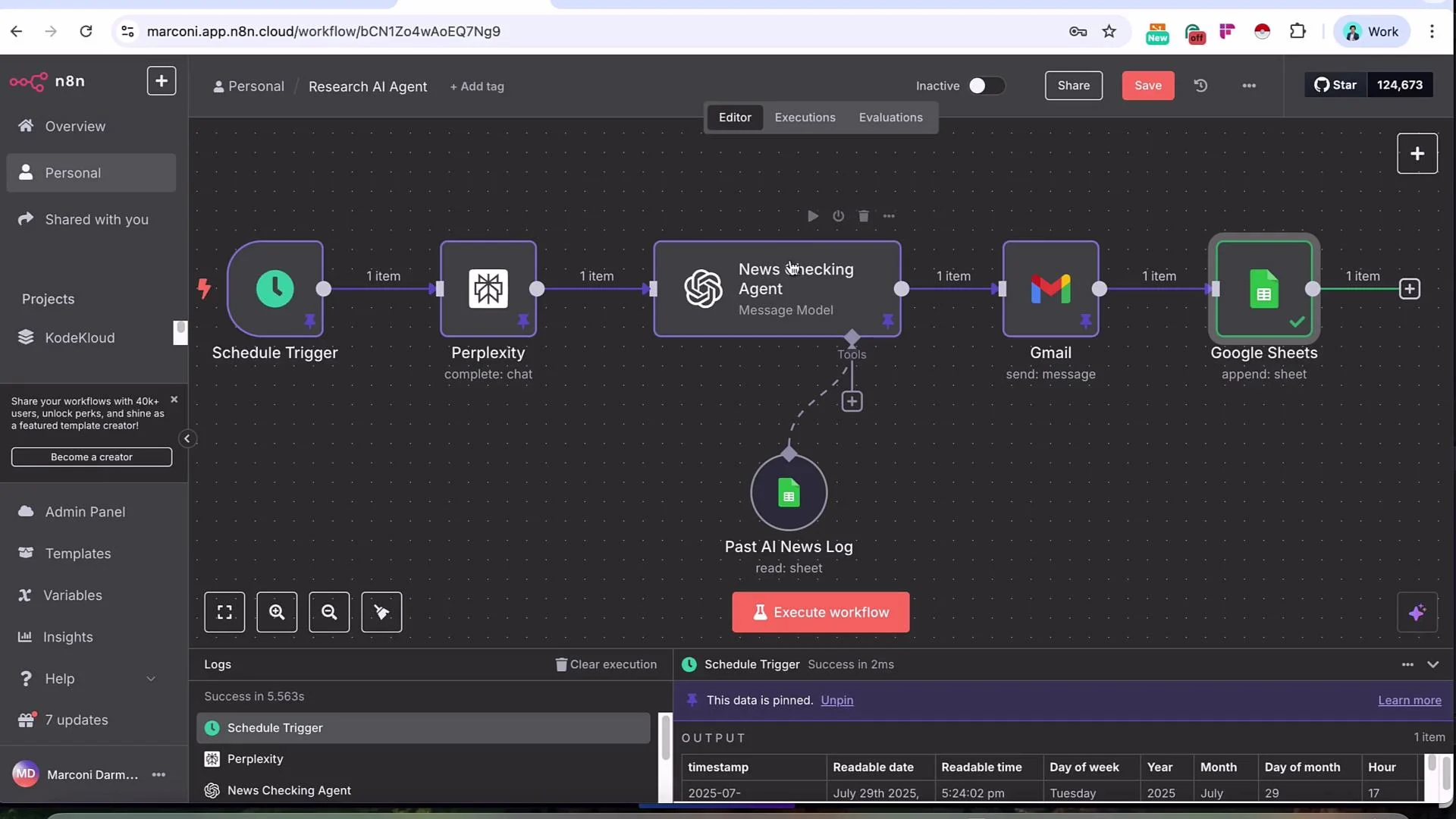
* Scheduled Trigger → Perplexity (Search) → News Checking Agent (OpenAI LLM) + Google Sheets (`getRows`) → Gmail (`send`) → Google Sheets (`appendRow`)
Quick workflow summary table:
| Node | Purpose | Example n8n operation |
| ----------------- | --------------------------------------------- | ----------------------------------------------------- |
| Scheduled Trigger | Run workflow on a regular cadence | `Scheduled Trigger` |
| Perplexity | Search web / summarize recent AI news | `Message a Model` |
| LLM (OpenAI) | Deduplicate & format digest using Sheets data | `Message a Model` with Google Sheets tool (`getRows`) |
| Gmail | Deliver the daily digest | `Send` |
| Google Sheets | Store the digest for future deduplication | `Append Row` |
Why this pattern? Separating search, formatting/deduplication, and delivery makes the flow deterministic and auditable: the LLM formats content but the workflow node (Gmail) guarantees delivery every run.
Step 1 — Scheduled Trigger
* Add the Scheduled Trigger node to run automatically.
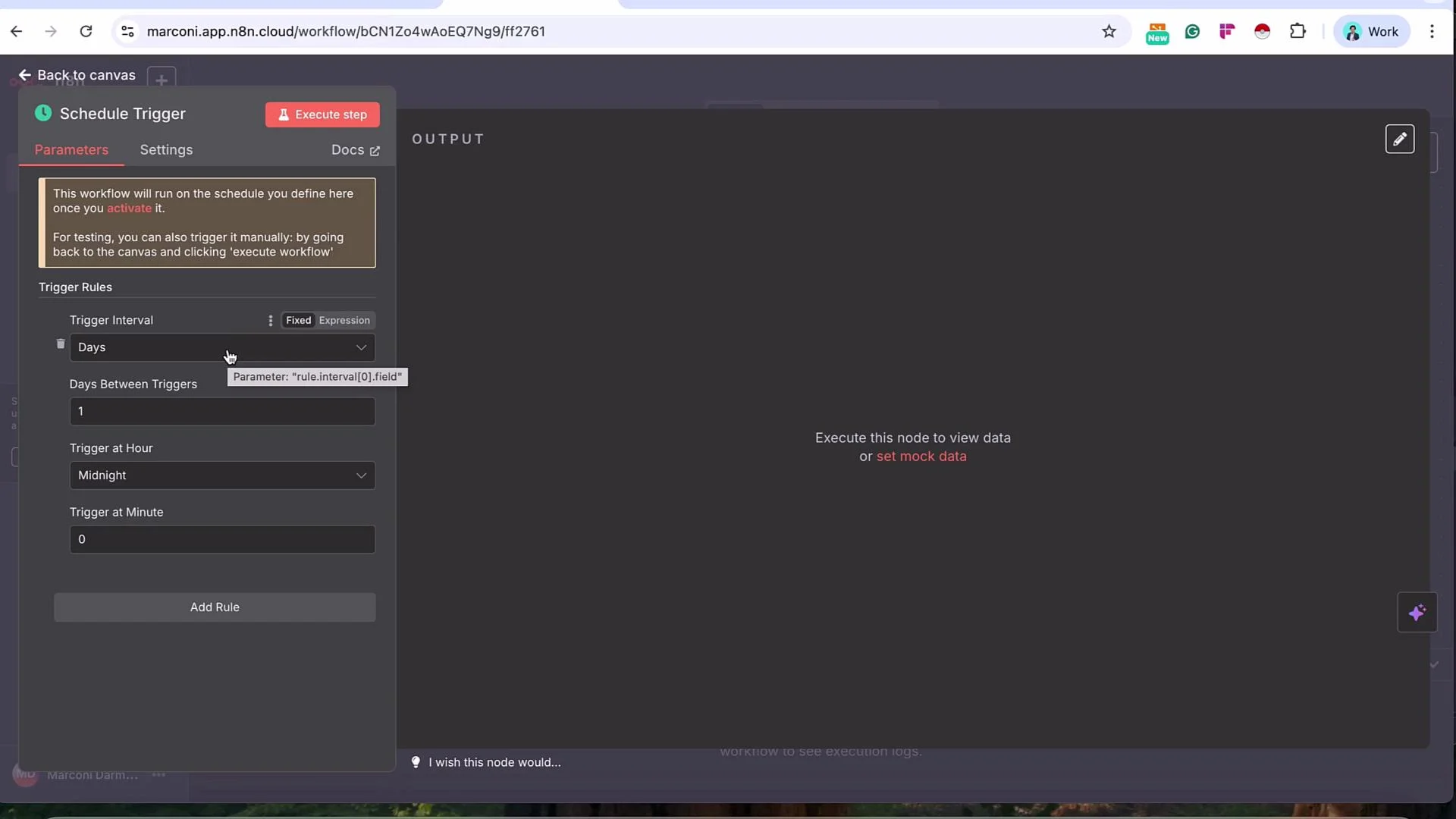
* For a daily digest set:
* Interval: `Days`
* Days Between Triggers: `1`
* Hour: `9`
* Minute: `0`
* Use Execute Step to test the trigger and generate initial runtime variables.
Overview
* Scheduled Trigger → Perplexity (Search) → News Checking Agent (OpenAI LLM) + Google Sheets (`getRows`) → Gmail (`send`) → Google Sheets (`appendRow`)
Quick workflow summary table:
| Node | Purpose | Example n8n operation |
| ----------------- | --------------------------------------------- | ----------------------------------------------------- |
| Scheduled Trigger | Run workflow on a regular cadence | `Scheduled Trigger` |
| Perplexity | Search web / summarize recent AI news | `Message a Model` |
| LLM (OpenAI) | Deduplicate & format digest using Sheets data | `Message a Model` with Google Sheets tool (`getRows`) |
| Gmail | Deliver the daily digest | `Send` |
| Google Sheets | Store the digest for future deduplication | `Append Row` |
Why this pattern? Separating search, formatting/deduplication, and delivery makes the flow deterministic and auditable: the LLM formats content but the workflow node (Gmail) guarantees delivery every run.
Step 1 — Scheduled Trigger
* Add the Scheduled Trigger node to run automatically.
* For a daily digest set:
* Interval: `Days`
* Days Between Triggers: `1`
* Hour: `9`
* Minute: `0`
* Use Execute Step to test the trigger and generate initial runtime variables.
 Step 2 — Perplexity: Message a Model
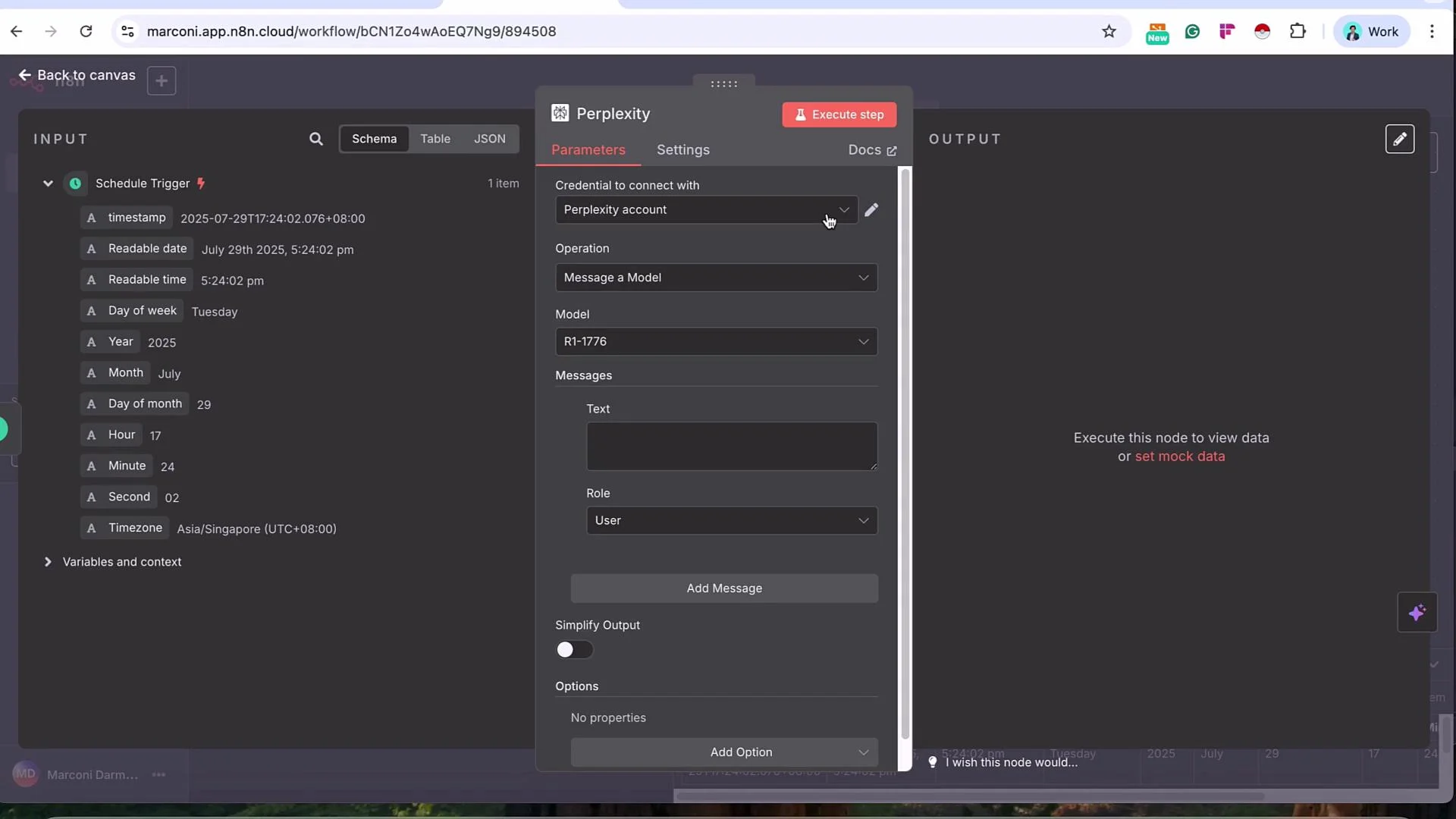
* Use the Perplexity node with the `Message a Model` operation to fetch and summarize recent AI news.
* Create a Perplexity credential by copying your Perplexity API key into n8n (Perplexity dashboard → Settings → API Keys).
Perplexity may require enabling API billing and adding payment details before API keys are issued. Confirm account limits and billing to avoid unexpected failures during development.
Example console-style timestamp output you might see while testing:
```text theme={null}
OUTPUT
timestamp: 2025-07-29T17:24:02.076+08:00
Readable date: July 29th 2025
Readable time: 5:24:02 PM
Day of week: Tuesday
```
Selecting a model and ordering messages
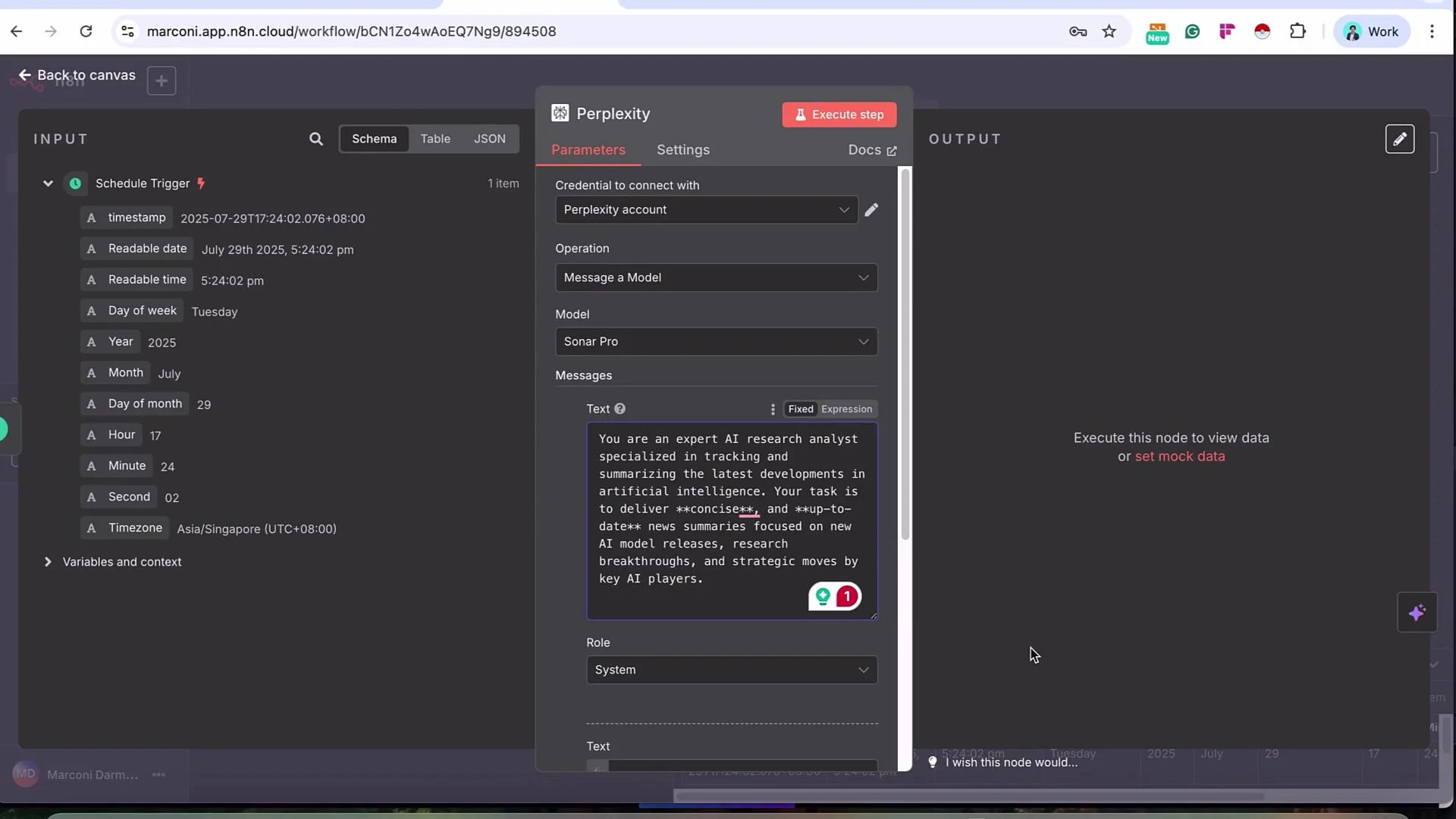
* For concise, timely results choose a Sonar model (e.g., `sonar-pro`).
* For deeper analysis use `sonar-deep-research` or `sonar-reasoning-pro`.
* Perplexity expects a System message first, then a User message — ensure the system prompt is the first entry.
Example System Prompt (first message):
```text theme={null}
You are an expert AI research analyst specialized in tracking and summarizing the latest developments in artificial intelligence. Deliver concise and up-to-date news summaries focused on new AI model releases, research breakthroughs, and strategic moves by key AI players.
```
Example User Prompt (second message):
```text theme={null}
Find and summarize the most recent AI news within the last 24 hours. For reference, today is `{{ $now }}`. Prioritize research breakthroughs and key announcements from organizations like OpenAI, Anthropic, Google, Meta, Mistral, xAI, and Hugging Face. Provide concise headlines and short one- to two-sentence summaries for each item, and include source URLs for every item.
```
Tip: Use the workflow variable `{{ $now }}` so the model has a concrete time context. Perplexity also provides a recency filter — set it to “within the day” to restrict results to the most recent items.
When you execute the Perplexity node, outputs include:
* Natural-language summaries,
* Citations and `search_results` metadata,
* Search metrics.
During development, pin the node output in n8n to avoid repeated API calls.
Step 2 — Perplexity: Message a Model
* Use the Perplexity node with the `Message a Model` operation to fetch and summarize recent AI news.
* Create a Perplexity credential by copying your Perplexity API key into n8n (Perplexity dashboard → Settings → API Keys).
Perplexity may require enabling API billing and adding payment details before API keys are issued. Confirm account limits and billing to avoid unexpected failures during development.
Example console-style timestamp output you might see while testing:
```text theme={null}
OUTPUT
timestamp: 2025-07-29T17:24:02.076+08:00
Readable date: July 29th 2025
Readable time: 5:24:02 PM
Day of week: Tuesday
```
Selecting a model and ordering messages
* For concise, timely results choose a Sonar model (e.g., `sonar-pro`).
* For deeper analysis use `sonar-deep-research` or `sonar-reasoning-pro`.
* Perplexity expects a System message first, then a User message — ensure the system prompt is the first entry.
Example System Prompt (first message):
```text theme={null}
You are an expert AI research analyst specialized in tracking and summarizing the latest developments in artificial intelligence. Deliver concise and up-to-date news summaries focused on new AI model releases, research breakthroughs, and strategic moves by key AI players.
```
Example User Prompt (second message):
```text theme={null}
Find and summarize the most recent AI news within the last 24 hours. For reference, today is `{{ $now }}`. Prioritize research breakthroughs and key announcements from organizations like OpenAI, Anthropic, Google, Meta, Mistral, xAI, and Hugging Face. Provide concise headlines and short one- to two-sentence summaries for each item, and include source URLs for every item.
```
Tip: Use the workflow variable `{{ $now }}` so the model has a concrete time context. Perplexity also provides a recency filter — set it to “within the day” to restrict results to the most recent items.
When you execute the Perplexity node, outputs include:
* Natural-language summaries,
* Citations and `search_results` metadata,
* Search metrics.
During development, pin the node output in n8n to avoid repeated API calls.
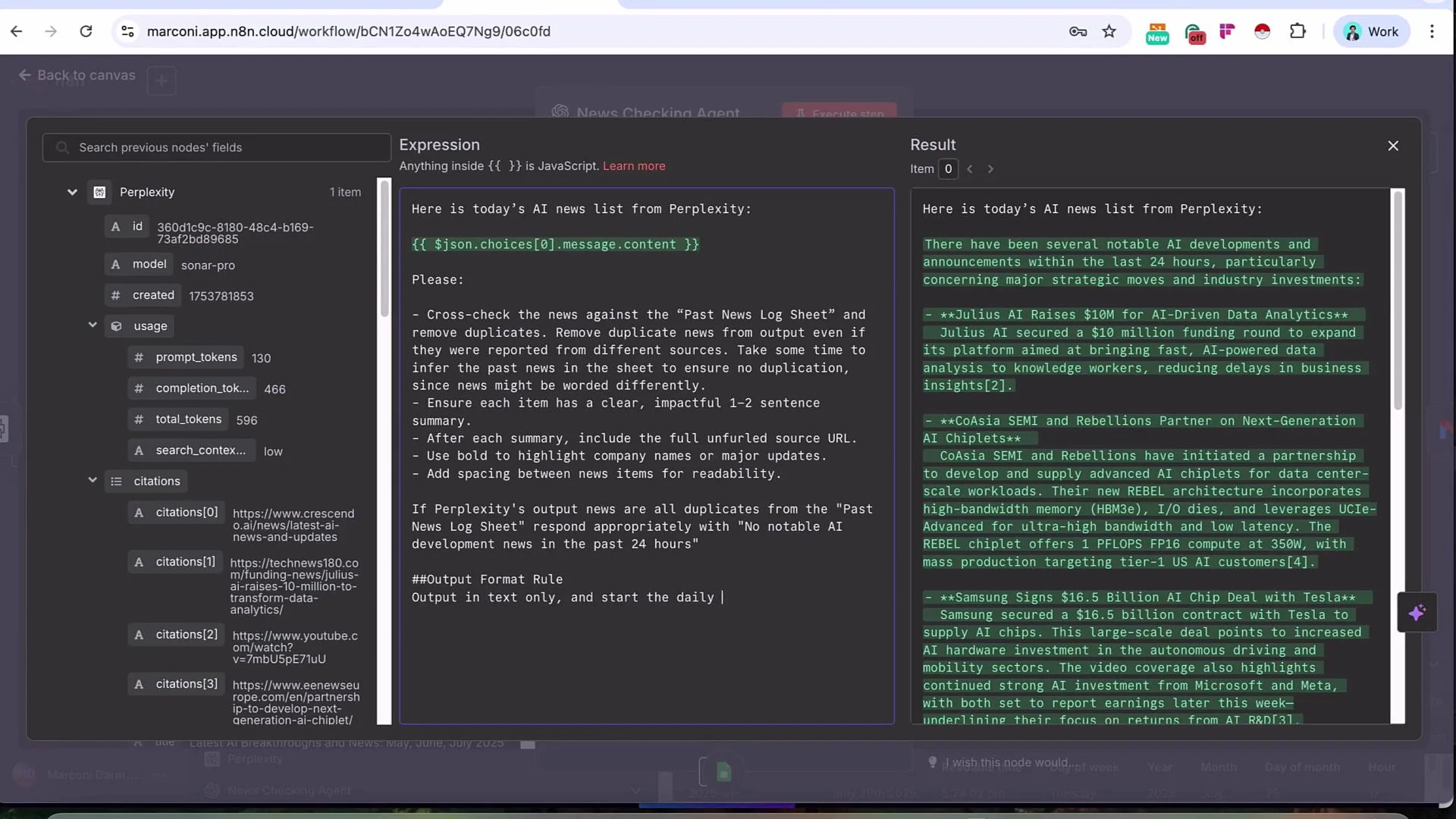
 Step 3 — News Checking Agent (OpenAI) + Google Sheets (`getRows`)
* Add an LLM node (for example, OpenAI's `Message a Model`) to act as a formatter and deduplicator. The LLM node will:
* Receive Perplexity's summarized content,
* Cross-check headlines against a Google Sheet named `Past AI News Log`,
* Remove duplicates,
* Format the final digest (one- to two-sentence summaries with source URLs),
* If everything is duplicate, output a clear "No notable AI development news in the past 24 hours" message.
Example System Prompt for the checking agent:
```text theme={null}
You are an AI news formatter. Your role is to process, check, and clean AI news results fetched from Perplexity to ensure readability and that past headlines are not repeated. Use the provided Google Sheets tool named "Past AI News Log" to check existing headlines.
```
Example User Prompt (inject Perplexity output into the prompt):
```text theme={null}
Here's today's AI news list from Perplexity:
{{ $json.choices[0].message.content }}
Please:
- Cross-check each item against the Google Sheet "Past AI News Log" and remove duplicates.
- Ensure each retained item has a clear 1–2 sentence summary.
- After each summary include the full source URL.
- Highlight company names or major updates for readability and add spacing between items.
- If all Perplexity headlines are duplicates of the Past AI News Log, respond with "No notable AI development news in the past 24 hours."
- Output in text only. Start the daily news summary with:
"Here is today's AI development news. Today is `{{ $today }}`."
```
Configuring Google Sheets as a tool inside the LLM node
* Attach Google Sheets as a tool and set the tool's Resource to the spreadsheet document and Operation to `getRows`. This allows the LLM to fetch existing rows and determine duplicates.
* Create the spreadsheet `Past AI News Log` with these columns:
* Date
* Headlines
* In the Google Sheets tool settings, select the Document and Sheet (e.g., `Sheet1`) so the checking agent can access existing rows.
Example assistant output from the LLM (formatted JSON for debugging):
```json theme={null}
{
"index": 0,
"message": {
"role": "assistant",
"content": "Here is the formatted AI news:\n\n1. Julius AI has successfully raised a $10 million funding round. The funds will be used to expand its platform that brings rapid, AI-powered data analysis to knowledge workers and cuts down on delays in obtaining business insights. Source: https://www.juliusai.com/news/julius-ai-raises-10m-for-ai-driven-data-analysis/\n\n2. A strategic partnership has been formed between CoAsis SEM and Rebellions to develop and supply cutting-edge AI chiplets for data center-scale workloads..."
},
"finish_reason": "stop"
}
```
Step 3 — News Checking Agent (OpenAI) + Google Sheets (`getRows`)
* Add an LLM node (for example, OpenAI's `Message a Model`) to act as a formatter and deduplicator. The LLM node will:
* Receive Perplexity's summarized content,
* Cross-check headlines against a Google Sheet named `Past AI News Log`,
* Remove duplicates,
* Format the final digest (one- to two-sentence summaries with source URLs),
* If everything is duplicate, output a clear "No notable AI development news in the past 24 hours" message.
Example System Prompt for the checking agent:
```text theme={null}
You are an AI news formatter. Your role is to process, check, and clean AI news results fetched from Perplexity to ensure readability and that past headlines are not repeated. Use the provided Google Sheets tool named "Past AI News Log" to check existing headlines.
```
Example User Prompt (inject Perplexity output into the prompt):
```text theme={null}
Here's today's AI news list from Perplexity:
{{ $json.choices[0].message.content }}
Please:
- Cross-check each item against the Google Sheet "Past AI News Log" and remove duplicates.
- Ensure each retained item has a clear 1–2 sentence summary.
- After each summary include the full source URL.
- Highlight company names or major updates for readability and add spacing between items.
- If all Perplexity headlines are duplicates of the Past AI News Log, respond with "No notable AI development news in the past 24 hours."
- Output in text only. Start the daily news summary with:
"Here is today's AI development news. Today is `{{ $today }}`."
```
Configuring Google Sheets as a tool inside the LLM node
* Attach Google Sheets as a tool and set the tool's Resource to the spreadsheet document and Operation to `getRows`. This allows the LLM to fetch existing rows and determine duplicates.
* Create the spreadsheet `Past AI News Log` with these columns:
* Date
* Headlines
* In the Google Sheets tool settings, select the Document and Sheet (e.g., `Sheet1`) so the checking agent can access existing rows.
Example assistant output from the LLM (formatted JSON for debugging):
```json theme={null}
{
"index": 0,
"message": {
"role": "assistant",
"content": "Here is the formatted AI news:\n\n1. Julius AI has successfully raised a $10 million funding round. The funds will be used to expand its platform that brings rapid, AI-powered data analysis to knowledge workers and cuts down on delays in obtaining business insights. Source: https://www.juliusai.com/news/julius-ai-raises-10m-for-ai-driven-data-analysis/\n\n2. A strategic partnership has been formed between CoAsis SEM and Rebellions to develop and supply cutting-edge AI chiplets for data center-scale workloads..."
},
"finish_reason": "stop"
}
```
 Step 4 — Gmail node (Send a Message)
* Add a Gmail node after the News Checking Agent to deliver the digest deterministically.
* Configure fields using variables from the News Checking Agent output:
* To: your recipient email(s)
* Subject: `Daily AI News Digest`
* MIME Type: `text`
* Message: the content from the News Checking Agent, for example:
* `$('News Checking Agent').item.json.message.content`
* Optional: Disable automatic n8n attribution under Add Option → Append n8n Attribution if you prefer no footer.
Why not let the LLM call Gmail directly?
* If the LLM has Gmail as an attached tool it may or may not choose to use it. Chaining Gmail as an explicit node guarantees delivery each run and improves observability in the workflow logs.
Step 4 — Gmail node (Send a Message)
* Add a Gmail node after the News Checking Agent to deliver the digest deterministically.
* Configure fields using variables from the News Checking Agent output:
* To: your recipient email(s)
* Subject: `Daily AI News Digest`
* MIME Type: `text`
* Message: the content from the News Checking Agent, for example:
* `$('News Checking Agent').item.json.message.content`
* Optional: Disable automatic n8n attribution under Add Option → Append n8n Attribution if you prefer no footer.
Why not let the LLM call Gmail directly?
* If the LLM has Gmail as an attached tool it may or may not choose to use it. Chaining Gmail as an explicit node guarantees delivery each run and improves observability in the workflow logs.
 Step 5 — Google Sheets: Append Row
* After the Gmail node, append the formatted headlines into your `Past AI News Log` so future runs can deduplicate against them.
* Google Sheets node settings:
* Operation: `Append Row`
* Document: select `Past AI News Log`
* Sheet: e.g., `Sheet1`
* Map the columns:
* Date → `{{ $today }}`
* Headlines → `$('News Checking Agent').item.json.message.content`
Example mapping values (YAML style shown in n8n UI):
```yaml theme={null}
Date: "{{ $today }}"
Headlines: "{{ $('News Checking Agent').item.json.message.content }}"
```
Or as a JSON payload block:
```json theme={null}
{
"Values to Send": {
"Date": "{{ $today }}",
"Headlines": "{{ $('News Checking Agent').item.json.message.content }}"
}
}
```
When executed, the node appends the next available row so the log grows by one row per run containing new content.
Step 5 — Google Sheets: Append Row
* After the Gmail node, append the formatted headlines into your `Past AI News Log` so future runs can deduplicate against them.
* Google Sheets node settings:
* Operation: `Append Row`
* Document: select `Past AI News Log`
* Sheet: e.g., `Sheet1`
* Map the columns:
* Date → `{{ $today }}`
* Headlines → `$('News Checking Agent').item.json.message.content`
Example mapping values (YAML style shown in n8n UI):
```yaml theme={null}
Date: "{{ $today }}"
Headlines: "{{ $('News Checking Agent').item.json.message.content }}"
```
Or as a JSON payload block:
```json theme={null}
{
"Values to Send": {
"Date": "{{ $today }}",
"Headlines": "{{ $('News Checking Agent').item.json.message.content }}"
}
}
```
When executed, the node appends the next available row so the log grows by one row per run containing new content.
 Resulting loop
* Each day the Perplexity node fetches the latest AI news.
* The News Checking Agent consults `Past AI News Log` to remove duplicates and formats a digest.
* Gmail sends the digest to recipients.
* Google Sheets appends the digest to the log for future deduplication.
Alternatives and extensions
* Swap Perplexity for a different search agent or a scraper targeting curated source lists.
* Replace OpenAI with other LLM providers for formatting and deduplication.
* Replace Gmail with Slack, Telegram, or other delivery channels.
* Store structured metadata columns in the sheet (e.g., `URL`, `Company`, `Category`) to enable richer deduplication and filtering.
Links and references
* [n8n Documentation](https://docs.n8n.io/)
* [Perplexity AI](https://www.perplexity.ai/)
* [OpenAI API Documentation](https://platform.openai.com/docs)
* [Google Sheets API / Add-ons docs](https://developers.google.com/sheets)
* [Gmail API / n8n Gmail node docs](https://docs.n8n.io/nodes/n8n-nodes-base.gmail/)
Tip: During development, pin outputs from nodes (Perplexity, News Checking Agent) to avoid repeatedly consuming API calls. Once satisfied, unpin and let the workflow run on schedule.
This completes the lesson on building a scheduled multi-agent AI research workflow using Perplexity for search and an LLM-based checking and formatting step.
Resulting loop
* Each day the Perplexity node fetches the latest AI news.
* The News Checking Agent consults `Past AI News Log` to remove duplicates and formats a digest.
* Gmail sends the digest to recipients.
* Google Sheets appends the digest to the log for future deduplication.
Alternatives and extensions
* Swap Perplexity for a different search agent or a scraper targeting curated source lists.
* Replace OpenAI with other LLM providers for formatting and deduplication.
* Replace Gmail with Slack, Telegram, or other delivery channels.
* Store structured metadata columns in the sheet (e.g., `URL`, `Company`, `Category`) to enable richer deduplication and filtering.
Links and references
* [n8n Documentation](https://docs.n8n.io/)
* [Perplexity AI](https://www.perplexity.ai/)
* [OpenAI API Documentation](https://platform.openai.com/docs)
* [Google Sheets API / Add-ons docs](https://developers.google.com/sheets)
* [Gmail API / n8n Gmail node docs](https://docs.n8n.io/nodes/n8n-nodes-base.gmail/)
Tip: During development, pin outputs from nodes (Perplexity, News Checking Agent) to avoid repeatedly consuming API calls. Once satisfied, unpin and let the workflow run on schedule.
This completes the lesson on building a scheduled multi-agent AI research workflow using Perplexity for search and an LLM-based checking and formatting step.