> ## Documentation Index
> Fetch the complete documentation index at: https://notes.kodekloud.com/llms.txt
> Use this file to discover all available pages before exploring further.
# Workflow 6 Image to Video Generation Agent Seedance Telegram
> Automated image-to-video workflow using Google Drive, Telegram, Google Sheets, an OpenAI prompt agent and Seedance Wavespeed API to generate, poll, and deliver videos
In this lesson you’ll build an image-to-video automation end-to-end. The workflow gathers a user-supplied base image and a textual video idea, converts that idea into a model-ready video prompt, calls an image-to-video service (Seedance / Wavespeed), polls until the video is complete, and returns the result to the user in Telegram.
Inputs required:
* A base image (the source image the video will be derived from).
* A Video Prompt (the user-provided description of the desired video).
We use Telegram as the central conversational interface in this demo and Google Drive to receive uploaded images. The trigger can be either a new file in a monitored Google Drive folder or a reply from the Telegram user. High-level flow:
1. Google Drive trigger detects a new image upload.
2. A Telegram bot notifies the user and requests a video idea.
3. The image URL and timestamp are appended to a Google Sheet (`Image to Video Log`).
4. A Telegram OnMessage trigger captures the user's idea and the chat id.
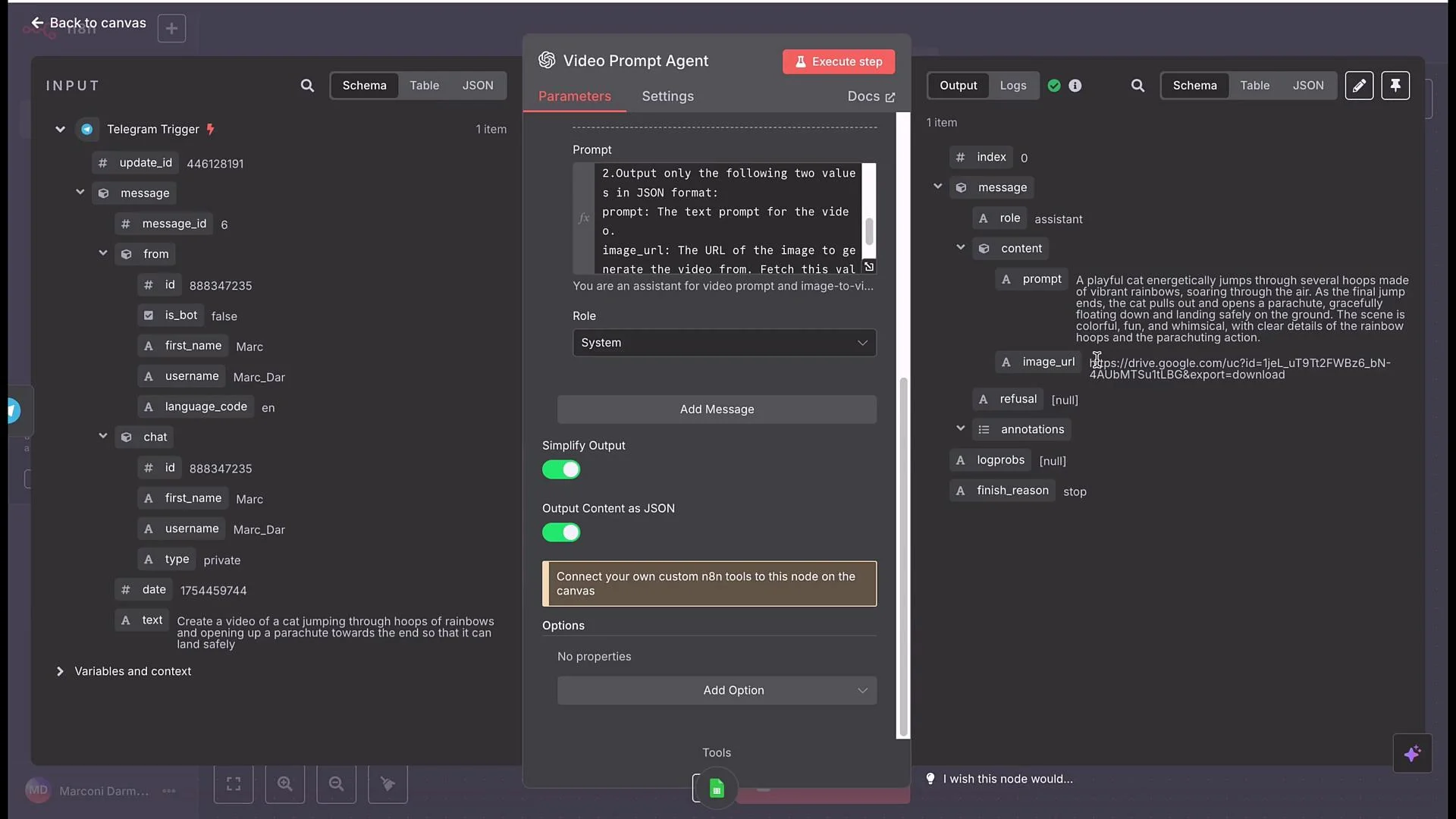
5. An OpenAI Chat model (Video Prompt agent) converts the idea into a concise, structured video-generation prompt and returns the image URL.
6. POST to Seedance (via the Wavespeed API) starts video generation.
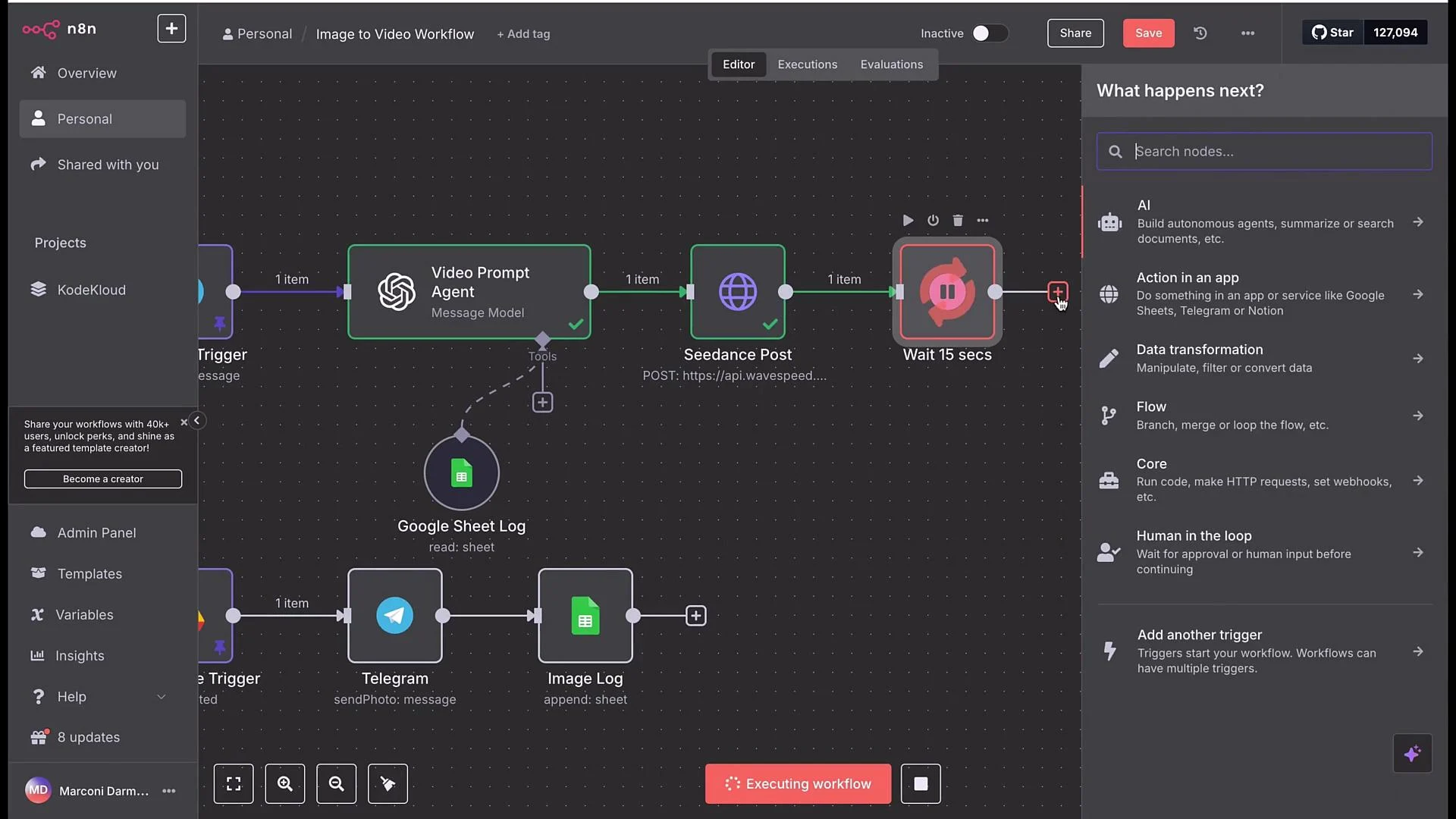
7. Wait + GET loop polls the API until processing completes.
8. Send the finished video back to the user on Telegram.
We’ll step through each node with recommended configuration and examples.
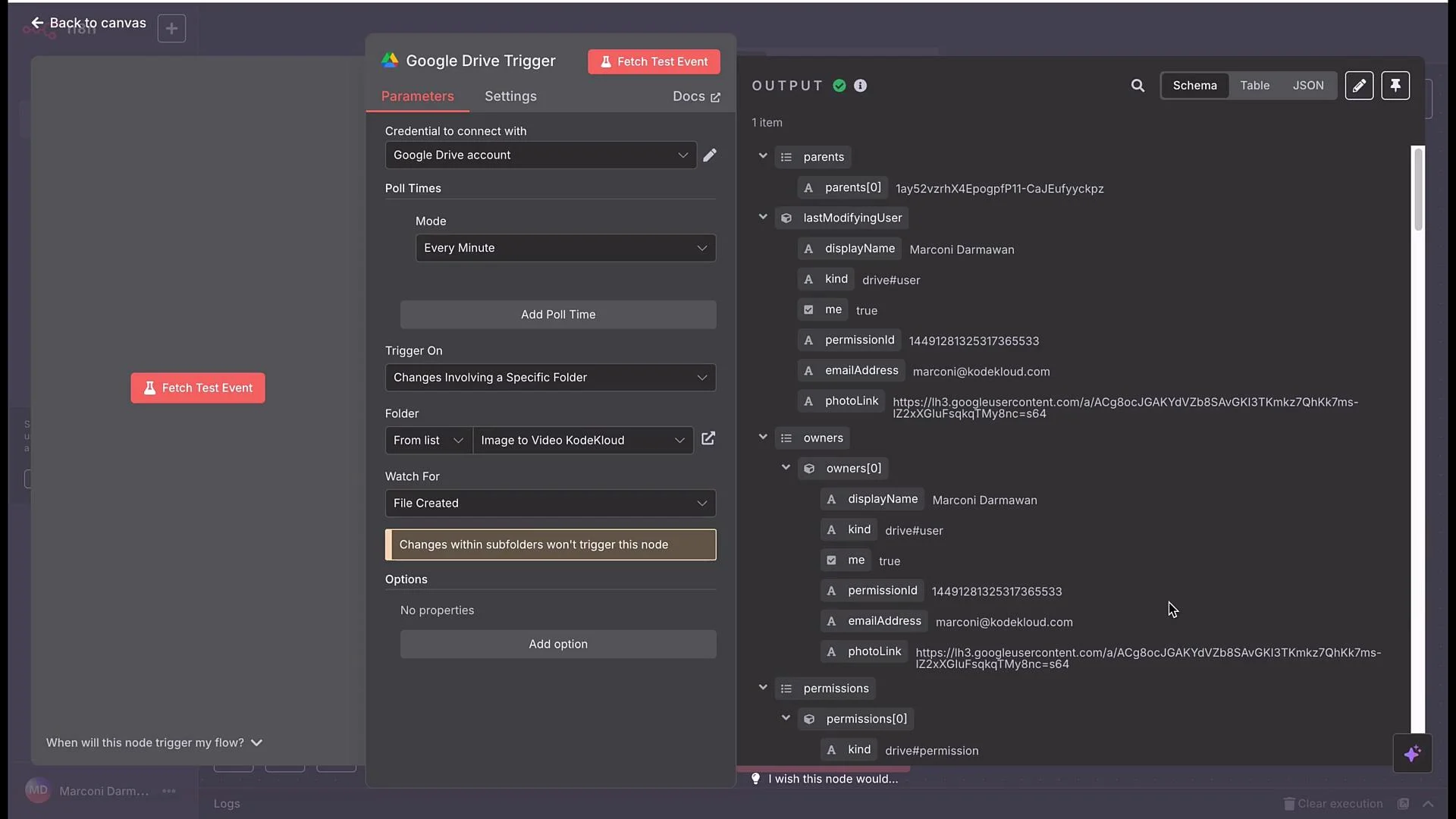 Google Drive trigger
* Purpose: monitor a specific folder for newly created files (use polling, e.g., every minute).
* Key options:
* Folder: choose the folder to watch (e.g., `image to video CodeCloud`).
* Event: `File Created`.
* Output: the node returns metadata including a publicly shareable link in `webContentLink`. Use that field as the image URL downstream.
While testing, share the Drive file via a public view link so the downstream HTTP POST can access the image. Revoke or restrict permissions for production.
Telegram bot: create and connect
* Create a bot via Telegram’s BotFather (`@BotFather`):
* In Telegram, start a chat with `@BotFather` and run `/newbot`. Follow the prompts to get your bot token.
* Useful BotFather commands:
```text theme={null}
/newbot - create a new bot
/mybots - list your bots
Edit Bots
/setname - change a bot's name
/setdescription - change bot description
/setabouttext - change bot about text
/setuserpic - change bot profile photo
/setcommands - change the list of commands
/deletebot - delete a bot
Bot Settings
/token - get authorization token
/revoke - revoke bot access token
...
```
* Add the bot token as credentials in your automation platform (e.g., in n8n create a credential named `Telegram Demo`).
* Test the credential to confirm connectivity.
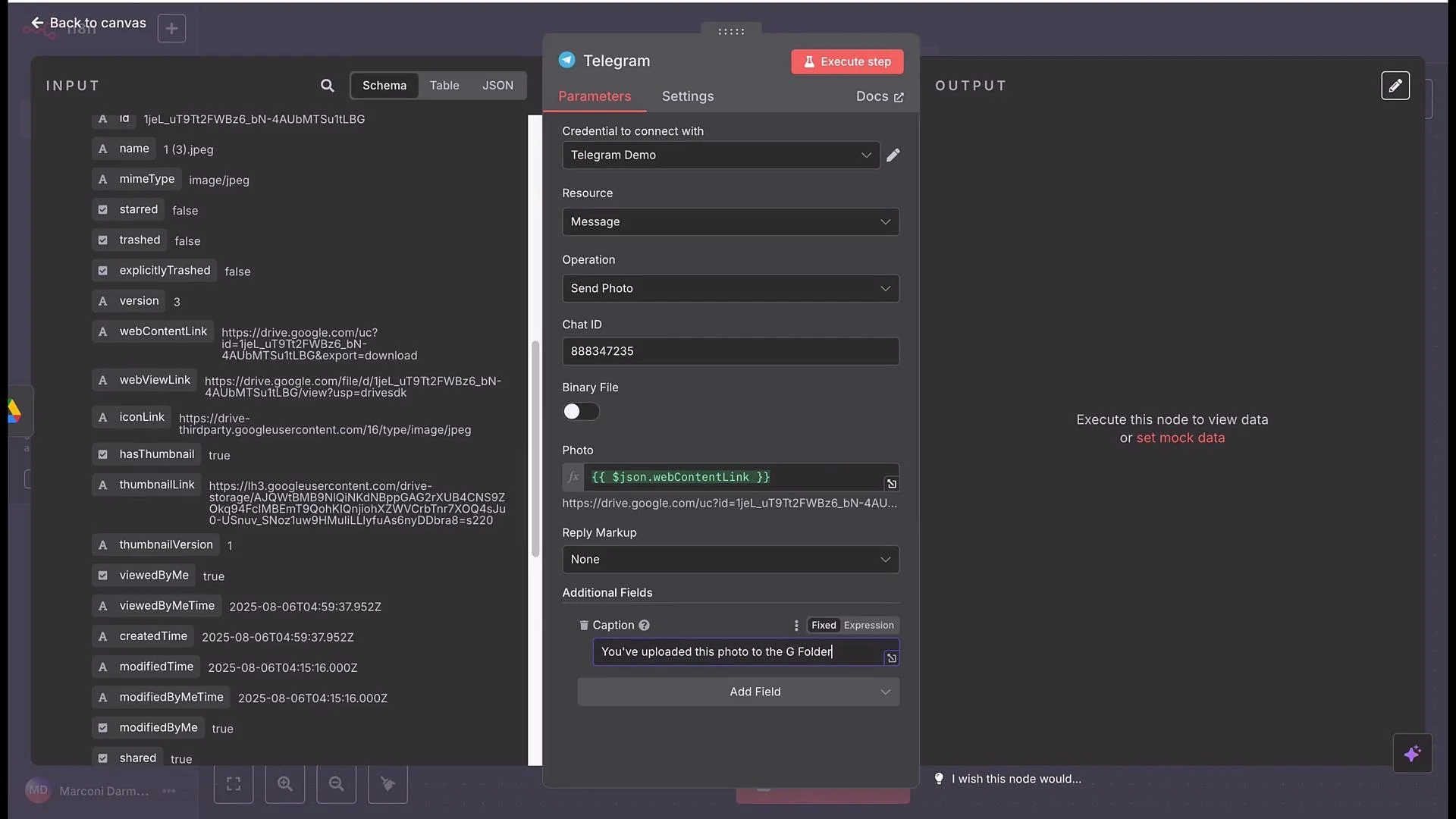
Send a Photo message (Telegram node)
* Add a Telegram node configured to `Send a Photo`.
* Provide the `chat_id` (you’ll capture this from the Telegram trigger below; for testing you can hard-code it).
* Photo URL: map the Google Drive `webContentLink` output.
* Caption example:
"You've uploaded this photo to the Google Drive folder. Kindly provide the video idea that you want to generate from this image."
Google Drive trigger
* Purpose: monitor a specific folder for newly created files (use polling, e.g., every minute).
* Key options:
* Folder: choose the folder to watch (e.g., `image to video CodeCloud`).
* Event: `File Created`.
* Output: the node returns metadata including a publicly shareable link in `webContentLink`. Use that field as the image URL downstream.
While testing, share the Drive file via a public view link so the downstream HTTP POST can access the image. Revoke or restrict permissions for production.
Telegram bot: create and connect
* Create a bot via Telegram’s BotFather (`@BotFather`):
* In Telegram, start a chat with `@BotFather` and run `/newbot`. Follow the prompts to get your bot token.
* Useful BotFather commands:
```text theme={null}
/newbot - create a new bot
/mybots - list your bots
Edit Bots
/setname - change a bot's name
/setdescription - change bot description
/setabouttext - change bot about text
/setuserpic - change bot profile photo
/setcommands - change the list of commands
/deletebot - delete a bot
Bot Settings
/token - get authorization token
/revoke - revoke bot access token
...
```
* Add the bot token as credentials in your automation platform (e.g., in n8n create a credential named `Telegram Demo`).
* Test the credential to confirm connectivity.
Send a Photo message (Telegram node)
* Add a Telegram node configured to `Send a Photo`.
* Provide the `chat_id` (you’ll capture this from the Telegram trigger below; for testing you can hard-code it).
* Photo URL: map the Google Drive `webContentLink` output.
* Caption example:
"You've uploaded this photo to the Google Drive folder. Kindly provide the video idea that you want to generate from this image."
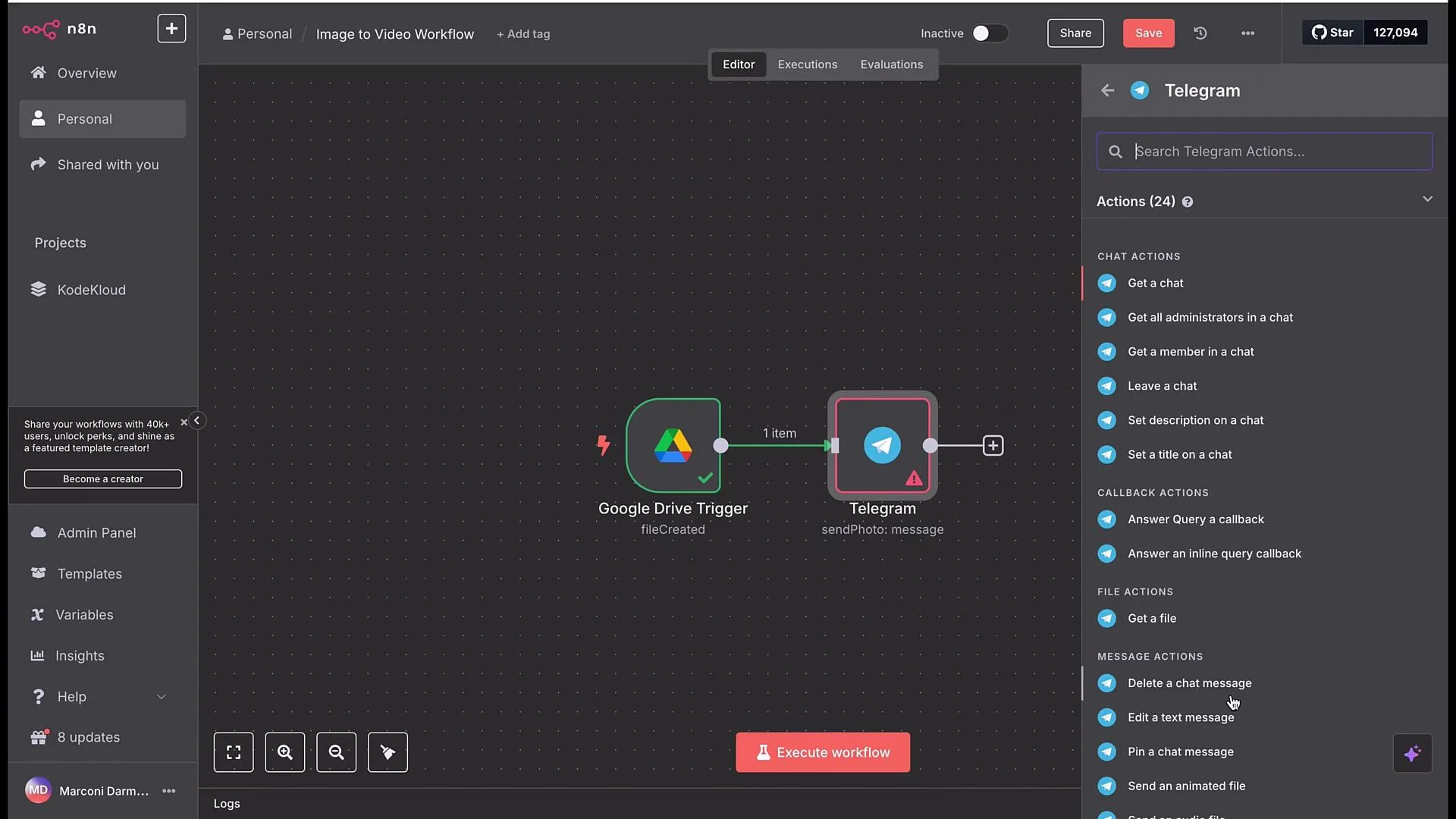 Telegram OnMessage trigger (capture the video idea and chat ID)
* Add a Telegram `OnMessage` trigger node using the same `Telegram Demo` credentials.
* Execute the trigger node, then message the bot from Telegram (e.g., `test` or your video idea). The trigger output contains the message body and `chat.id`.
* Use the captured `chat.id` as the `chat_id` in your `Send a Photo` or `Send a Video` nodes. Example mapping (platform specific):
```plaintext theme={null}
{{ $node["Telegram Trigger"].json["message"]["chat"]["id"] }}
```
* After a successful test run, copy the trigger execution back into the editor (e.g., using “Copy to Editor”) so earlier nodes can reference the test data.
Send the uploaded image to the user
* In the Telegram `Send a Photo` node, map the Drive `webContentLink` into the photo URL and add the caption shown above.
* Execute to confirm the bot posts the image and requests the video idea.
Telegram OnMessage trigger (capture the video idea and chat ID)
* Add a Telegram `OnMessage` trigger node using the same `Telegram Demo` credentials.
* Execute the trigger node, then message the bot from Telegram (e.g., `test` or your video idea). The trigger output contains the message body and `chat.id`.
* Use the captured `chat.id` as the `chat_id` in your `Send a Photo` or `Send a Video` nodes. Example mapping (platform specific):
```plaintext theme={null}
{{ $node["Telegram Trigger"].json["message"]["chat"]["id"] }}
```
* After a successful test run, copy the trigger execution back into the editor (e.g., using “Copy to Editor”) so earlier nodes can reference the test data.
Send the uploaded image to the user
* In the Telegram `Send a Photo` node, map the Drive `webContentLink` into the photo URL and add the caption shown above.
* Execute to confirm the bot posts the image and requests the video idea.
 Google Sheets: log the image
* Add a Google Sheets node to append a row to `Image to Video Log` (Sheet1).
* Suggested columns: `image URL` and `date`.
* Mapping:
* `image URL`: map to the Drive `webContentLink`.
* `date`: set to `Now` (timestamp).
* Purpose: the Video Prompt agent can use this sheet to fetch the most recent image URL if it needs to.
OpenAI Chat Model: Video Prompt agent
* Purpose: transform the user’s free-text idea into a concise, structured prompt for the image-to-video model and return the image URL.
* Add an OpenAI Chat node (e.g., GPT-4.1) and configure it to return raw JSON.
* Desired agent output (JSON):
1. `prompt` — the model-ready text prompt.
2. `image_url` — the image URL to pass to Seedance.
System prompt guidance (what to instruct the agent)
* Tell the Chat agent to:
* Produce a concise, effective video prompt tailored to the image-to-video model.
* Return a JSON object with keys `prompt` and `image_url`.
* Use a provided “Google Sheet Lookup” tool to fetch the last uploaded image URL (if not directly provided).
* Attach a tool to the Chat node named `Google Sheet Lookup` which reads the last row of the `Image to Video Log` and returns the `image URL`. The agent should populate `image_url` from that tool when necessary.
Google Sheets: log the image
* Add a Google Sheets node to append a row to `Image to Video Log` (Sheet1).
* Suggested columns: `image URL` and `date`.
* Mapping:
* `image URL`: map to the Drive `webContentLink`.
* `date`: set to `Now` (timestamp).
* Purpose: the Video Prompt agent can use this sheet to fetch the most recent image URL if it needs to.
OpenAI Chat Model: Video Prompt agent
* Purpose: transform the user’s free-text idea into a concise, structured prompt for the image-to-video model and return the image URL.
* Add an OpenAI Chat node (e.g., GPT-4.1) and configure it to return raw JSON.
* Desired agent output (JSON):
1. `prompt` — the model-ready text prompt.
2. `image_url` — the image URL to pass to Seedance.
System prompt guidance (what to instruct the agent)
* Tell the Chat agent to:
* Produce a concise, effective video prompt tailored to the image-to-video model.
* Return a JSON object with keys `prompt` and `image_url`.
* Use a provided “Google Sheet Lookup” tool to fetch the last uploaded image URL (if not directly provided).
* Attach a tool to the Chat node named `Google Sheet Lookup` which reads the last row of the `Image to Video Log` and returns the `image URL`. The agent should populate `image_url` from that tool when necessary.
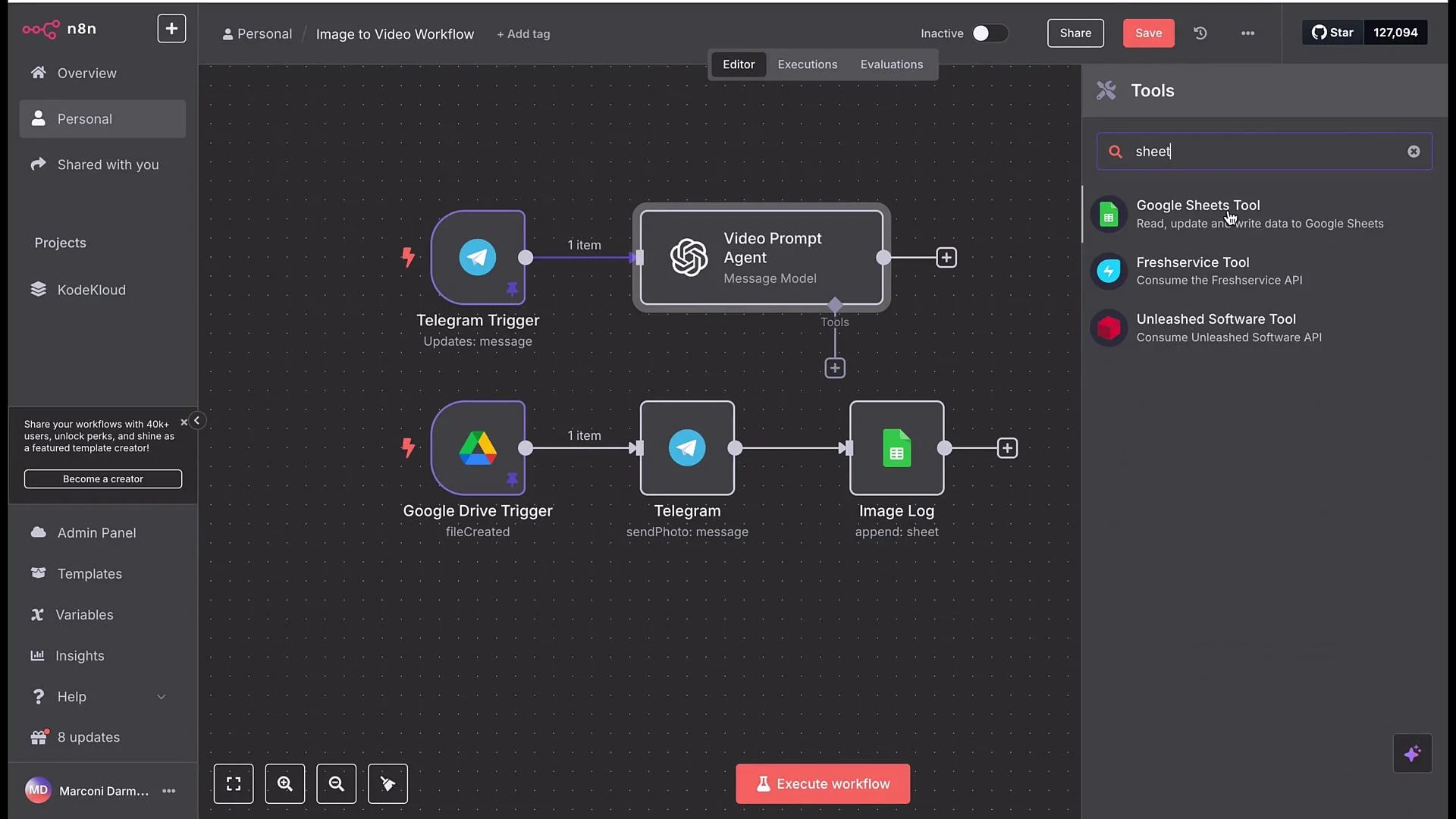 * Execute the Chat node and verify the response contains well-formed JSON with `prompt` and `image_url`.
 Seedance (Wavespeed) image-to-video POST request
* Add an HTTP Request node to POST to the Seedance image-to-video endpoint. Import the cURL example from the Wavespeed docs when available.
* Authentication: set Authorization header to `Bearer ${WAVESPEED_API_KEY}` (or your platform’s credential store).
* If your automation platform already injects Authorization headers, remove duplicate header entries.
* Map:
* `image` → `image_url` from the Video Prompt agent.
* `prompt` → `prompt` from the Video Prompt agent.
* `duration`, `camera_fixed`, `seed` → set as appropriate (e.g., `duration: 5`).
Example POST (importable cURL):
```bash theme={null}
curl --location --request POST 'https://api.wavespeed.ai/api/v3/bytedance/seedance-v1-lite-i2v-720p' \
--header "Content-Type: application/json" \
--header "Authorization: Bearer ${WAVESPEED_API_KEY}" \
--data-raw '{
"camera_fixed": false,
"duration": 5,
"image": "https://d3gfnktk2yh29lr.wavespeed.ai/media/images/1750666203680632149_ZgAwspl.jpg",
"prompt": "Tabby cat batting at goldfish bowl on windowsill, water droplets on glass, distorted fish shadows on floor. Paw tap causing ripples transitions to low-angle shot of fish darting, ending with cat’s whiskers twitching in close-up.",
"seed": -1
}'
```
* Response: capture the returned `requestId` or prediction `id` for polling.
Wait + GET polling loop
* Pattern:
1. POST request to start prediction → returns `requestId`.
2. Wait node (e.g., 15 seconds).
3. GET request to: `https://api.wavespeed.ai/api/v3/predictions/${requestId}/result` with same Authorization header.
4. Check response `status`.
5. If not `completed`, loop back to the Wait node and GET again until `completed`.
* Example GET cURL:
```bash theme={null}
curl --location --request GET "https://api.wavespeed.ai/api/v3/predictions/${requestId}/result" \
--header "Authorization: Bearer ${WAVESPEED_API_KEY}"
```
If-node (status check) and retry handling
* Add an `If` node to check whether the GET response's `status` field equals `completed`.
* True: proceed to the Telegram `Send a Video` node.
* False: connect back to the Wait node to continue polling.
* This prevents the workflow from failing when the video is still processing.
Visual overview in the workflow editor:
Seedance (Wavespeed) image-to-video POST request
* Add an HTTP Request node to POST to the Seedance image-to-video endpoint. Import the cURL example from the Wavespeed docs when available.
* Authentication: set Authorization header to `Bearer ${WAVESPEED_API_KEY}` (or your platform’s credential store).
* If your automation platform already injects Authorization headers, remove duplicate header entries.
* Map:
* `image` → `image_url` from the Video Prompt agent.
* `prompt` → `prompt` from the Video Prompt agent.
* `duration`, `camera_fixed`, `seed` → set as appropriate (e.g., `duration: 5`).
Example POST (importable cURL):
```bash theme={null}
curl --location --request POST 'https://api.wavespeed.ai/api/v3/bytedance/seedance-v1-lite-i2v-720p' \
--header "Content-Type: application/json" \
--header "Authorization: Bearer ${WAVESPEED_API_KEY}" \
--data-raw '{
"camera_fixed": false,
"duration": 5,
"image": "https://d3gfnktk2yh29lr.wavespeed.ai/media/images/1750666203680632149_ZgAwspl.jpg",
"prompt": "Tabby cat batting at goldfish bowl on windowsill, water droplets on glass, distorted fish shadows on floor. Paw tap causing ripples transitions to low-angle shot of fish darting, ending with cat’s whiskers twitching in close-up.",
"seed": -1
}'
```
* Response: capture the returned `requestId` or prediction `id` for polling.
Wait + GET polling loop
* Pattern:
1. POST request to start prediction → returns `requestId`.
2. Wait node (e.g., 15 seconds).
3. GET request to: `https://api.wavespeed.ai/api/v3/predictions/${requestId}/result` with same Authorization header.
4. Check response `status`.
5. If not `completed`, loop back to the Wait node and GET again until `completed`.
* Example GET cURL:
```bash theme={null}
curl --location --request GET "https://api.wavespeed.ai/api/v3/predictions/${requestId}/result" \
--header "Authorization: Bearer ${WAVESPEED_API_KEY}"
```
If-node (status check) and retry handling
* Add an `If` node to check whether the GET response's `status` field equals `completed`.
* True: proceed to the Telegram `Send a Video` node.
* False: connect back to the Wait node to continue polling.
* This prevents the workflow from failing when the video is still processing.
Visual overview in the workflow editor:
 Send the generated video back to Telegram
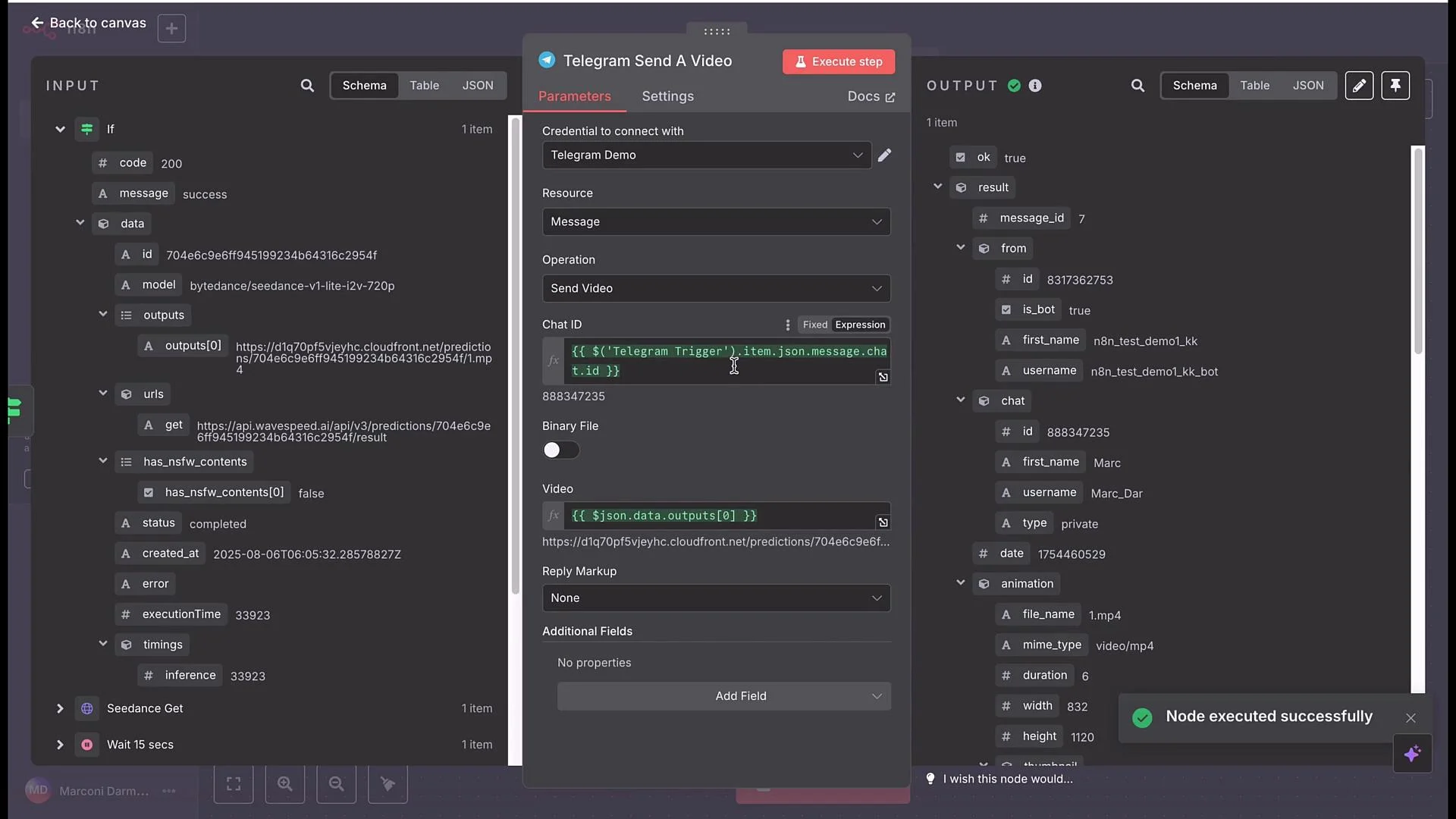
* In the `If` node true branch (when `status == completed`), add a Telegram node configured to `Send a Video`.
* Map:
* `chat_id` → the `chat.id` captured from the Telegram trigger (dynamic mapping is recommended).
* `video` → the video URL returned in the completed prediction result payload.
* Example mapping for chat id (platform-specific):
```plaintext theme={null}
{{ $node["Telegram Trigger"].json["message"]["chat"]["id"] }}
```
* Execute and verify the user receives the generated video in the Telegram chat.
Send the generated video back to Telegram
* In the `If` node true branch (when `status == completed`), add a Telegram node configured to `Send a Video`.
* Map:
* `chat_id` → the `chat.id` captured from the Telegram trigger (dynamic mapping is recommended).
* `video` → the video URL returned in the completed prediction result payload.
* Example mapping for chat id (platform-specific):
```plaintext theme={null}
{{ $node["Telegram Trigger"].json["message"]["chat"]["id"] }}
```
* Execute and verify the user receives the generated video in the Telegram chat.
 Results and prompt variations
* Example outcome: a playful/cartoonish video of a cat jumping through rainbow hoops and deploying a parachute to land safely.
* You can refine the system prompt and the Video Prompt to control style and behavior:
* Styles: hyper-realistic, cinematic, stylized animation, cartoon, etc.
* Camera: fixed vs moving, dolly, low/high angles, POV.
* Duration and aspect ratio: map to the Seedance parameters.
* Seed: set to a fixed number for reproducible results or `-1` for varied outputs.
Closing diagram
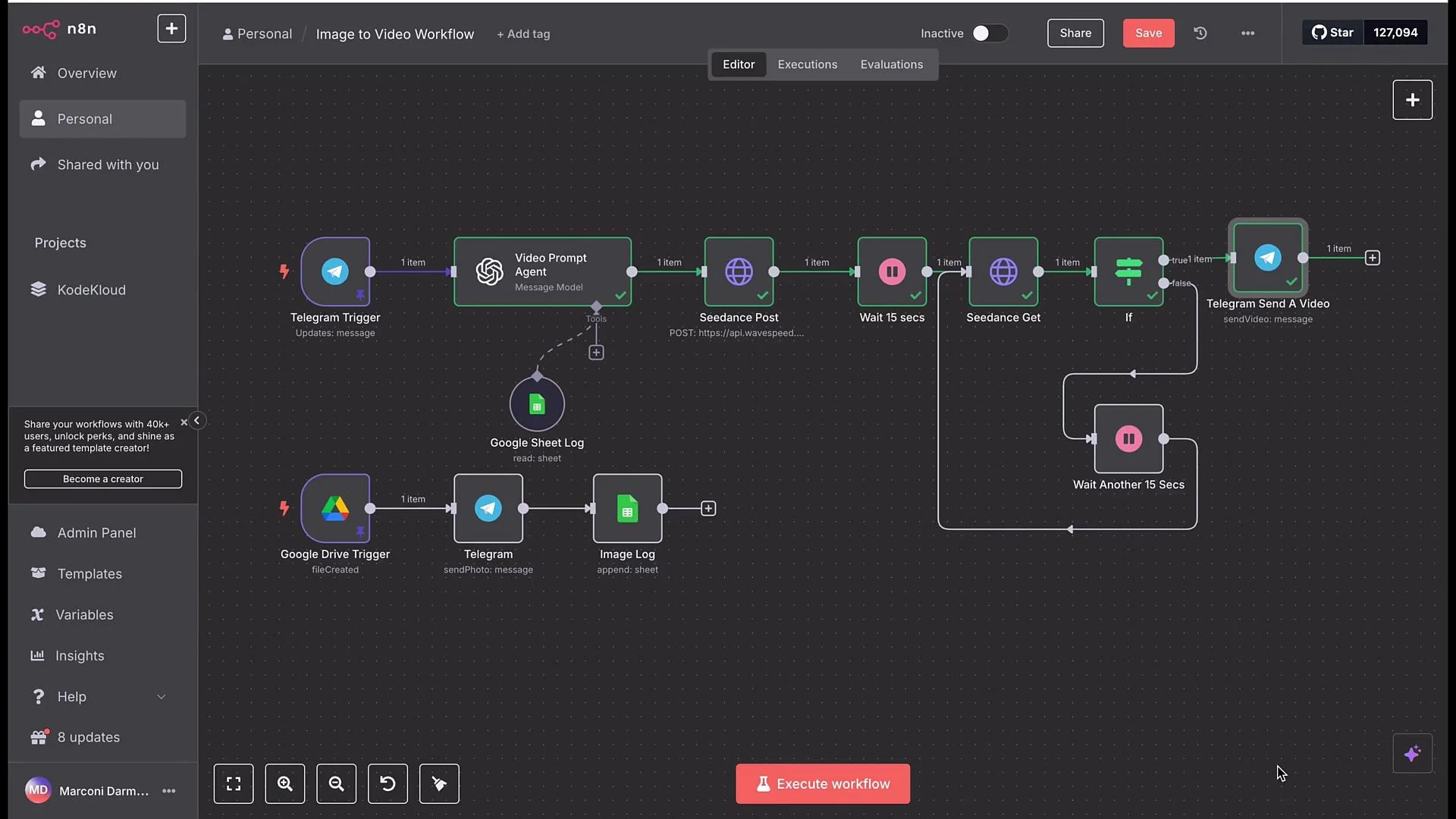
* Full workflow chain: Google Drive trigger → Telegram notification → Google Sheets logging → Telegram OnMessage → OpenAI (Video Prompt agent) → Seedance POST → Wait → GET → If → Telegram send video.
Results and prompt variations
* Example outcome: a playful/cartoonish video of a cat jumping through rainbow hoops and deploying a parachute to land safely.
* You can refine the system prompt and the Video Prompt to control style and behavior:
* Styles: hyper-realistic, cinematic, stylized animation, cartoon, etc.
* Camera: fixed vs moving, dolly, low/high angles, POV.
* Duration and aspect ratio: map to the Seedance parameters.
* Seed: set to a fixed number for reproducible results or `-1` for varied outputs.
Closing diagram
* Full workflow chain: Google Drive trigger → Telegram notification → Google Sheets logging → Telegram OnMessage → OpenAI (Video Prompt agent) → Seedance POST → Wait → GET → If → Telegram send video.
 Production hardening checklist
* Secure Drive and Sheets: avoid public links in production; use signed URLs or a proxy for transient access.
* Protect API keys: rotate keys, store them in a secrets manager, and scope tokens when possible.
* Add retries, backoff, and alerting for API failures.
* Validate user inputs (e.g., prompt length, forbidden content).
* Add logging and observability for long-running jobs.
Before deploying to production, remove public Drive sharing and ensure API keys and credentials are stored securely. Implement rate limits, retries, and content validation to prevent unexpected costs or misuse.
Node configuration summary
| Node | Purpose | Key fields / mapping |
| -------------------------------- | -------------------------------------- | -------------------------------------------------------------------------------------- |
| Google Drive Trigger | Watch folder for new images | Folder = `image to video CodeCloud`, Event = `File Created`, use `webContentLink` |
| Telegram Send a Photo | Notify user + request video idea | `chat_id` → Telegram chat id; `photo` → Drive `webContentLink`; caption = request text |
| Telegram OnMessage Trigger | Capture user idea + chat id | Extract `message.text` and `message.chat.id` |
| Google Sheets Append Row | Log image URL & time | Columns: `image URL` = `webContentLink`, `date` = `Now` |
| OpenAI Chat (Video Prompt agent) | Convert free text to structured prompt | Returns JSON: `prompt`, `image_url` (use Google Sheet Lookup tool if needed) |
| HTTP POST (Seedance) | Start image-to-video job | Map `image`, `prompt`, `duration`, `camera_fixed`, `seed`; capture `requestId` |
| Wait + HTTP GET | Poll for completion | GET `/predictions/${requestId}/result`, check `status` |
| If node | Branch on status | Condition: `status == completed` |
| Telegram Send a Video | Deliver final video to user | `chat_id` and `video` → completed result URL |
Links and references
* Telegram: [https://telegram.org](https://telegram.org)
* BotFather: [https://t.me/BotFather](https://t.me/BotFather)
* Google Drive: [https://www.google.com/drive/](https://www.google.com/drive/)
* Google Sheets: [https://www.google.com/sheets/about/](https://www.google.com/sheets/about/)
* OpenAI Chat guide: [https://platform.openai.com/docs/guides/chat](https://platform.openai.com/docs/guides/chat)
* Wavespeed / Seedance API: [https://wavespeed.ai](https://wavespeed.ai)
Next steps
* Build the workflow end-to-end in your automation tool.
* Test with different prompt styles and durations.
* Harden with the production checklist above and iterate on agent system prompts for improved results.
Production hardening checklist
* Secure Drive and Sheets: avoid public links in production; use signed URLs or a proxy for transient access.
* Protect API keys: rotate keys, store them in a secrets manager, and scope tokens when possible.
* Add retries, backoff, and alerting for API failures.
* Validate user inputs (e.g., prompt length, forbidden content).
* Add logging and observability for long-running jobs.
Before deploying to production, remove public Drive sharing and ensure API keys and credentials are stored securely. Implement rate limits, retries, and content validation to prevent unexpected costs or misuse.
Node configuration summary
| Node | Purpose | Key fields / mapping |
| -------------------------------- | -------------------------------------- | -------------------------------------------------------------------------------------- |
| Google Drive Trigger | Watch folder for new images | Folder = `image to video CodeCloud`, Event = `File Created`, use `webContentLink` |
| Telegram Send a Photo | Notify user + request video idea | `chat_id` → Telegram chat id; `photo` → Drive `webContentLink`; caption = request text |
| Telegram OnMessage Trigger | Capture user idea + chat id | Extract `message.text` and `message.chat.id` |
| Google Sheets Append Row | Log image URL & time | Columns: `image URL` = `webContentLink`, `date` = `Now` |
| OpenAI Chat (Video Prompt agent) | Convert free text to structured prompt | Returns JSON: `prompt`, `image_url` (use Google Sheet Lookup tool if needed) |
| HTTP POST (Seedance) | Start image-to-video job | Map `image`, `prompt`, `duration`, `camera_fixed`, `seed`; capture `requestId` |
| Wait + HTTP GET | Poll for completion | GET `/predictions/${requestId}/result`, check `status` |
| If node | Branch on status | Condition: `status == completed` |
| Telegram Send a Video | Deliver final video to user | `chat_id` and `video` → completed result URL |
Links and references
* Telegram: [https://telegram.org](https://telegram.org)
* BotFather: [https://t.me/BotFather](https://t.me/BotFather)
* Google Drive: [https://www.google.com/drive/](https://www.google.com/drive/)
* Google Sheets: [https://www.google.com/sheets/about/](https://www.google.com/sheets/about/)
* OpenAI Chat guide: [https://platform.openai.com/docs/guides/chat](https://platform.openai.com/docs/guides/chat)
* Wavespeed / Seedance API: [https://wavespeed.ai](https://wavespeed.ai)
Next steps
* Build the workflow end-to-end in your automation tool.
* Test with different prompt styles and durations.
* Harden with the production checklist above and iterate on agent system prompts for improved results.