> ## Documentation Index
> Fetch the complete documentation index at: https://notes.kodekloud.com/llms.txt
> Use this file to discover all available pages before exploring further.
# Demo Pinecone Vector DB Setup
> Guide to automating Google Drive document ingestion with n8n, chunking and embedding text using OpenAI, and upserting vectors into Pinecone for RAG-style retrieval.
Before you build a RAG (retrieval-augmented generation) AI agent that queries a contextual knowledge base, you need to store your document repository as vectors in a vector database. This guide shows how to automate that process using n8n to download files from Google Drive, chunk them, generate embeddings with OpenAI, and upsert vectors into Pinecone.
 Overview
* Provider examples: Pinecone, Supabase. This walkthrough uses Pinecone.
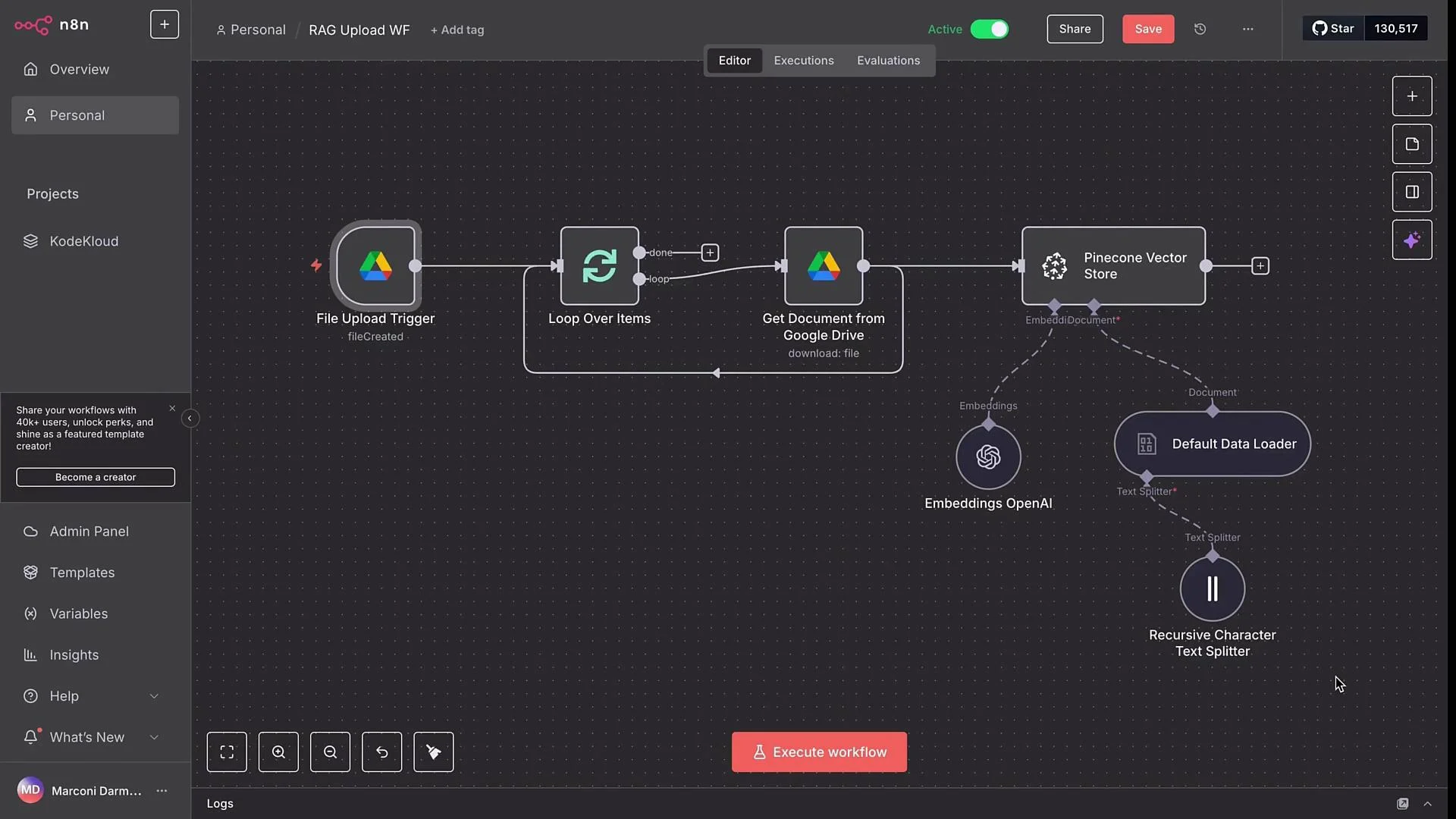
* Goal: Let team members drop files into a Google Drive folder and have n8n automatically download, chunk, embed, and upsert them into a Pinecone index.
* High-level workflow:
* Google Drive trigger watches a folder for new files.
* Loop node processes each file individually.
* Google Drive download node retrieves the file in binary.
* The document is split into chunks, embedded with OpenAI, and upserted into Pinecone.
Why use a vector database?
* Traditional SQL/datastore systems handle exact-match queries.
* Vector DBs like Pinecone store embeddings and perform similarity search to find semantically similar content — ideal for retrieval in RAG agents.
What is an embedding?
* An embedding is a numeric vector representing semantic meaning of text, images, or audio.
* Embeddings act like coordinates in a high-dimensional space; semantically related items are close to one another.
Workflow components
| Node / Component | Purpose | Notes |
| --------------------------------- | -------------------------------------: | ------------------------------------------------------------ |
| Google Drive Trigger | Detect new files in a folder | Polling-driven; choose a short interval for faster ingestion |
| Loop Over Items | Process multiple uploads individually | Ensures each file is separately chunked & upserted |
| Google Drive — Download File | Retrieve file in binary format | Binary preferred for downstream loaders |
| Default Data Loader | Auto-detect file type and extract text | Supports PDFs, Word docs, images (OCR), etc. |
| Recursive Character Text Splitter | Break text into overlapping chunks | Preserves context using chunk size and overlap |
| Embeddings (OpenAI) | Produce numerical vectors | Use same model as Pinecone index |
| Pinecone Vector Store | Upsert vectors into an index | Requires index and API key |
The workflow starts with a file upload trigger that monitors a specific Google Drive folder for new files.
Overview
* Provider examples: Pinecone, Supabase. This walkthrough uses Pinecone.
* Goal: Let team members drop files into a Google Drive folder and have n8n automatically download, chunk, embed, and upsert them into a Pinecone index.
* High-level workflow:
* Google Drive trigger watches a folder for new files.
* Loop node processes each file individually.
* Google Drive download node retrieves the file in binary.
* The document is split into chunks, embedded with OpenAI, and upserted into Pinecone.
Why use a vector database?
* Traditional SQL/datastore systems handle exact-match queries.
* Vector DBs like Pinecone store embeddings and perform similarity search to find semantically similar content — ideal for retrieval in RAG agents.
What is an embedding?
* An embedding is a numeric vector representing semantic meaning of text, images, or audio.
* Embeddings act like coordinates in a high-dimensional space; semantically related items are close to one another.
Workflow components
| Node / Component | Purpose | Notes |
| --------------------------------- | -------------------------------------: | ------------------------------------------------------------ |
| Google Drive Trigger | Detect new files in a folder | Polling-driven; choose a short interval for faster ingestion |
| Loop Over Items | Process multiple uploads individually | Ensures each file is separately chunked & upserted |
| Google Drive — Download File | Retrieve file in binary format | Binary preferred for downstream loaders |
| Default Data Loader | Auto-detect file type and extract text | Supports PDFs, Word docs, images (OCR), etc. |
| Recursive Character Text Splitter | Break text into overlapping chunks | Preserves context using chunk size and overlap |
| Embeddings (OpenAI) | Produce numerical vectors | Use same model as Pinecone index |
| Pinecone Vector Store | Upsert vectors into an index | Requires index and API key |
The workflow starts with a file upload trigger that monitors a specific Google Drive folder for new files.
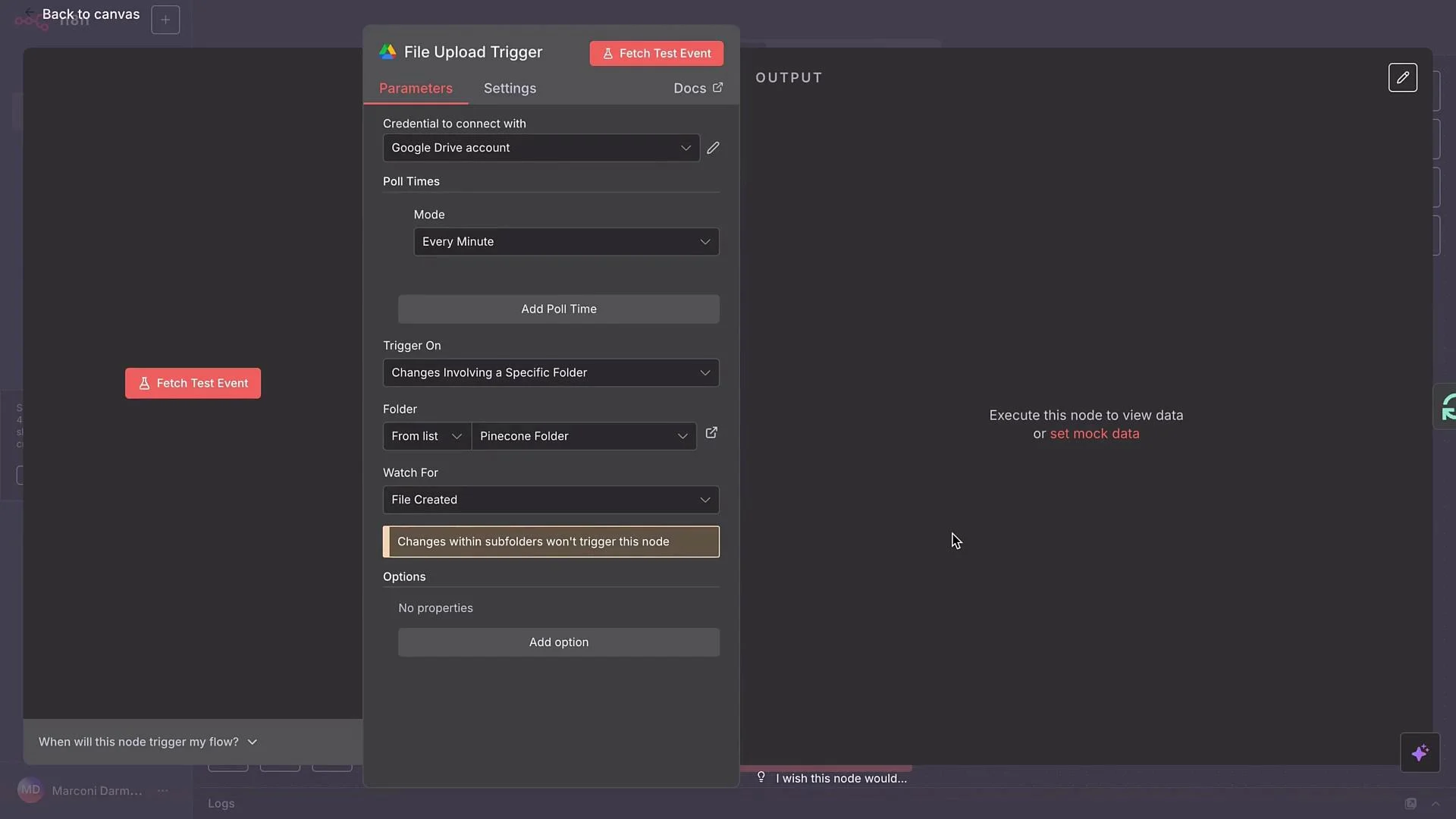 Typical trigger settings
* Poll the folder every minute for near-real-time ingestion.
* Download files in `binary` format (required by the default data loader used later).
Handle multiple uploads
Because users may upload several files at once, add a Loop Over Items node to iterate over each file and process them individually. This guarantees each document is chunked and upserted as a separate set of vectors.
Pinecone Vector Store node — common attachments
* Embeddings node (OpenAI embeddings in this example).
* Default Data Loader to handle varying file formats (PDF, DOCX, images).
* Recursive Character Text Splitter to slice documents into semantically sensible, overlapping chunks.
The default data loader accepts `binary` or JSON input and prepares the text for embedding. The Recursive Character Text Splitter divides large text blocks into overlapping chunks, attempting to preserve semantic integrity across chunk boundaries.
Typical trigger settings
* Poll the folder every minute for near-real-time ingestion.
* Download files in `binary` format (required by the default data loader used later).
Handle multiple uploads
Because users may upload several files at once, add a Loop Over Items node to iterate over each file and process them individually. This guarantees each document is chunked and upserted as a separate set of vectors.
Pinecone Vector Store node — common attachments
* Embeddings node (OpenAI embeddings in this example).
* Default Data Loader to handle varying file formats (PDF, DOCX, images).
* Recursive Character Text Splitter to slice documents into semantically sensible, overlapping chunks.
The default data loader accepts `binary` or JSON input and prepares the text for embedding. The Recursive Character Text Splitter divides large text blocks into overlapping chunks, attempting to preserve semantic integrity across chunk boundaries.
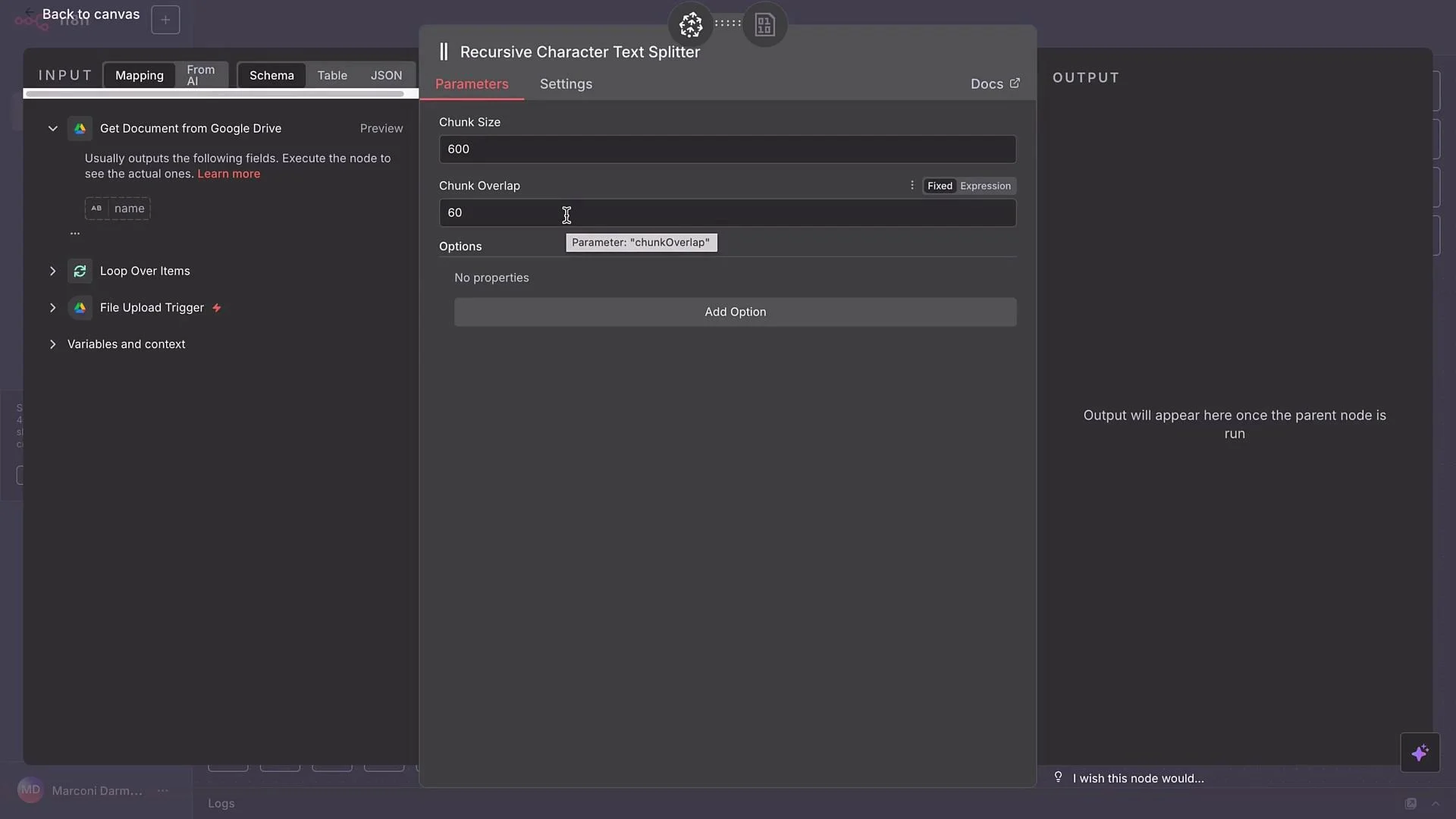 Key splitter settings
* Chunk size: maximum characters per chunk (e.g., `500`).
* Chunk overlap: characters overlapping between chunks (e.g., `50`) to maintain context.
Start with a chunk size around `400–700` characters and an overlap of `10–15%`. Adjust based on document structure and downstream model prompt length—smaller chunks increase retrieval precision but can increase vector count and cost.
Step-by-step: Build this in n8n
1. Google Drive Trigger
* Add a Google Drive node and set it to watch your chosen folder (example: "Pinecone Folder").
* Trigger on `File created` and set polling to `1 minute`.
* Test by uploading a sample file (e.g., a PDF SOP for a fictional airline "AirNova"). The trigger should detect the upload and start the workflow.
2. Loop Over Items
* Add a Loop Over Items node so multiple uploaded files are processed one at a time.
* For single-file scenarios, batch size `1` is typical.
3. Google Drive — Download File
* Use the Google Drive `Download File` node.
* Supply the file ID (or `webContentLink` per node requirements) from the trigger as input to download the file in `binary`.
* Execute this step to verify the file is retrieved and opens correctly in downstream nodes.
4. Pinecone Vector Store — Add Documents to Vector Store
* Add a Pinecone Vector Store node and choose the `Add Documents to Vector Store` action.
* Required: a Pinecone index and an API key. If you don’t have them, create an account at [https://www.pinecone.io](https://www.pinecone.io) and set up an index.
Creating a Pinecone index (high level)
| Setting | Recommendation |
| ---------------- | -------------------------------------------------------------------------- |
| Index name | e.g., `AirNova-SOP-Index` |
| Embedding model | Use the same model you will run in n8n, e.g., `text-embedding-3-small` |
| Vector dimension | Match the embedding model output (for `text-embedding-3-small` use `1536`) |
| Deployment type | Serverless or appropriate managed option |
| Cloud region | Select a region close to your n8n runtime for latency |
If vector dimension does not match the model output when upserting, you will receive an error — ensure dimensions align exactly.
Key splitter settings
* Chunk size: maximum characters per chunk (e.g., `500`).
* Chunk overlap: characters overlapping between chunks (e.g., `50`) to maintain context.
Start with a chunk size around `400–700` characters and an overlap of `10–15%`. Adjust based on document structure and downstream model prompt length—smaller chunks increase retrieval precision but can increase vector count and cost.
Step-by-step: Build this in n8n
1. Google Drive Trigger
* Add a Google Drive node and set it to watch your chosen folder (example: "Pinecone Folder").
* Trigger on `File created` and set polling to `1 minute`.
* Test by uploading a sample file (e.g., a PDF SOP for a fictional airline "AirNova"). The trigger should detect the upload and start the workflow.
2. Loop Over Items
* Add a Loop Over Items node so multiple uploaded files are processed one at a time.
* For single-file scenarios, batch size `1` is typical.
3. Google Drive — Download File
* Use the Google Drive `Download File` node.
* Supply the file ID (or `webContentLink` per node requirements) from the trigger as input to download the file in `binary`.
* Execute this step to verify the file is retrieved and opens correctly in downstream nodes.
4. Pinecone Vector Store — Add Documents to Vector Store
* Add a Pinecone Vector Store node and choose the `Add Documents to Vector Store` action.
* Required: a Pinecone index and an API key. If you don’t have them, create an account at [https://www.pinecone.io](https://www.pinecone.io) and set up an index.
Creating a Pinecone index (high level)
| Setting | Recommendation |
| ---------------- | -------------------------------------------------------------------------- |
| Index name | e.g., `AirNova-SOP-Index` |
| Embedding model | Use the same model you will run in n8n, e.g., `text-embedding-3-small` |
| Vector dimension | Match the embedding model output (for `text-embedding-3-small` use `1536`) |
| Deployment type | Serverless or appropriate managed option |
| Cloud region | Select a region close to your n8n runtime for latency |
If vector dimension does not match the model output when upserting, you will receive an error — ensure dimensions align exactly.
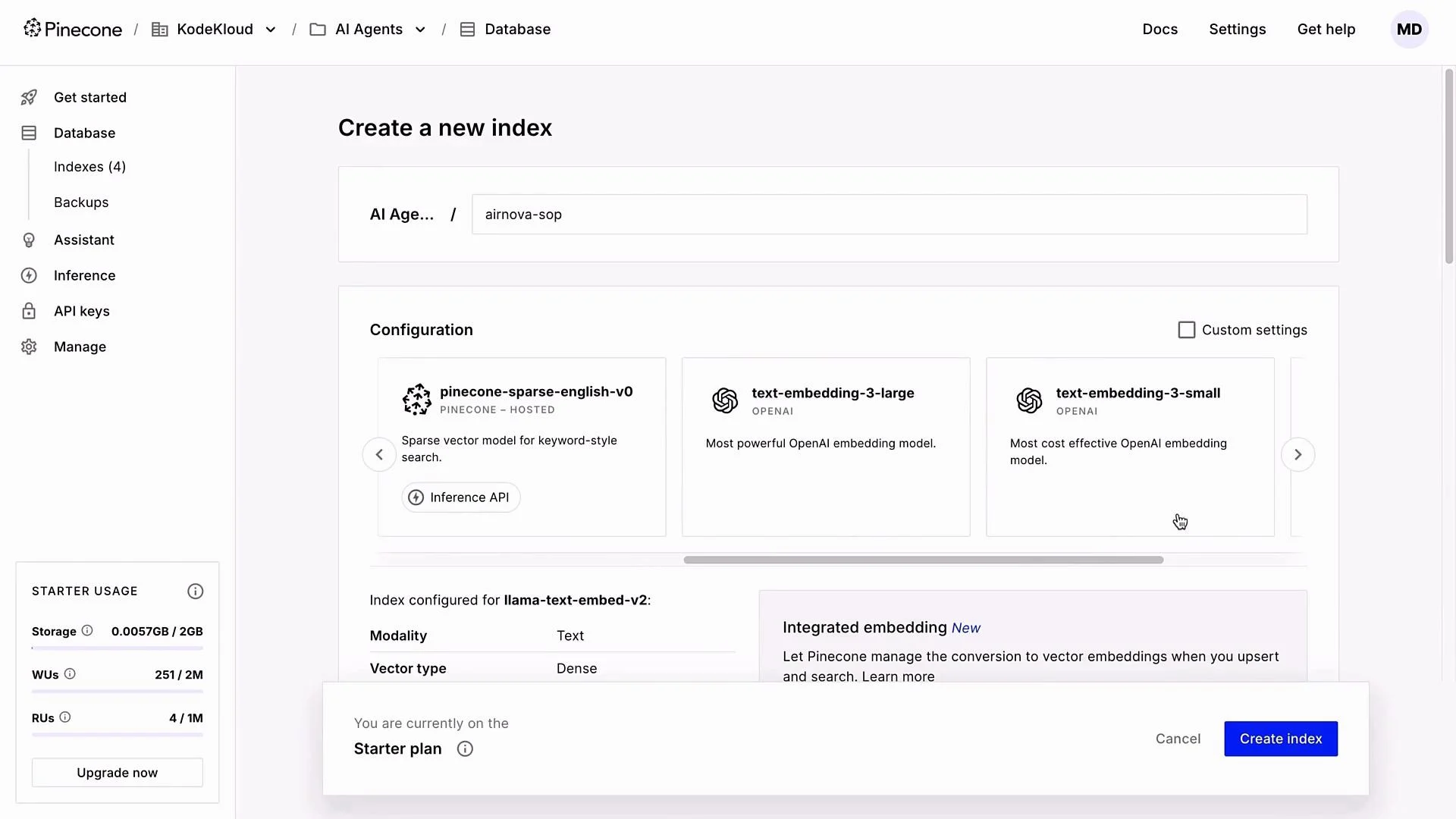 After creating the index, generate an API key in Pinecone, copy it immediately, then paste it into the Pinecone node credentials in n8n and save.
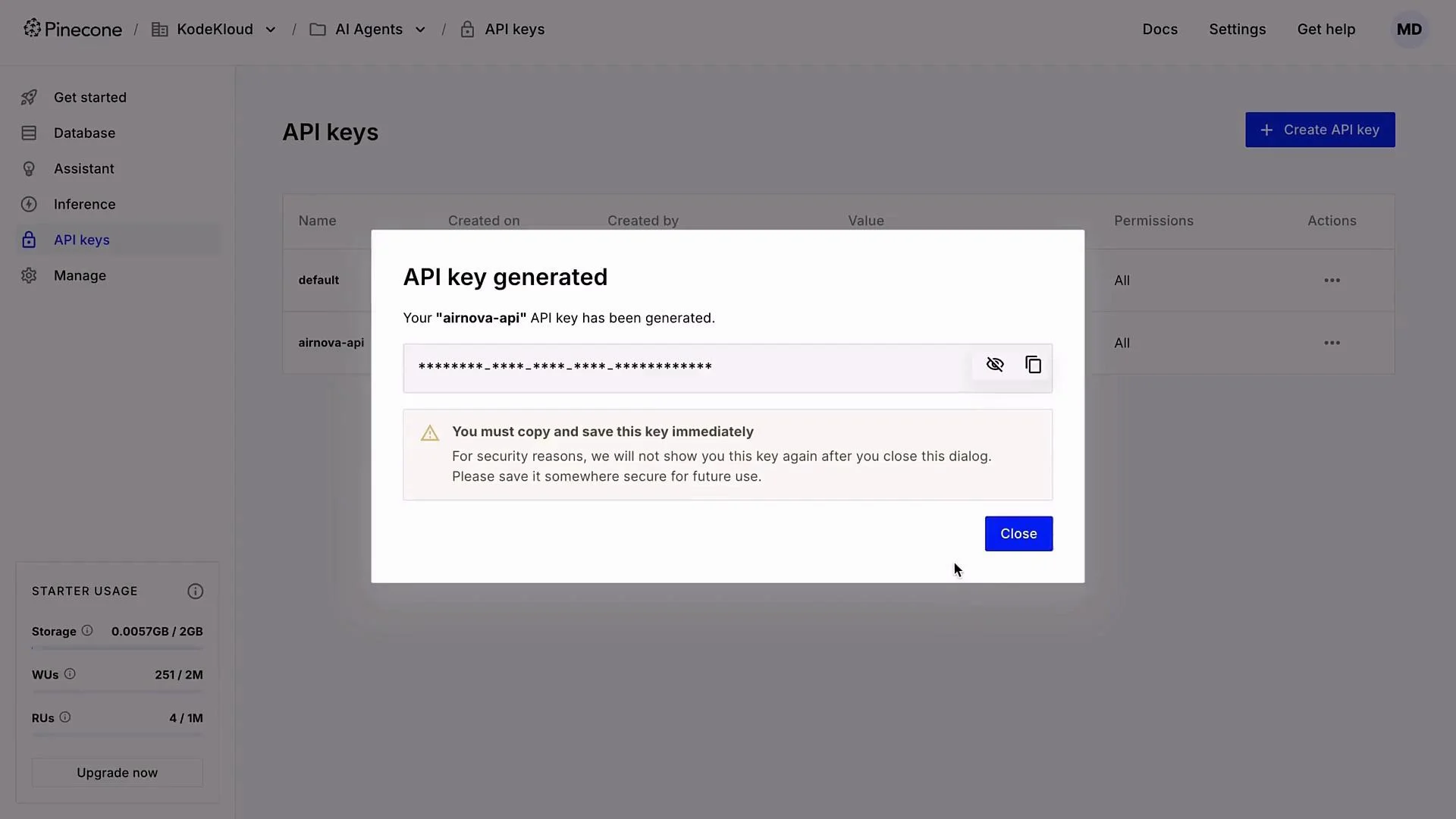 API keys are shown only once in Pinecone. Copy and store your key securely (use a secrets manager). Do not commit API keys to version control.
5. Embeddings configuration in n8n
* In the Pinecone Vector Store node, set Embeddings to OpenAI.
* Select the same embedding model you used when creating the Pinecone index: `text-embedding-3-small`.
6. Default Data Loader
* Configure Default Data Loader:
* Type: `binary` (we downloaded files in binary format).
* Loader name: optional (e.g., "Data Loader Binary").
* Load mode: `Load All Input Data`.
* Enable automatic type detection so PDFs, images, and other types are handled automatically.
7. Text splitter settings
* Choose Custom text splitter and attach Recursive Character Text Splitter.
* Example settings:
* Chunk size: `500`
* Chunk overlap: `50` (≈10%)
* Tune these as needed based on document density and RAG prompt window.
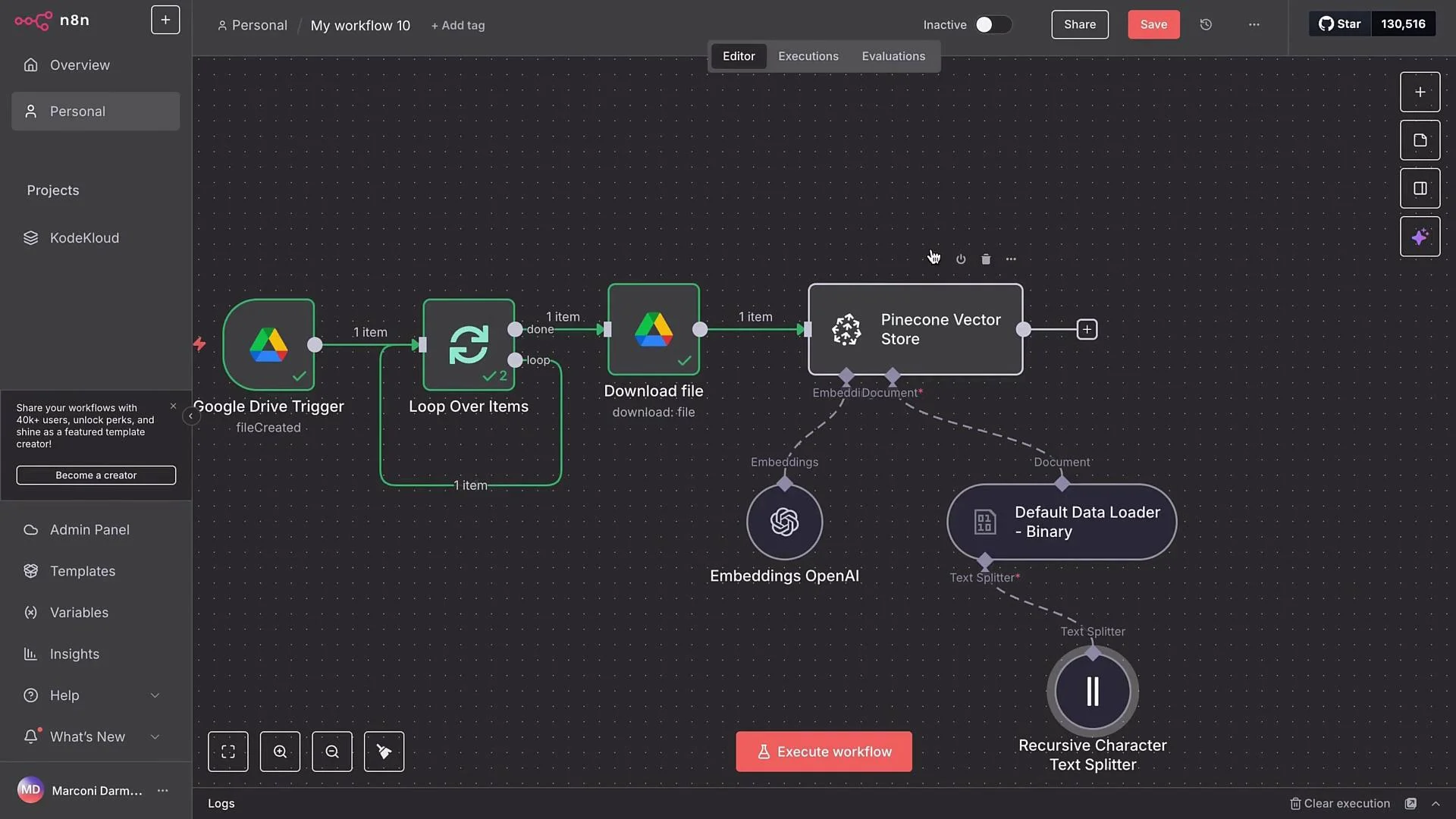
Wire the nodes in this order:
Google Drive Trigger → Loop Over Items → Google Drive Download → Pinecone Vector Store (with Embeddings, Default Data Loader, and Recursive Character Text Splitter)
Run a test execution to verify the end-to-end flow.
API keys are shown only once in Pinecone. Copy and store your key securely (use a secrets manager). Do not commit API keys to version control.
5. Embeddings configuration in n8n
* In the Pinecone Vector Store node, set Embeddings to OpenAI.
* Select the same embedding model you used when creating the Pinecone index: `text-embedding-3-small`.
6. Default Data Loader
* Configure Default Data Loader:
* Type: `binary` (we downloaded files in binary format).
* Loader name: optional (e.g., "Data Loader Binary").
* Load mode: `Load All Input Data`.
* Enable automatic type detection so PDFs, images, and other types are handled automatically.
7. Text splitter settings
* Choose Custom text splitter and attach Recursive Character Text Splitter.
* Example settings:
* Chunk size: `500`
* Chunk overlap: `50` (≈10%)
* Tune these as needed based on document density and RAG prompt window.
Wire the nodes in this order:
Google Drive Trigger → Loop Over Items → Google Drive Download → Pinecone Vector Store (with Embeddings, Default Data Loader, and Recursive Character Text Splitter)
Run a test execution to verify the end-to-end flow.
 What to expect
* The embedding model will process each chunk produced by the text splitter.
* The Pinecone node will upsert vectors into your index.
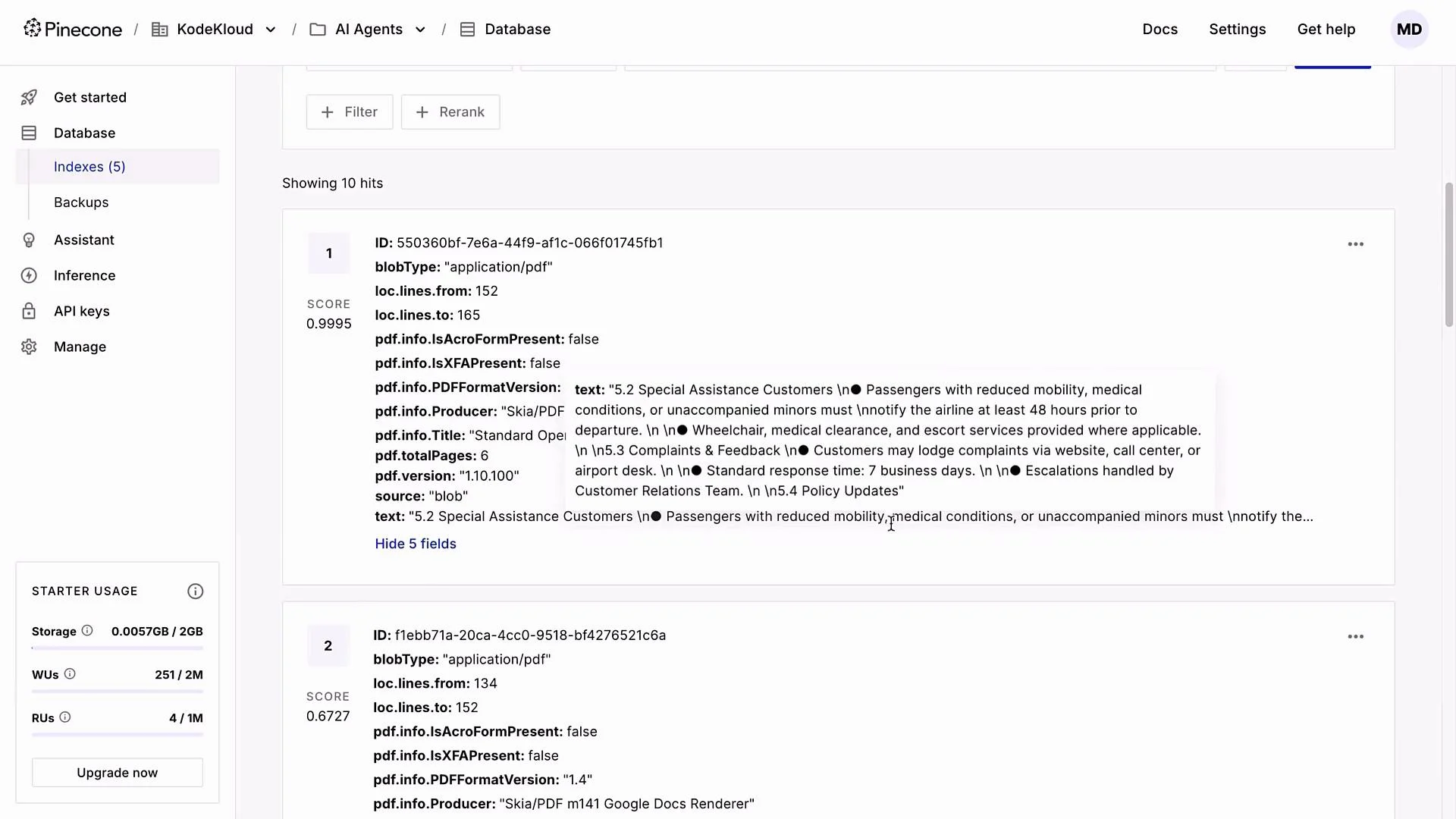
* Each upserted item will typically include: chunk text, vector embedding, and metadata (source file, chunk index, timestamps).
What to expect
* The embedding model will process each chunk produced by the text splitter.
* The Pinecone node will upsert vectors into your index.
* Each upserted item will typically include: chunk text, vector embedding, and metadata (source file, chunk index, timestamps).
 Example outcome
* A single SOP PDF in this demo produced 10 chunks that were embedded and upserted into the `AirNova` index. Each vector entry contains chunk text plus metadata for retrieval.
Next steps
* Build a RAG AI agent that queries the same Pinecone index to retrieve context for answering customer queries.
* Combine retrieval results with a generation model to produce accurate, context-aware responses driven by your uploaded documents.
Links and references
* Pinecone: [https://www.pinecone.io](https://www.pinecone.io)
* OpenAI embeddings models: [https://platform.openai.com/docs/guides/embeddings](https://platform.openai.com/docs/guides/embeddings)
* n8n documentation: [https://docs.n8n.io](https://docs.n8n.io)
That completes the automated pipeline for upserting Google Drive documents into a Pinecone vector store using n8n.
Example outcome
* A single SOP PDF in this demo produced 10 chunks that were embedded and upserted into the `AirNova` index. Each vector entry contains chunk text plus metadata for retrieval.
Next steps
* Build a RAG AI agent that queries the same Pinecone index to retrieve context for answering customer queries.
* Combine retrieval results with a generation model to produce accurate, context-aware responses driven by your uploaded documents.
Links and references
* Pinecone: [https://www.pinecone.io](https://www.pinecone.io)
* OpenAI embeddings models: [https://platform.openai.com/docs/guides/embeddings](https://platform.openai.com/docs/guides/embeddings)
* n8n documentation: [https://docs.n8n.io](https://docs.n8n.io)
That completes the automated pipeline for upserting Google Drive documents into a Pinecone vector store using n8n.