

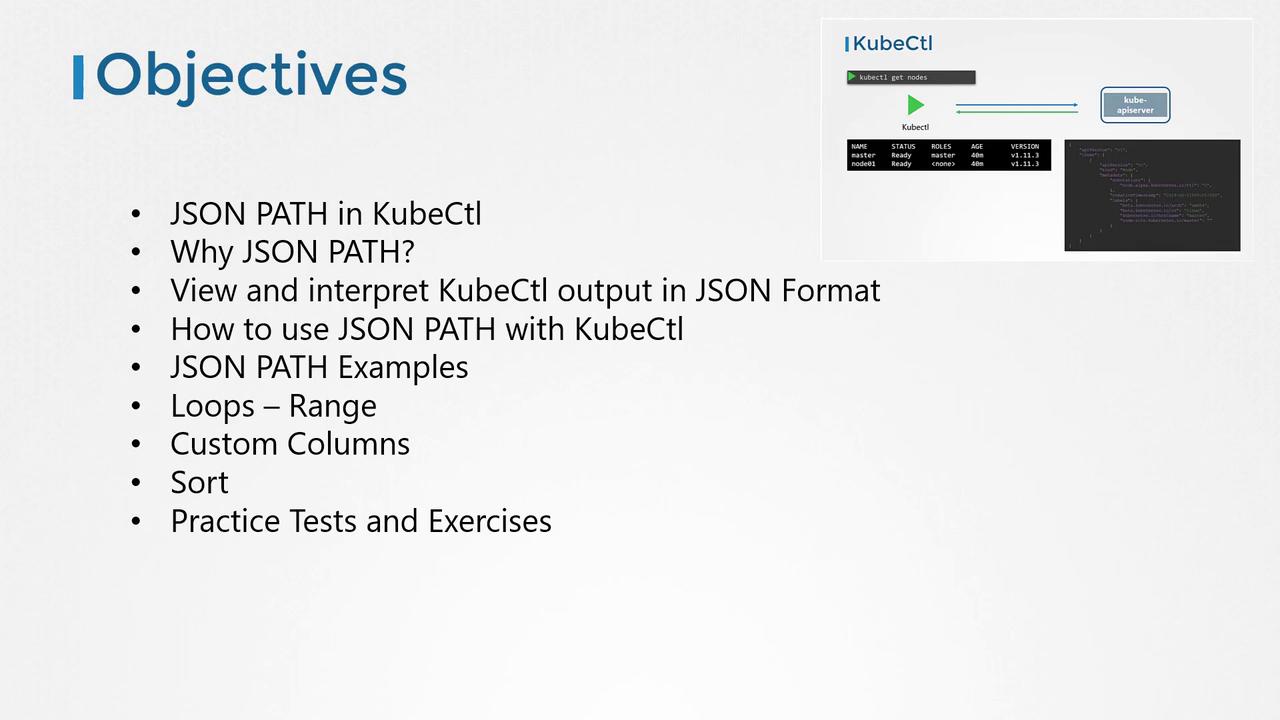
kubectl command to query, filter, and format Kubernetes resources. We’ll cover:
- Viewing
kubectloutput in raw JSON - Building JSONPath expressions step by step
- Real-world JSONPath examples
- Loop constructs (
range) for iteration - Custom columns and table sorting
- Practice exercises to reinforce your skills
Prerequisites
You should already have a basic grasp of JSONPath syntax and be comfortable runningkubectl commands against a Kubernetes cluster.
If you’re new to JSONPath, try these free resources before continuing:
- YouTube tutorials
- CodeKloud JSONPath exercises
- Online JSONPath playgrounds (e.g., jsonpath.com)
Why Use JSONPath with kubectl?
Managing production Kubernetes clusters often means inspecting hundreds of nodes and thousands of objects—deployments, pods, ReplicaSets, services, secrets, and more. JSONPath lets you:
- Extract specific fields across many resources
- Generate concise summaries (e.g., node names with CPU counts)
- Filter output dynamically based on custom criteria
kubectl provide a programmable way to slice and dice cluster data.

Understanding kubectl Output
By default, kubectl formats API responses into human-readable tables. To see the raw JSON payload:
kubectl describe lets you build fully custom reports (for example, listing node CPU, taints, and container images in one view). This is where JSONPath shines.

Getting Started with JSONPath
- Identify the base resource:
- Append
-o jsonto inspect the structure: - Draft a JSONPath expression against the JSON. Example:
- Run with
-o jsonpathand wrap your expression in single quotes:
Use an online JSONPath evaluator to verify your expression before embedding it in
kubectl.Basic JSONPath Queries
Formatting with Newlines and Tabs
Add"\n" and "\t" for readability:
Iteration Using range
Use range to iterate through items:
Custom Columns with kubectl
Define headers and expressions with -o custom-columns (no need for .items[*]):
Sorting Resources
Order your output by any JSON field:Conclusion
You now know how to extract, format, and sort Kubernetes data using JSONPath withkubectl. Practice these examples and try the exercises to master JSONPath queries in your clusters.
Links and References
- Kubernetes API Concepts
- kubectl Cheat Sheet
- Custom Columns Documentation
- jsonpath.com for testing expressions