

What the lab environment provides
When a lab is running, the UI typically presents:
Use the navigation arrows in the instructions pane to skip forward or back. Most labs also include quick links (for example, a shortcut to the Terraform Cloud workspace), so use those to open referenced resources quickly.
Note: Labs are pre-configured with the tools you need (Terraform, Git, Sentinel, etc.). For this course we will be using the Terraform workspace
devops-aws-myapp-dev, which should already exist in the lab environment. Follow the lab instructions to access or verify that workspace before proceeding.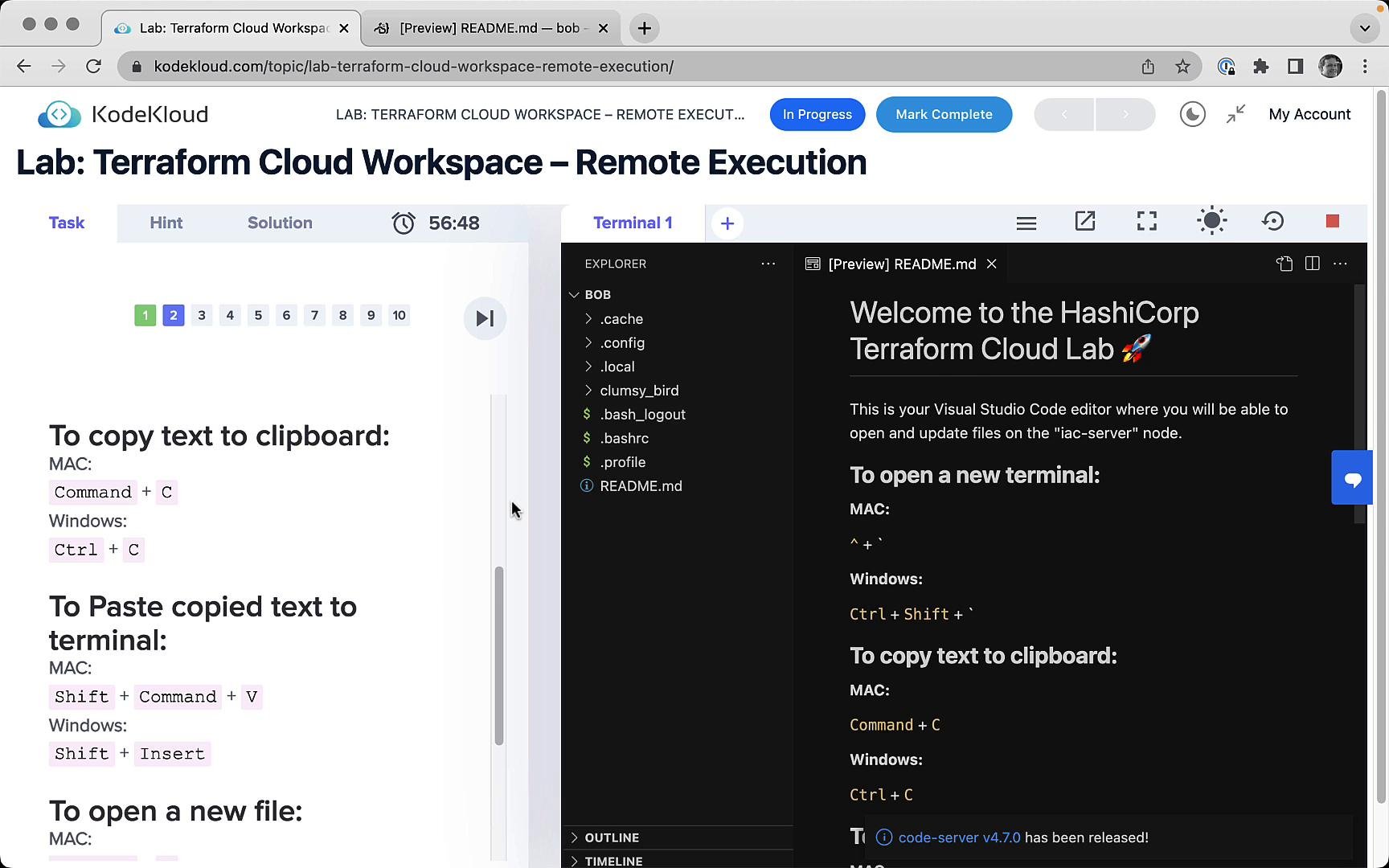
Keyboard shortcuts
Use these common shortcuts inside the lab (works for the integrated terminal and editor):
Tip: Right-click a folder or file and choose Open in Integrated Terminal to start the terminal with that folder as the working directory.
Working in the editor
- Most labs include example code already populated in the repository. Click files/folders to open them with syntax highlighting.
- Use the integrated terminal to run Terraform commands from within the repo—no local installation required.
- To execute commands in a particular folder, open that folder in the integrated terminal (right‑click → Open in Integrated Terminal).
Example Terraform provider configuration
A common example you’ll find in lab repos is the AWS provider configuration:Integrated environment and available binaries
The lab environment already includes essential binaries such as Terraform, Git, and Sentinel. You can verify availability by runningterraform (or terraform version) in the integrated terminal. Example Terraform usage output you may see:
Solutions and completing the lab
- Each task usually has a “Solution” view. Attempt the task first, then compare your approach with the solution to learn best practices and alternative techniques.
- When you complete a task, click the lab’s confirmation button (for example, OK or Complete Task) to progress.
- After all tasks are finished you’ll see a congratulations screen with options to end the lab session and submit feedback.