

- Guarantees serialized state modifications
- Prevents concurrent
terraform applyorterragrunt applyruns - Provides a scalable, highly available lock backend in AWS
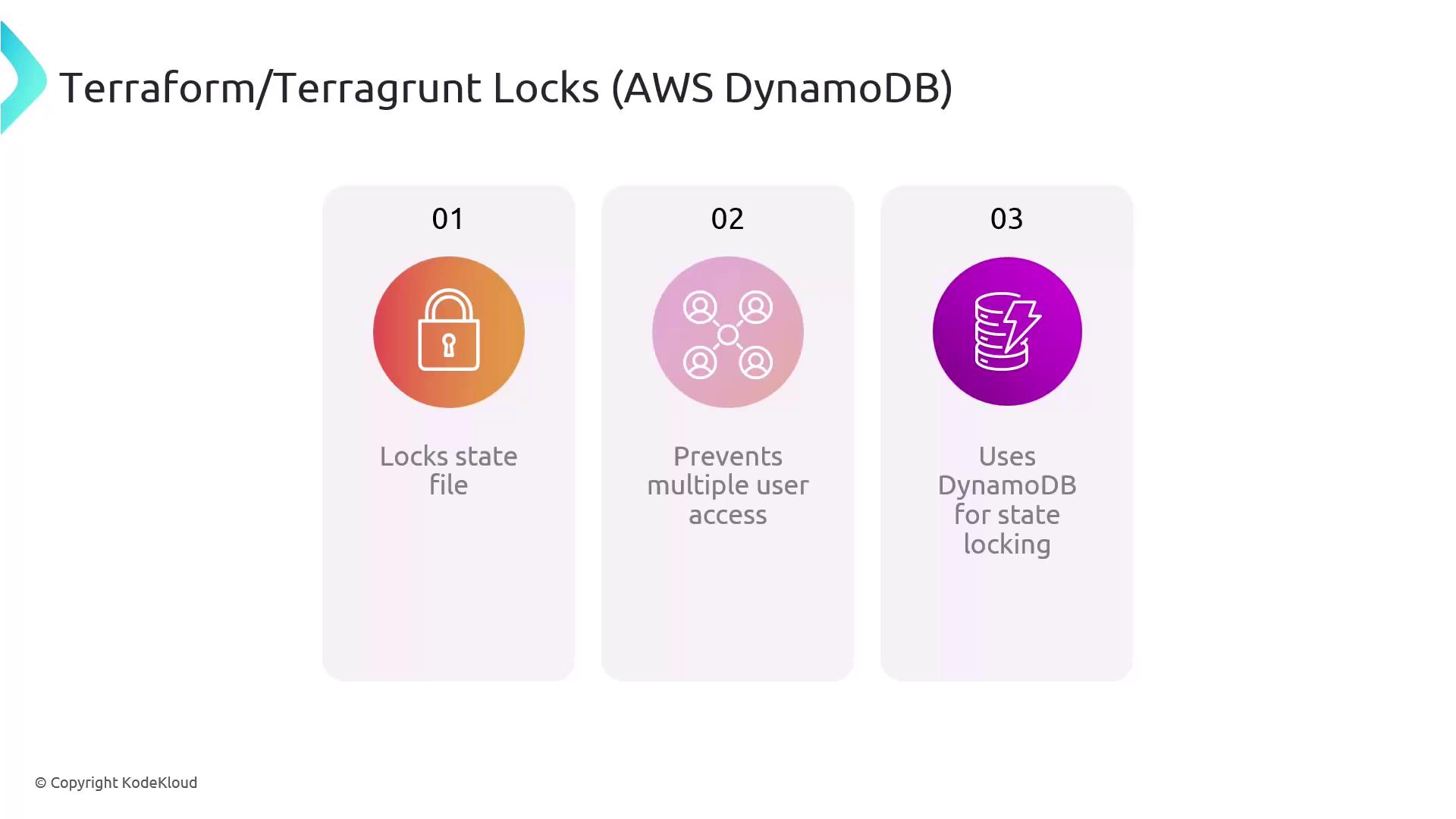
Understanding Terraform & Terragrunt State Locks
Terraform and Terragrunt implement a locking mechanism to safeguard the.tfstate file during operations that write state changes. When one user or process holds the lock:
- All other operations are blocked until the lock is released
- Accidental overwrites and drift are prevented
- Collaboration becomes predictable and conflict-free
| Component | Role | Example Configuration |
|---|---|---|
| S3 Backend | Stores the Terraform state file securely | bucket = "my-terraform-state-bucket" |
| DynamoDB Table | Manages concurrent locks | dynamodb_table = "terraform-locks" |
| Key Path | Namespaces state per environment/module | key = "${path_relative_to_include()}/state" |
Configuring Remote State in Terragrunt
Terragrunt can automatically create the required DynamoDB table when you define your remote state. Add the following block to yourterragrunt.hcl:
Terragrunt checks for the existence of the DynamoDB table and creates it if missing—no manual setup required. Ensure your IAM role has permissions for
dynamodb:CreateTable.Handling Stuck Locks
Network interruptions or process crashes can leave stale locks in DynamoDB. To resolve this, use the Terraform CLI’sforce-unlock command:
LOCK_ID with the identifier from the error message. This removes the lock entry in DynamoDB and lets you proceed.
force-unlock bypasses safety checks. Only use it when you are certain no other process is applying changes.