Enhance your text-processing workflow by using sed to search, print, or delete specific patterns directly within files. While similar to grep , sed lets you combine pattern matching with editing commands in one step.
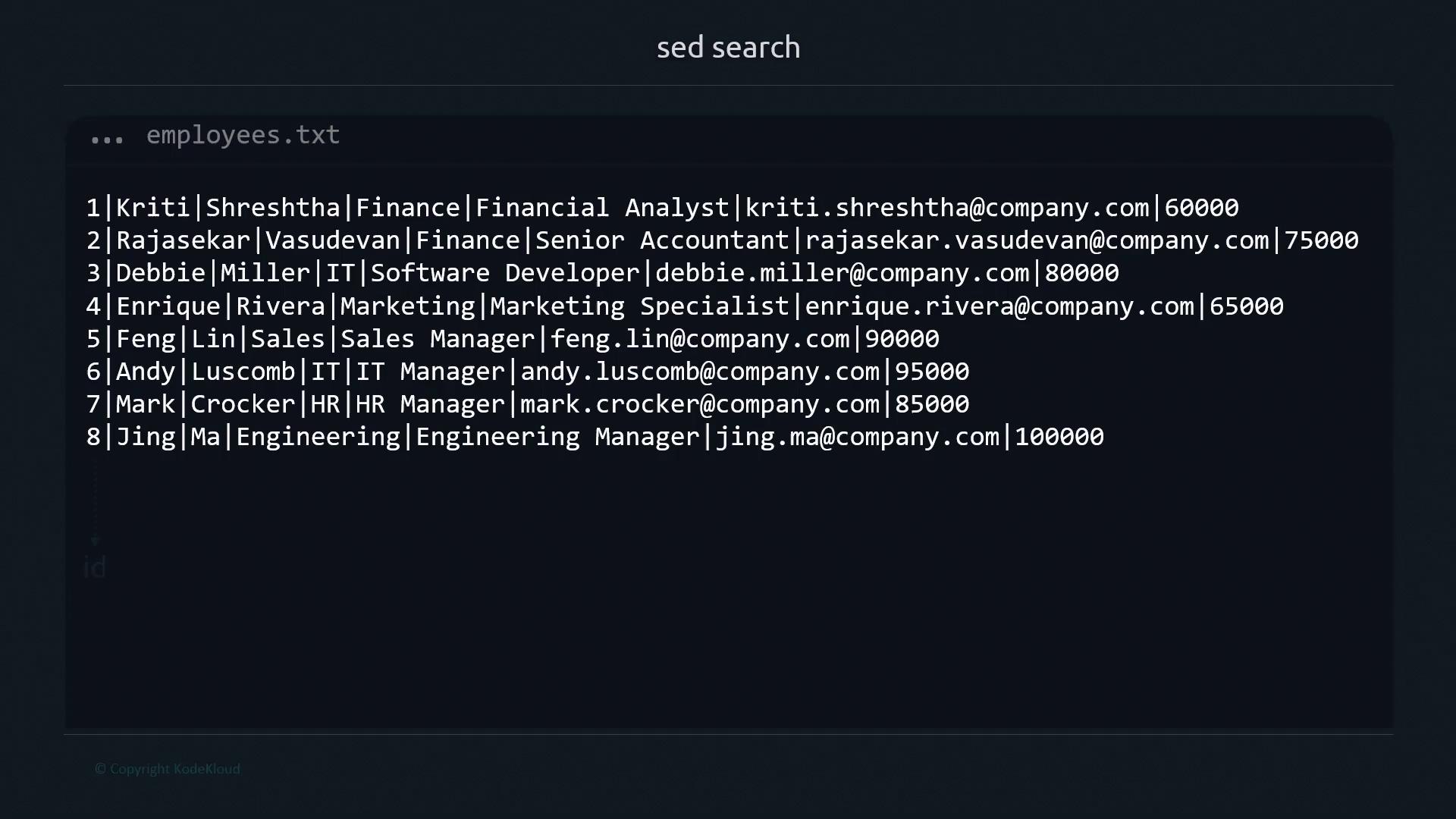
To follow along, we’ll use an employees.txt file with records formatted as ID|First|Last|Department|Role|Email|Salary.
1. Basic Search Syntax sed requires both a pattern and an action. The minimal form is:Without an explicit action, sed may default to printing every line or throw an error:
$ sed '/Manager/' employees.txt # (No command given; behavior depends on your sed version)
To print only matching lines, use -n (quiet mode) with the p command:
sed -n '/Manager/p' employees.txt
-n : suppress automatic printing/Manager/ : search for “Manager”p : print matching lines
$ sed -n '/Manager/p' employees.txt 5 | Feng | Lin | Sales | Sales Manager | feng.lin@company.com | 90000 6 | Andy | Luscomb | IT | IT Manager | andy.luscomb@company.com | 95000 7 | Mark | Crocker | HR | HR Manager | mark.crocker@company.com | 85000 8 | Jing | Ma | Engineering | Engineering Manager | jing.ma@company.com | 100000
By default, sed performs case-sensitive matches. Searching for manager (lowercase) yields no results:
$ sed -n '/manager/p' employees.txt # No match
2. Searching Substrings Match partial strings by specifying only a fragment:
$ sed -n '/Ma/p' employees.txt 4 | Enrique | Rivera | Marketing | Marketing Specialist | enrique.rivera@company.com | 65000 5 | Feng | Lin | Sales | Sales Manager | feng.lin@company.com | 90000 6 | Andy | Luscomb | IT | IT Manager | andy.luscomb@company.com | 95000 7 | Mark | Crocker | HR | HR Manager | mark.crocker@company.com | 85000 8 | Jing | Ma | Engineering | Engineering Manager | jing.ma@company.com | 100000
This matches “Marketing”, “Manager”, “Mark”, and the last name “Ma”.
3. Exact Word Matches with Word Boundaries Use \< and \> to match whole words only:
sed -n '/\<Ma\>/p' employees.txt
$ sed -n '/\<Ma\>/p' employees.txt 8 | Jing | Ma | Engineering | Engineering Manager | jing.ma@company.com | 100000
Command breakdown:
sed : invoke stream editor-n : suppress default output/\<Ma\>/ : match exact word “Ma”p : print matching line
4. Combining Multiple Search Patterns Chain multiple scripts with -e to search for more than one pattern:
sed -n \ -e '/\<Manager\>/p' \ -e '/\<IT\>/p' \ employees.txt
$ sed -n -e '/\<Manager\>/p' -e '/\<IT\>/p' employees.txt 3 | Debbie | Miller | IT | Software Developer | debbie.miller@company.com | 80000 5 | Feng | Lin | Sales | Sales Manager | feng.lin@company.com | 90000 6 | Andy | Luscomb | IT | IT Manager | andy.luscomb@company.com | 95000 7 | Mark | Crocker | HR | HR Manager | mark.crocker@company.com | 85000 8 | Jing | Ma | Engineering | Engineering Manager | jing.ma@company.com | 100000
Lines matching either pattern appear once per script.
5. Deleting Matches Swap p for d to remove matching lines:
Remove Enrique’s record:
sed -e '/\<Enrique\>/d' employees.txt
Delete all lines containing “Ma” as a whole word:
$ sed -e '/\<Ma\>/d' employees.txt 1 | Kriti | Shreshtha | Finance | Financial Analyst | kriti.shreshtha@company.com | 60000 2 | Rajasekar | Vasudevan | Finance | Senior Accountant | rajasekar.vasudevan@company.com | 75000 3 | Debbie | Miller | IT | Software Developer | debbie.miller@company.com | 80000 4 | Enrique | Rivera | Marketing | Marketing Specialist | enrique.rivera@company.com | 65000 5 | Feng | Lin | Sales | Sales Manager | feng.lin@company.com | 90000 6 | Andy | Luscomb | IT | IT Manager | andy.luscomb@company.com | 95000 7 | Mark | Crocker | HR | HR Manager | mark.crocker@company.com | 85000
6. Editing Files In-Place with -i Apply deletions or substitutions directly using -i:
$ sed -i \ -e '/\<Manager\>/d' \ -e '/\<IT\>/d' \ employees.txt $ cat employees.txt 1 | Kriti | Shreshtha | Finance | Financial Analyst | kriti.shreshtha@company.com | 60000 2 | Rajasekar | Vasudevan | Finance | Senior Accountant | rajasekar.vasudevan@company.com | 75000 4 | Enrique | Rivera | Marketing | Marketing Specialist | enrique.rivera@company.com | 65000
Using -i overwrites your source file. Always keep backups or use version control.
7. Quick Reference: sed Flags Option Description Example -n Suppress automatic printing sed -n '/pattern/p' file-i Edit files in-place sed -i 's/foo/bar/' file-e Add multiple scripts sed -e '/A/p' -e '/B/p' file
Links and References