

- What the Linux file system tree is
- The difference between absolute and relative paths
- How to list files and interpret
lsoutput - How to view and change your current working directory
Listing files and directories
To list files and directories — including hidden ones (names beginning with a dot) — use:-ashows all entries (including.and..and files that start with.).-luses the long listing format (permissions, owner, group, size, modification time).
ls -a shows hidden entries alongside visible ones:
ls, for example:
-l (long), -a (all), and -h (human-readable sizes) to get a detailed, readable listing:
ls -alh, ls -lha, and ls -hal are equivalent. Use whichever ordering you find easiest to remember.
Callouts
Hidden files in Linux begin with a dot
.. Tools and configuration files (like .bashrc) are commonly hidden to avoid cluttering normal directory listings.Quick command reference
The Linux file system tree
Linux organizes everything under a single top-level root directory:/. This creates an inverted tree structure where every file and directory stems from /. Common top-level directories include /home, /var, /etc, /usr, and /root. User home directories live under /home (for example, /home/aaron).
Absolute paths
An absolute path always begins at the root/ and specifies the full route to a file or directory. Example:
/, then moves to home, aaron, Documents, and finally the file invoice.pdf.
Current directory and relative paths
Your shell session always has a current working directory. To display it, use:cd to change directories. Examples:
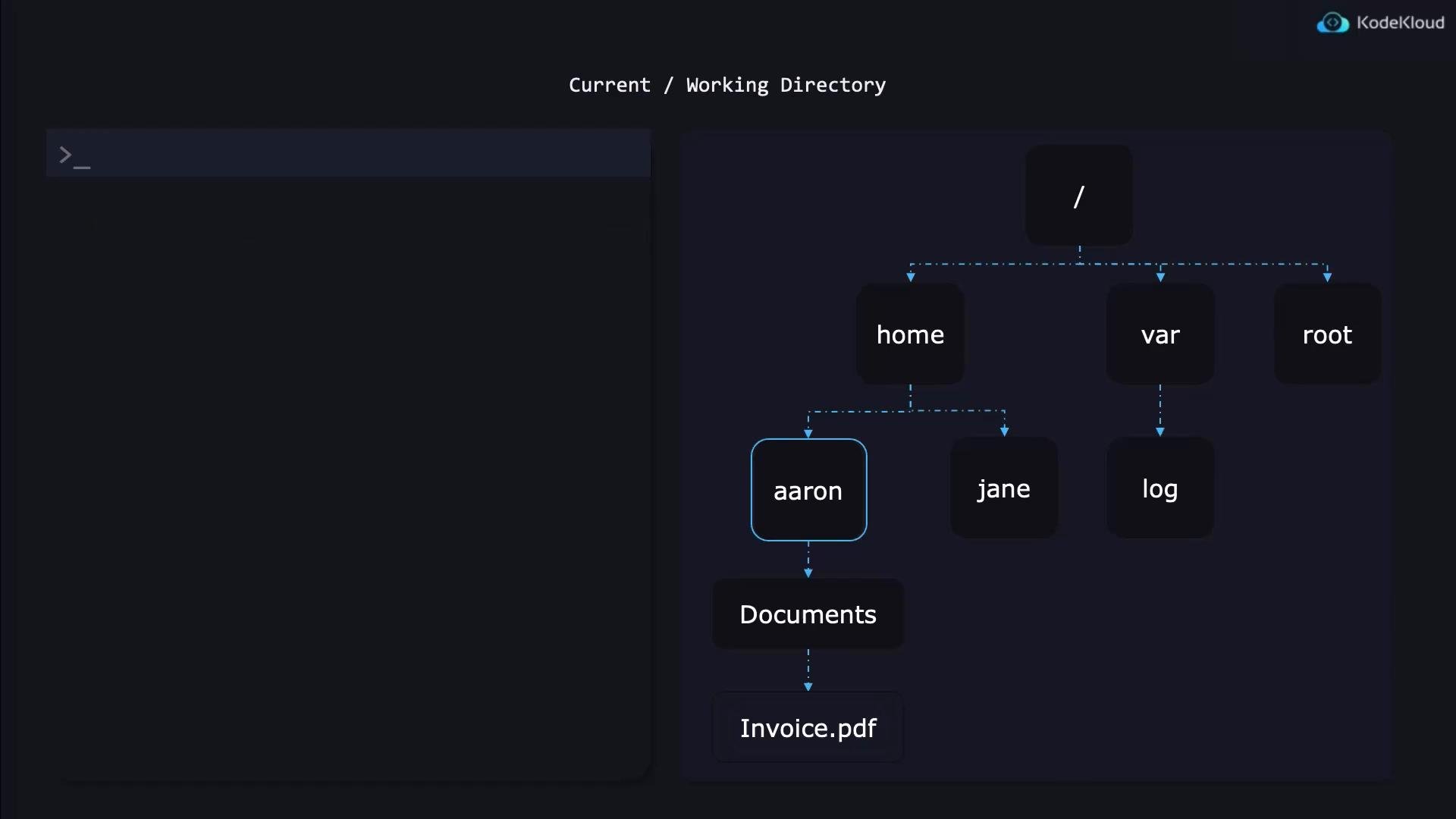
/home/aaron, here are common ways to reference files:
- Descend into a subdirectory:
Documents/invoice.pdf→/home/aaron/Documents/invoice.pdf
- Refer to a file in the current directory:
invoice.pdf→/home/aaron/invoice.pdf
- Refer to a file in the parent directory:
../invoice.pdf→/home/invoice.pdf(one level up)
.. segments to go up multiple levels, for example ../../otherdir/file.txt moves up two directories before descending into otherdir.
Additional tips
cd /takes you to the root directory (/).cd -switches back to your previous working directory.cdwith no arguments returns you to your home directory (e.g./home/aaron).