- Local graphical (desktop) login
- Remote graphical login (RDP from Windows)
- Remote text-mode login (SSH)
--help, pagers, and man pages.
Quick overview
Local graphical login
If you have a desktop environment installed (for example Ubuntu with GNOME), use the local display manager on the machine:
- At the physical machine, pick your username on the login screen.
- Enter your password.
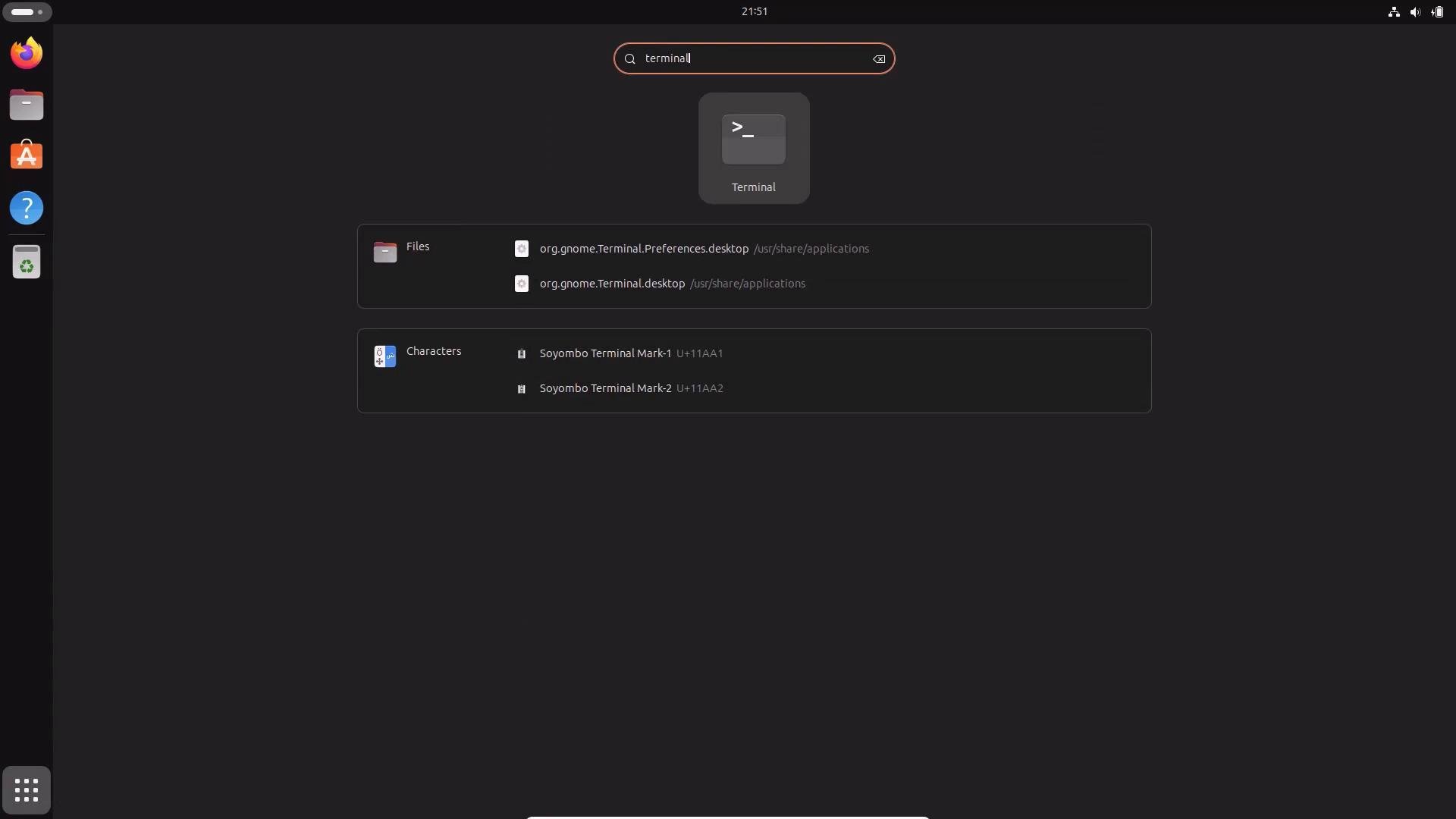
- After login you’ll see the desktop environment; open a terminal emulator for command-line work.
mstsc) and connect to the Linux host IP (for example 10.0.0.81).
- On first connection you may see a certificate prompt — accept only if you trust the host.
- Enter your username and password on the remote login screen.
- The remote desktop appears inside the RDP window; maximize if you’d like a full-screen experience.
- xrdp: https://www.xrdp.org/
- Remote Desktop (Windows client): https://learn.microsoft.com/en-us/windows-server/remote/remote-desktop-services/clients/remote-desktop-client-for-windows
When accepting certificates or host warnings, confirm the host identity first. Only accept certificates from hosts you trust to avoid man-in-the-middle risks.
yes to add the host key to ~/.ssh/known_hosts, then enter your password:
Prefer key-based authentication over passwords. Use
ssh-agent and ssh-add to cache keys for sessions and enable two-factor or certificate-based methods for stronger security.
Quick help with —help
Many commands print concise usage and option summaries with
--help. For example, to review ls options:
-l option to use the long listing format. Example excerpt:
less). Navigate with arrow keys, Page Up/Page Down, and press q to exit. Example:
lines 1-27 indicating you can scroll.
Manual pages (man)
Most important commands have a man page. Use man <command> to open a detailed manual:
journalctl:
printf as a shell command and as a C library function). To list and understand sections, read the man manual:
If you need the
printf command (section 1) rather than the C library function (section 3), specify the section:
--help, pagers, and man pages. Use these tools to explore command options and become more effective on Linux systems.