- Launch the Lens application
- Add a cluster automatically via detected kubeconfig
- Add a cluster manually with a pasted kubeconfig
- View and customize cluster settings
- Enable and explore Lens Metrics powered by Prometheus
- Utilize the built-in smart terminal
- Navigate cluster overview and inspect pod details
- Edit a live pod manifest in the UI
- Create, view, and scale an Nginx deployment
- Remove a cluster from Lens safely
Launching Lens
Start the Lens desktop application to reach the Home screen, where you can connect and manage multiple Kubernetes clusters.Adding a Cluster Automatically
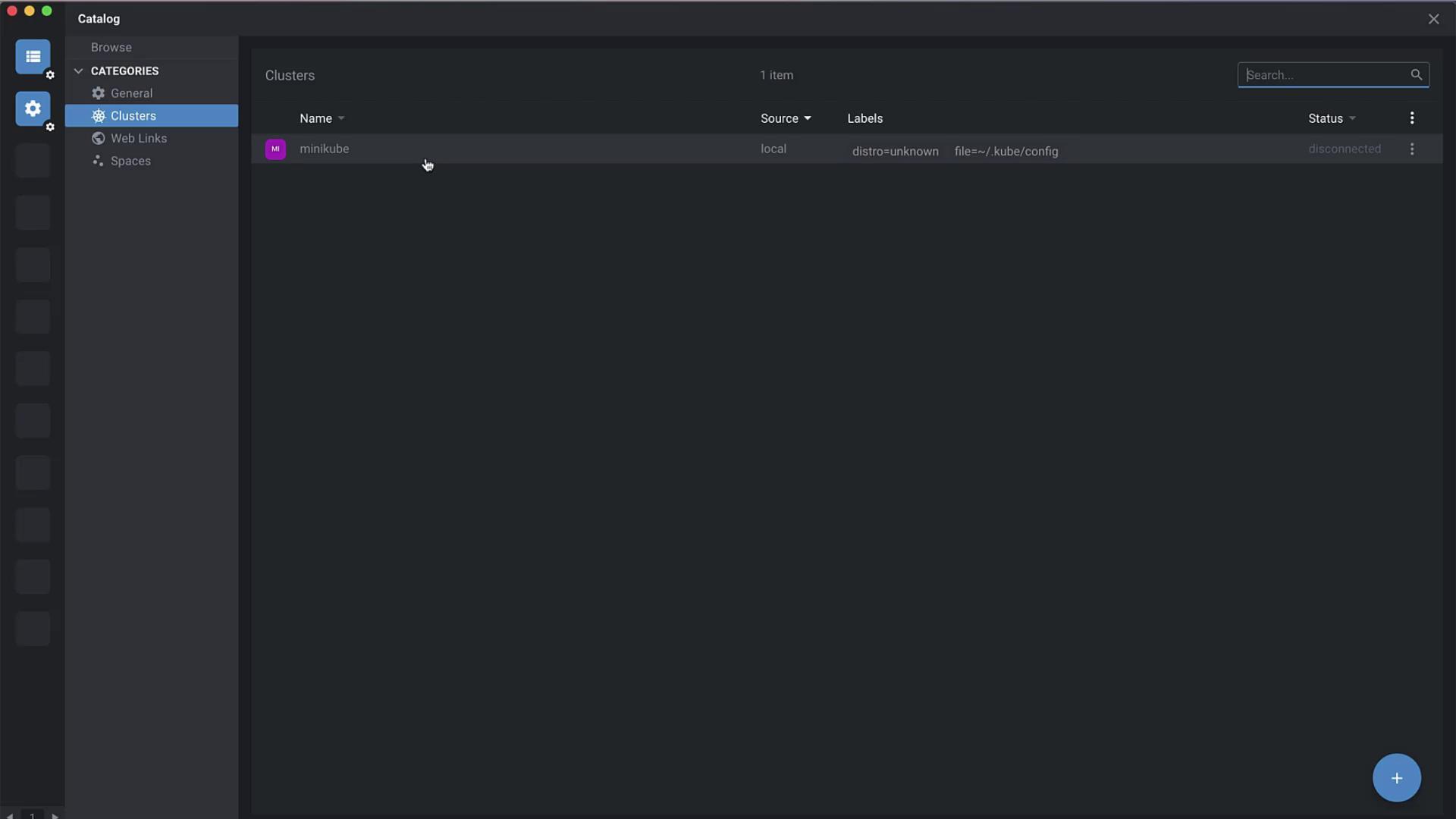
- Click Browse Clusters in the catalog sidebar.
- Lens scans your system for kubeconfig files.
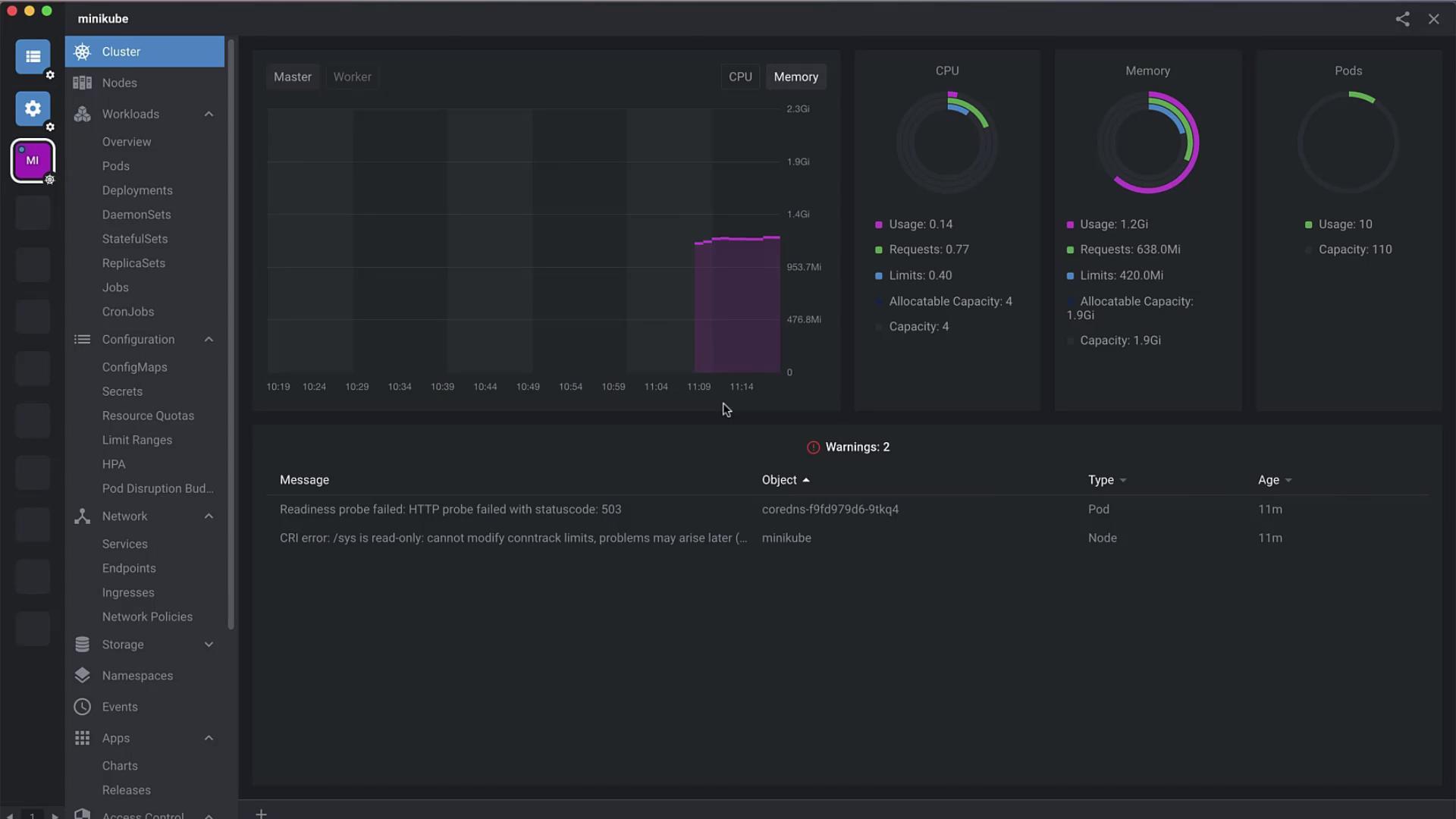
- Select a detected cluster (e.g.,
minikube) and hit Open.
Adding a Cluster Manually
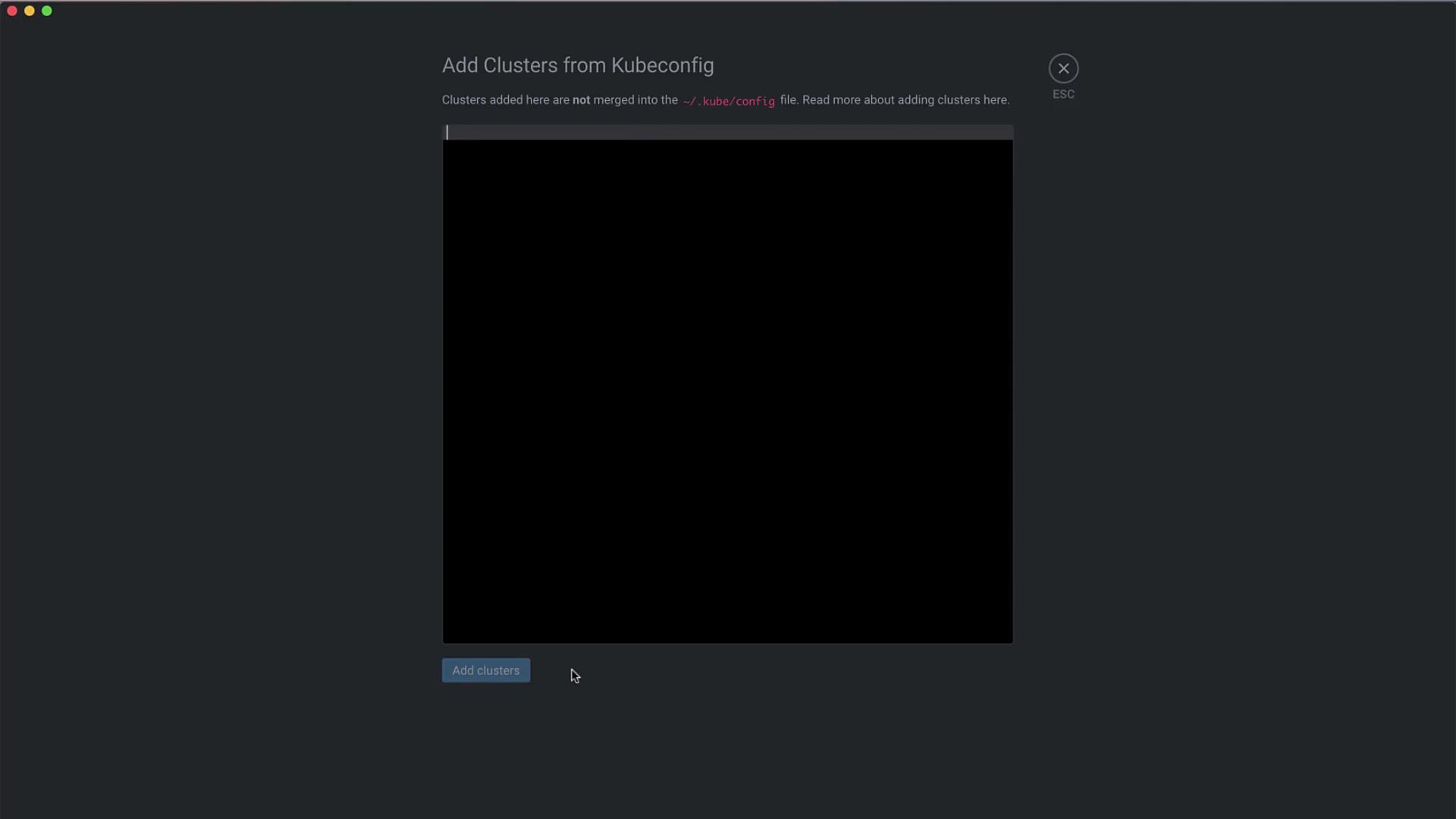
If your kubeconfig isn’t auto-detected, you can paste it directly:Ensure your kubeconfig includes the correct
contexts and clusters entries for the target environment.- Navigate to File → Add Cluster.
- Paste the full kubeconfig YAML into the editor.
- Click Add Cluster to register it in Lens.
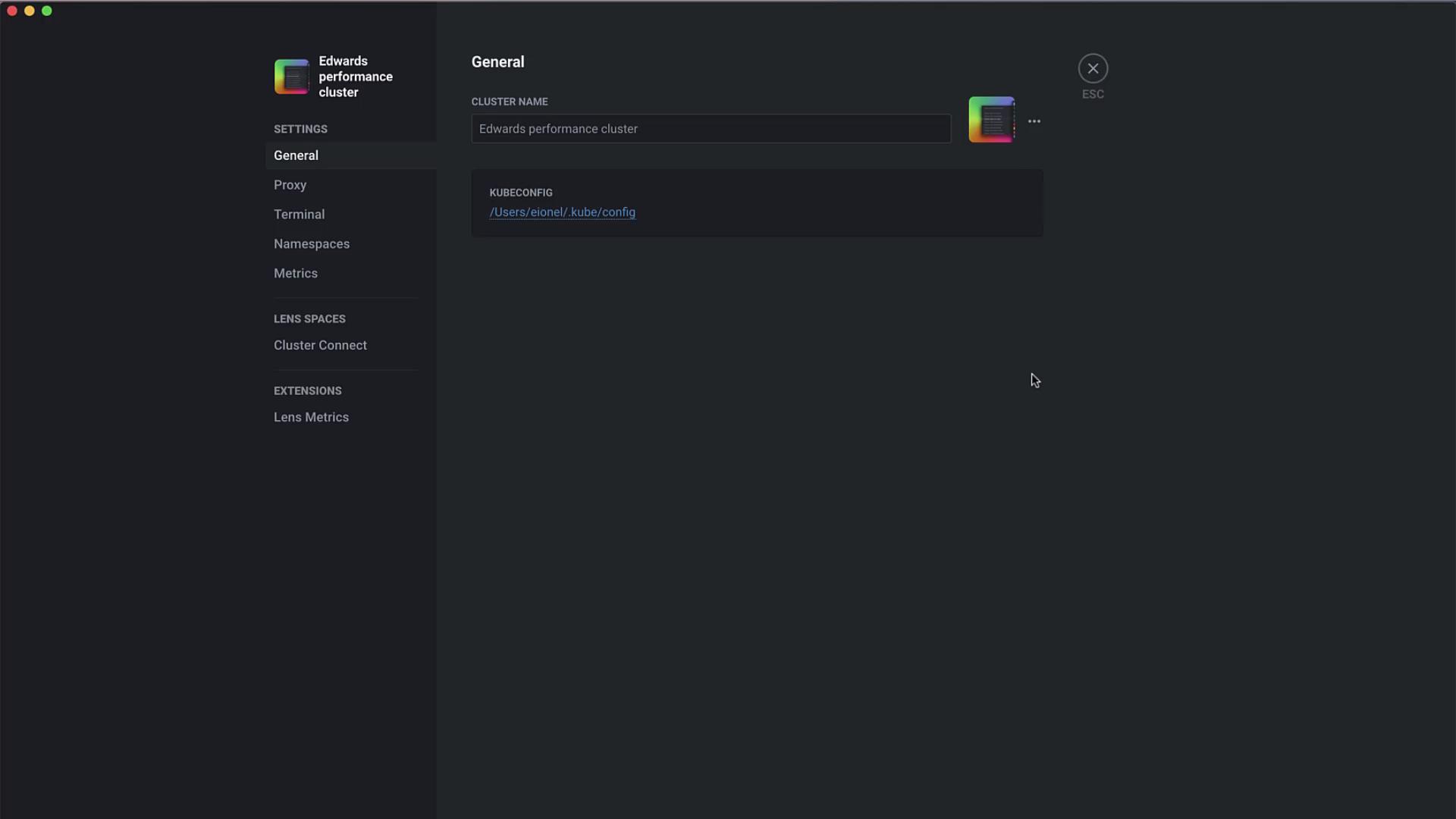
Viewing and Configuring Cluster Settings
Select your cluster and open Settings to:- Rename the cluster (e.g., Edwards Performance Cluster)
- Upload a custom icon
- Manage namespace visibility
- Configure HTTP/HTTPS proxy
- Tweak metrics collection intervals
Enabling Lens Metrics
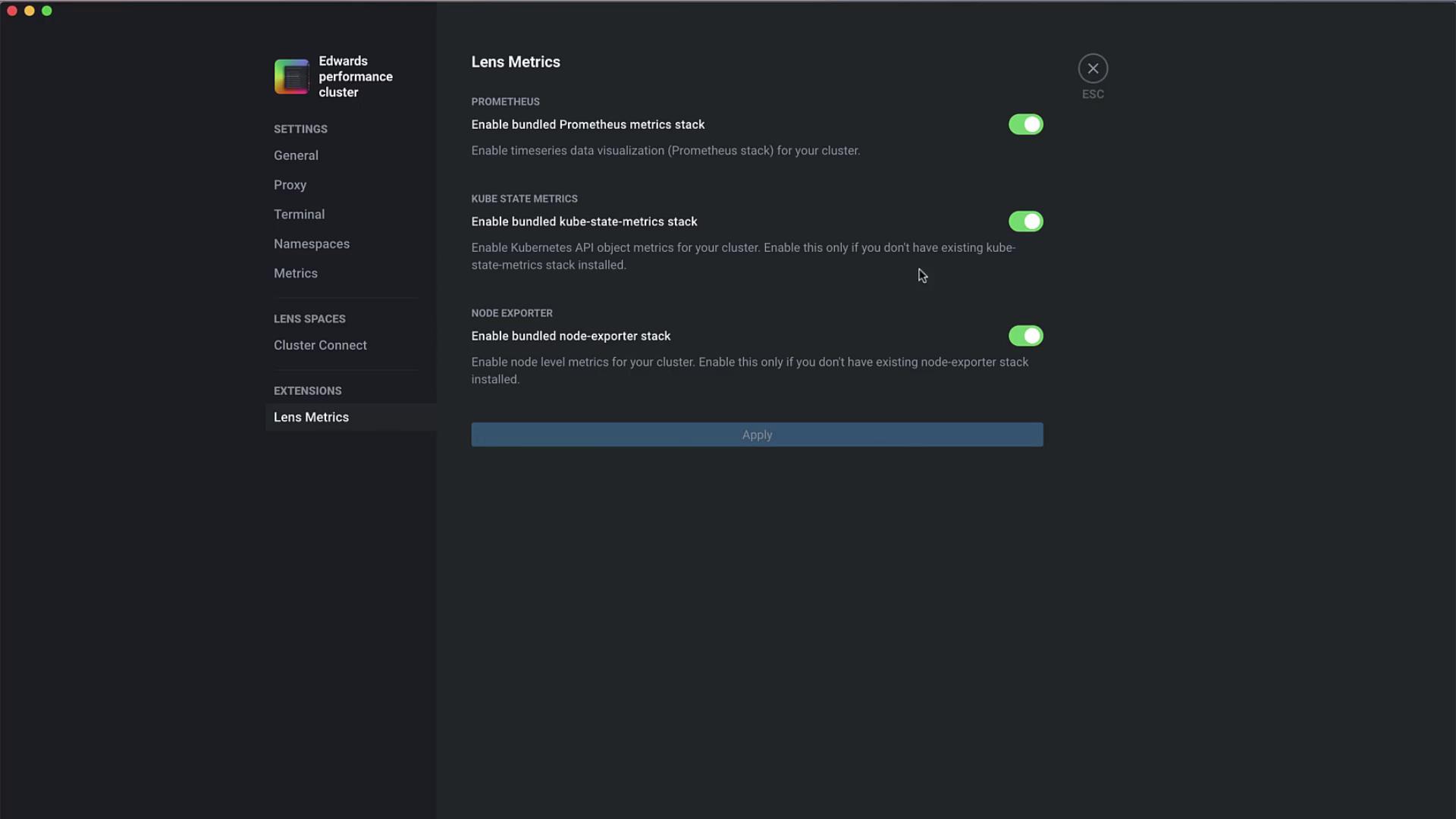
Under the Metrics tab, install a Prometheus monitoring stack to get detailed resource insights:
Click Enable next to each component to deploy it on your cluster.
Smart Terminal
Lens’ built-in terminal automatically switches context to the active cluster. No extrakubectl config use-context commands are needed when you switch clusters in the UI.
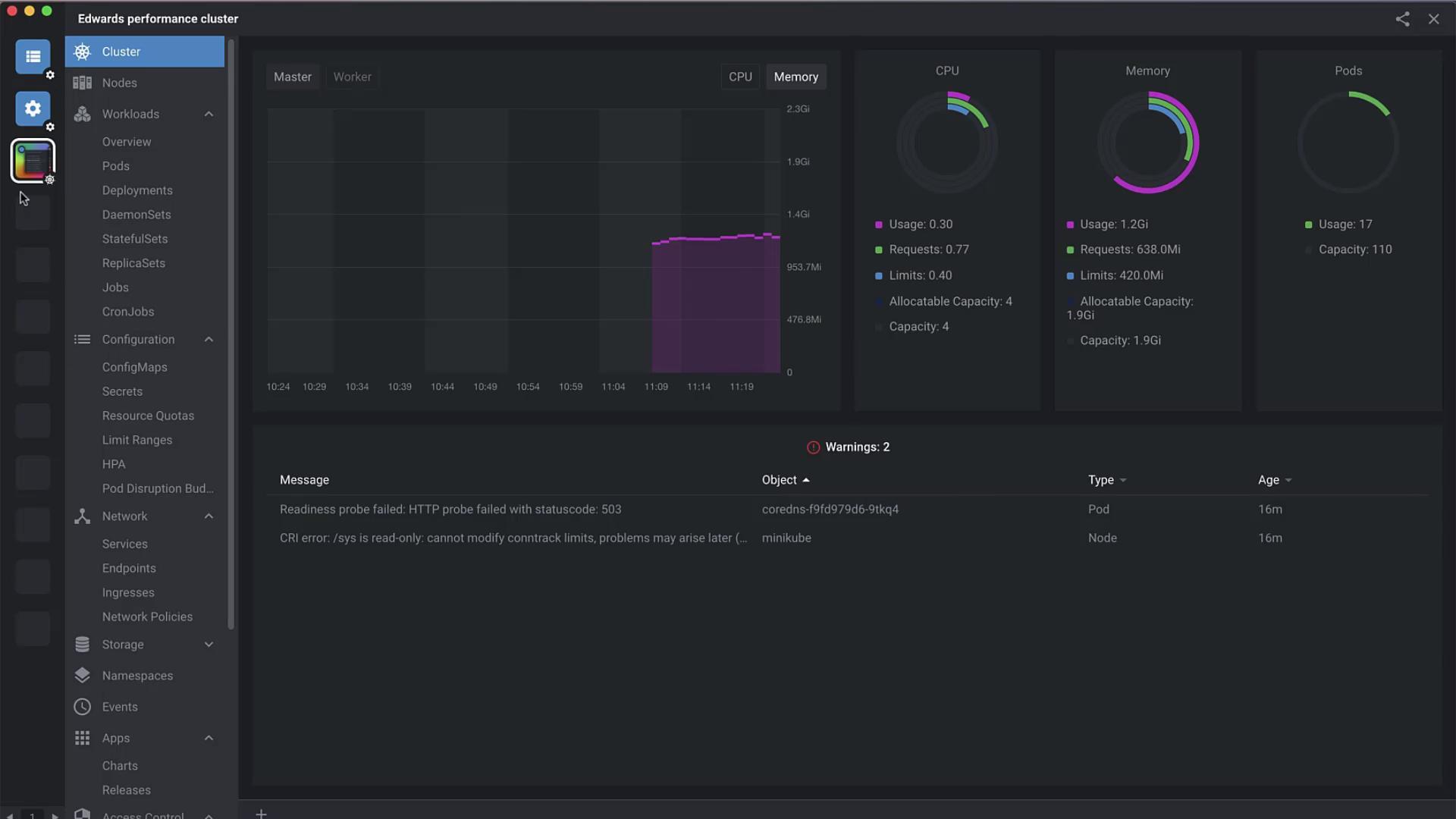
Cluster Overview
The Overview dashboard gives you a high-level look at all workloads: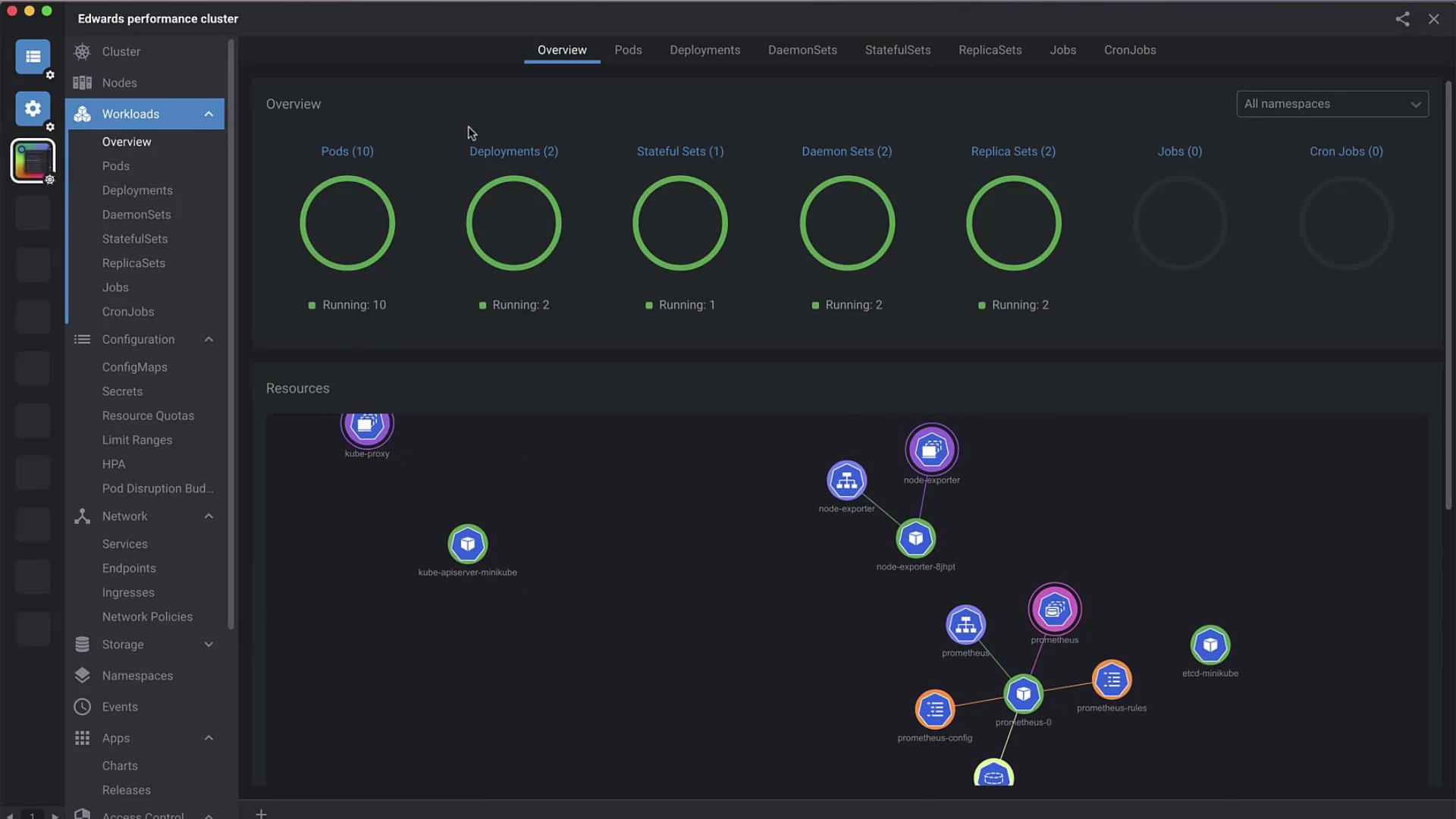
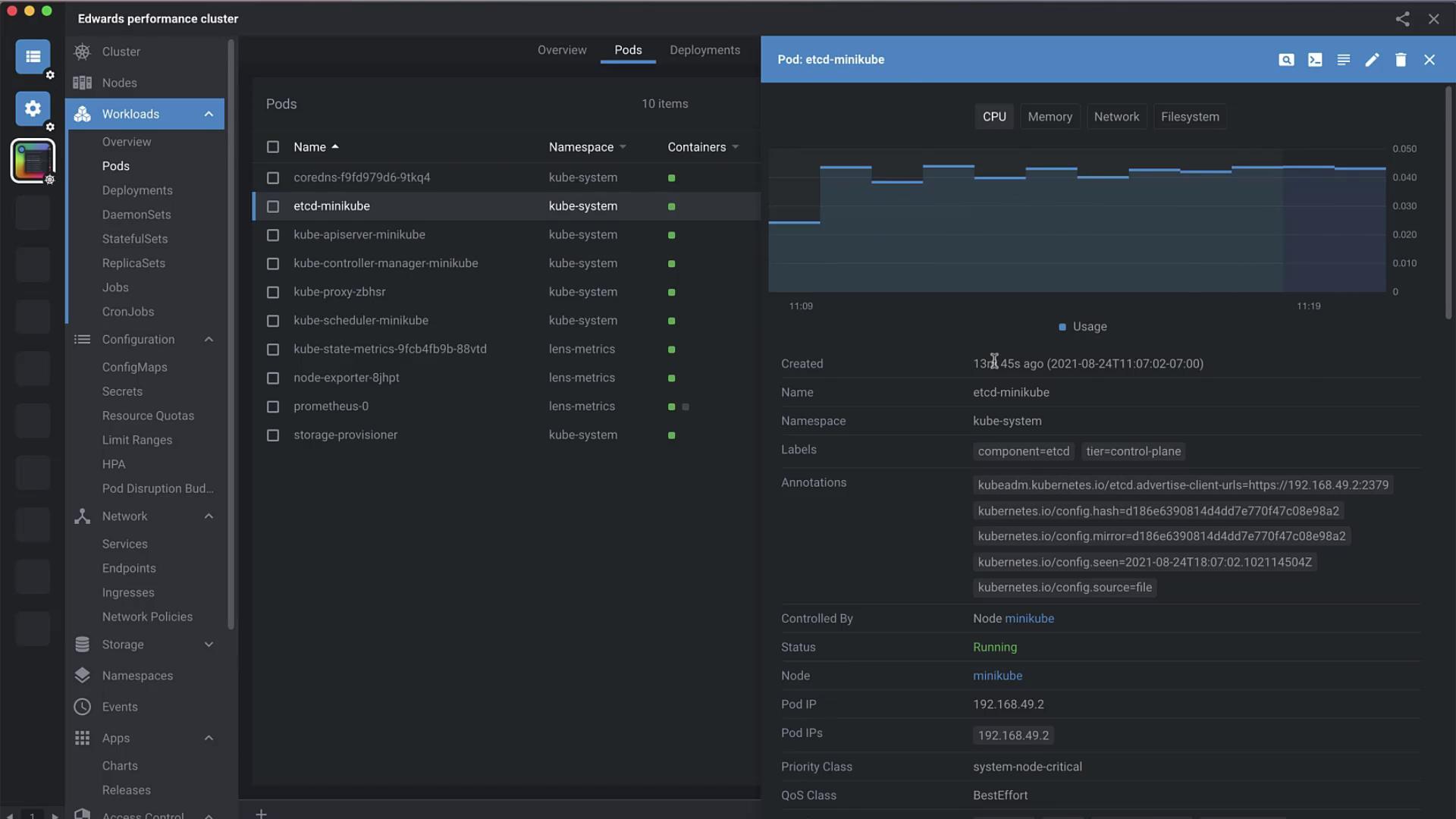
Pod Details and Logs
Click Pods to inspect each pod’s metrics over the last hour—CPU, memory, network I/O, and filesystem usage. You can also:execorattachto a pod shell- View container logs
- Edit the live manifest
Editing a Pod Manifest
Hit Edit, modify the YAML in place, then Save to apply changes instantly:Creating an Nginx Deployment
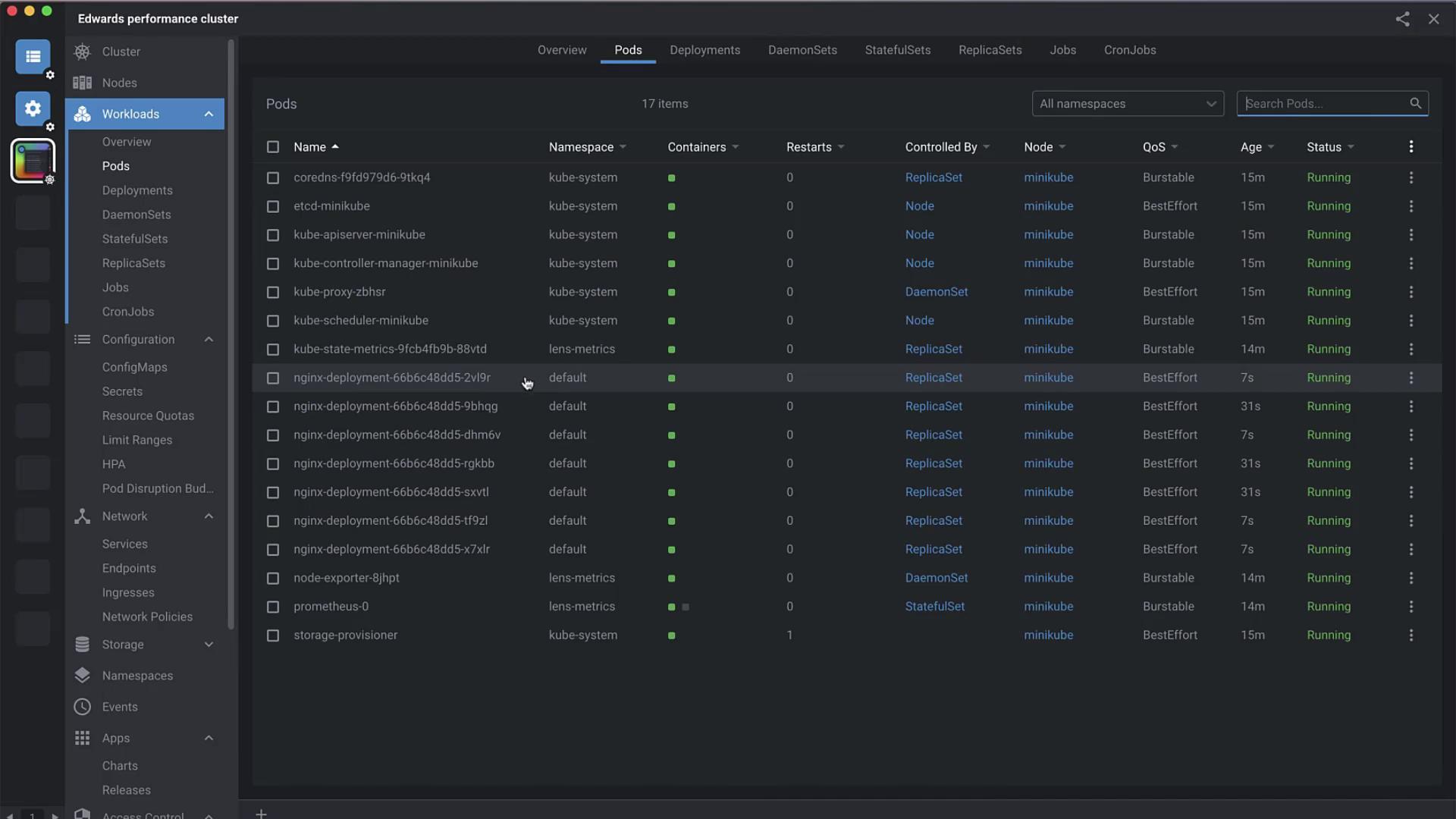
Lens simplifies resource creation—no CLI required. Select Add Resource and paste:Scaling the Deployment
- Select your nginx-deployment.
- Click the Scale icon.
- Adjust the replica count slider or input a number.
Removing a Cluster
When you no longer need a cluster in Lens:Deleting a cluster in Lens removes its entry from your Lens config but does not delete the cluster itself.
- Right-click the cluster icon in the sidebar.
- Select Delete to remove its kubeconfig entry and dashboards.