

Browse and install vetted extensions from the Lens marketplace to keep your environment secure and up to date.
Browsing Available Extensions
- Open Lens and click Lens in the top-left corner.
- Select Extensions.
- Under Available Extensions, explore the publicly vetted list by Team Lens.
Notable Public Extensions
Installing an Extension Manually
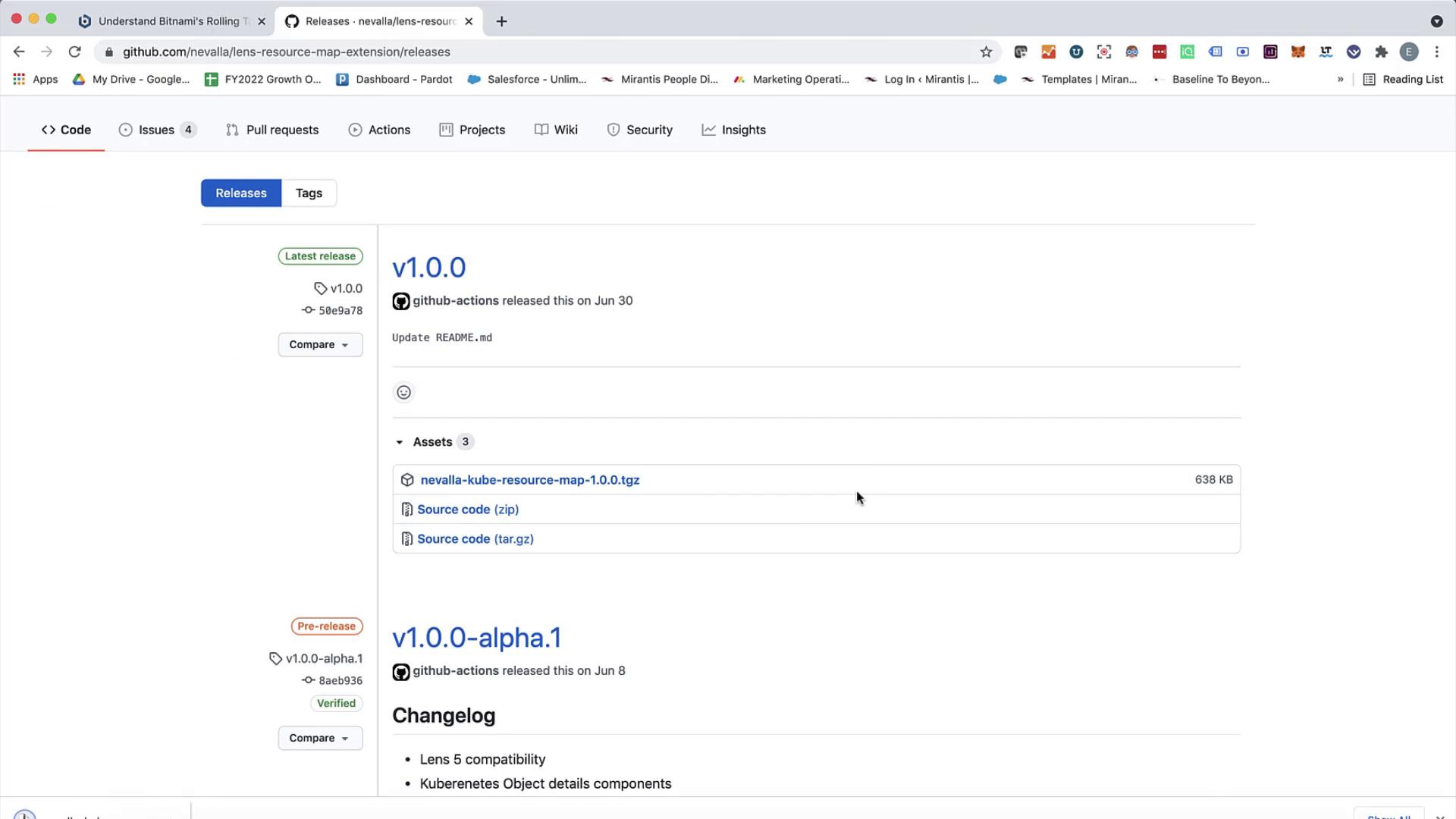
To install Resource Map (or any other extension) from GitHub:- Navigate to the extension’s GitHub repository and click Releases.
- Download the asset matching your operating system.
- Run the installer package.
- Return to Lens and open Extensions.
- Search for Resource Map in the list.
- Click Install (or Reinstall to upgrade).
Only install extensions from trusted sources. Verify the repository and release signatures before installing manually.
Using the Resource Map Extension
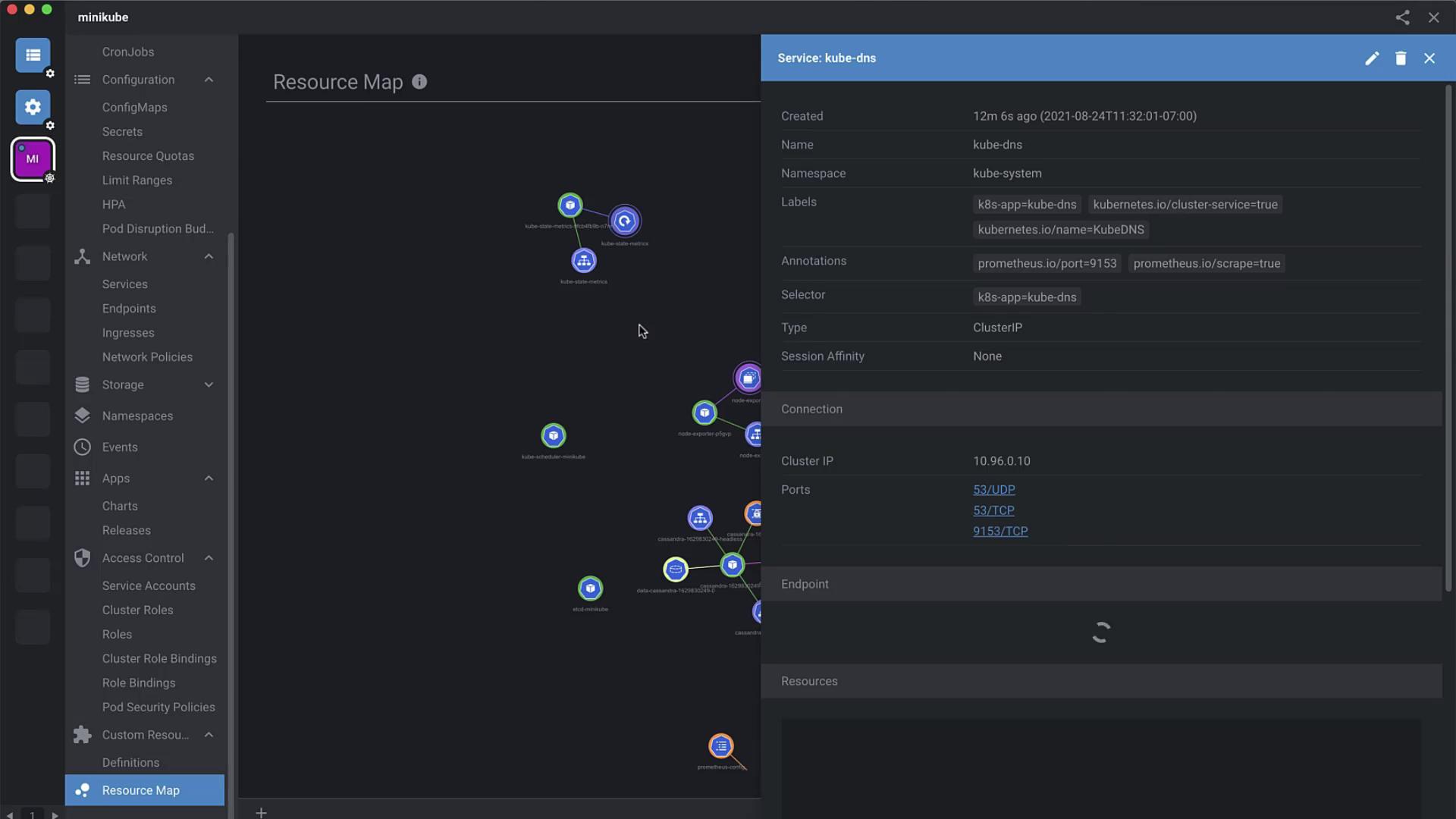
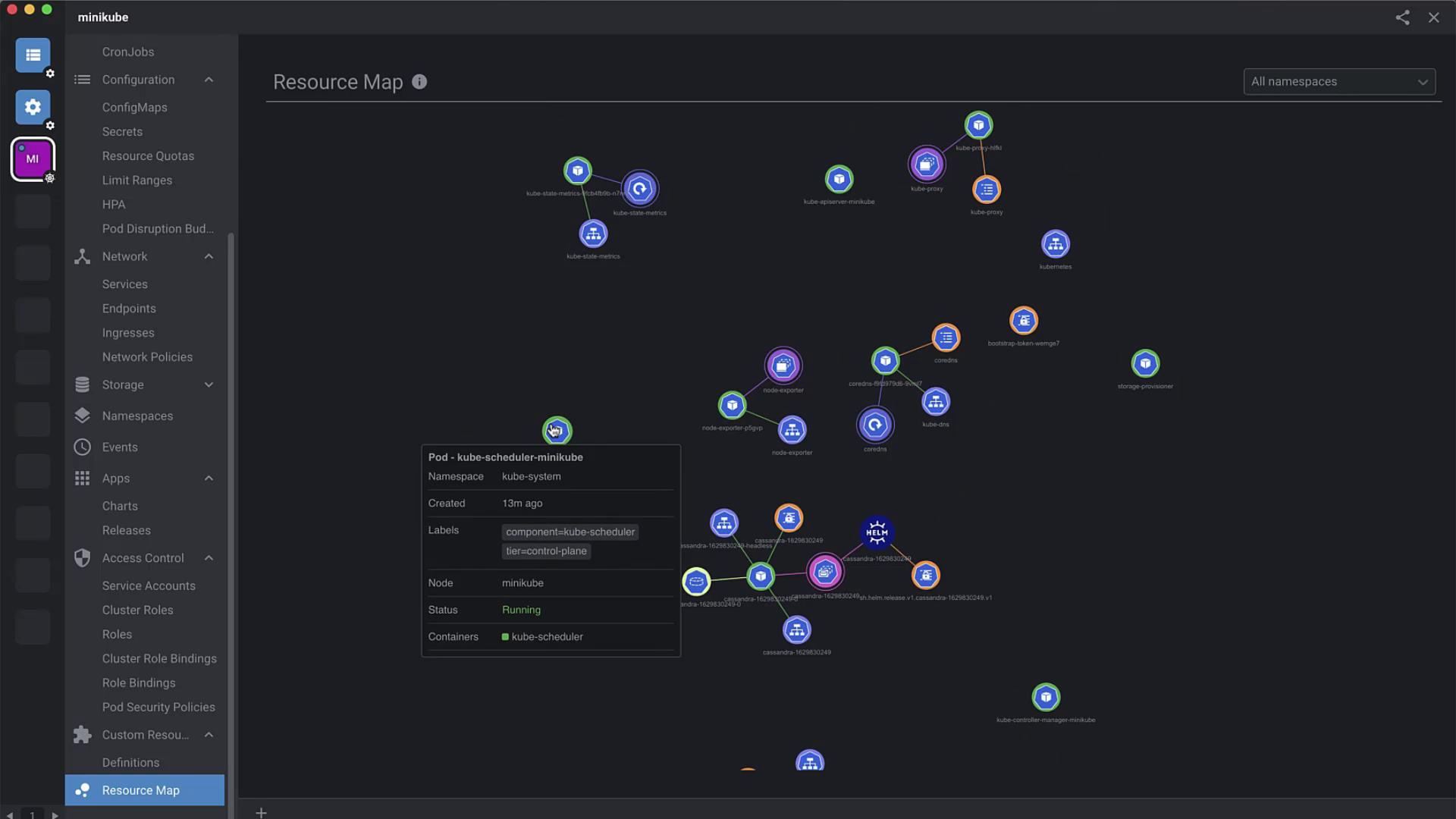
Once installed, Resource Map is available at the bottom of Lens’s sidebar:- Close the Extensions panel.
- Scroll down and click Resource Map.
Exploring Extension Development
Create your own Lens extension in a few steps:- In Lens, go to Extensions.
- Click Checkout Docs to open the official guide.
- Follow the tutorials to scaffold, build, test, and publish your extension—all within Lens.