This guide walks through launching a basic Amazon EC2 instance and connecting to it via SSH. It covers selecting an AMI, picking an instance type, configuring key pairs and security groups, checking instance details, and connecting from your workstation. Start by opening the AWS Console and searching for “EC2”. Make sure you are working in the desired AWS region — resources are region-specific. This demo uses US East (N. Virginia), but the same steps apply in any region.
  1. Launch the EC2 instance
  2. Configure authentication (key pair)
  3. Configure networking and security groups
  4. Review storage and launch
  5. Verify instance details and metrics
  6. SSH into the instance
  7. Stop or terminate to avoid charges
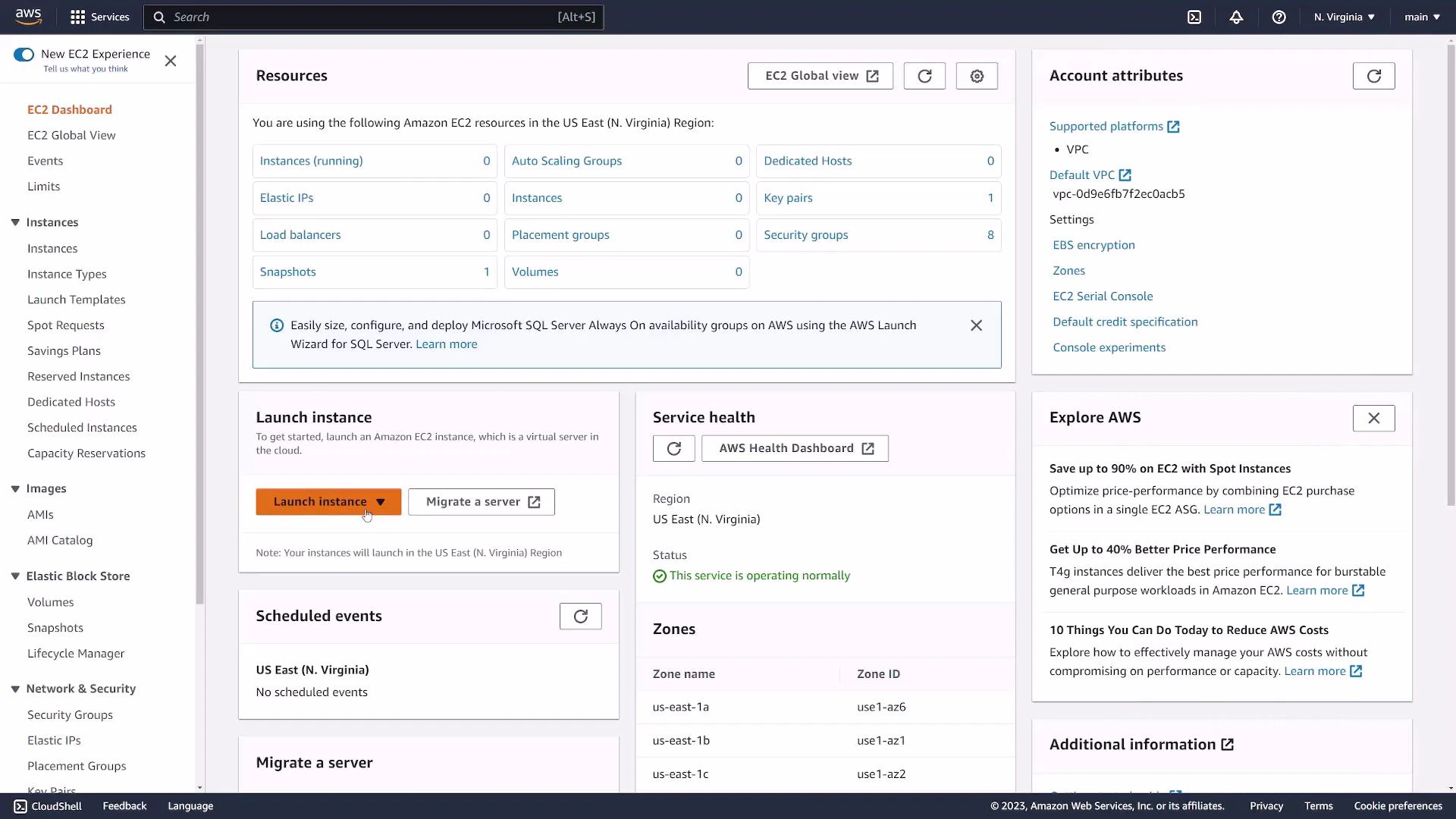
Select “Launch instance” to start the instance-creation wizard.
A screenshot of the Amazon Web Services EC2 console (US East - N. Virginia) showing resource summaries, account attributes, service health, and availability zone details. The main panel includes a prominent "Launch instance" button and lists items like instances, volumes, snapshots, and security groups.
You can also start from the Instances page using the “Launch instances” button. The wizard leads you through each configuration step.

1. Name and choose an AMI

Give the instance a friendly name tag (for example: “web-server”) so it’s easy to identify later. Choose an AMI (Amazon Machine Image) to define the operating system and any preinstalled software. AMIs can be:
  • Amazon-provided (official images)
  • Community-provided
  • Marketplace images
For this demo we choose an Ubuntu AMI (Ubuntu 22.04 LTS, 64-bit x86). Remember AMI IDs vary by region — verify the AMI details before launching.
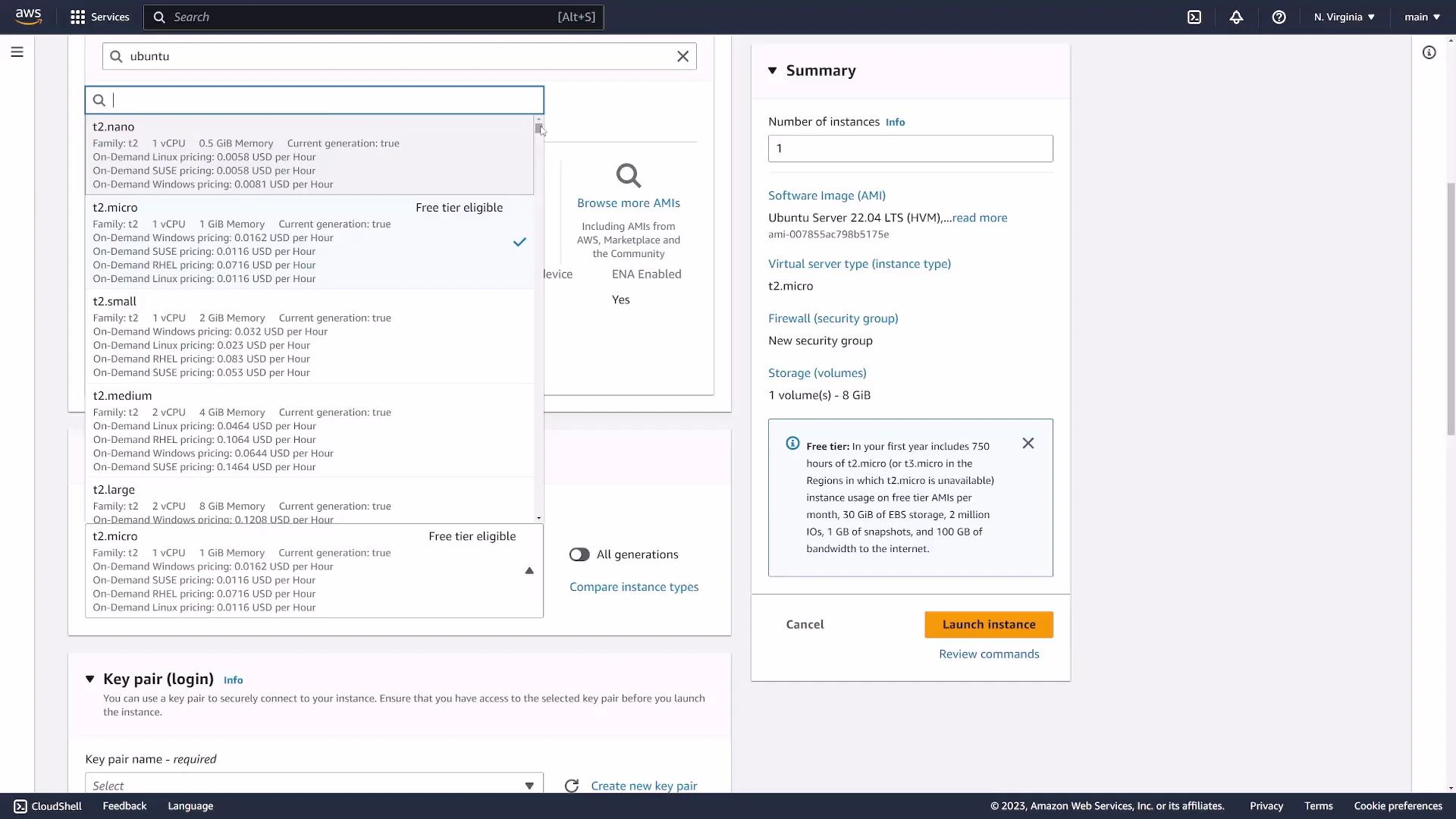
Screenshot of the AWS EC2 "Launch Instance" console showing an AMI search for "ubuntu", instance type options (t2.micro selected) and the summary panel with configuration details and a "Launch instance" button.

2. Select an instance type

Pick an instance type to define vCPU, memory, and network performance. For simple demos or free-tier usage, t2.micro or t3.micro (1 vCPU, 1 GiB RAM) are common choices.

3. Configure key pair (SSH authentication)

Configure a key pair for SSH access. Key pairs are the recommended, secure method for authenticating to EC2 instances.
  • If you already have a key pair, select it.
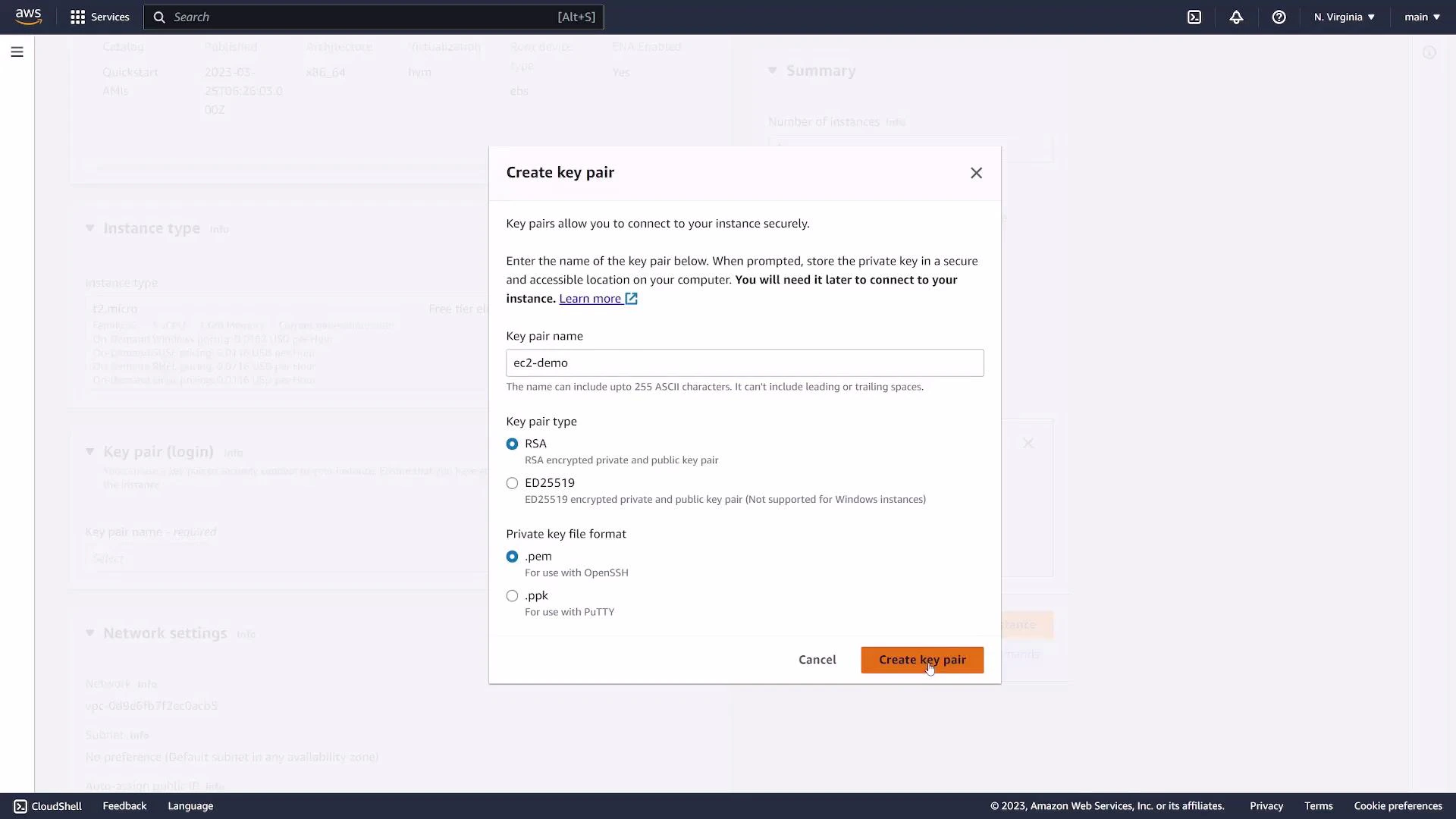
  • Otherwise, create a new key pair and download the private key file (.pem). For this demo we created ec2-demo.pem.
A screenshot of the AWS Management Console showing the "Create key pair" dialog for an EC2 instance, with the key pair name set to "ec2-demo" and options for RSA/ED25519 and .pem/.ppk formats. The "Create key pair" button is visible and ready to be clicked.
Keep your private key file secure. After downloading, restrict permissions (for example: chmod 400 ec2-demo.pem) so SSH will accept the key.

4. Networking and security groups

Choose the VPC and subnet (default VPC is common for simple setups). Configure security groups to control inbound/outbound traffic. Security groups act as a stateful firewall. Common rules for a public web server:
  • SSH: TCP 22 (restrict source to your IP if possible)
  • HTTP: TCP 80 (0.0.0.0/0 for public access)
  • HTTPS: TCP 443 (0.0.0.0/0 for public access)
For this demo we created a security group that allows SSH. Prefer restricting SSH to your client IP (for example 203.0.113.5/32) rather than opening to the whole Internet.
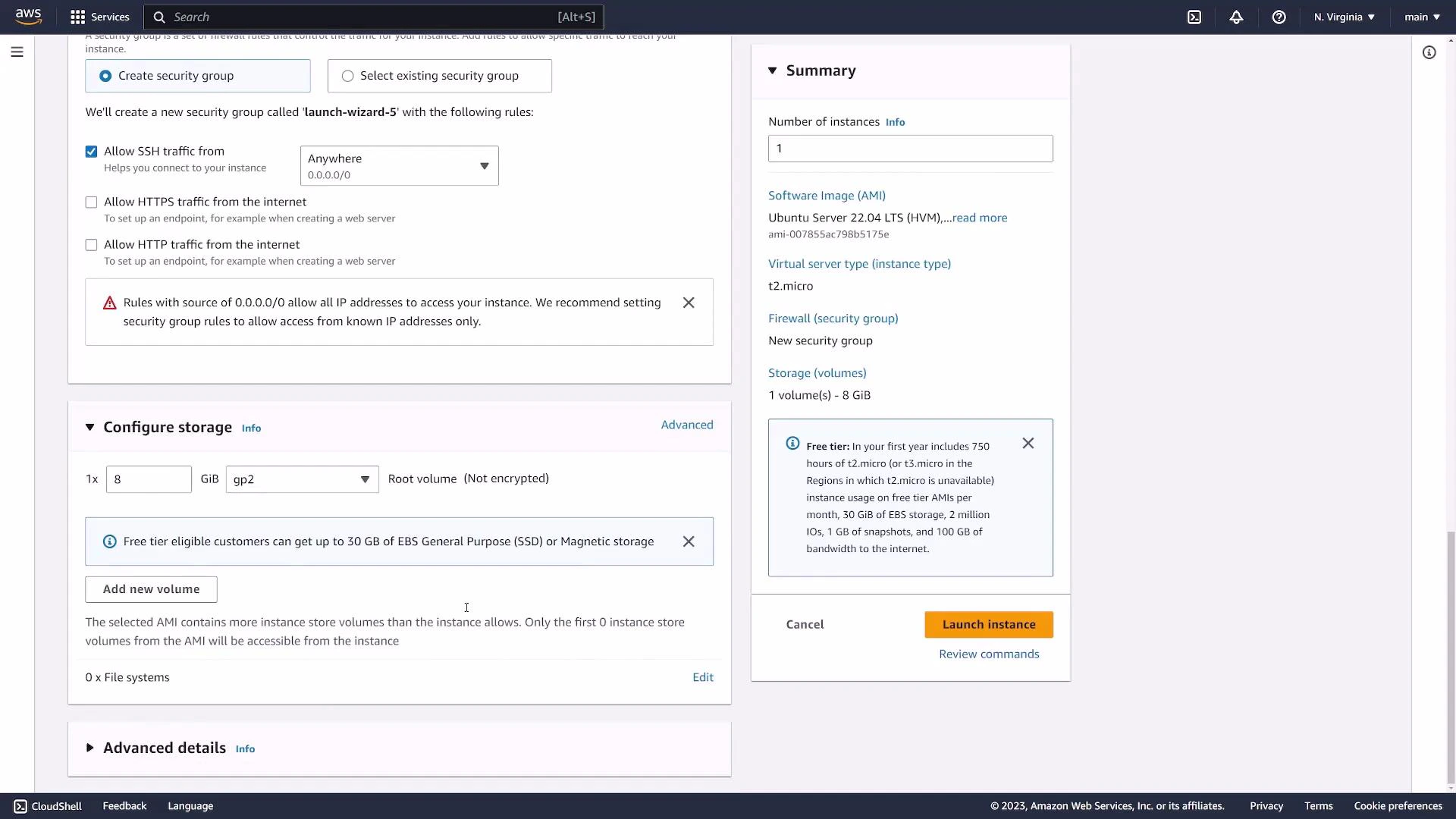
A screenshot of the AWS EC2 instance launch/configuration page showing security group rules (SSH allowed from 0.0.0.0/0), storage configuration (8 GiB gp2 root volume) and instance summary. The right panel shows a summary with the "Launch instance" button.
Allowing SSH from 0.0.0.0/0 exposes your instance to the entire Internet. Restrict SSH to your IP whenever possible.

5. Storage options

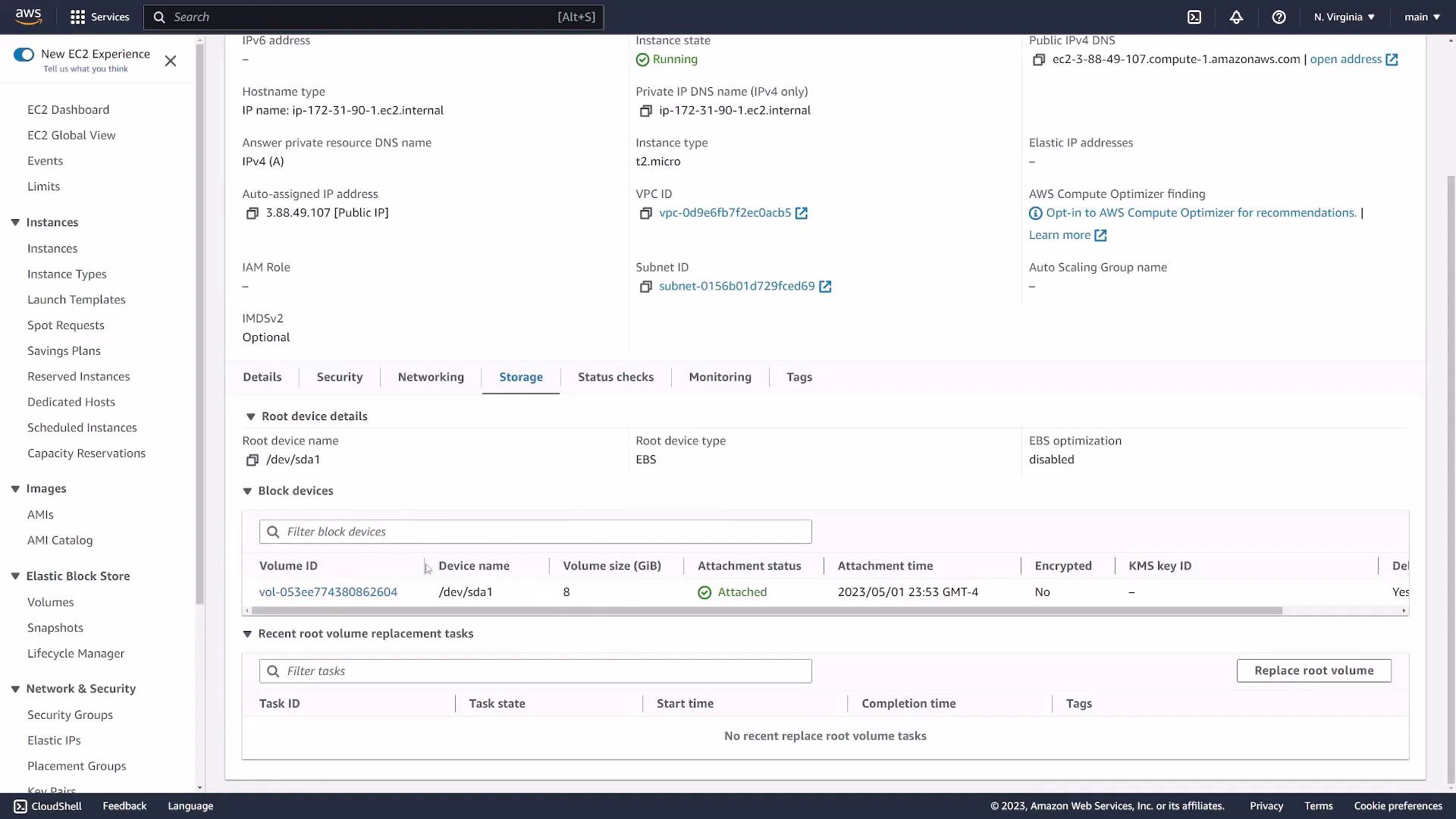
By default a root EBS volume (for example 8 GiB) is attached. Defaults are typically safe for demos; you can adjust size, volume type (gp2/gp3), and encryption as needed.
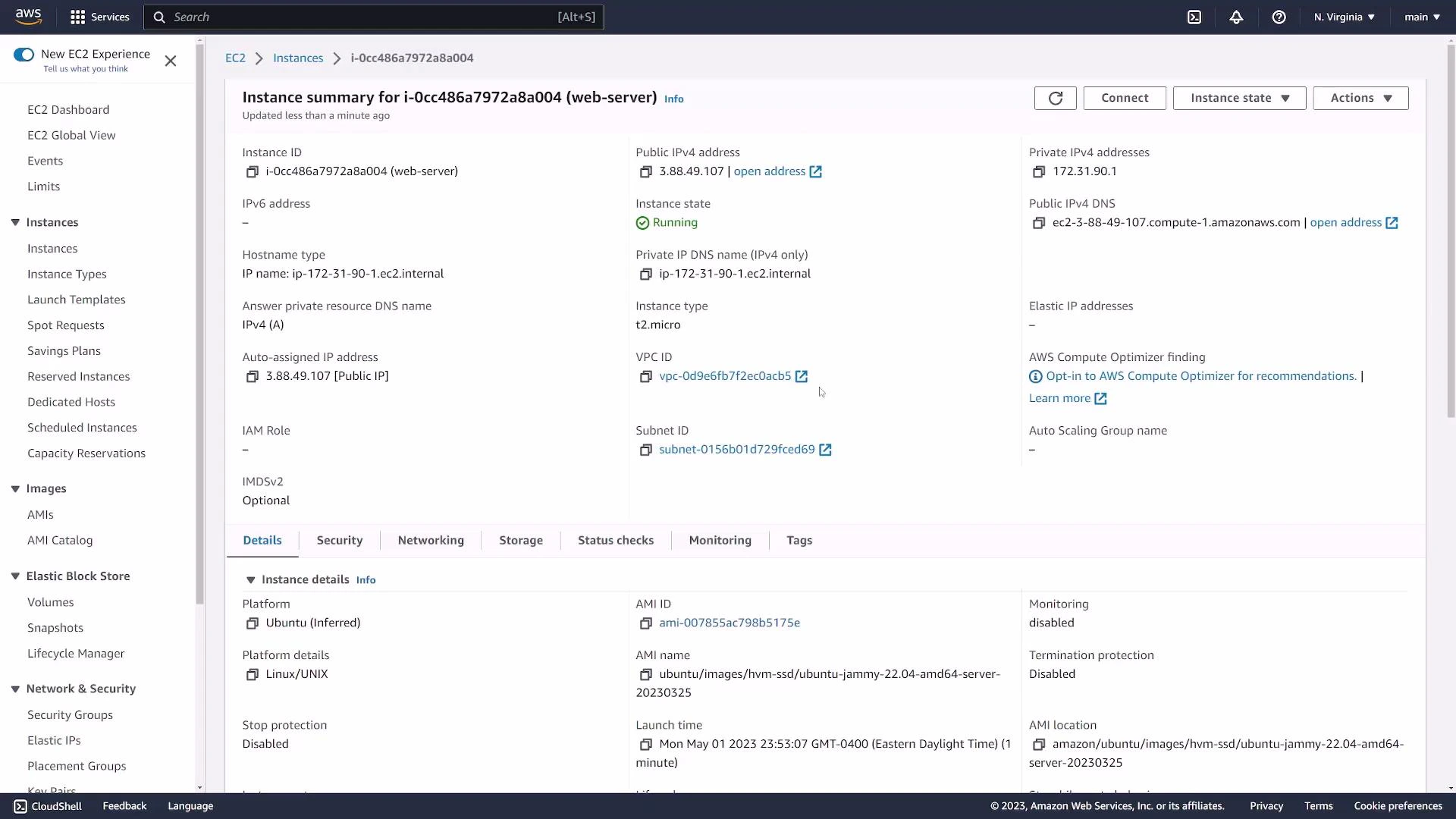
A screenshot of the AWS EC2 console showing an instance summary for a web-server (instance ID i-0cc486a7972a8a004). The instance is running (t2.micro) with public IPv4 3.88.49.107 and various networking/details listed.
Launch the instance when ready. The Instances page shows the new instance in a “pending” state while it boots, then “running” when ready.

6. View instance details and settings

Click the instance ID to see fields such as:
  • Instance ID
  • Public IPv4 address / Public DNS
  • Private IPv4 address
  • AMI used
  • Key pair name
  • Attached security group(s)
A quick table for commonly checked fields:
FieldWhy it mattersExample
Instance IDUnique identifier for the EC2 instancei-0cc486a7972a8a004
Public IPv4Use for SSH or public access (if in a public subnet)3.88.49.107
Public DNSAlternate way to connect (resolves to the public IP)ec2-3-88-49-107.compute-1.amazonaws.com
Key pairShows which key is allowed for SSH authec2-demo
Security groupsControls inbound/outbound trafficlaunch-wizard-5 (sg-01c42ae4a41e45f7e)
Under the Security tab you can inspect inbound and outbound rules. Security groups are stateful — return traffic is automatically allowed.
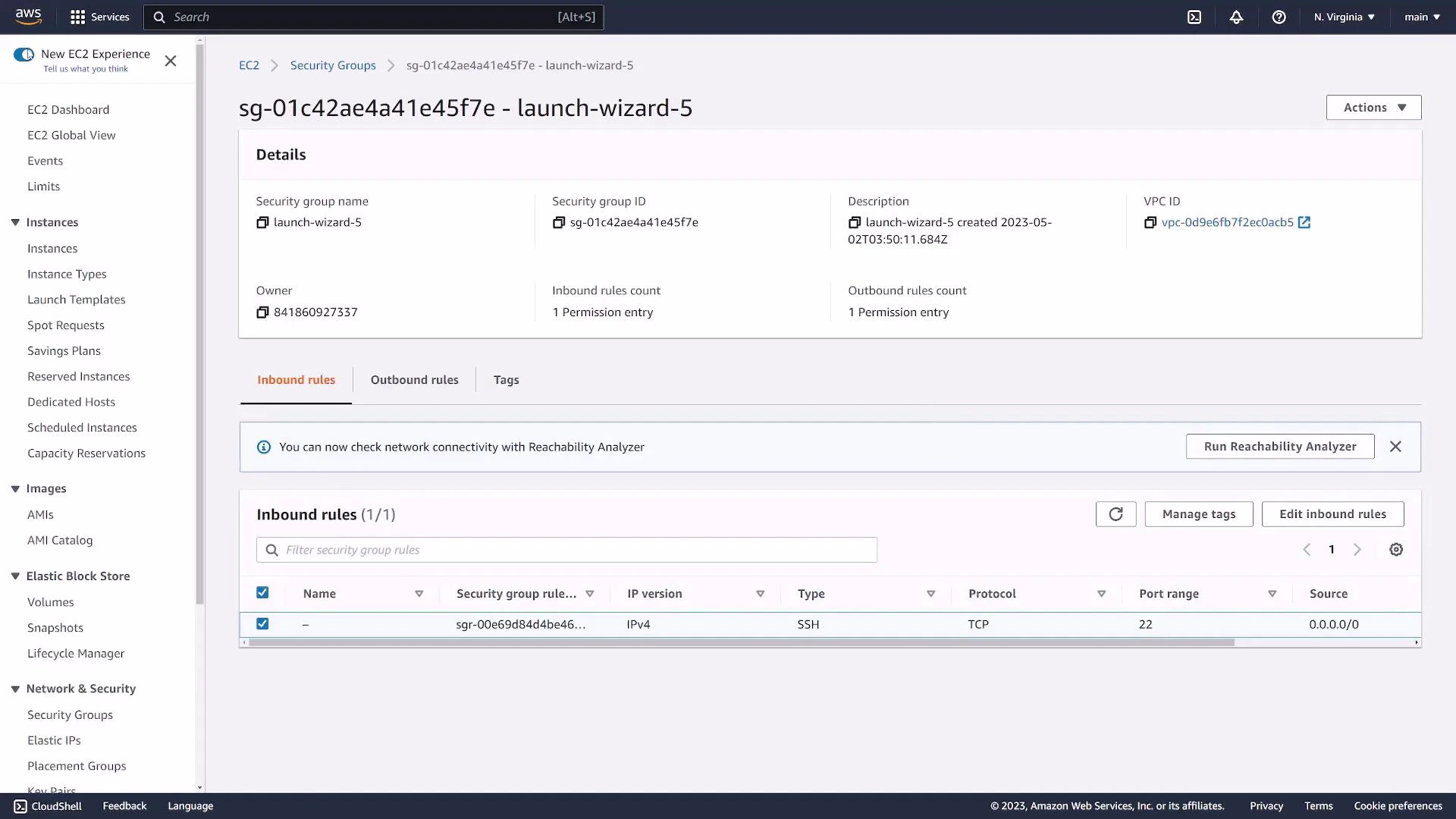
A screenshot of the AWS EC2 Security Groups page showing details for security group "launch-wizard-5" (sg-01c42ae4a41e45f7e). The inbound rules list shows an SSH (TCP port 22) rule open to 0.0.0.0/0.
The Networking tab shows attached network interfaces, private/public IPs, and any Elastic IPs.
A screenshot of the AWS EC2 console showing an instance's details with the Storage tab selected. The Storage panel lists the root EBS device (/dev/sda1) as an attached 8 GiB volume and the instance state is Running.
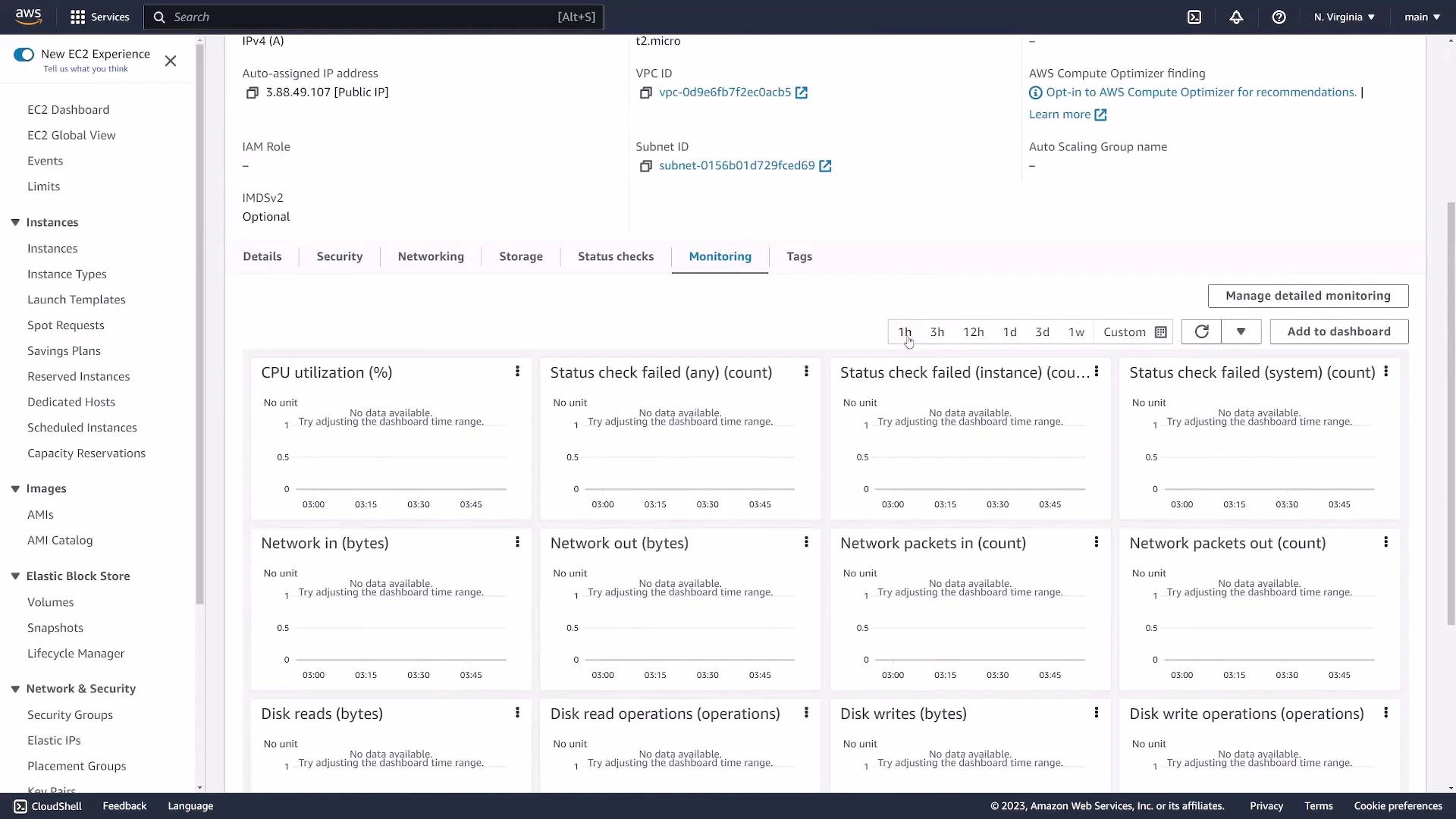
The Monitoring tab displays CloudWatch metrics (CPU, network, disk, status checks). Small or newly launched instances may show “No data available” until metrics are populated.
A screenshot of the AWS EC2 console on the Monitoring tab for an instance, showing multiple metric widgets (CPU utilization, network in/out, disk reads/writes, status checks) that display "No data available." The left sidebar shows EC2 navigation items like Instances, Images, Elastic Block Store, and Network & Security.
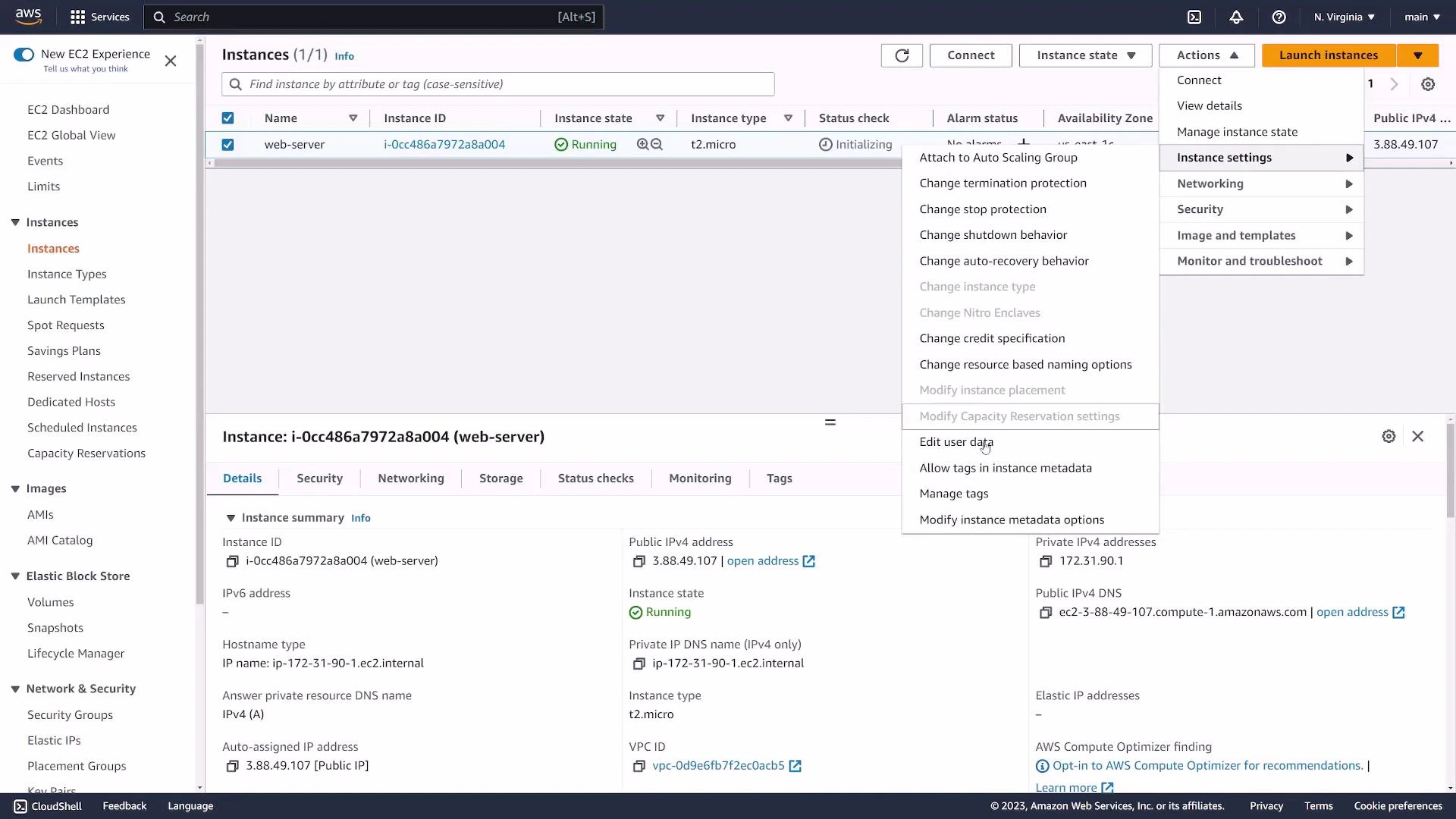
You can use the Actions menu from the Instances list to change networking, adjust security groups, or manage instance state (Stop, Reboot, Terminate).
A screenshot of the AWS EC2 console showing a selected running instance named "web-server" with its details pane and action menus open. The panel shows instance type (t2.micro), instance ID, and a public IPv4 address.

7. Connect via SSH

Requirements:
  • The private key file you downloaded (for example ec2-demo.pem)
  • The instance Public IPv4 or Public DNS
  • Correct username for the AMI (common defaults: ubuntu for Ubuntu, ec2-user for Amazon Linux, centos for CentOS)
Example connection steps from your terminal:
# Restrict key permissions so SSH accepts the key
chmod 400 ec2-demo.pem

# Replace PUBLIC_IP with the instance public IPv4 or use the public DNS
ssh -i ec2-demo.pem ubuntu@PUBLIC_IP
On first connection SSH will ask to confirm the host key — type yes. A successful login will show a prompt such as:
ubuntu@ip-172-31-90-1:~$
Simple commands to run after connecting:
# List files in home
ls -la

# Check disk space
df -h

# Update package lists (Ubuntu)
sudo apt update
If SSH fails, check:
  • Security group inbound rules (SSH allowed from your IP).
  • The username matches the AMI (e.g., ubuntu, ec2-user).
  • The private key file has restrictive permissions (chmod 400 ec2-demo.pem).

8. Stop, reboot, or terminate

When finished, manage instance lifecycle via the Actions menu:
  • Stop: Graceful shutdown; you can start it later.
  • Reboot: Restart the instance.
  • Terminate: Permanently delete the instance and (usually) its attached root EBS volume, depending on the DeleteOnTermination setting.
Terminate or stop unused instances to avoid unexpected charges. Follow these steps to quickly launch and access an EC2 instance; for production environments apply hardened security group rules, use IAM roles, and enable monitoring and backups.

Watch Video

Practice Lab