Click an object in the bucket to inspect the information available for that file. The console exposes both object-level metadata and object-level settings. Common properties you’ll see include:
  • Owner
  • AWS Region (the bucket’s region)
  • Size and Last modified timestamp
  • Object key (the full file name including any prefix)
  • S3 URI (s3:// path)
  • ARN
  • Entity tag (ETag)
  • Object URL (the public URL shown in the console)
Object-level settings (configured per object) include the storage class, server-side encryption, checksum tags, and object lock. Some behaviors (for example, default server-side encryption or lifecycle rules) can also be configured at the bucket level and applied automatically, but objects still show their own metadata. If you attempt to open the Object URL directly in a browser while unauthenticated, S3 will typically return an Access Denied response because buckets and objects are private by default:
<?xml version="1.0" encoding="UTF-8"?>
<Error>
  <Code>AccessDenied</Code>
  <Message>Access Denied</Message>
  <RequestId>PFYXXA5Z2YWM9V0G</RequestId>
  <HostId>thSb8Vh1okI3JHNeKNxvRFmJneWADU8sETiVRvB4pQ2KkVw6gSv0/RyLNkAWfXcHbtFQATgku/</HostId>
</Error>
Here is example object metadata shown in the console for this image:
Owner
sktdemo91

AWS Region
US East (N. Virginia) us-east-1

Last modified
April 4, 2023, 00:40:41 (UTC-04:00)

Size
2.7 MB

Type
jpg

Key
pexels-julio-nery-1687147.jpg

S3 URI
s3://kk-demo-123/pexels-julio-nery-1687147.jpg

Amazon Resource Name (ARN)
arn:aws:s3:::kk-demo-123/pexels-julio-nery-1687147.jpg

Entity tag (Etag)
d9b37d59e757298abede726f91e8fda0

Object URL
https://kk-demo-123.s3.amazonaws.com/pexels-julio-nery-1687147.jpg
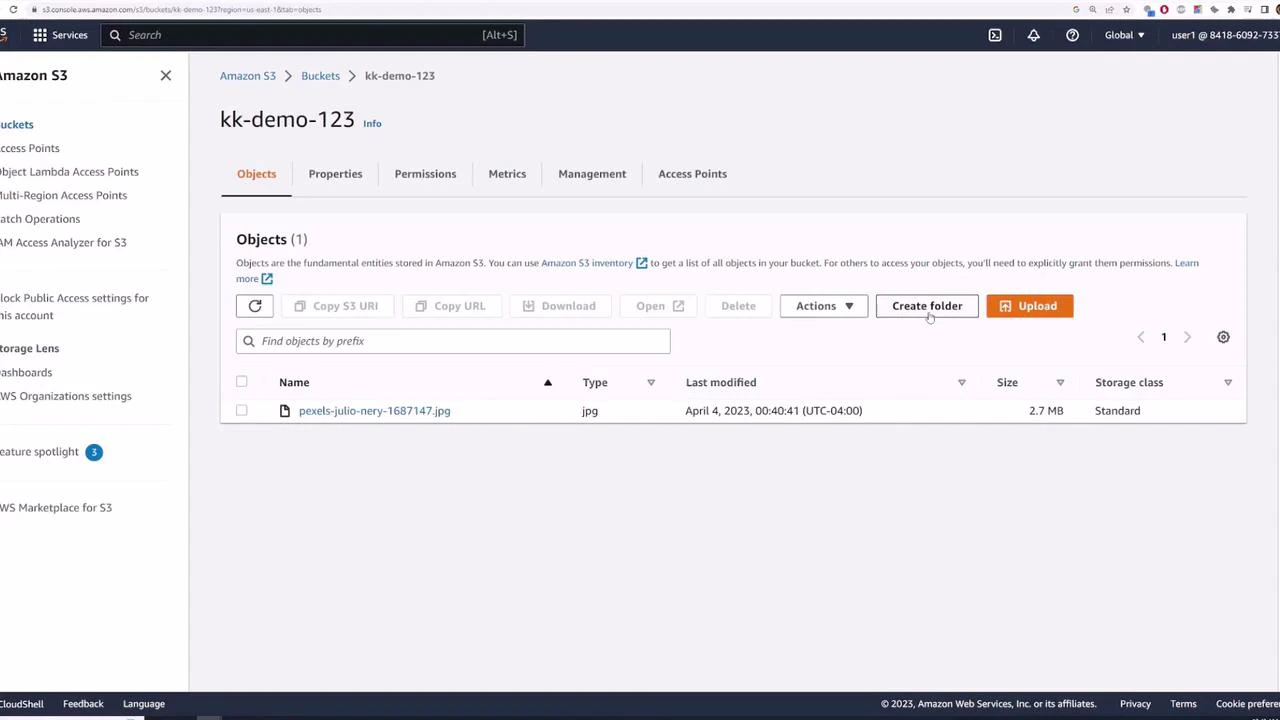
A screenshot of the Amazon S3 web console showing the bucket "kk-demo-123" with one listed JPG file (pexels-julio-nery-1687147.jpg). The interface shows options like Create folder, Upload, and object details (size, last modified).
How Object URL vs Console Open works
  • Object URL (public): attempts to fetch the object anonymously. This will be denied unless you explicitly allow public reads via object ACLs, a bucket policy, or another mechanism.
  • Open (authenticated): uses your signed console session credentials, allowing you to view the object while signed in.
By default, S3 buckets and objects are private. To serve assets publicly (for a website, for example), you must explicitly change the object or bucket settings (object ACL, bucket policy, or use a signed URL or a CloudFront distribution) to allow public or authorized access. See: Pre-signed URLs and Amazon CloudFront.
Creating a “folder” and uploading multiple objects Remember: S3 is a flat key-value store. The console presents a folder-like UI by using prefixes in object keys—there are no true filesystem folders, only object keys that include slashes. Create a folder named food, open it, and upload multiple images. The console will show upload progress for large or multiple files.
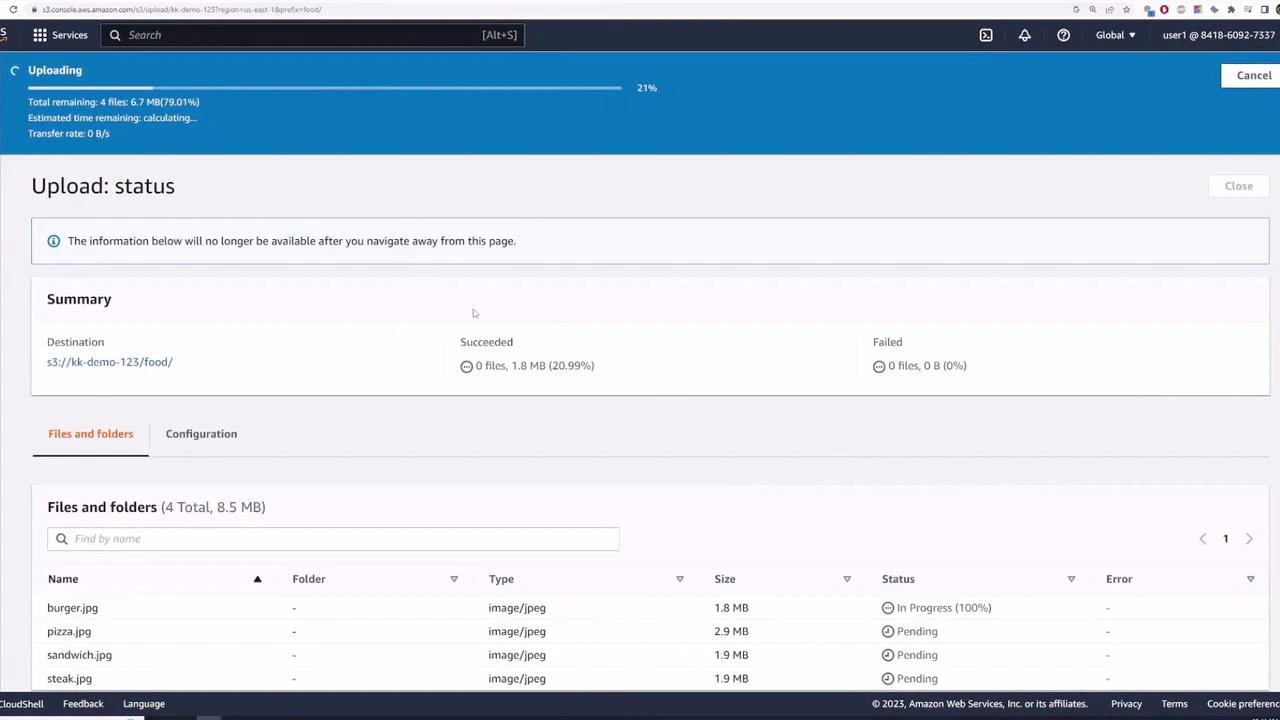
A screenshot of the AWS S3 console showing an "Upload: status" page with a blue progress bar and summary information. The file list below shows image files (burger.jpg, pizza.jpg, sandwich.jpg, steak.jpg) with sizes and upload statuses (In Progress/Pending).
When objects are uploaded into the food prefix, their keys include that prefix. Example:
s3://kk-demo-123/food/burger.jpg
Although the console shows a folder icon, the underlying storage key is food/burger.jpg. If you click an Object URL while unauthenticated, you’ll still get Access Denied unless that object or bucket is configured for public access. Use the console’s Open action to view it while authenticated. Deleting objects and moving objects
  • Delete: Select an object and choose Delete. Without versioning enabled, deletion permanently removes the object.
  • Move (rename): S3 does not support native renames. The console’s Move action performs a copy to the new key (destination prefix) and then deletes the original key—effectively copy + delete.
Example: move steak.jpg into food/test/ by specifying the destination:
s3://kk-demo-123/food/test/
Delete confirmation and result
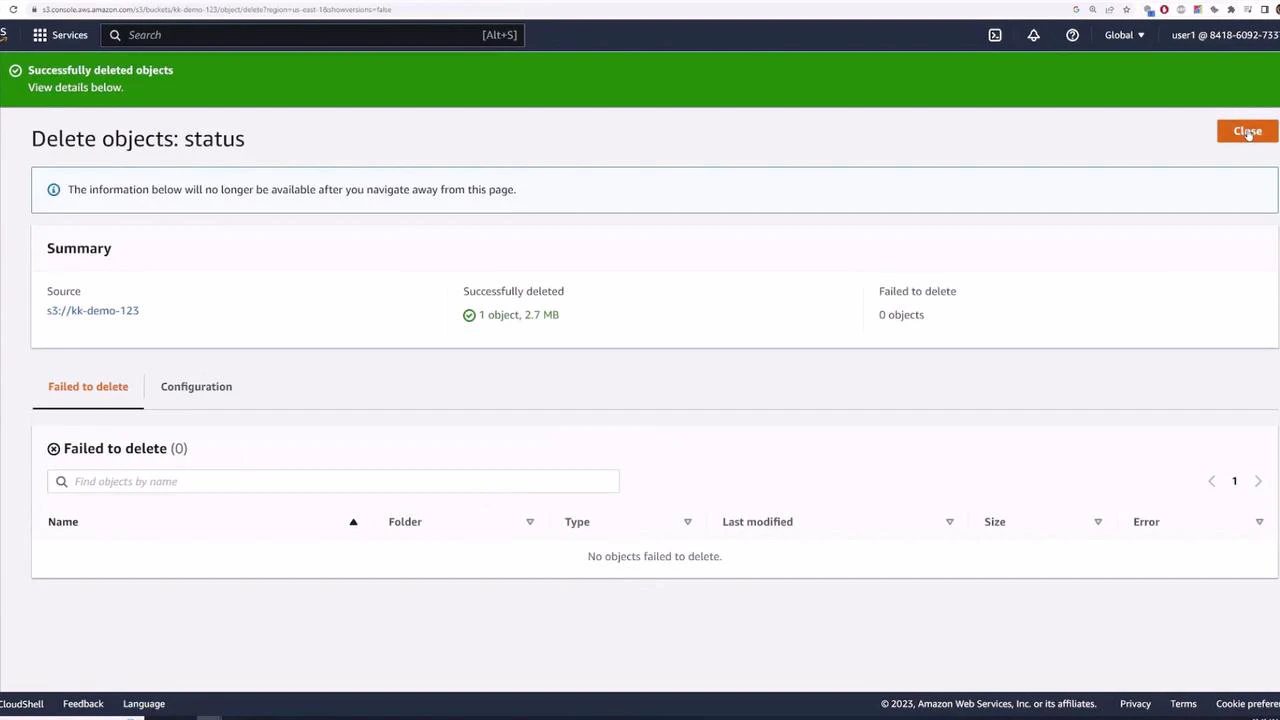
A screenshot of the AWS S3 console on the "Delete objects: status" page, showing a green banner that one object (2.7 MB) was successfully deleted. The summary and table indicate no objects failed to delete.
Deleting a bucket — requirements and best practices S3 requires a bucket be empty before deletion. If you attempt to delete a non-empty bucket, the console will warn you to empty it first. If versioning is enabled, you must also remove all object versions and delete markers to fully empty the bucket.
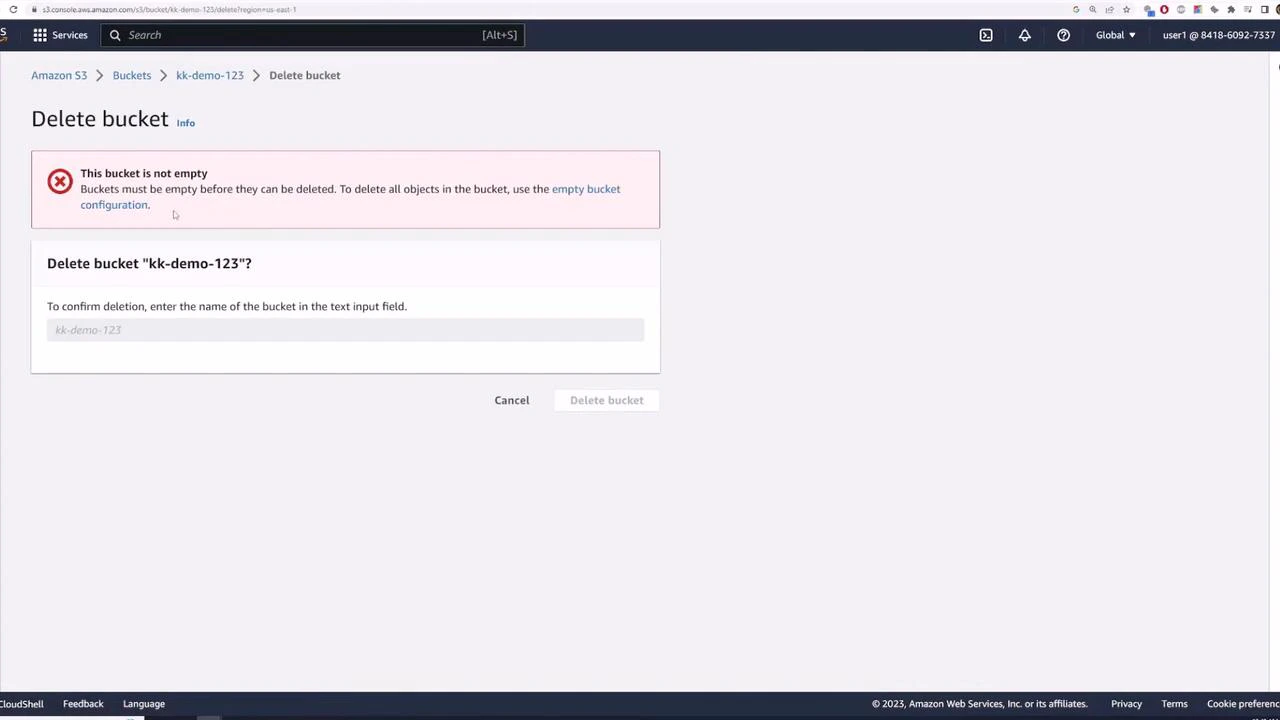
A screenshot of the Amazon S3 console showing a "Delete bucket" dialog with a red warning that the bucket ("kk-demo-123") is not empty and must be emptied before deletion. The dialog asks the user to type the bucket name to confirm deletion.
To empty a bucket using the console, choose Empty and confirm by typing permanently delete. This will remove the objects from the bucket (permanent if versioning is off).
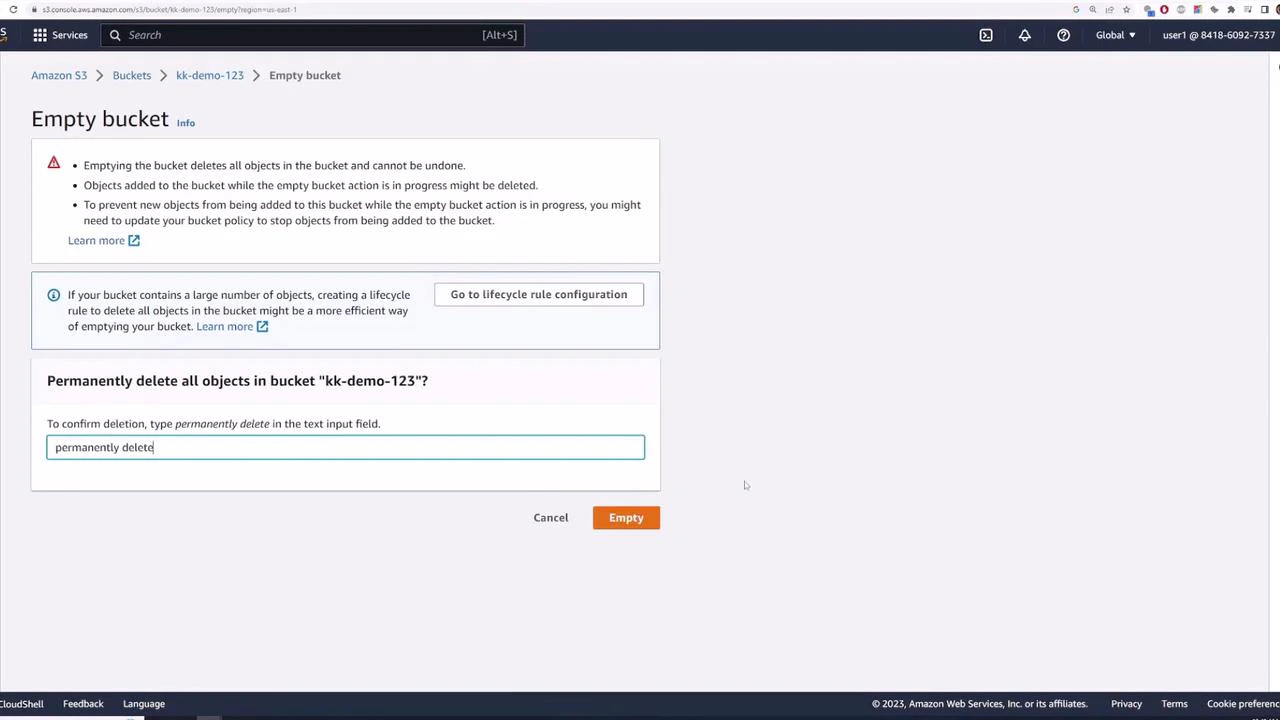
A screenshot of the Amazon S3 console showing the "Empty bucket" confirmation for bucket "kk-demo-123," including warnings and instructions to type "permanently delete." The text field contains "permanently delete" and there are Cancel and orange "Empty" buttons at the bottom.
If versioning is enabled, “emptying” a bucket requires removing all object versions and delete markers. Failing to remove versions means the bucket is still not empty and cannot be deleted. Consider using lifecycle rules or scripted solutions (AWS CLI, SDKs) to remove versions at scale.
Summary This lesson covered the practical S3 console workflows you’ll use most often:
  • Inspecting object metadata and settings (Region, size, key, S3 URI, ARN, ETag)
  • Understanding Object URL vs authenticated Open (default is private)
  • Using prefixes to simulate folders; uploading multiple objects into a prefix
  • Deleting objects (permanent when versioning is off)
  • Moving objects (copy + delete under the new key)
  • Requirement that a bucket be empty before deletion (and the extra steps needed when versioning is enabled)
Further reading and references

Watch Video

Practice Lab