

- docker run — create & start containers
- docker ps — list containers
- stop & remove containers
- docker images, docker rmi, docker pull — image management
- why some containers (like
ubuntu) exit immediately - running specific commands and
docker exec - foreground vs detached mode
- quick tips and references
docker run — Create and start a container
Thedocker run command creates a container from an image and starts it. If the image is not available locally, Docker pulls it from Docker Hub on first use and reuses the downloaded image for subsequent runs.
Example: starting the official nginx image
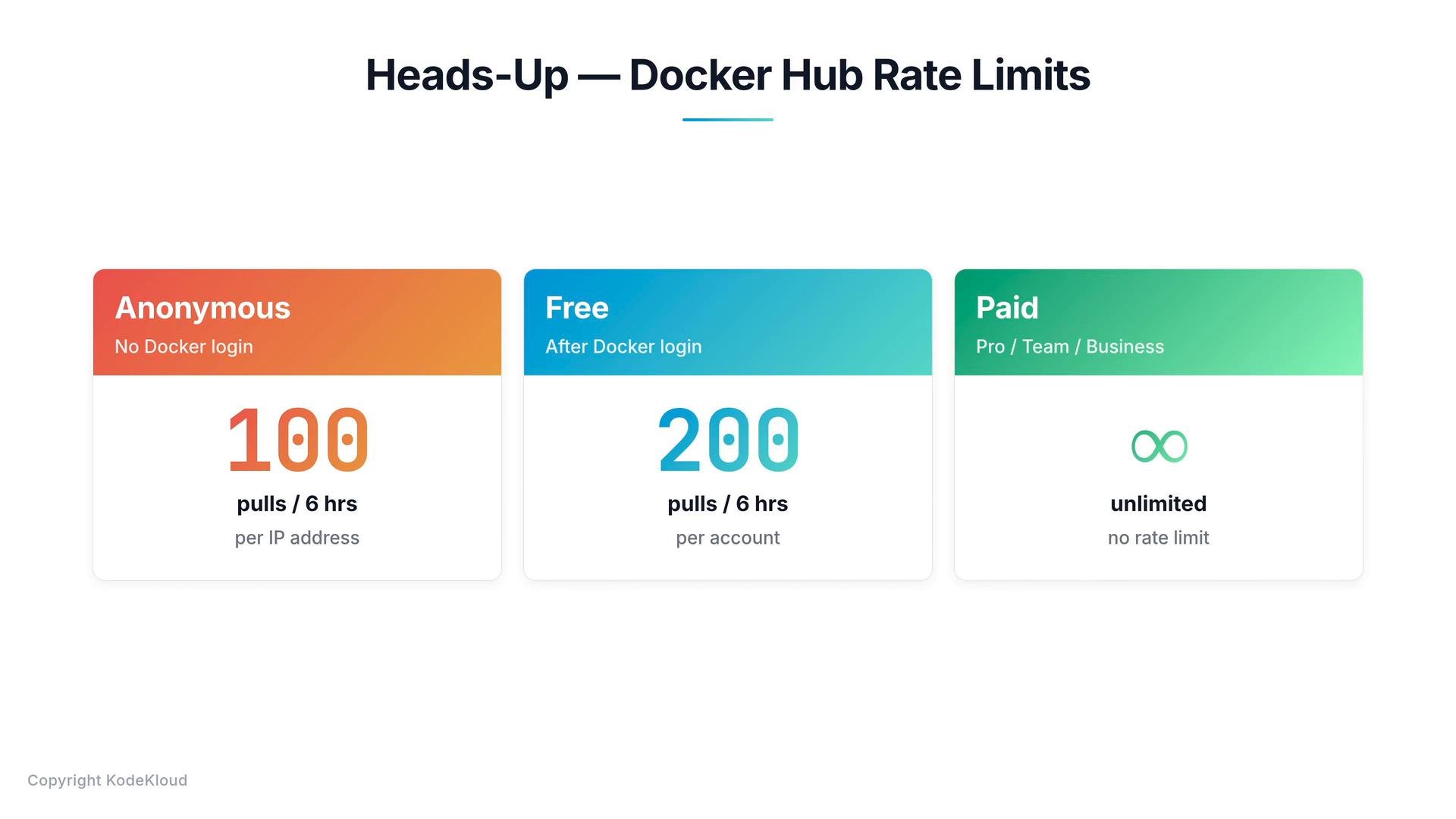
Docker Hub enforces pull rate limits for unauthenticated and authenticated accounts. If you see “too many requests” errors while following this lesson, log in with
docker login or use a paid plan to avoid interruptions.docker ps — List running (and all) containers
docker pslists running containers and shows columns such as CONTAINER ID, IMAGE, COMMAND, CREATED, STATUS, PORTS, and NAMES.- Docker auto-generates a friendly container name (for example,
silly_sammet) unless you set one with--name.
-a:
Stop and remove containers
- Stop a running container:
-
After stopping, the container will appear in
docker ps -awithExitedstatus. - Remove a stopped container permanently:
Before removing an image with
docker rmi, stop and remove any containers that depend on it. Removing an image in use will fail.docker images, docker rmi, and docker pull — Image management
docker imageslists images on the host including repository, tag, image ID, creation time, and size.- Remove an image with:
- Pull an image without running it:
Why an ubuntu container often exits immediately
Containers run the command specified in the image’s CMD or ENTRYPOINT. Base images like ubuntu usually don’t run a long-lived process, so the container starts, runs the default command (often non-interactive or nothing), then exits.
Example:
sleep, a shell with interactive mode, or an actual daemon).
Run a specific command when starting a container
You can override the image’s default command by appending a command todocker run:
sleep 5, then the container exits after 5 seconds.
If you want an interactive shell:
Execute commands inside a running container: docker exec
docker exec runs a command inside an already-running container. This is handy for debugging, inspecting files, or running a shell.
Example: viewing /etc/hosts inside a container
Foreground (attached) vs detached mode
- By default
docker runattaches the container’s stdout/stderr to your terminal (foreground). Pressing Ctrl-C will stop the container. - To start a container in the background, use
-d(detached):
- Reattach to a container’s streams with:
Quick reference — common Docker commands
Note: In the examples above, when angle brackets are used for placeholders, use backticks around them. For example,
docker stop <container-name-or-id>`
Tips and reminders
- You only need the leading unique characters of a container ID to reference it.
- Stop and remove containers before removing their images.
- Authenticate with
docker loginto increase pull quotas and reduce rate-limit interruptions. - Use
-itfor interactive shells (-ikeeps STDIN open;-tallocates a pseudo-TTY).
Links and references
- Docker Hub: https://hub.docker.com
- Docker CLI reference: https://docs.docker.com/engine/reference/commandline/cli/
- Docker run reference: https://docs.docker.com/engine/reference/commandline/run/