

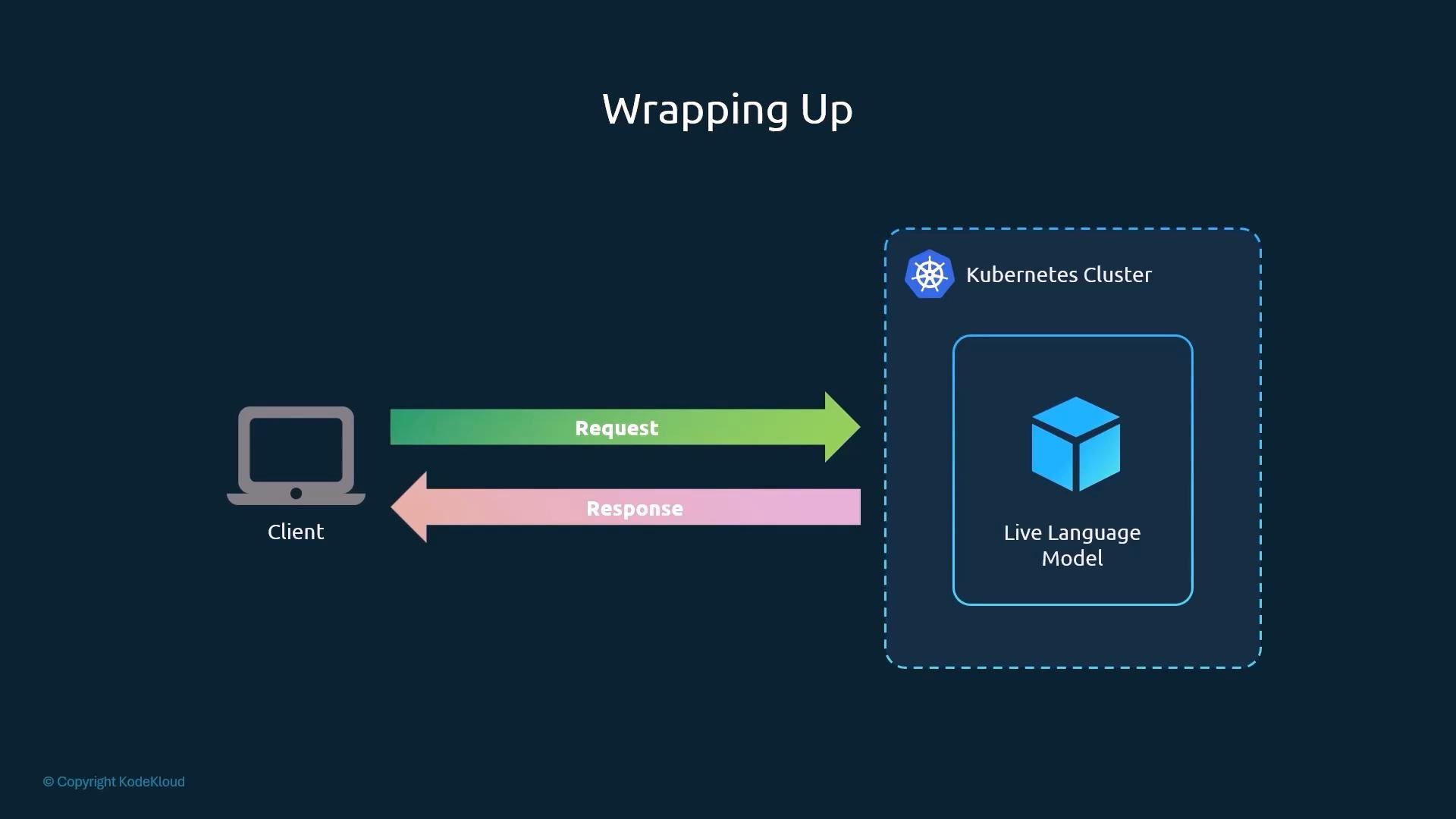
kubectl port-forward, send an HTTP request with curl, and inspect the JSON response. By the end you’ll understand how to call a KServe inference endpoint that exposes an OpenAI-compatible API.
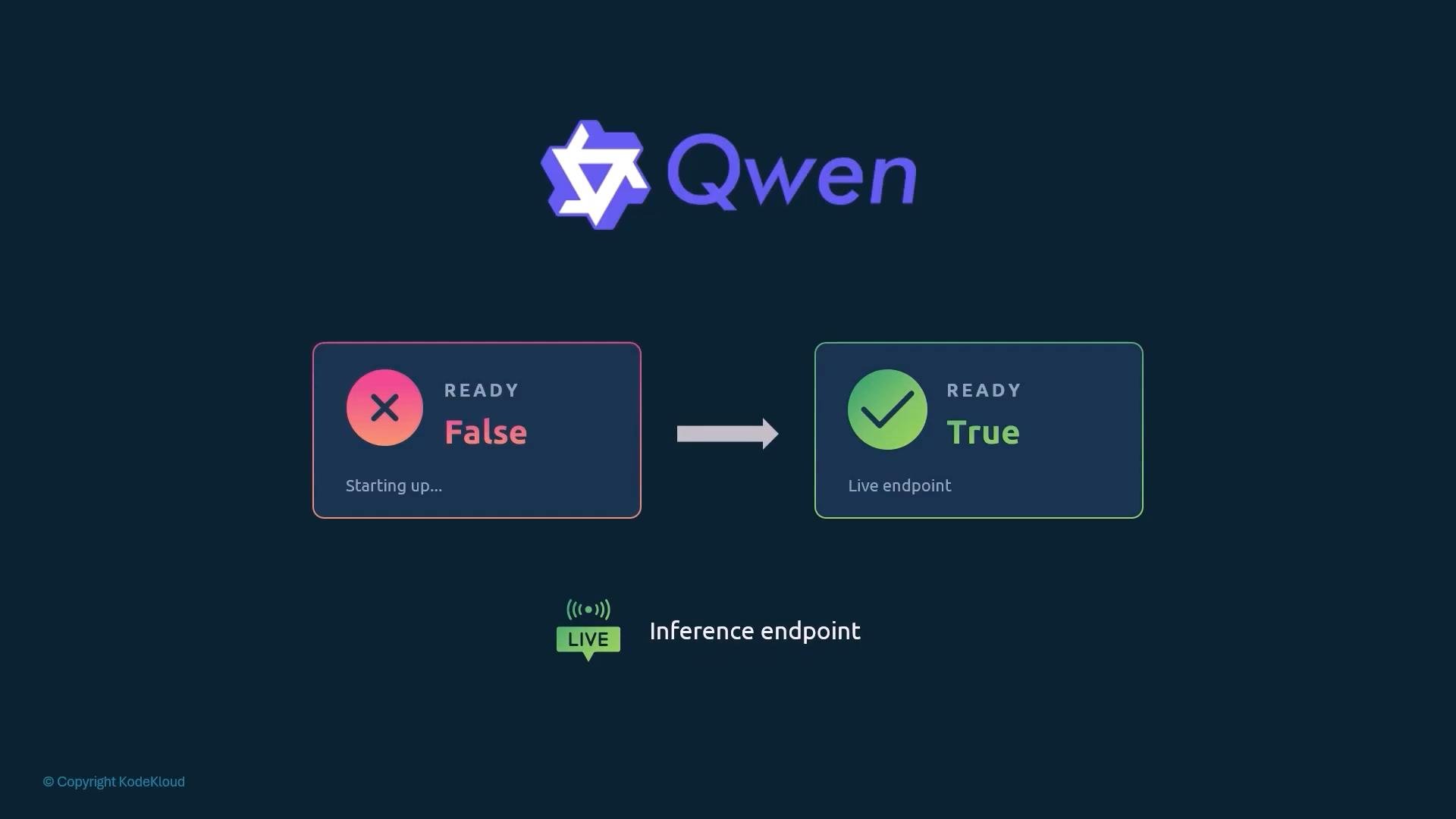
kubectl port-forward. Traffic you send to localhost is forwarded to the service inside the cluster for the duration of the command.
KServe creates an InferenceService plus a corresponding Kubernetes Service for the predictor. In this example the predictor service is named qwen-model-predictor and it lives in the kserve-inference namespace.
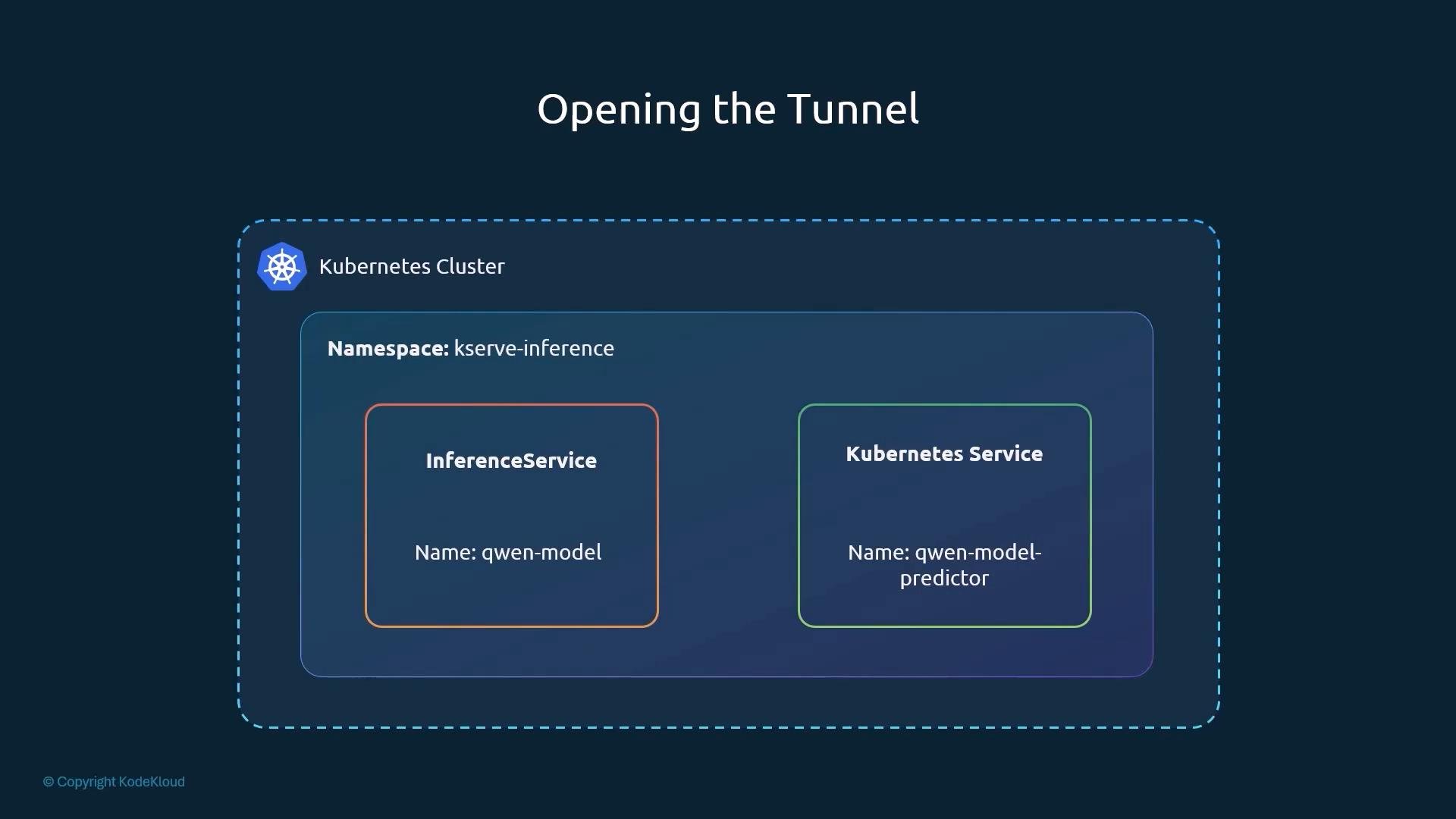
8080 to port 80 on the qwen-model-predictor service in the kserve-inference namespace:
Keep this terminal open while you make requests. The port-forwarding tunnel stops when you close the command.
messages, and a max_tokens limit to bound the response length. Example request (use this from the second terminal):
-ssilences curl’s progress output so only the response is printed.-H "Content-Type: application/json"ensures the server interprets the body as JSON.- The JSON body includes the required
model,messages, andmax_tokensfields.
The first request may take a few extra seconds as the model begins producing tokens. The server returns a JSON response that typically contains:
choices[0].message.content— the model’s textual reply you want to display or parse.usage— token accounting for prompt/completion/total (useful for cost monitoring).
jq (if installed):
- KServe docs: https://kserve.github.io/website/
- kubectl port-forward: https://kubernetes.io/docs/tasks/access-application-cluster/port-forward-access-application-cluster/
- Ingress (Kubernetes): https://kubernetes.io/docs/concepts/services-networking/ingress/
- curl manual: https://curl.se/docs/manpage.html
- jq: https://stedolan.github.io/jq/