Use this file to discover all available pages before exploring further.
In this guide, we explore how to manage different environments—development and production—using environment variables. This approach simplifies testing by eliminating the need to manually change URLs every time you switch between servers.
Suppose you have deployed your API on a production server running on IP address 192.168.1.42 at port 4000, while your development server runs on localhost. For example, executing a cURL command against the production server:
curl 192.168.1.42:4000
returns:
{"status": "success"}
Calling the same endpoint on the development server using localhost returns an identical successful response.Below is a sample implementation of a sign-up endpoint in a Node.js application:
You might currently be testing your production server by manually updating URLs in your code and HTTP requests—from localhost to 192.168.1.42 and vice versa:
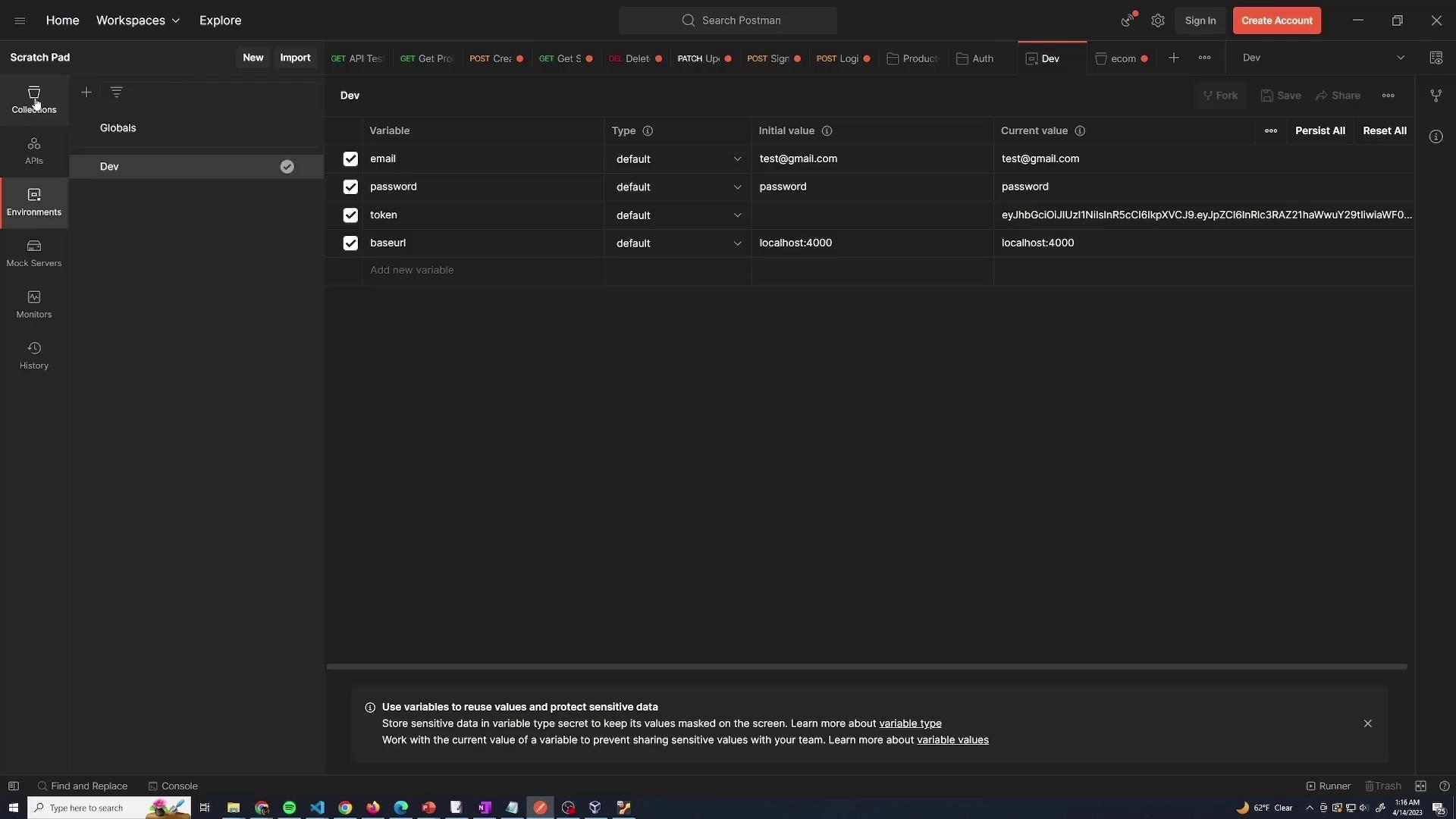
Instead of hardcoding URLs, create an environment variable (for example, “base URL”) that represents your server’s base address. In your development environment, set the base URL to localhost:4000 and save the configuration. This ensures that all API requests reference the same variable.
Once the base URL is configured, your GET request for products will automatically use the environment’s value. For instance, here’s a sample JSON response when fetching products:
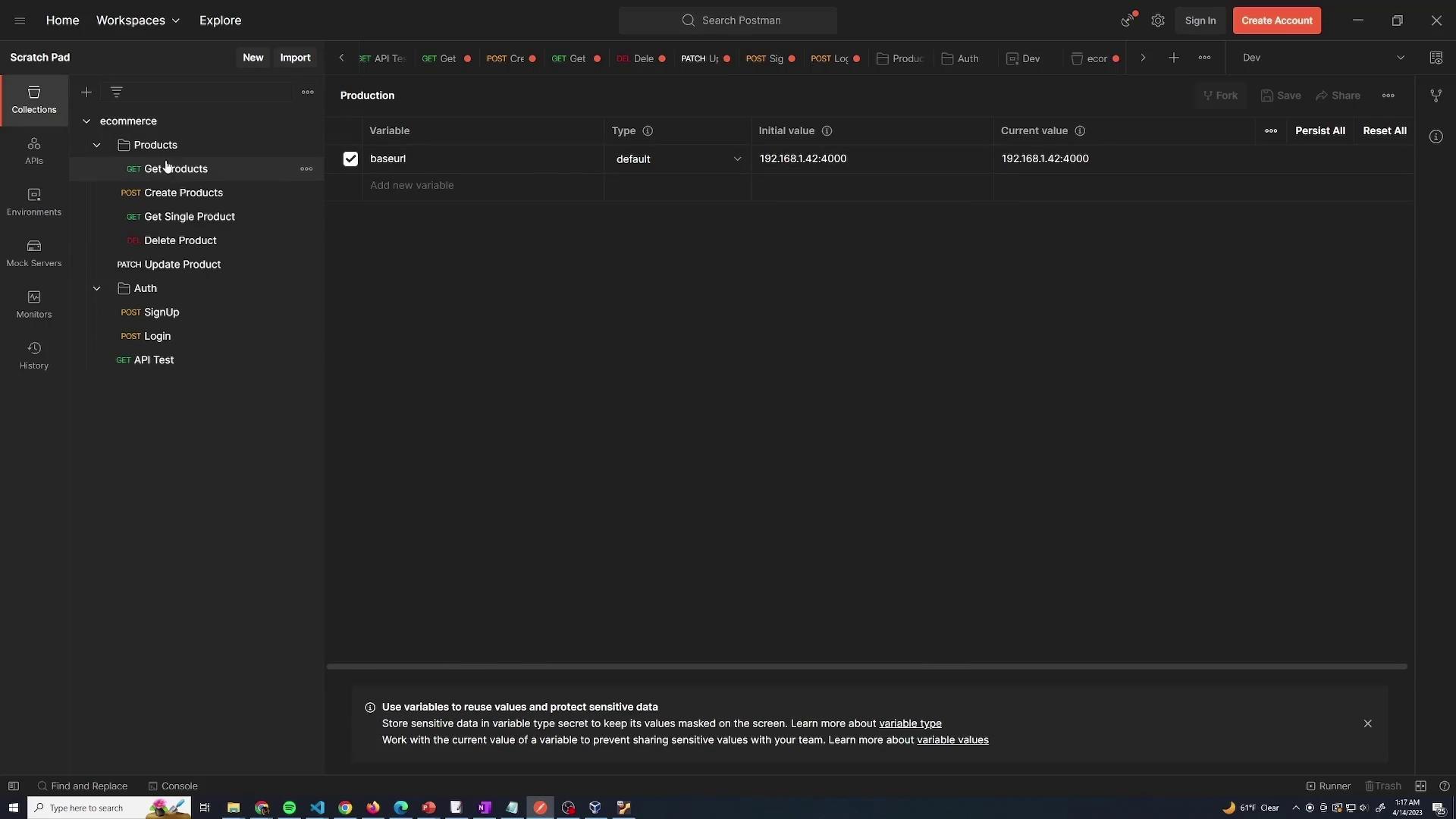
By switching the environment configuration, you can easily toggle between development and production. For instance, for production, set the “base URL” variable to 192.168.1.42:4000 and save it. When you run the same GET request, your REST API client will use the production URL.
When working in the development environment (with the base URL set to localhost), sending a GET request returns a full list of products. Changing the environment to production will use the production base URL and might return a different product response, such as:
If an endpoint returns no products, it could indicate that the production server currently has no products or that different query parameters are in effect. You can append query parameters to filter results. For example, to filter products by type or price:
GET {{baseurl}}/products?filter=tv&price=12
This might return:
{ "products": []}
You can either enter these parameters directly in the URL or specify them in the query parameters section of your API client.
Using environment variables not only simplifies switching between different servers but also minimizes the risk of errors from manually updating URLs. Postman automatically replaces the variable with the corresponding value from the selected environment.
By leveraging environment variables, you can streamline your workflow and avoid tedious manual updates when switching between development and production environments. This method enhances efficiency and reduces errors, making it an essential practice for API development and testing.For further reading on managing environments and testing APIs, check out the Postman Documentation.