

Setting Up Your Environment
First, navigate to your development environment and create a new variable called “token”. Instead of embedding the token directly in your collection’s configuration, dynamically referencing the token variable ensures that its value is always pulled from your environment. Be sure to save your environment after making any changes.After a successful login, the token is automatically captured from the response body and set as the value of the token environment variable.
Example Login Response
Below is an example of a token returned from a login response:Implementing the Token Extraction Script
To extract and store the token dynamically, add the following script to the Tests tab of your login request. This script parses the response JSON and sets the token environment variable: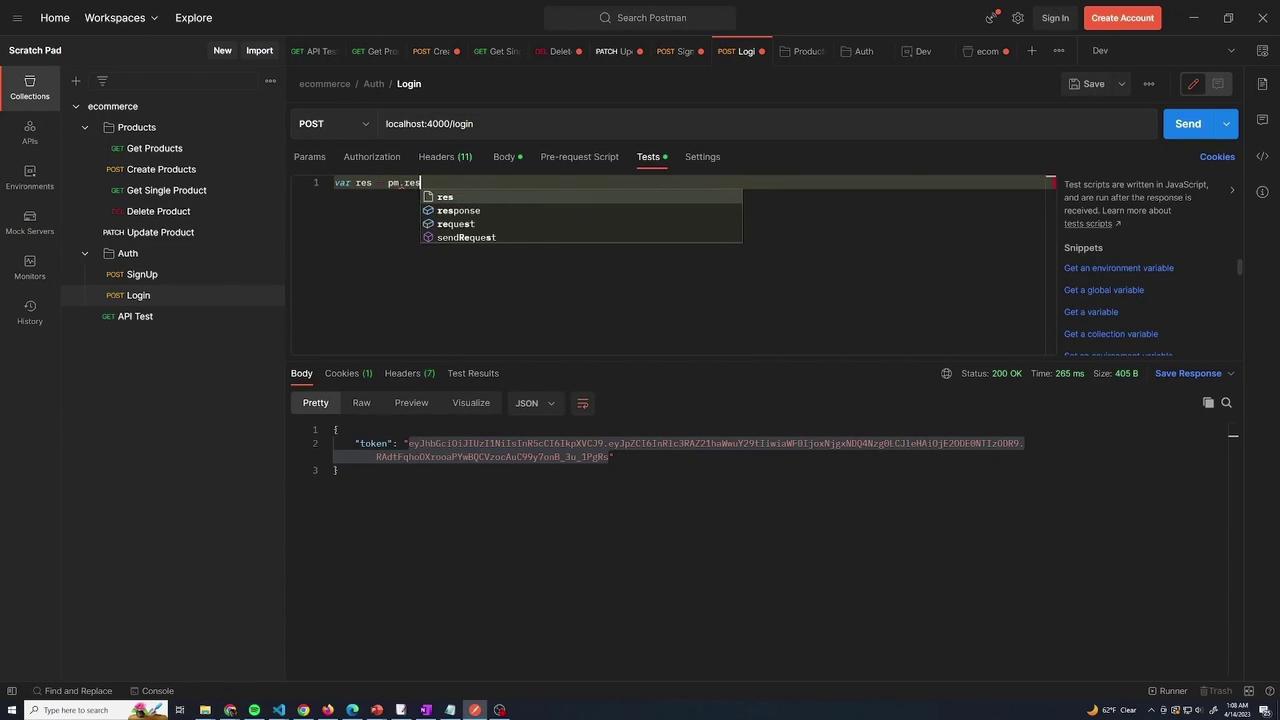
Verifying Dynamic Token Updates
After running the login request, inspect your environment settings to confirm that the token has been updated. This dynamic update is particularly useful when making authenticated requests, such as creating a new product, where the token is required for access.Example Request Body for Adding a Product
Example JSON Response After Creating a Product
For more detailed documentation on automating token management and optimizing your API testing workflow, check out the Postman Documentation.