In this guide, you’ll learn how to use Telepresence for seamless local development against a Kubernetes cluster by walking through a simple three-service demo application.
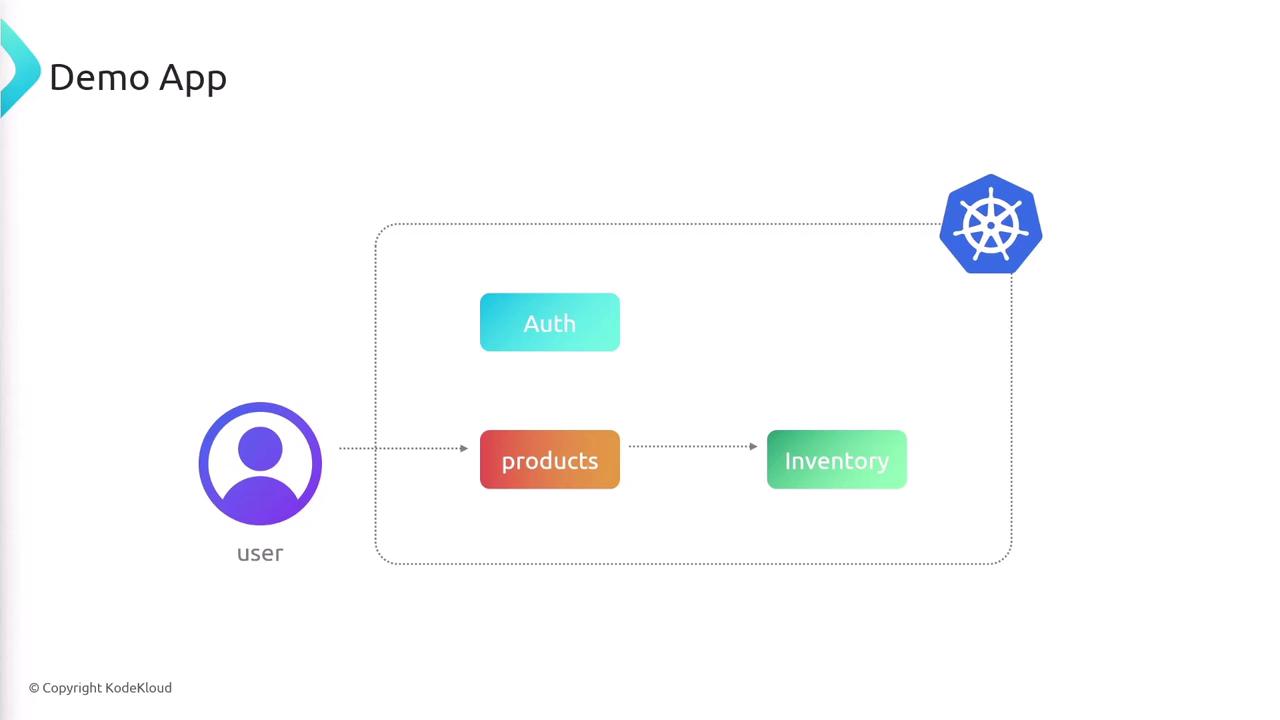
Application Architecture Our sample app comprises three microservices:
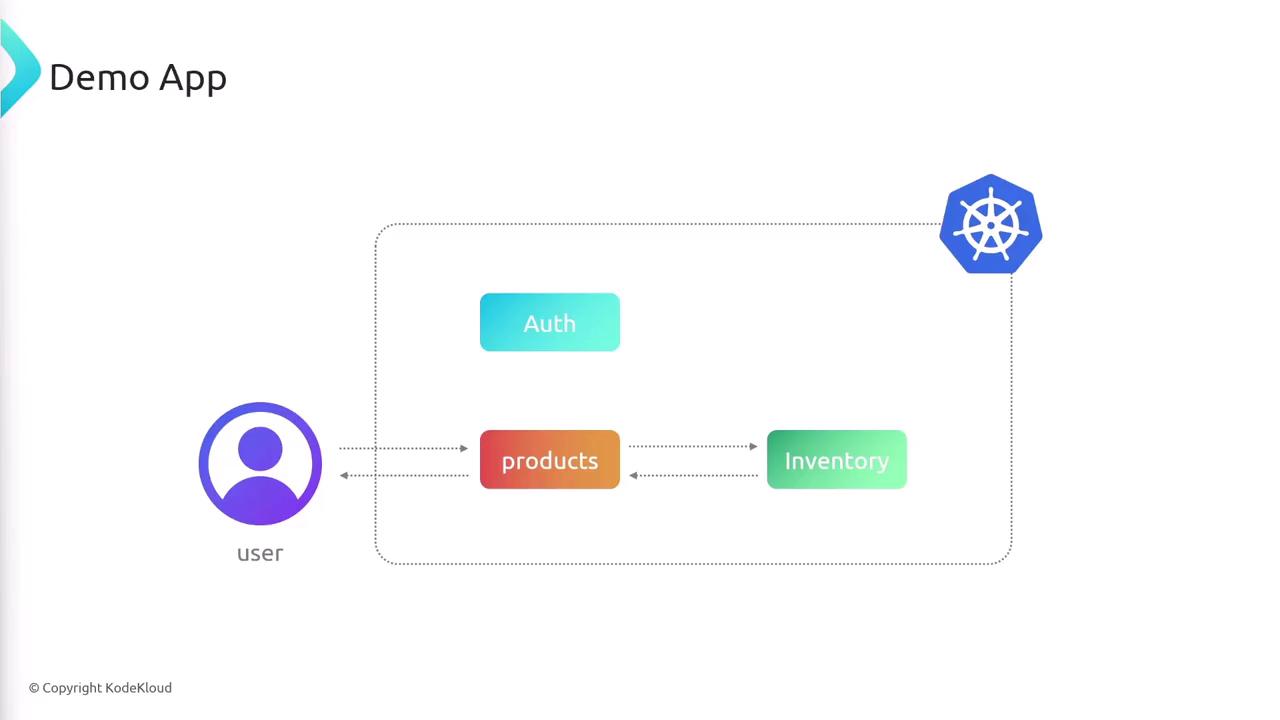
Service Description Port auth Handles user authentication 3000 products Returns product details; user entry point 3000 inventory Tracks stock levels per product 3000
When a client requests product data, products calls inventory to fetch stock counts and then merges the results. auth runs independently.
What We’ll Cover
Inspect application code and Kubernetes manifests
Install the Telepresence client locally
Deploy the Telepresence traffic manager in the cluster
Establish a connection and verify setup
Test DNS, service endpoints, and pod IPs from your laptop
Cleanly disconnect when finished
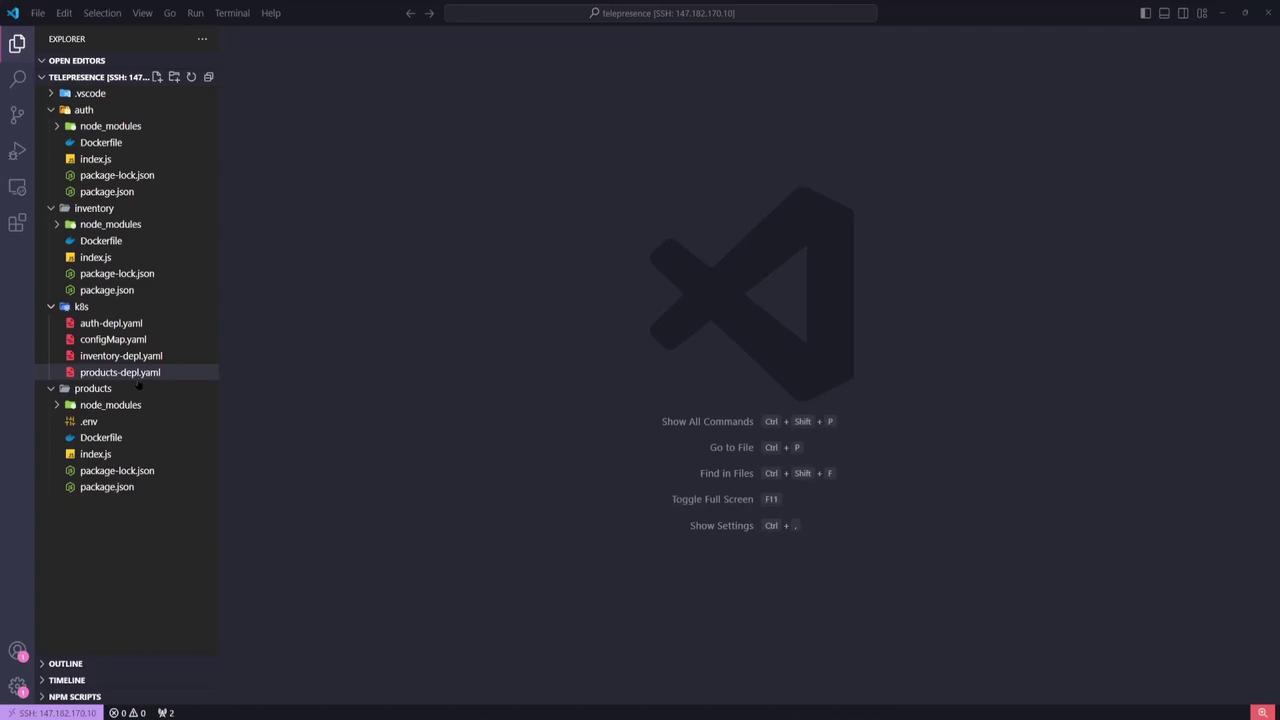
1. Inspecting the Code Open the project in VS Code or your preferred IDE. You’ll see three top-level folders—auth, inventory, and products—each containing:
index.js: Node.js entrypointpackage.jsonDockerfile
Under the k8s/ directory are the Kubernetes YAML manifests for each service.
2. Kubernetes Manifests Auth Deployment & Service apiVersion : apps/v1 kind : Deployment metadata : name : auth-depl spec : selector : matchLabels : app : auth template : metadata : labels : app : auth spec : containers : - name : auth image : sanjeevkt720/telepresence-auth ports : - containerPort : 3000 name : web --- apiVersion : v1 kind : Service metadata : name : auth-service spec : selector : app : auth ports : - port : 3000 targetPort : web type : ClusterIP
Inventory Deployment & Service apiVersion : apps/v1 kind : Deployment metadata : name : inventory-depl spec : selector : matchLabels : app : inventory template : metadata : labels : app : inventory spec : containers : - name : inventory image : sanjeevkt720/telepresence-inventory ports : - containerPort : 3000 name : web --- apiVersion : v1 kind : Service metadata : name : inventory-service spec : selector : app : inventory ports : - port : 3000 targetPort : web type : ClusterIP
Products Deployment & Service The products service is exposed via a LoadBalancer:
apiVersion : apps/v1 kind : Deployment metadata : name : products-depl spec : selector : matchLabels : app : products template : metadata : labels : app : products spec : containers : - name : products image : sanjeevkt720/telepresence-products ports : - containerPort : 3000 name : web env : - name : API_URL value : http://inventory-service:3000/ --- apiVersion : v1 kind : Service metadata : name : products-service spec : type : LoadBalancer selector : app : products ports : - port : 3000 targetPort : web
3. Verifying the Kubernetes Cluster Before proceeding, ensure your cluster is running and your kubectl context is set correctly.
You should see multiple nodes in the Ready state.
Make sure your kubeconfig points to the correct context. On managed services like AWS EKS , verify your cluster endpoint and authentication. 4. Installing the Telepresence Client On Windows, open PowerShell as an Administrator:
# 1. Download Telepresence (~50 MB) Invoke-WebRequest ` https: // app.getambassador.io / download / telzoss / releases / download / v2. 20.0 / telepresence - windows - amd64.zip ` - OutFile telepresence.zip # 2. Extract and remove archive Expand-Archive - Path telepresence.zip - DestinationPath telepresenceInstaller / telepresence Remove-Item telepresence.zip cd telepresenceInstaller / telepresence # 3. Run installer script powershell.exe - ExecutionPolicy Bypass - File . \install-telepresence.ps1 # 4. Cleanup cd .. / .. Remove-Item telepresenceInstaller - Recurse - Force # 5. Verify installation telepresence -- help
5. Deploying the Telepresence Traffic Manager Telepresence uses Helm to install its Traffic Manager. Simply run:
telepresence helm install
This creates the ambassador namespace and deploys the traffic manager pods.
kubectl get ns
# ...
kubectl get pods -n ambassador
# traffic-manager-xxxxx  1/1  Running
6. Connecting to the Cluster Establish a VPN-like tunnel between your laptop and the Kubernetes cluster:
Check connection status:
You’ll see details on:
Connection status
Active Kubernetes context & namespace
Routes for service and pod CIDRs
DNS proxy configuration
Traffic Manager health
Ensure you have cluster-wide permissions to deploy the Traffic Manager via Helm. You may need a cluster-admin role.
7. Reviewing Cluster Services Locally With Telepresence active, your laptop now behaves like a pod:
Example output:
NAME                TYPE           CLUSTER-IP      EXTERNAL-IP                                           PORT(S)
auth-service        ClusterIP      10.100.10.52    <none>                                                3000/TCP
inventory-service   ClusterIP      10.100.246.69   <none>                                                3000/TCP
products-service    LoadBalancer   10.100.169.75   a4519082e1ab846e38b3d9760c9e3b9-515600148.us-east-1.elb.amazonaws.com   3000:30782/TCP
kubernetes          ClusterIP      10.100.0.1      <none>                                                443/TCP
8. Testing DNS Resolution Verify Kubernetes DNS from your laptop:
Server:         127.0.0.53
Address:        127.0.0.53#53

Non-authoritative answer:
Name:   auth-service.default.svc.cluster.local
Address: 10.100.10.52
9. Curling Services Locally Auth Service curl http://auth-service:3000
{ "message" : "this is the auth service" }
Products Service curl "http://products-service:3000?product_ids=1,2,3"
{ "data" : [ { "id" : 1 , "name" : "iPhone 14" , "price" : 900 , "category" : "electronics" , "onSale" : false , "inventoryCount" : 893 }, { "id" : 2 , "name" : "Samsung 40in TV" , "price" : 500 , "category" : "electronics" , "onSale" : true , "inventoryCount" : 902 }, { "id" : 3 , "name" : "Apple MacbookPro" , "price" : 2500 , "category" : "electronics" , "onSale" : false , "inventoryCount" : 444 } ] }
10. Accessing a Pod by IP
List pods with IPs:
Curl the pod directly:
curl http://192.168.32.69:3000
{ "message" : "this is the auth service" }
11. Disconnecting Telepresence When you’ve finished testing, terminate the connection:
Confirm disconnection:
telepresence status
# Status: Disconnected
Links and References