

story_one.txt in an existing Git repository within the story_blog directory. This file will include sample content to illustrate the process.
Below is an example of initializing a Git repository and verifying its structure:
story1.txt with some content, check its status:
.git folder. This snapshot allows you to safely restore previous versions of the file even if modifications or corruption occur later.
After a successful commit, your working area will be clean:
Modifying a Tracked File
If you modify a file after committing, its state changes to modified (unstaged). For example, let’s add a new line tostory1.txt:
-m flag:
Committing Multiple Changes
Consider a scenario where you updatestory1.txt and create a new file named story2.txt:
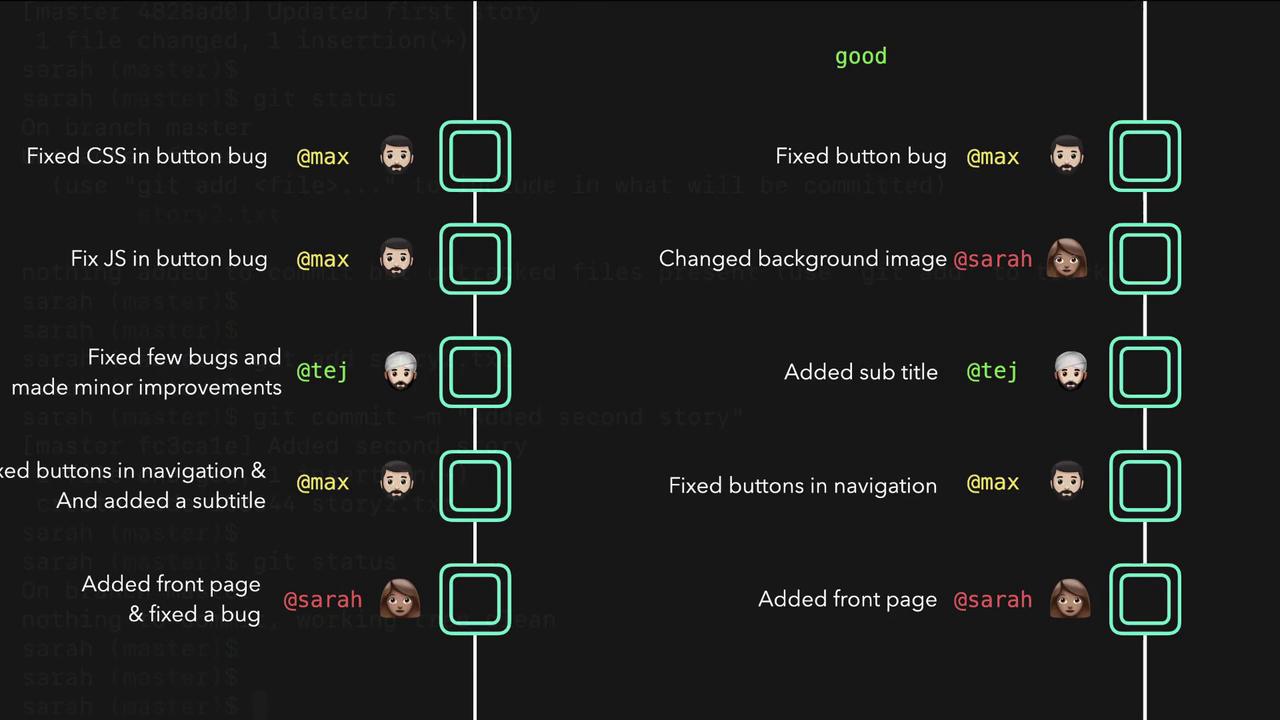
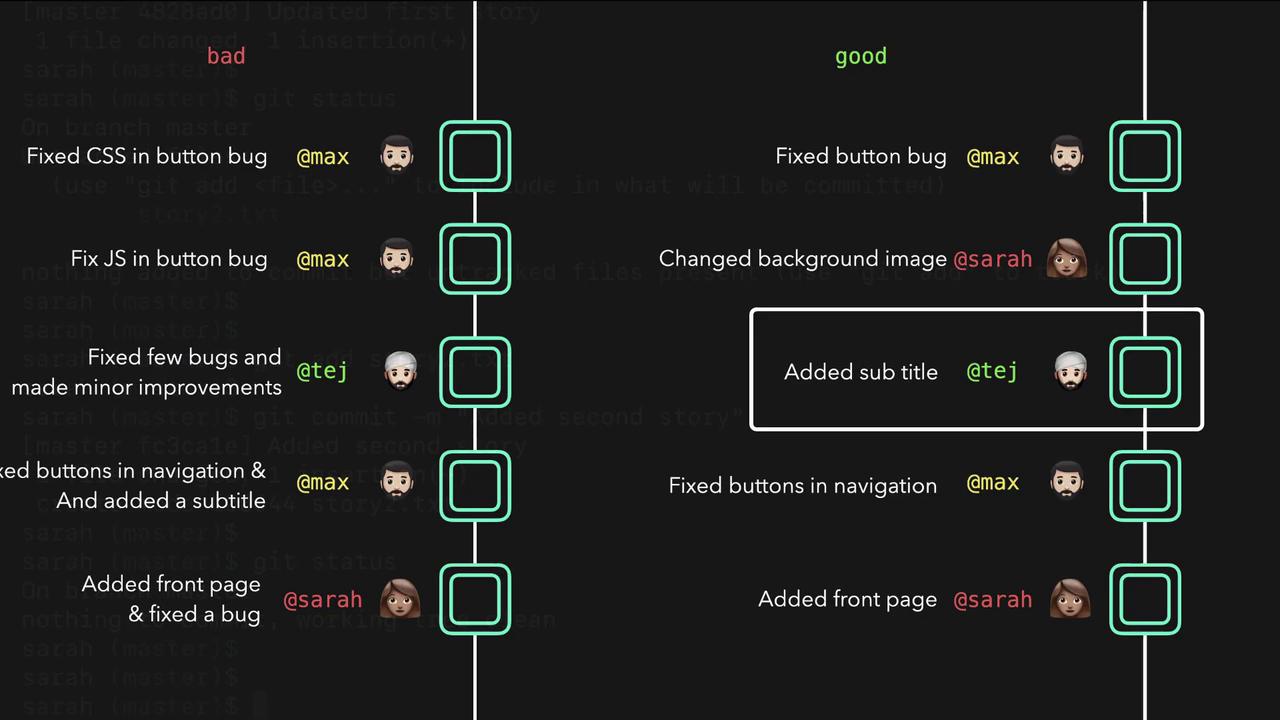
It is best practice to commit unrelated changes separately. Keeping commits atomic makes it easier to understand your project’s history and revert changes as necessary. For example, if one commit contains both a front page addition and an unrelated bug fix, it can be difficult to isolate one change without affecting the other.
Handling Modifications on a Staged File
Imagine you add a new line (line4) tostory1.txt:
Committing Specific Files
Now consider a scenario with two files in different modification states. Supposestory1.txt is staged while story2.txt is modified:
story2.txt separately without including the staged changes from story1.txt, first remove story1.txt from the staging area:
story2.txt:
story1.txt remains modified and can be committed later with its own commit message.
Managing Untracked Personal Files
Sometimes you may have personal files that should not be tracked by Git, such as a file namednotes.txt for your personal ideas:
git add ., notes.txt will also be staged along with story1.txt:
notes.txt is a personal file that you do not want to commit, remove it from the staging area using the cached option:
To permanently prevent accidental staging of personal or sensitive files like
notes.txt, add the filename to your .gitignore file:notes.txt to your .gitignore:
.gitignore file in your repository is a best practice—it clearly communicates to your team which files or directories (such as logs, caches, or build artifacts) should be ignored by Git.
Conclusion
This demonstration covers how to:- Initialize a Git repository.
- Track, stage, and commit new and modified files.
- Handle scenarios where only specific files should be committed.
- Maintain a clean working directory with best practices like atomic commits and proper use of
.gitignore.