

In this lesson, we explain the concept of Git branches and why they are essential for effective version control. Branches allow you to work on new features, fix bugs, or experiment safely without affecting the production code. When you initialize a Git repository, the default branch is typically called “master” (or “main”). As your project grows and your team collaborates, using branches becomes a best practice for isolating changes until they are ready to be merged. For example, when a new developer joins the project to work on a new feature, instead of modifying the production branch directly, you create a separate branch for their work. Once the feature is complete and well-tested, it can be merged back into the production branch, ensuring a clean and stable codebase. A Git branch is essentially a pointer referring to the latest commit on that branch. You might create a branch like “feature/forward/signup” for a new signup feature and later merge it into the master branch upon completion.Documentation Index
Fetch the complete documentation index at: https://notes.kodekloud.com/llms.txt
Use this file to discover all available pages before exploring further.
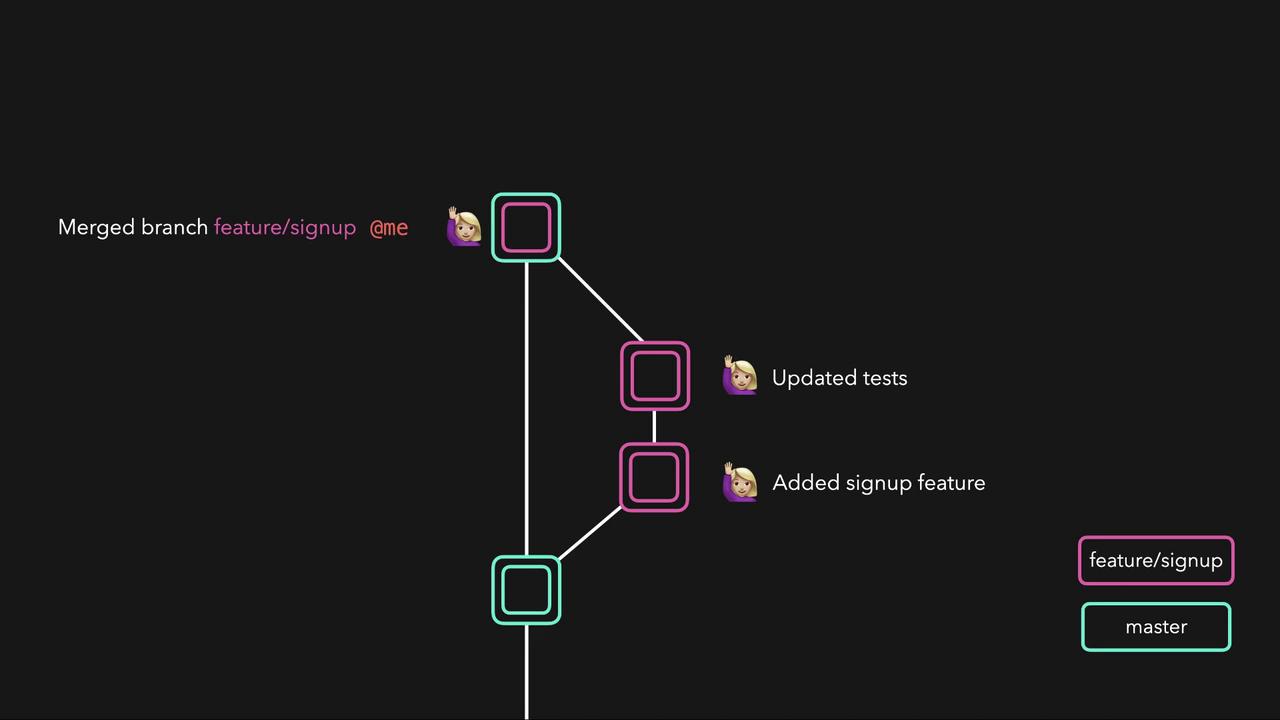
Creating and Managing Branches
To create a new branch in Git, you can use thegit checkout -b command followed by the branch name. For instance, if developer Sarah needs her own branch, you would run:
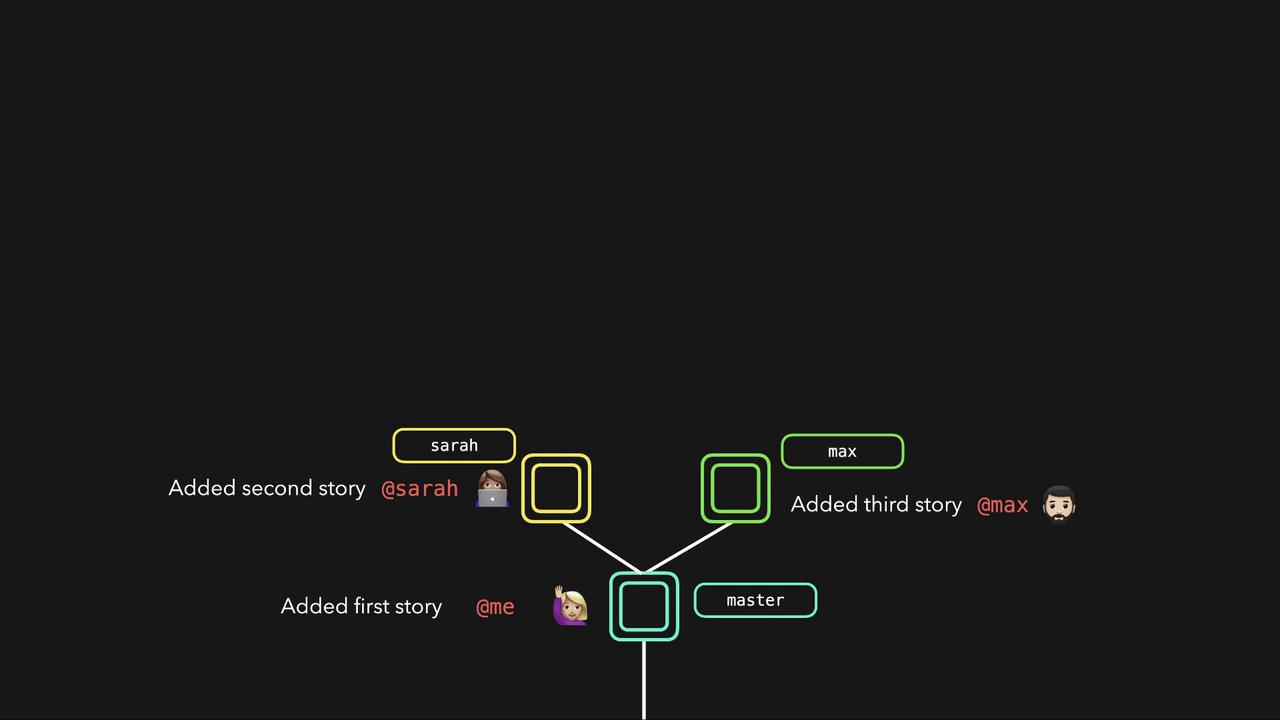
Essential Git Branch Commands
Below are some common Git commands for managing branches:git checkout -b command is a shorthand that creates and switches to a new branch with one step. To delete a branch, you can use:
Understanding HEAD in Git
In Git, HEAD is a reference to your current location in the repository. It always points to the latest commit on the branch you are working on. Changing branches moves the HEAD pointer to the tip of the target branch:The HEAD pointer is crucial for tracking the state of your work. Understanding how HEAD moves during commits and branch switches helps you navigate the repository more effectively.