

If you’re running Loki locally for testing, you can use several commands based on your operating system.
Running Loki Locally
To run Loki on your local machine, choose the appropriate command:Configuring Grafana
Open a new browser tab and navigate to your Grafana server (typically available at http://localhost:3000). In Grafana, follow these steps:- Open the dropdown menu and select “Connections”.
- Add a new data source.
- Choose Loki from the available options.
- Name the data source “Loki”.
- Provide the URL to your Loki server (e.g., http://localhost:3100).
- Click Save & Test to verify the connection.
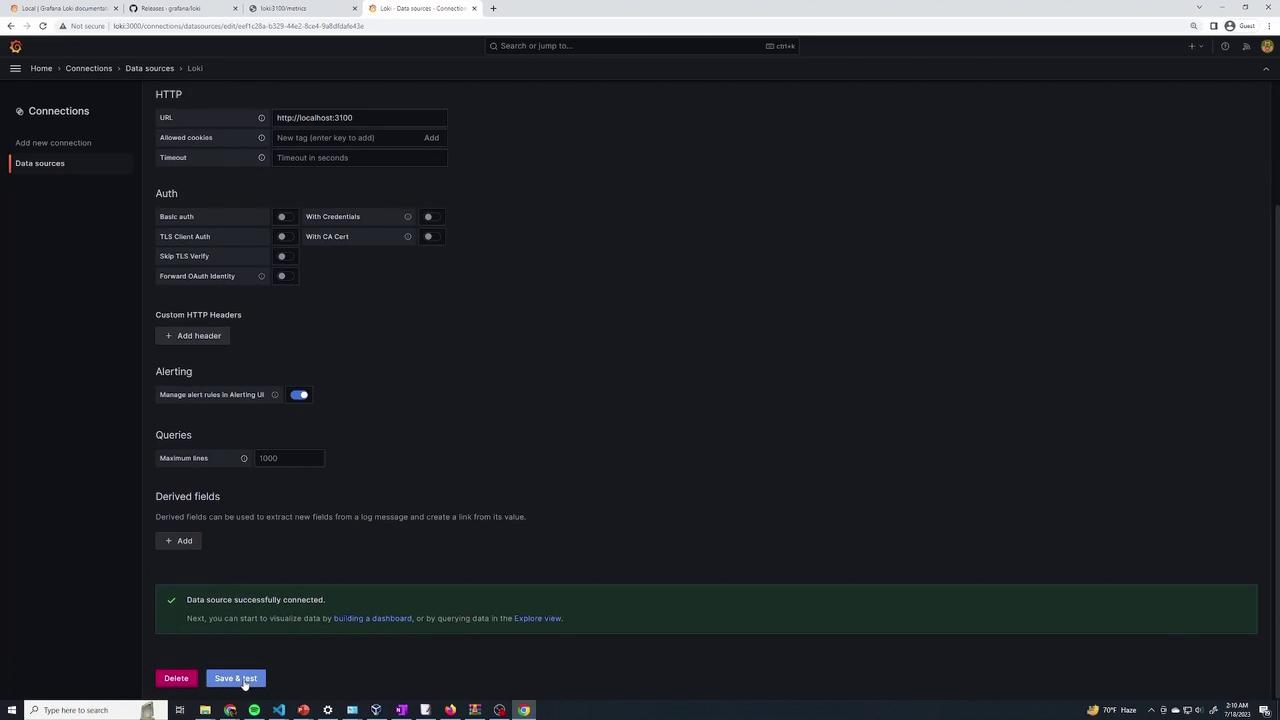
Querying Logs in Grafana
Switch to the Explore section in Grafana and ensure that Loki is selected as your data source. Grafana will automatically display various labels such as job names and file names from which the logs originated. These labels are useful for filtering the logs you wish to view.Filtering Logs by Label
To filter logs by a specific label—such as logs where the labeljob is set to “varlogs”—use the following query:
Querying Logs by Specific File
If you need to query logs from a specific file, such as/var/log/kern.log, adjust your query by filtering with the filename label. For example, to display logs from /var/log/kern.log that contain the term “docker”, use:
Querying Logs from Multiple Files
You can also query logs from multiple files by using a regular expression. For instance, to retrieve logs from either/var/log/kern.log or /var/log/syslog, use:
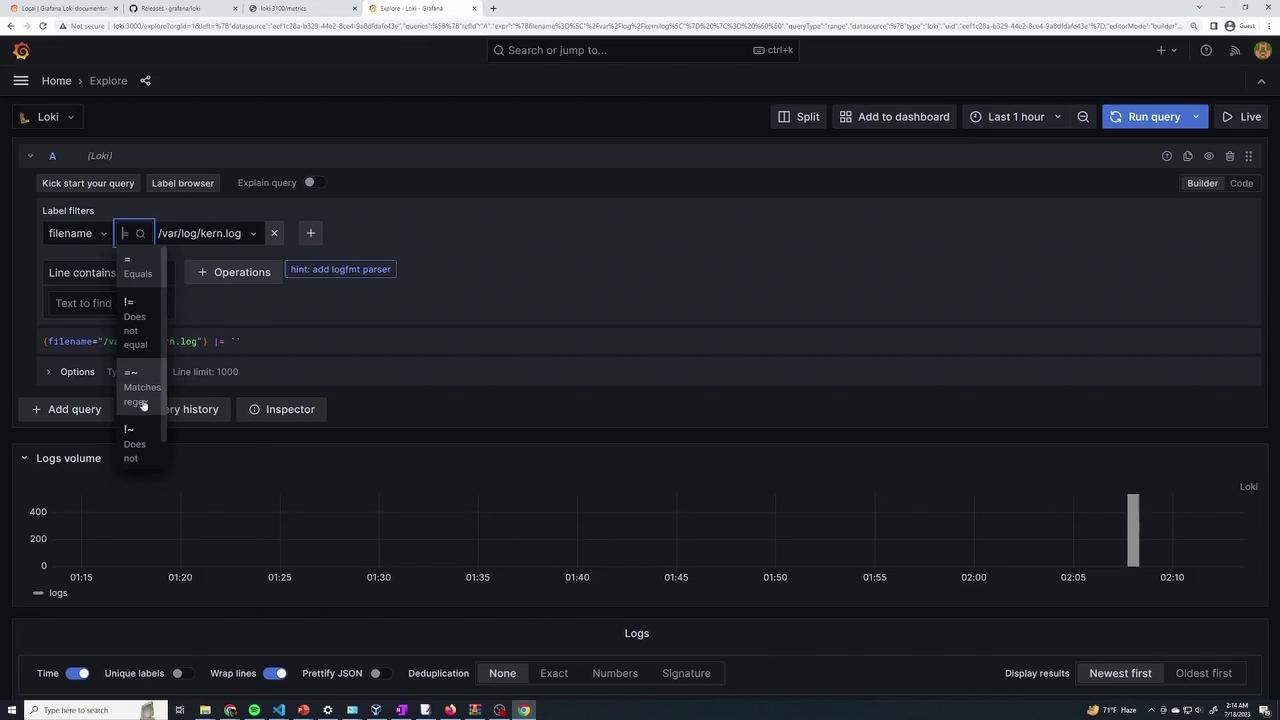
These examples illustrate how you can leverage Loki’s powerful LogQL to filter logs using labels and search within log messages. Grafana’s intuitive query builder further simplifies the process, enabling you to quickly locate the logs relevant to your operations and troubleshooting needs.