Using port forwarding is an excellent way to test and interact with in-cluster applications like Grafana without exposing them to the public internet.
Step 1: Inspect Your Kubernetes Resources
To begin, list all running pods and services using the following command:Step 2: Set Up Port Forwarding
Since our focus is on Loki and Grafana, we will forward the port for Grafana rather than changing the service type. This method enables you to connect to the Grafana pod from your local machine directly.-
List the Pods:
First, confirm the name of the Grafana pod:Sample output: -
Forward the Port:
Forward port 3000 from the Grafana pod to your local machine using the following command. This port mapping allows local connections to interface with the Grafana container that listens on port 3000:
Port forwarding is ideal for testing; however, it is not recommended for production environments. Always secure your clusters appropriately when exposing services.
Step 3: Retrieve Grafana Credentials
When you access Grafana via your browser, you’ll be prompted for a username and password. The default username is “admin”. To retrieve the admin password, you need to inspect the Kubernetes secrets created by the Helm charts.-
List All Secrets:
Run the following command to view all secrets:Example output: -
Inspect the loki-grafana Secret:
Identify the secret named “loki-grafana” and display its details with:In the output, look for the following data fields:- admin-password: 40 bytes
- admin-user: 5 bytes
- ldap.toml: 0 bytes
-
Decode the Admin Password:
Extract and decode the admin password (which is Base64 encoded) using this command:
Step 4: Verify Grafana Dashboard and Loki Data Source
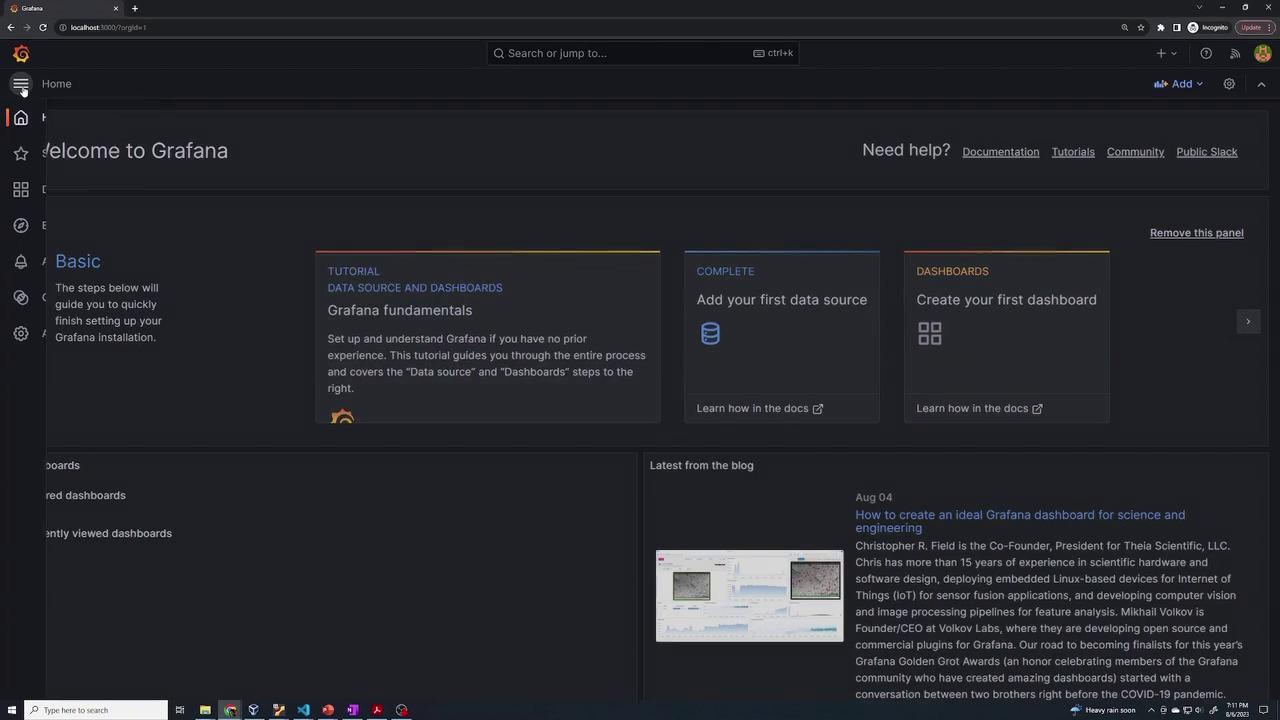
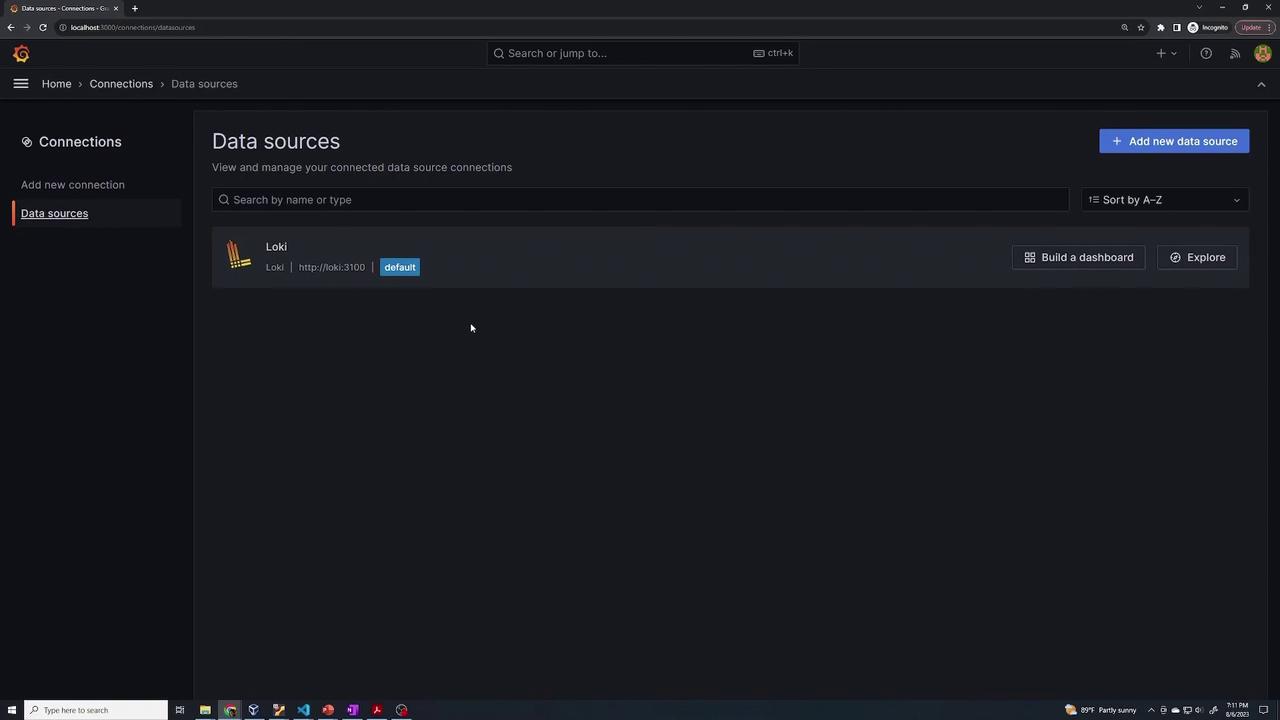
After successful login, the Grafana dashboard will appear. One of the key benefits of this deployment is that Grafana automatically configures Loki as a data source using the Helm chart settings. To confirm this:- Navigate to the “Data Sources” section within Grafana.
- Verify that Loki is listed and available for usage.