Learn to utilize the Pack CLI for building container images from source code while ensuring prerequisites are met.
In this guide, you’ll learn how to utilize the Pack CLI for building container images from your source code. Before proceeding, ensure that all prerequisites are met.
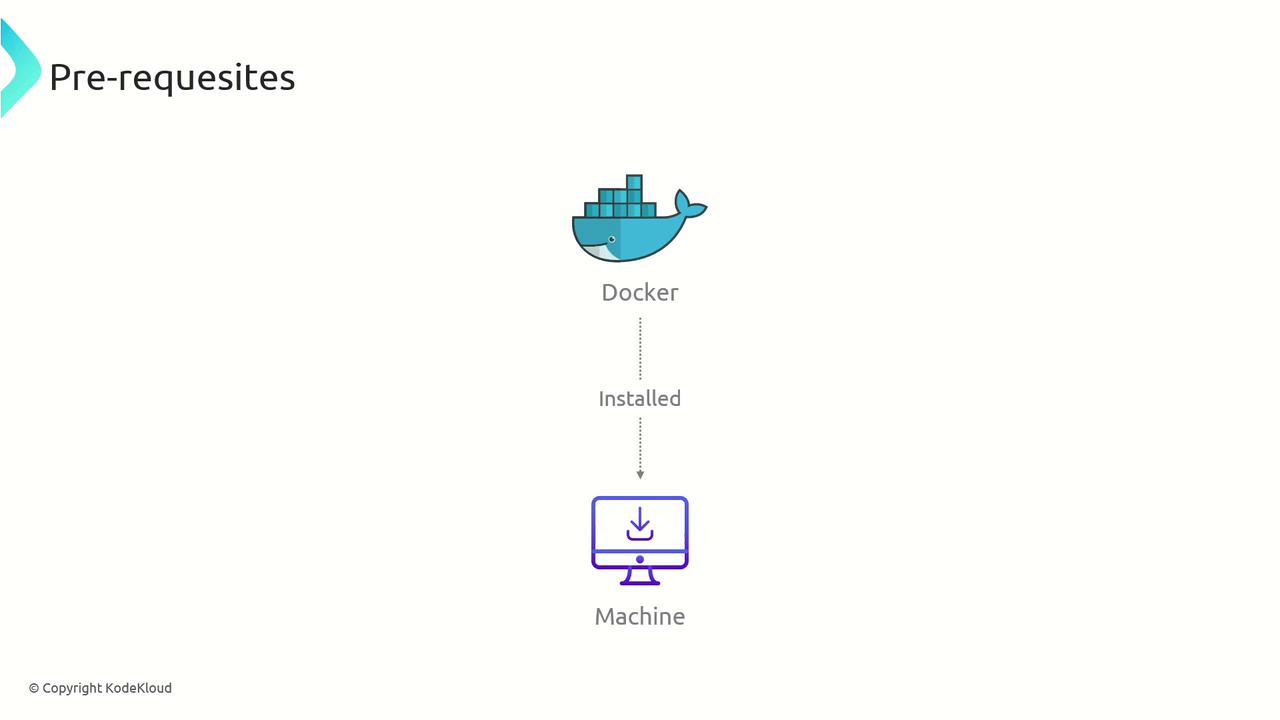
Docker must be installed on your machine, as Pack CLI relies on Docker to create and pull images.
The installation process for the Pack CLI varies by operating system and distribution. For Ubuntu users, follow these steps to add the repository, update your package list, and install the CLI:
One of the first commands to explore is pack builder suggest. This command lists recommended builders that you can use to create images from your source code. These builders have been rigorously tested and are widely used in the community. To see the suggested builders, execute:
Copy
Ask AI
pack builder suggest
The output may resemble the following:
Copy
Ask AI
Suggested builders: Google: gcr.io/buildpacks/builder:google-22 Ubuntu 22.04 base image with buildpacks for .NET, Dart, Go, Java, Node.js, PHP, Python, and Ruby Heroku: heroku/builder:24 Ubuntu 24.04 AMD64+ARM64 base image with buildpacks for .NET, Go, Java, Node.js, PHP, Python, Ruby & Scala. Paketo Buildpacks: paketo-buildpacks/builder-jammy-base Ubuntu 22.04 Jammy Jellyfish base image with buildpacks for Java, Go, .NET Core, Node.js, Python, Apache HTTPD, NGINX and Procfile Paketo Buildpacks: paketo-buildpacks/builder-jammy-buildpackless-static Static base image (Ubuntu Jammy Jellyfish build image, distroless-like run image) with no buildpacks included. To use, specify buildpacks at build time. Paketo Buildpacks: paketo-buildpacks/builder-jammy-full Ubuntu 22.04 Jammy Jellyfish full image with buildpacks for Apache HTTPD, Go, Java, Java Native Image, .NET, NGINX, Node.js, PHP, Procfile, Python, and Ruby Paketo Buildpacks: paketo-buildpacks/builder-jammy-tiny Tiny base image (Ubuntu Jammy Jellyfish build image, distroless-like run image) with buildpacks for Java, Java Native Image and GoTip: Learn more about a specific builder with: pack builder inspect <builder-image>
This list includes multiple builders such as the Google builder (gcr.io/buildpacks/builder:google-22), which is based on Ubuntu 22.04 and supports a wide range of languages, as well as several options from Heroku and Paketo Buildpacks. If you have not created your own builder, simply choose one of these recommended options.
Once you’ve selected a builder, you can build an image using the pack build command. Specify the image name and select a builder with the --builder flag. To publish the image directly to Docker Hub or another container registry, include the --publish flag. For example:
In this command, the image is named “my-image” and is built using the cnbs/sample-builder:jammy builder. You can modify the builder image and image name as needed.
After building your image, you can inspect it to obtain detailed information such as the base image, layers, run image, buildpacks used, and the processes configured for your application. Run the following command:
Copy
Ask AI
pack inspect my-image
A typical sample output might look like this:
Copy
Ask AI
Inspecting image: my-imageREMOTE:(not present)LOCAL:Stack: io.buildpacks.samples.stacks.jammyBase Image: Reference: 758d79de4a1c70f3e53634fb2f9af4a05af19e705d1cf6230b91706117939c0 Top Layer: sha256:115b6a185d688fbb39d771faa8aae0aa2eb1e3b0f5c3ea47e2dfc25a831764Run Images: cnbs/sample-base-run:jammyRebasable: trueBuildpacks: ID VERSION HOMEPAGE samples/java-maven 0.0.2 https://github.com/buildpacks/samples/tree/main/buildpacks/java-mavenProcesses: TYPE SHELL COMMAND ARGS WORK DIR web (default) java -jar target/sample-0.0.1-SNAPSHOT.jar /workspace
This detailed output provides valuable insights into your image, including stack information, layered components, and runtime configurations.By following these steps, you can efficiently install, configure, build, and inspect container images using the Pack CLI. For more detailed information on buildpacks, check out the official documentation.