The build image provides the environment where all your buildpacks operate. It includes all the tools and packages necessary during the build process. The following Dockerfile example uses Ubuntu Jammy as the base image, installs essential utilities (such as xz-utils, ca-certificates, jq, wget, and curl), and sets up the required user and group for Cloud Native Buildpacks (CNB).
Copy
Ask AI
# Define the base imageFROM ubuntu:jammy# Install packages available at build timeRUN apt-get update && \ apt-get install -y xz-utils ca-certificates jq wget curl && \ rm -rf /var/lib/apt/lists/*RUN curl -Lo yj https://github.com/sclevine/yj/releases/download/v5.1.0/yj-linux-amd64 && \ chmod +x yj && mv yj /usr/local/bin/# Set required CNB user informationARG cnb_uid=1000ARG cnb_gid=1000ENV CNB_USER_ID=${cnb_uid}ENV CNB_GROUP_ID=${cnb_gid}# Create user and groupRUN groupadd cnb --gid ${CNB_GROUP_ID} && \ useradd --uid ${CNB_USER_ID} --gid ${CNB_GROUP_ID} -m -s /bin/bash cnb# Use the specified user and groupUSER ${CNB_USER_ID}:${CNB_GROUP_ID}# Set metadata about the build image baseLABEL io.buildpacks.base.distro.name="ubuntu"LABEL io.buildpacks.base.distro.version="22.04"
Once you have saved this Dockerfile (commonly as build-base.Dockerfile), build the image using:
The runtime image is the foundation for your final application container and only includes packages necessary for running your application. The Dockerfile below illustrates how to build a minimalist runtime environment based on Ubuntu Jammy:
Copy
Ask AI
# Define the base imageFROM ubuntu:jammy# Install packages available at runtimeRUN apt-get update && \ apt-get install -y xz-utils ca-certificates && \ rm -rf /var/lib/apt/lists/*# Create user and group for runtimeARG cnb_uid=1000ARG cnb_gid=1000RUN groupadd cnb --gid ${cnb_gid} && \ useradd --uid ${cnb_uid} --gid ${cnb_gid} -m -s /bin/bash cnb# Use the specified user and groupUSER ${cnb_uid}:${cnb_gid}# Set metadata about the runtime image baseLABEL io.buildpacks.base.distro.name="ubuntu"LABEL io.buildpacks.base.distro.version="22.04"
To build this runtime image (commonly stored in a file named run-base.Dockerfile), use:
The next step is to define the buildpacks and their order in a configuration file named builder.toml. This file specifies the base images (build and run images) as well as an ordered list of buildpacks that the builder will use.Below is an example configuration:
Copy
Ask AI
# Buildpacks to include in the builder[[buildpacks]]uri = "docker://sanjeevkt720/my-js-buildpack"[[buildpacks]]uri = "docker://cnbs/sample-package:hello-universe"# Order used for detection[[order]] [[order.group]] id = "my-js-buildpack" [[order.group]] id = "samples/hello-universe"# Base images used to create the builder[build]image = "build-base:v1"[run][[run.images]]image = "run-base:v1"arch = "amd64"
Ensure that the IDs listed in the order section match those defined in each buildpack’s own buildpack.toml file. You can inspect a buildpack’s metadata with the command pack inspect-buildpack <buildpack-uri>.
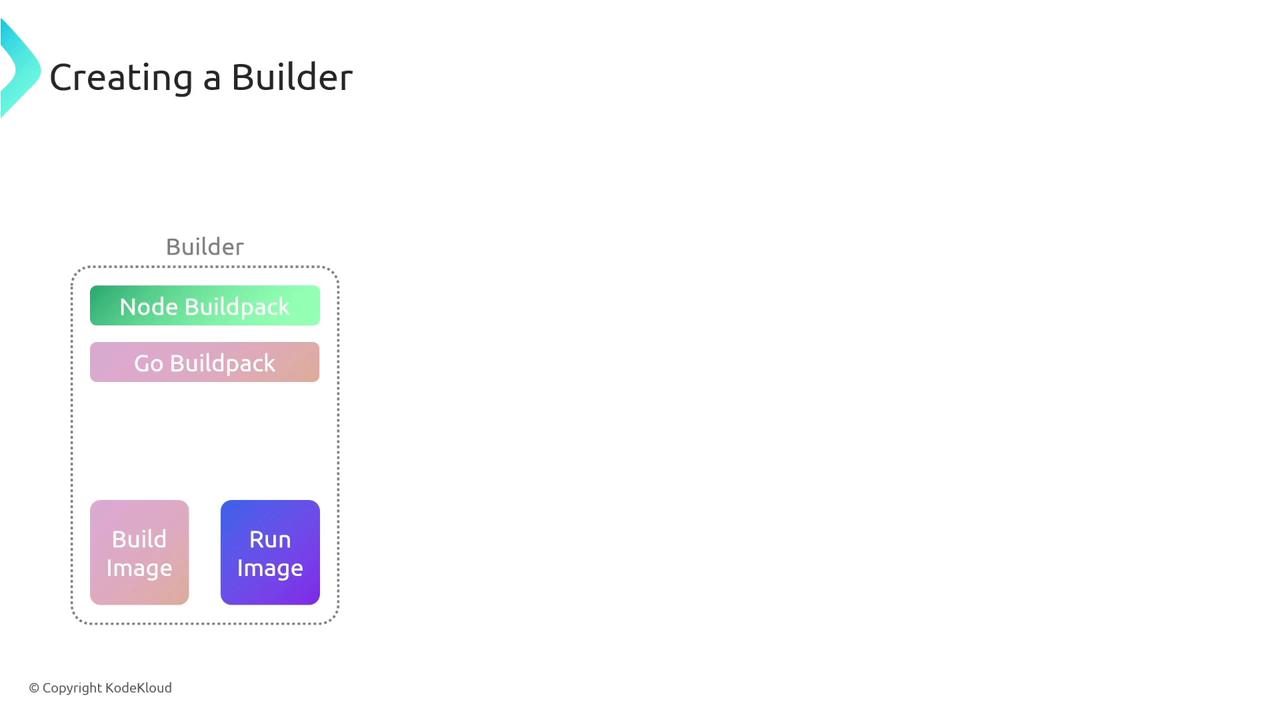
With both the build and runtime images, along with the configuration file in place, you can create your custom builder. Run the following command to create the builder using your configured settings:
Once the builder is successfully created, build your application image. For instance, if your application source is located in the nodejs-app/ directory, use:
This command directs the pack CLI to generate your final application image using the custom builder, which includes your build and runtime images as well as the designated buildpacks.By following these steps, you now have a complete setup for creating and using your own builder with Cloud Native Buildpacks, streamlining the process to build and run your cloud-native applications.