

- node01 — runs Grafana (already installed) and will host Loki in this tutorial.
- node02 — a separate Ubuntu node from which we will collect logs using an agent.
This lesson demonstrates a manual Loki installation using the binary download. You can also install Loki via your package manager (apt/dnf) or follow the installation options or run it in Kubernetes.
- SSH access to
node01andnode02. - Example: SSH from node01 to node02:
Downloading the Loki release (manual install)
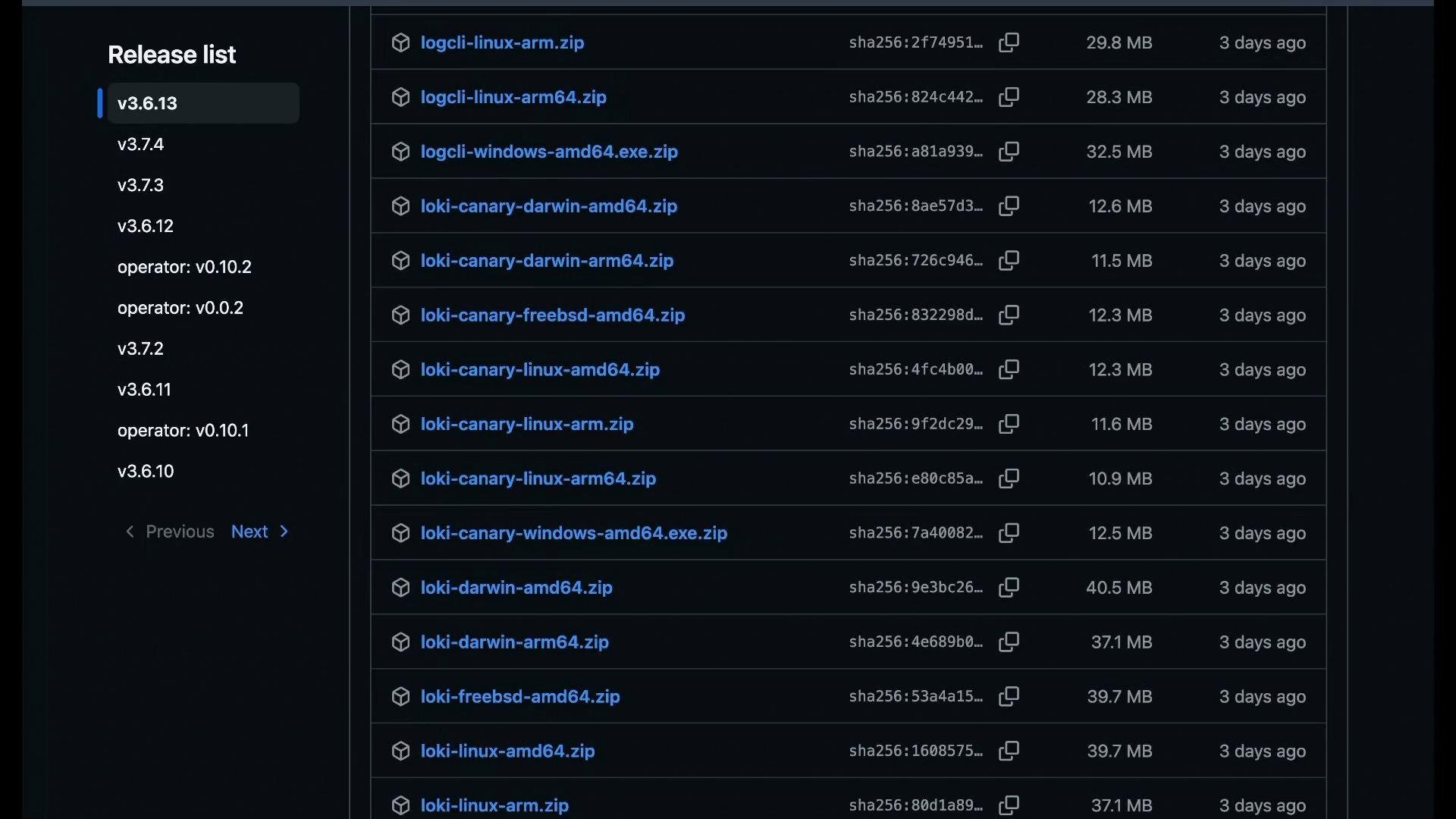
- Browse the Loki releases and pick the Linux AMD64 asset for your desired version. On the release page select the
loki-linux-amd64.zipfile and copy its download URL.
- On
node01, download the zip, unzip it, and make the binary executable:
/usr/local/bin, so you can run loki-linux-amd64 from any directory.
Download and review a sample configuration
Loki ships a sample local configuration you can use to get started:
3100 and gRPC on 9096, stores data under /tmp/loki, and uses the filesystem TSDB — appropriate only for demos and evaluation.
Start Loki with the config file
Run Loki and point it to the downloaded configuration file:
/metrics. From node01 check:
http://localhost:3100.
Connect Grafana to Loki
- In Grafana (running on
node01in this demo), add a new data source of type “Loki” — see the official docs: Grafana Loki datasource. - Set the URL to
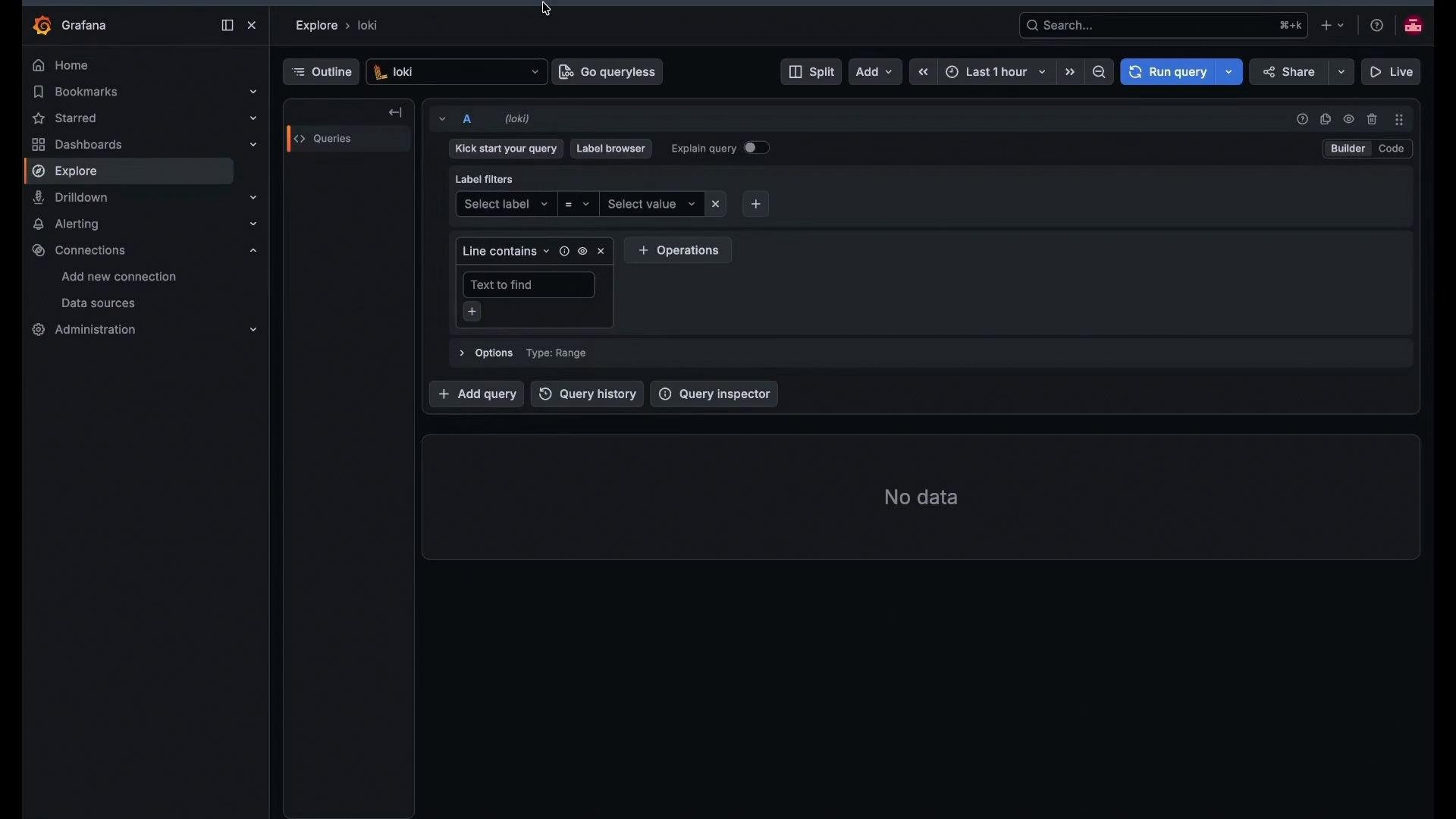
http://localhost:3100and click “Save & Test”. Grafana should report a successful connection. - Open Explore, select the Loki data source, and start running log queries.
node02 to node01, install a log shipper such as Promtail on node02.
A minimal promtail configuration that pushes logs to the Loki HTTP endpoint:
- Download the matching Promtail release (from the official releases), unzip, and make the binary executable.
- Save the YAML config above as
promtail-config.yamlonnode02. - Start promtail pointing to the config file, for example:
/var/log/*.log (or any paths you configure) and push log streams to http://node01:3100/loki/api/v1/push. Once promtail is running and sending logs, refresh Grafana Explore — log labels and messages should appear.
Closing notes and production considerations
- For production, use durable object stores such as S3 or GCS instead of the local filesystem and configure retention, replication, and authentication accordingly.
- To scale Loki and make it discoverable or load-balanced across instances, review Loki’s storage and ring configuration in the official docs.
- You can point Loki at multiple configuration files by passing a comma-separated list to
--config.file. Use--verify-configto validate configuration before starting.
This tutorial uses local filesystem storage and runs components on the same host for simplicity. Do not use this setup for production workloads — configure durable object storage, secure networking, and proper service management.
- Grafana Loki documentation — https://grafana.com/docs/loki/latest/
- Promtail (Loki client) docs — https://grafana.com/docs/loki/latest/clients/promtail/
- Loki releases — https://github.com/grafana/loki/releases