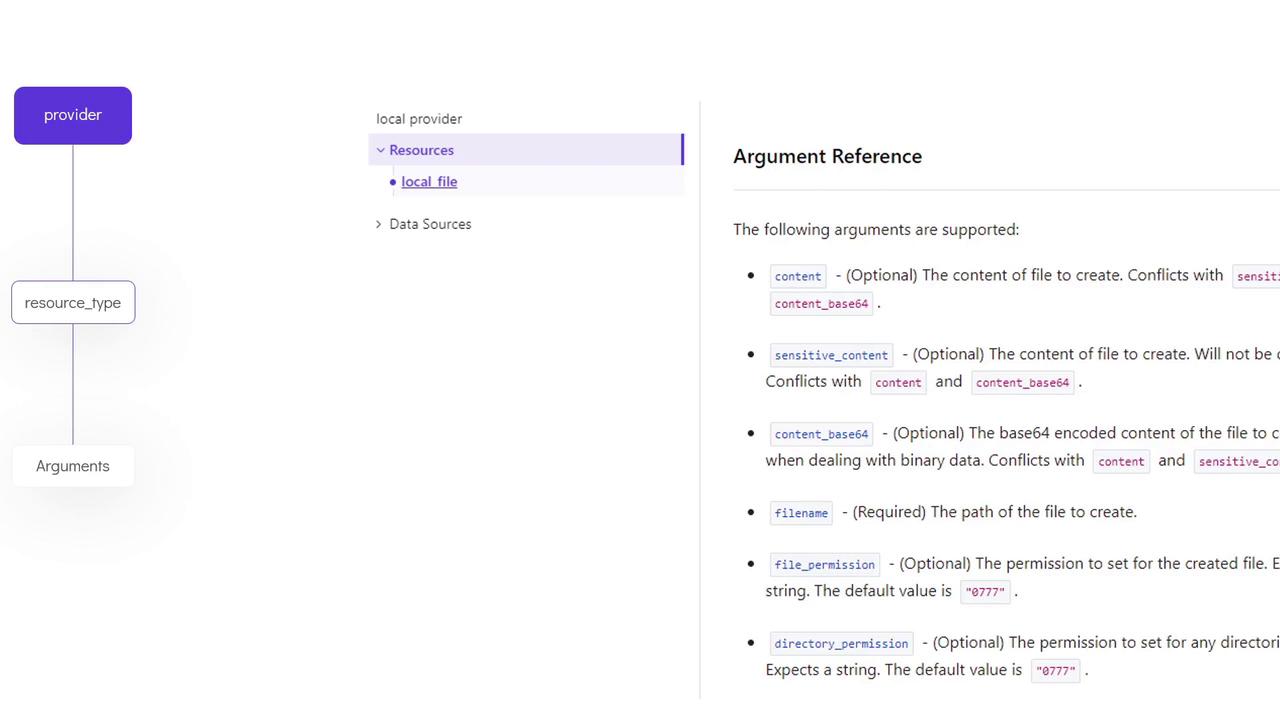
Understanding HCL Syntax
HCL files consist of blocks and arguments. Blocks are defined using curly braces and contain key-value pair arguments that represent configuration data. In Terraform, each block describes a specific aspect of your infrastructure and lists the resources you wish to create. For instance, you might want to create a file on the local system where Terraform is installed. First, create a directory for your configuration file in the/root directory:
local.tf) and define a generic block structure:
Creating a Local File Resource
Next, define a resource block inlocal.tf to create a local file. Inside the block, specify the file name and content using block arguments:
Breaking Down the Configuration
-
Block Identification
The block starts with theresourcekeyword and is identified by curly braces. It consists of three parts:-
Resource Type:
local_fileindicates that the local provider is used. -
Resource Name:
The logical namepetuniquely identifies this resource. -
Block Arguments:
These key-value pairs specify resource parameters. For example:filenamesets the absolute path/root/pets.txtwhere the file is created.contentprovides the text content for the file.
-
Resource Type:
-
Resource Type Requirements
Thelocal_fileresource requires the argumentsfilenameandcontent. When working with other providers such as AWS, Azure, or GCP, different resource types may require a different set of arguments. Consult Terraform’s documentation for details on the necessary arguments for each resource type.
AWS EC2 Instance Example
AWS S3 Bucket Example
Terraform Workflow
A typical Terraform workflow involves the following steps:-
Write the Configuration File:
Create and edit your Terraform configuration file (e.g.,local.tf). -
Initialize the Working Directory:
This step checks your configuration file and downloads the necessary provider plugins.
When running
terraform init, Terraform identifies the use of the local provider based on your resource configuration.-
Review the Execution Plan:
Use theterraform plancommand to see the proposed actions before applying changes.The output provides a diff-like summary showing what will be created, modified, or destroyed. For example, a plus symbol (+) next to thelocal_file.petresource indicates that it will be created. Example excerpt: -
Apply the Configuration:
Execute the following command to apply the configuration and create the resource:Confirm the execution by typingyeswhen prompted. Example output:
cat command or inspect the resource details with:
terraform show output:
Reviewing the Configuration
Let’s recap the key components of thelocal.tf file:
- Resource Block: Uses the
local_fileresource type (local provider) to create a file. - Required Arguments: The
filenameandcontentarguments are mandatory. - Optional Arguments: Directory and file permissions can also be specified and are evident during the plan stage.