

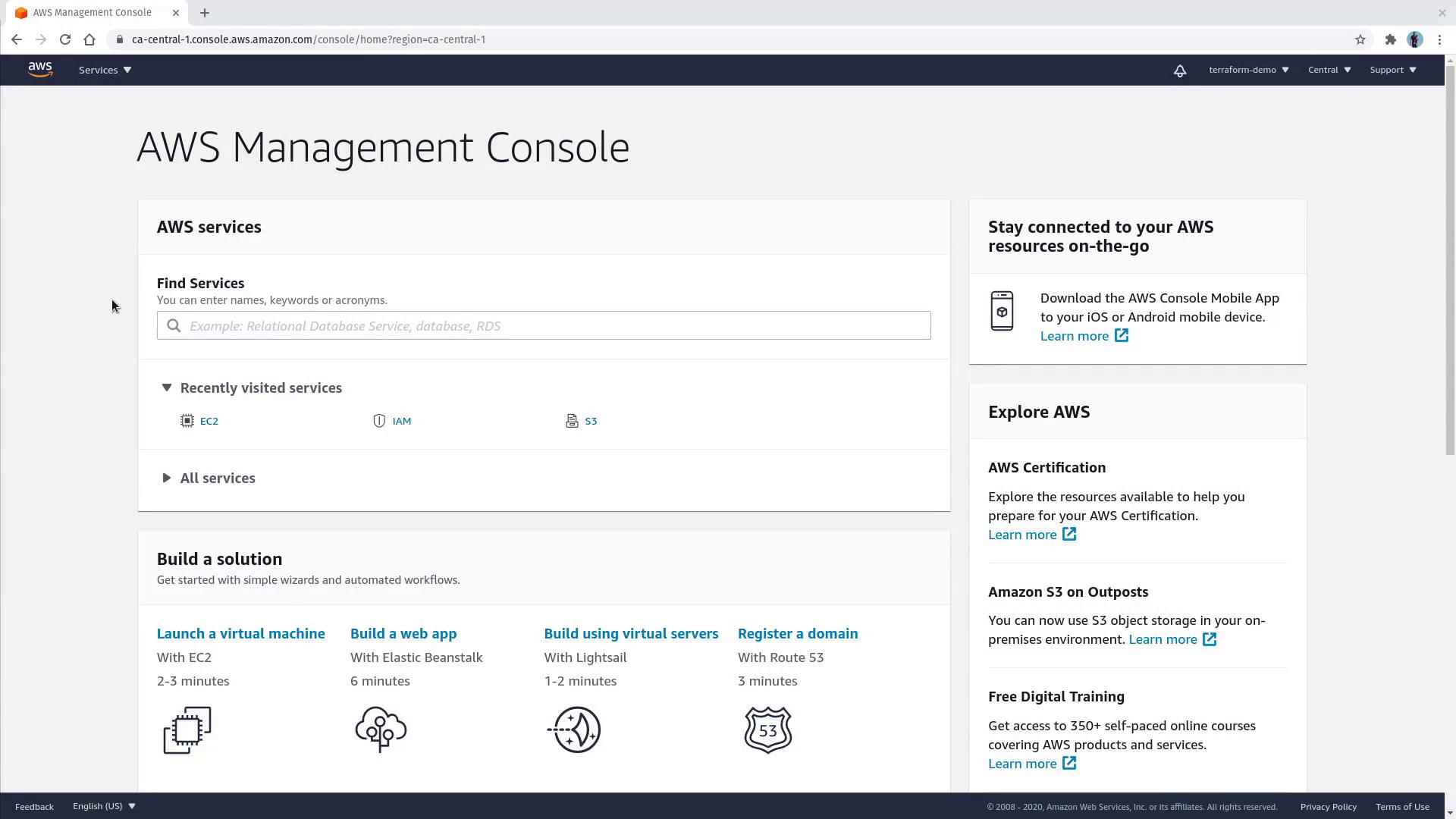
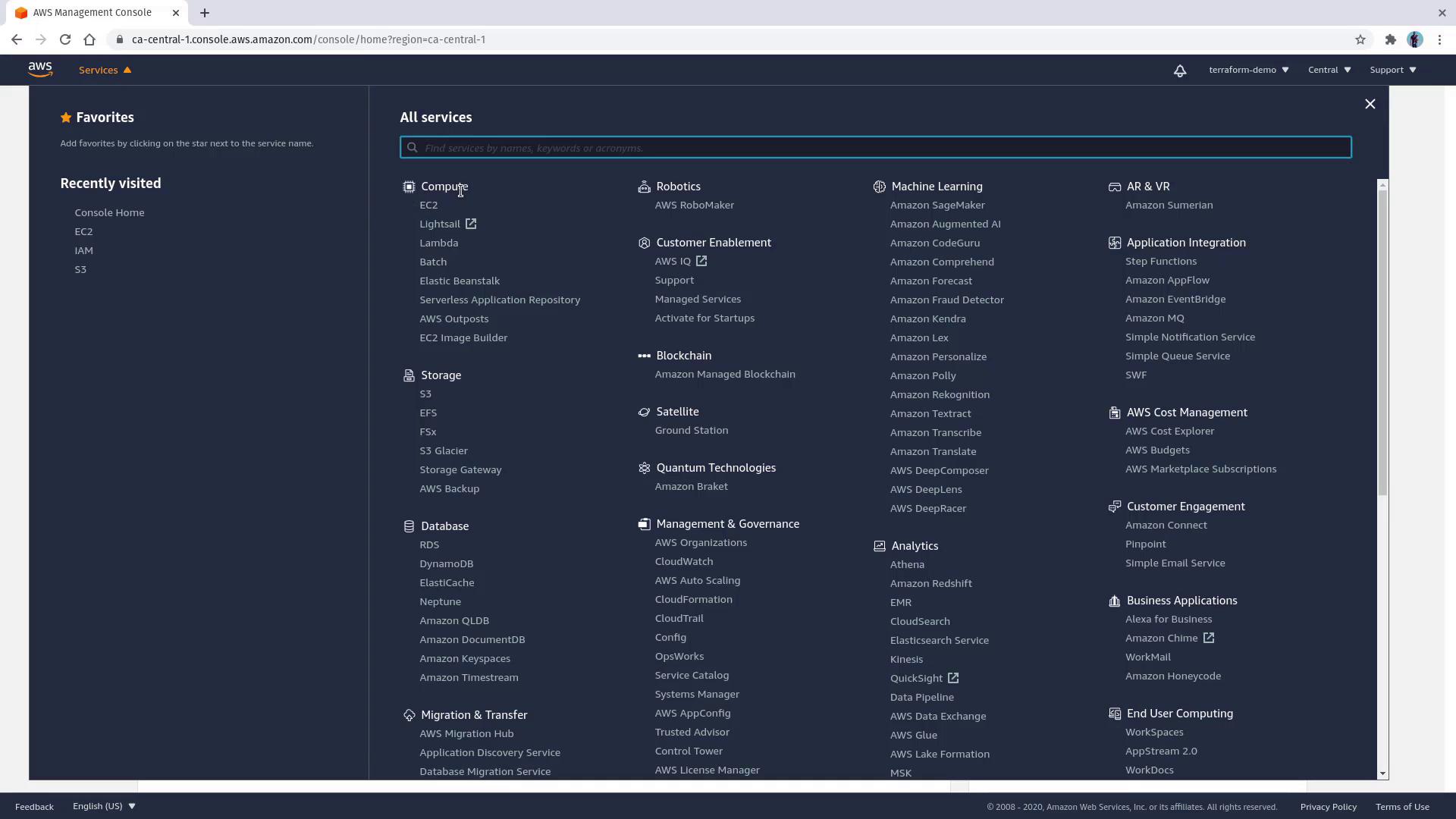
Launching an Instance
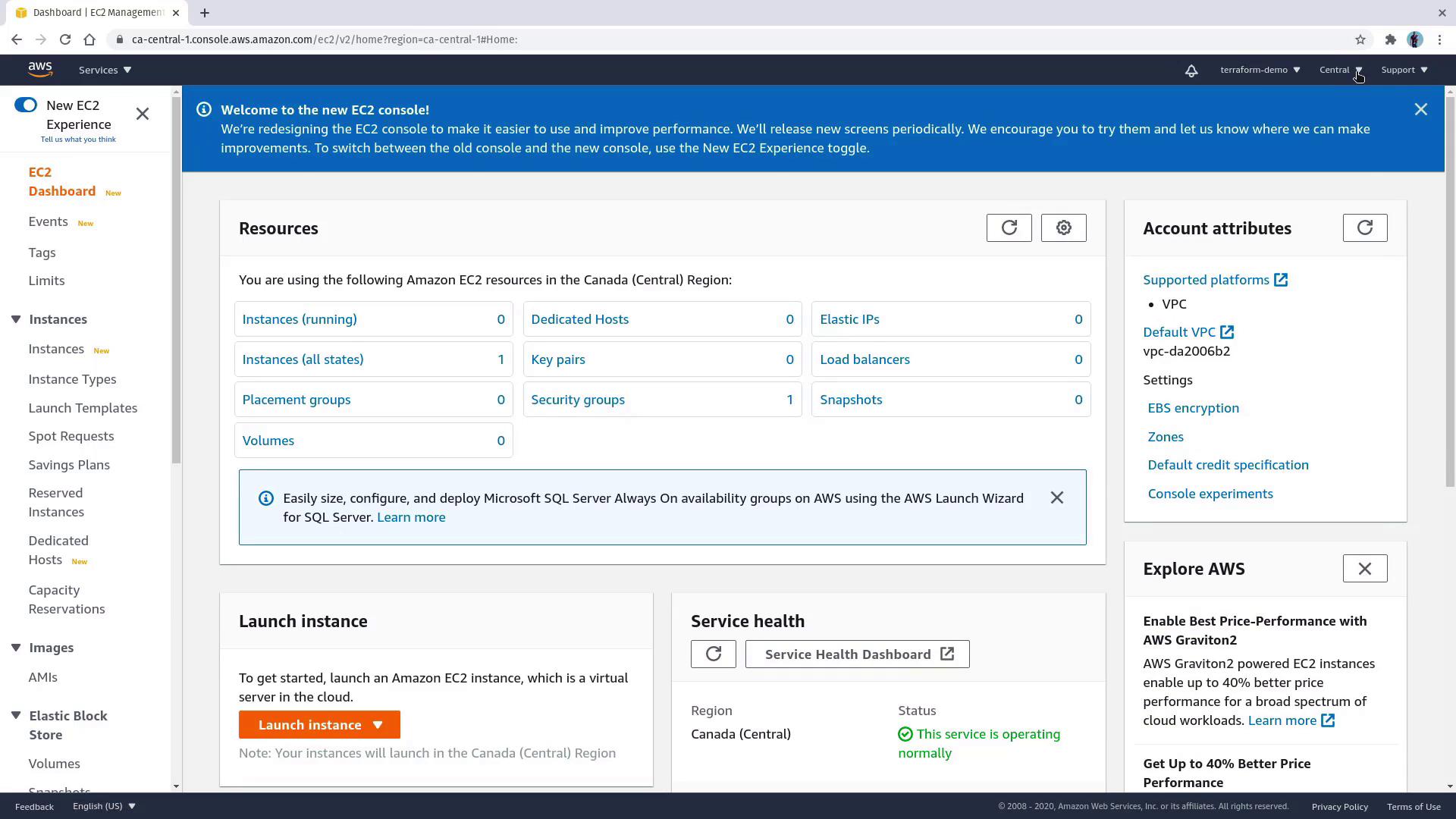
To create your EC2 instance, click the Launch Instance button to open the launch wizard.Step 1: Choose an AMI
Select an Amazon Machine Image (AMI). For this demonstration, we will deploy a web server on Ubuntu. Choose the Ubuntu 20.04 AMI, which is free tier eligible.Step 2: Choose an Instance Type
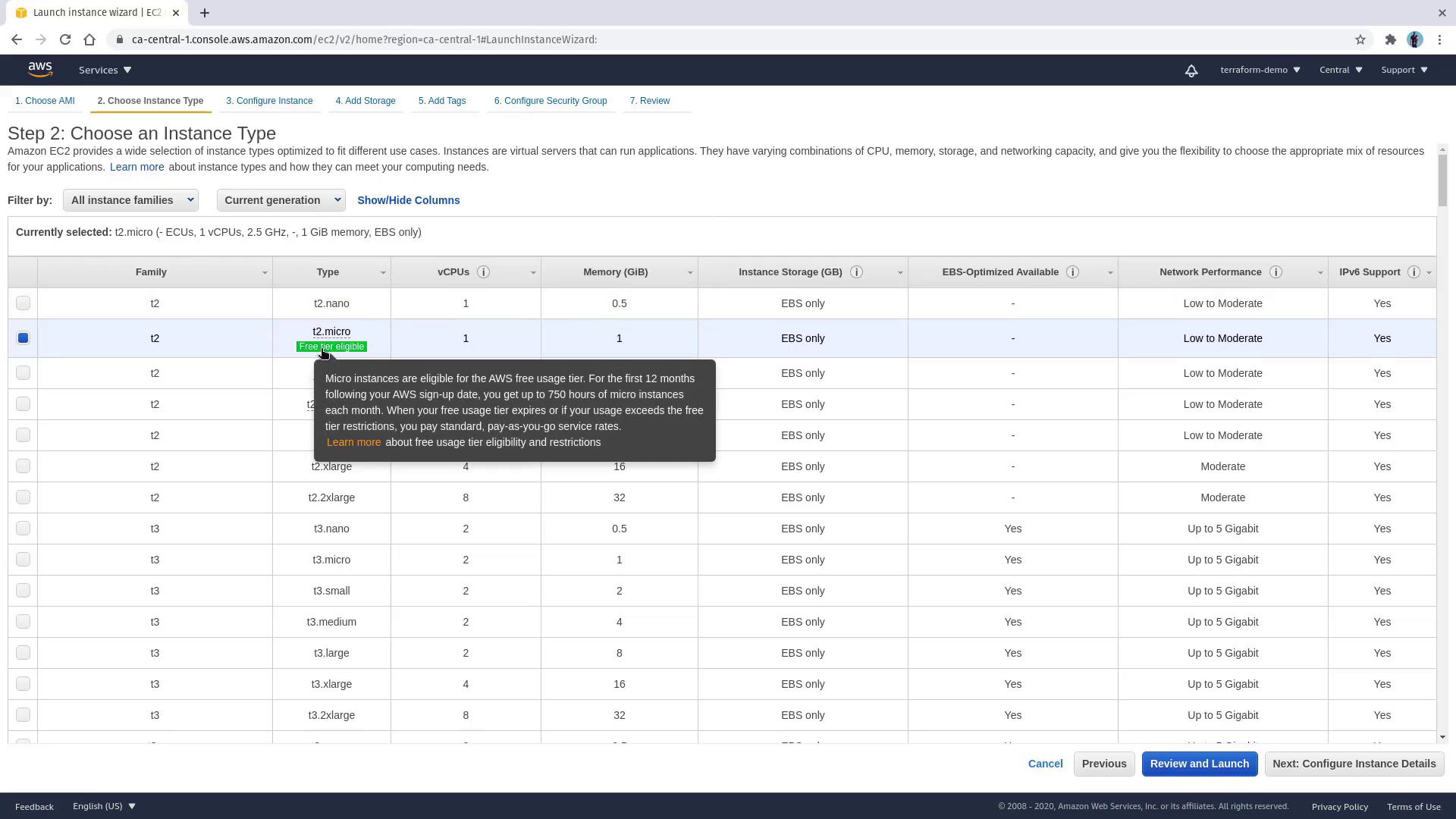
Choose an instance type; for example, select t2.micro to remain within the free tier.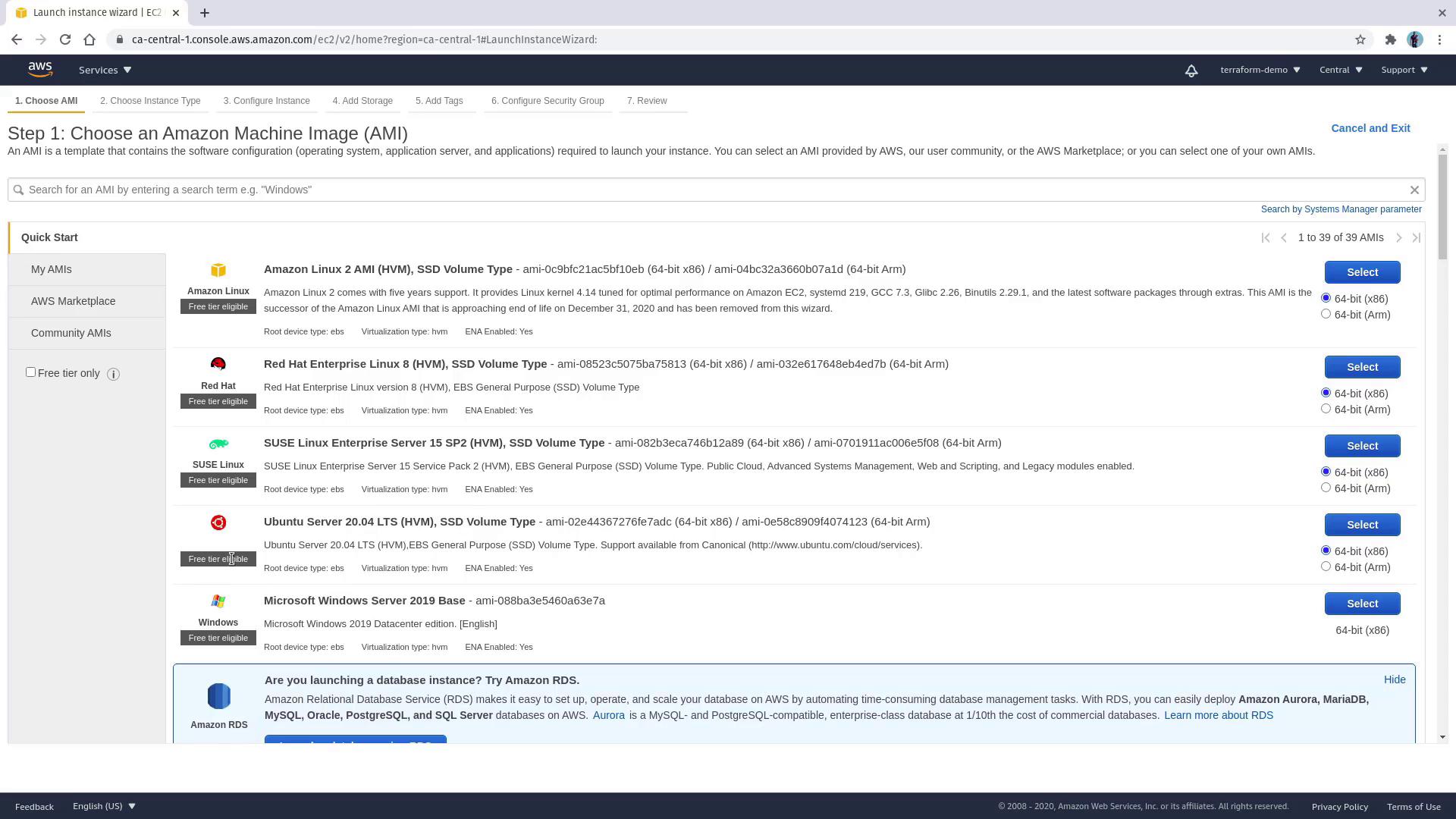
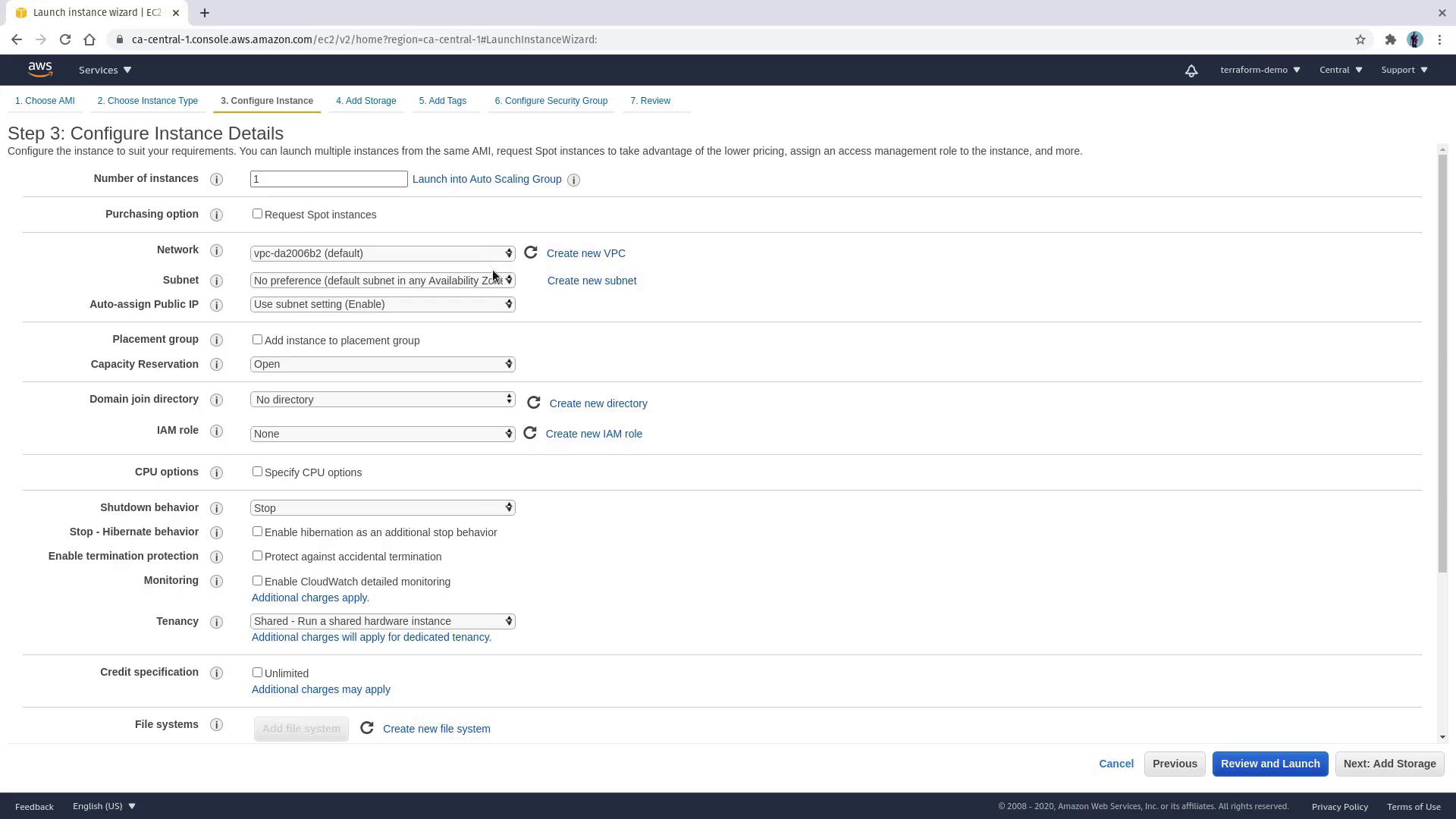
To serve web content, leverage the EC2 user data feature by pasting the following shell script in the “Advanced Details” section. This script installs and configures Nginx automatically.
Step 3: Configure Storage
Click Next to proceed to the storage configuration stage. By default, an 8 GB gp2 SSD volume is provisioned as the root partition.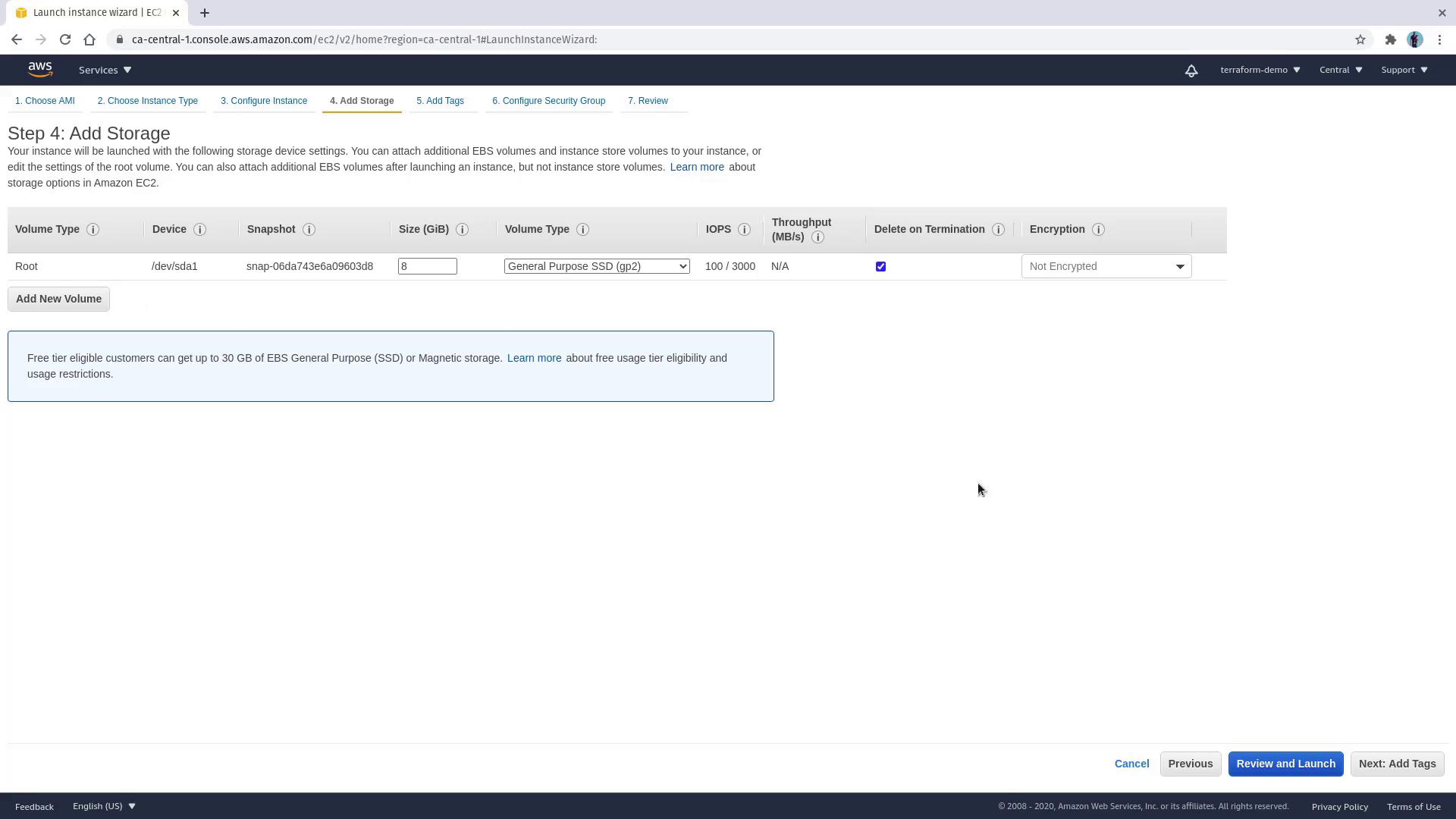
Step 4: Add Tags
For easy identification, add a tag with the keyName and the value web server.
Step 5: Configure Security Group
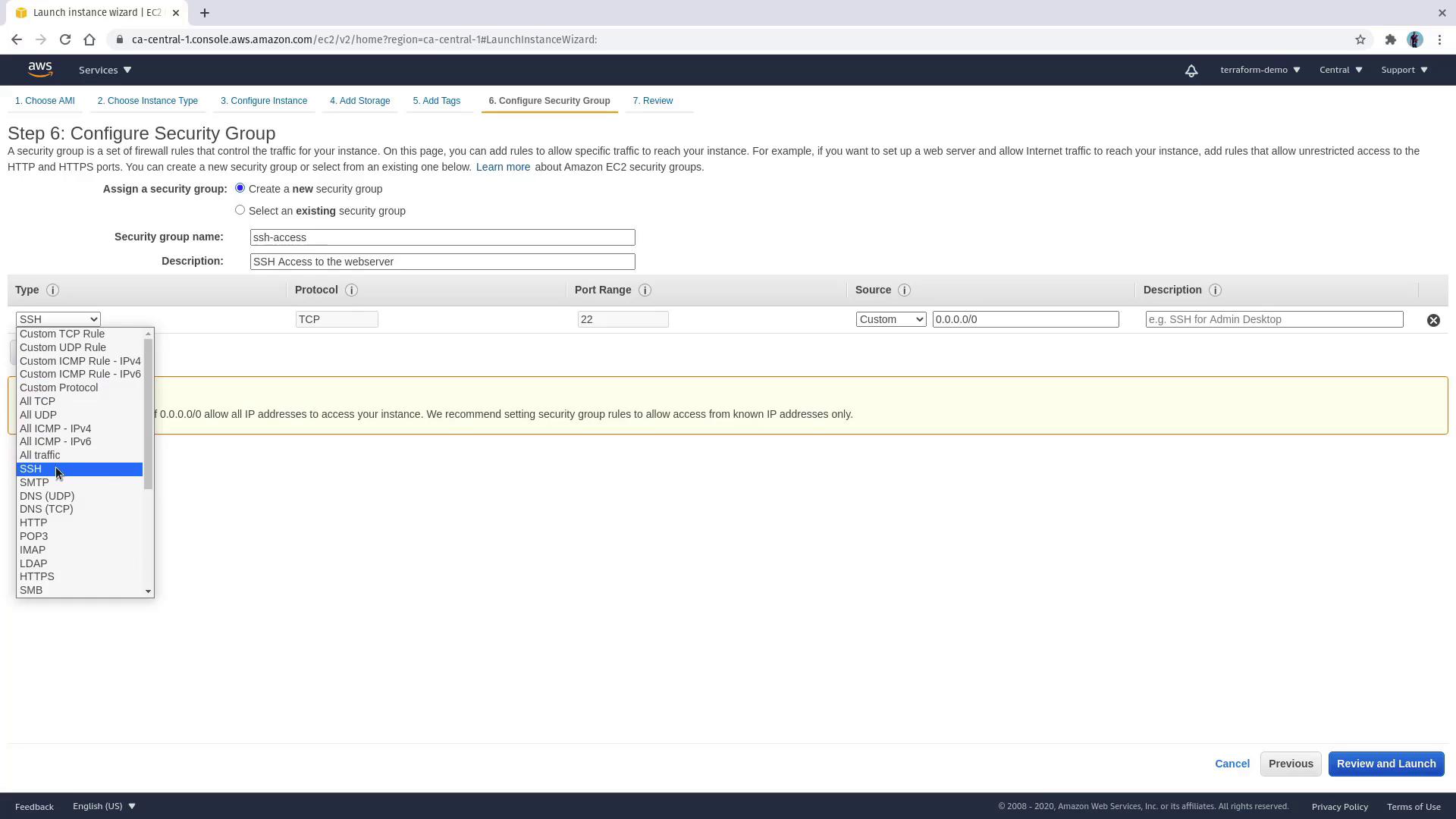
Set up the security group to allow SSH access. Create a new security group (e.g., “SSH access”) and supply a suitable description. Under rule type, select SSH with the default source set to0.0.0.0/0. Note that while this configuration is convenient for testing, it is not recommended for production environments.
Step 6: Review and Launch
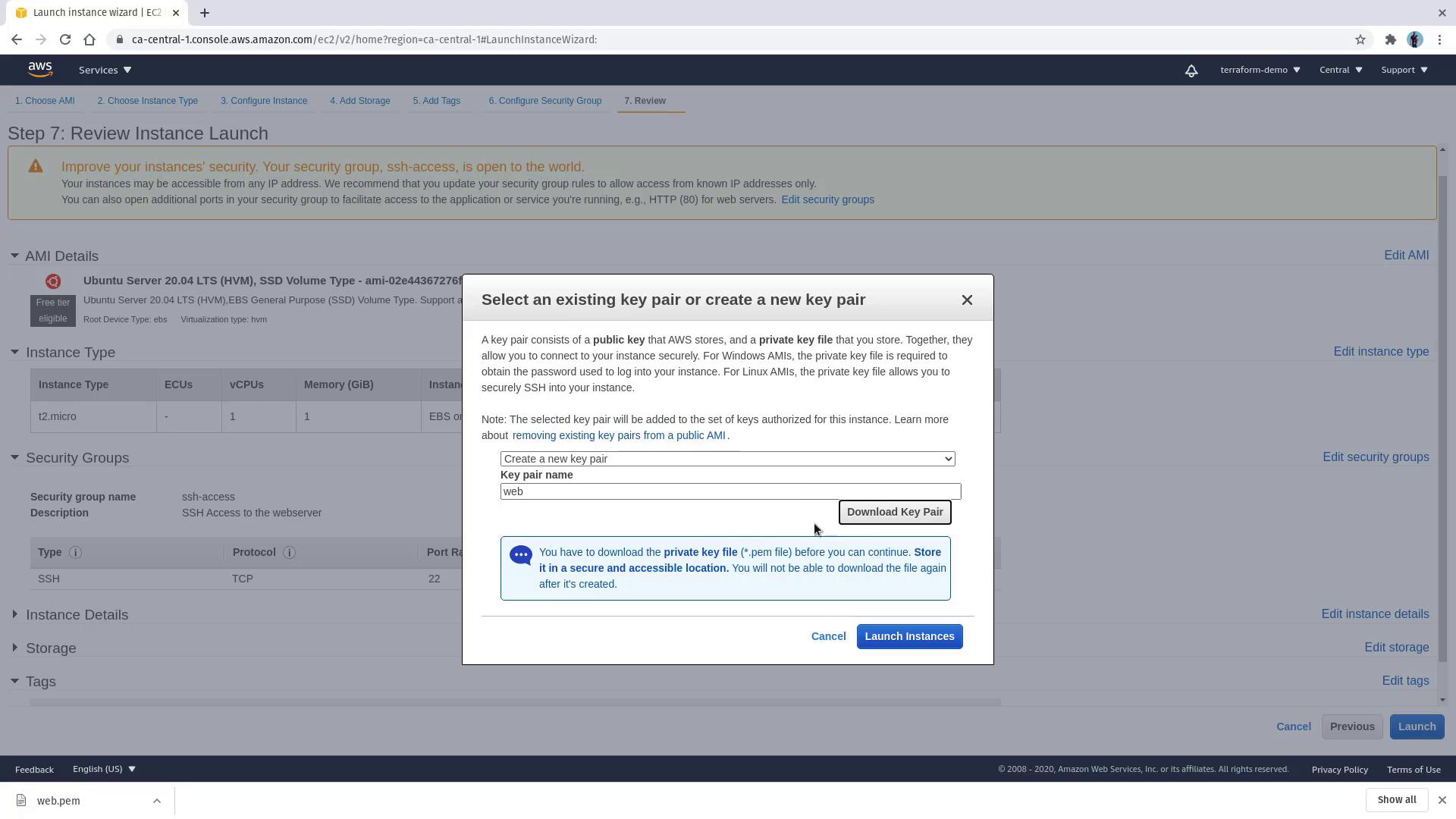
Review your instance configuration and click Launch. You will then be prompted to choose an existing key pair or create a new one. Since no key pair exists in this region, opt to create a new key pair namedweb and download it. This key pair is essential for SSH authentication.
web server in the running state. Clicking on the instance will display essential details such as the public IP address, VPC, subnet, instance type, AMI ID, security group, and attached EBS volumes.
Connecting via SSH
Open your local terminal to SSH into the instance using the downloaded key pair. Replace<PUBLIC_IP_ADDRESS> with the actual public IP copied from the console.
If you receive this error about private key file permissions, ensure the key file is restricted so that only the owner can read it. Execute the following command:
Verifying Nginx Installation
After successfully connecting via SSH, verify that Nginx is running by checking its status:This concludes the lesson on deploying an EC2 instance using the AWS Management Console and setting up Nginx with EC2’s user data feature. For further details on AWS deployments, check out AWS EC2 Documentation. Happy deploying!